
How to Import Protocol Steps for Faster Trial Setup in INVISION
INVISION allows teams to reuse existing protocol steps when setting up new or recurring trials. Importing protocol steps helps reduce repetitive configuration work, maintain consistency year over year, and speed up trial setup.
This guide explains when to use protocol step imports and how the process works.
What Is a Protocol Step Import?
A Protocol Step Import allows you to copy an existing protocol step within the same client and reuse it in another protocol.
When a step is imported, INVISION brings forward:
-
The protocol step itself
-
All associated sections
-
All configured characteristics
-
Default settings and structure
This makes it easy to start from a proven setup instead of rebuilding field data forms from scratch.
When to Use Protocol Step Import
Protocol step imports are especially useful when:
-
Running similar trials year over year
-
Repeating standard data collection steps (e.g., planting, harvest, stewardship calls)
-
Maintaining consistency across multiple trials or programs
-
Reducing setup time at the start of a new trial season
Rather than recreating steps manually, teams can focus on updating only what has changed.
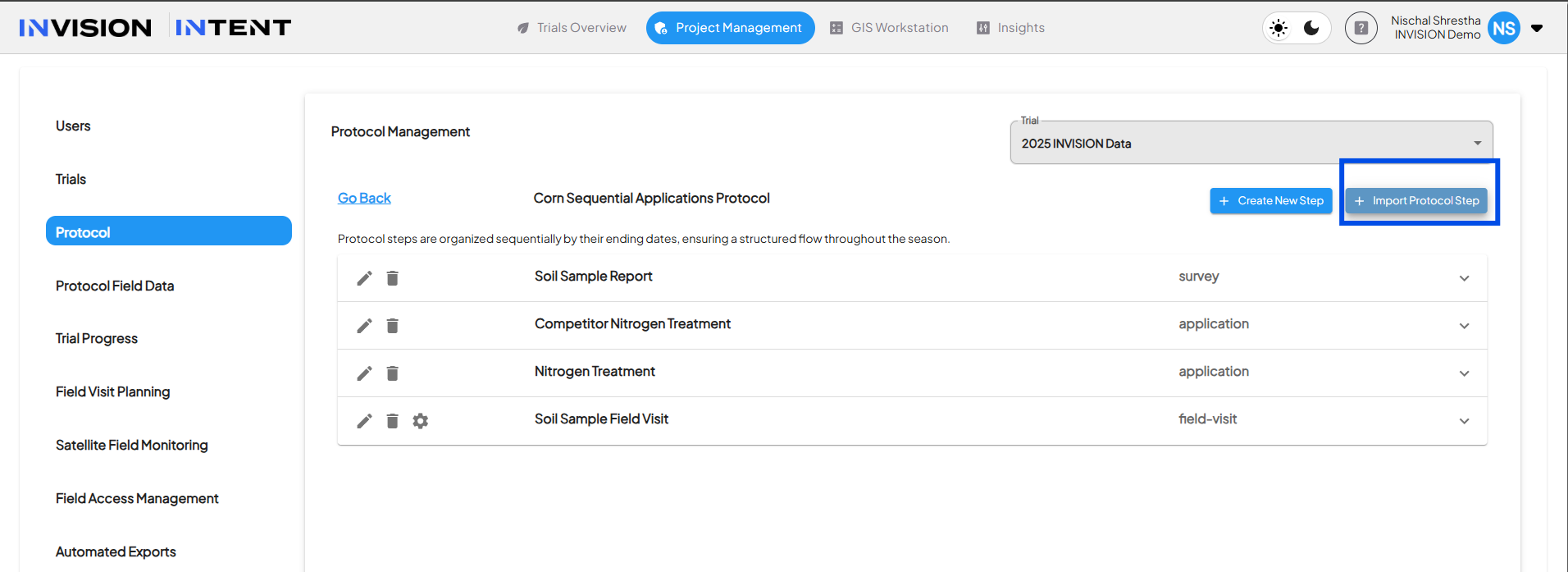
Step 1: Navigate to Protocol Management
-
Open the Trial you are setting up.
-
Navigate to Project Management.
-
Open the Protocol you want to edit.
-
Locate the Steps section within the protocol.
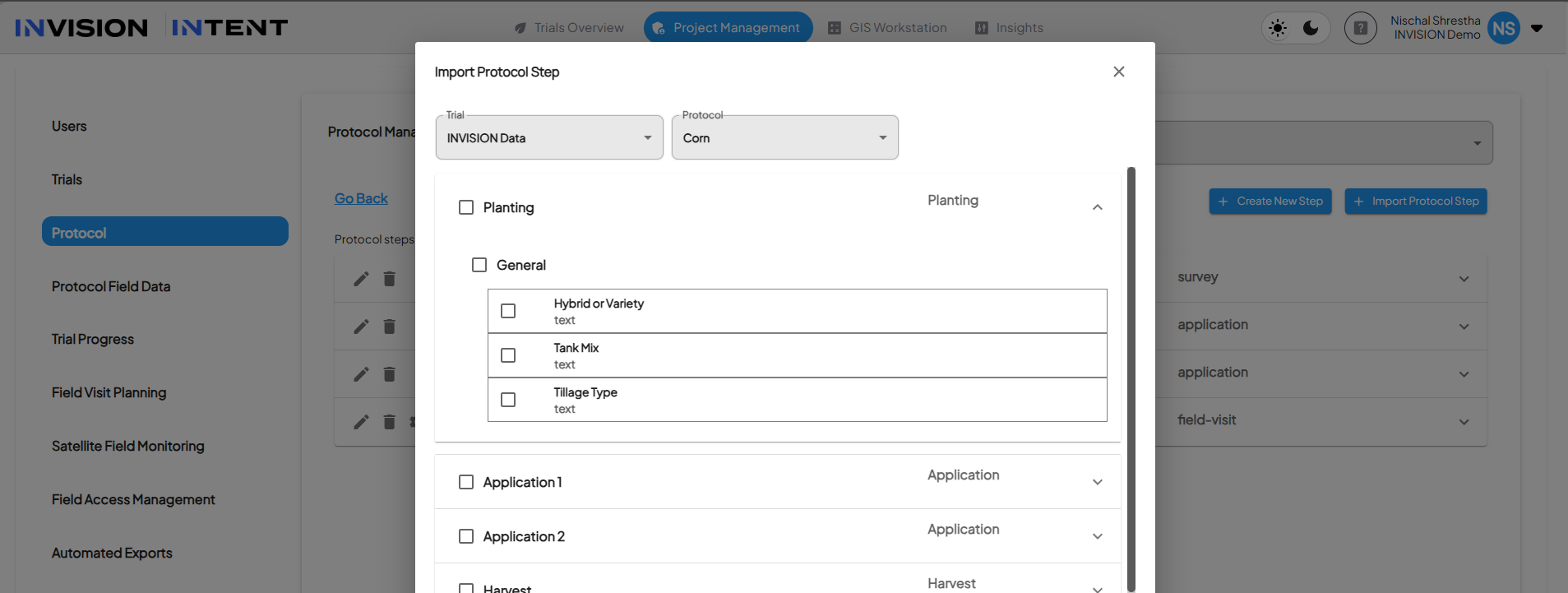
Step 2: Import an Existing Protocol Step
-
In the protocol’s Steps list, select Import Protocol Step.
-
Choose a source protocol from the same client.
-
Select the protocol step you want to import.
-
Confirm the import.
The selected step will be added to your protocol with its sections and characteristics intact.
Step 3: Review and Update Step Dates
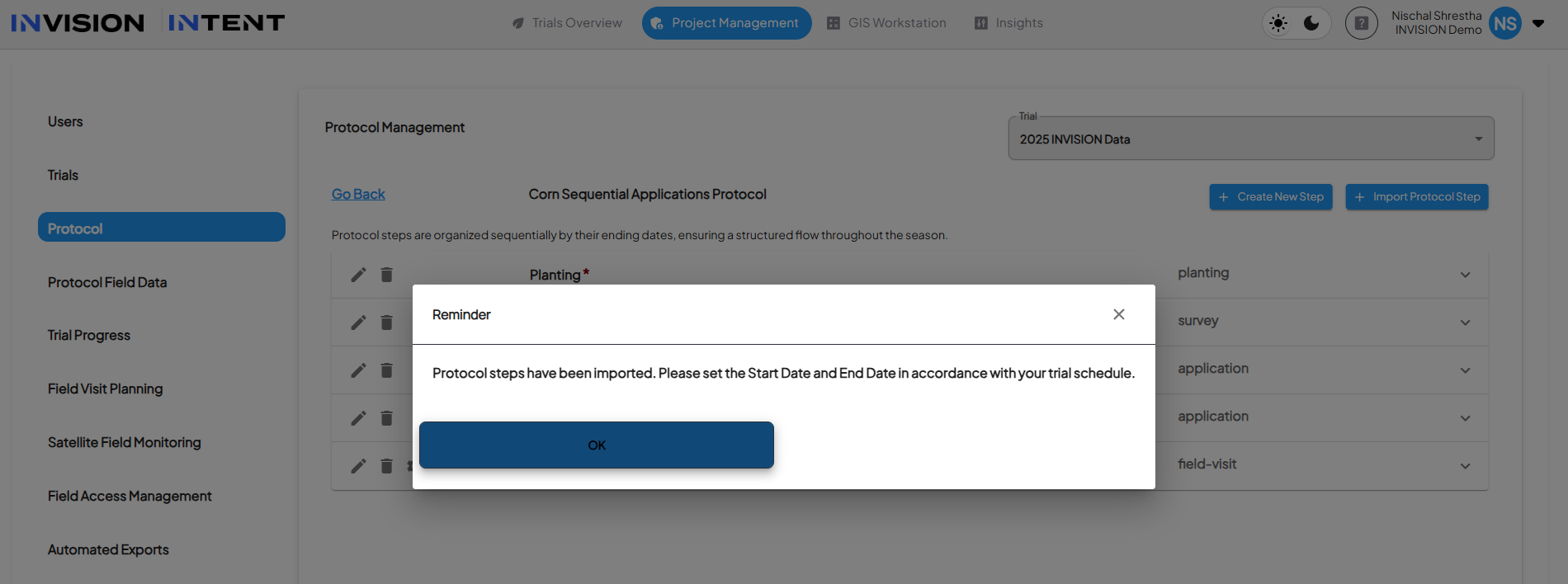
After importing a step:
-
INVISION prompts you to review the start and end dates.
-
Imported dates reflect the source protocol and must be updated to match the current trial year.
This ensures timelines remain accurate and prevents accidental reuse of outdated dates.
What Happens After Import
Once imported and updated:
-
The step behaves like any other protocol step.
-
Characteristics can be edited, added, or removed as needed.
-
The imported structure does not modify the original source protocol.
Each trial remains independent, preserving historical accuracy.
Best Practices
-
Use imports to establish a baseline, then adjust as needed for the current year.
-
Review imported characteristics to ensure they still apply to the trial objectives.
-
Always update dates immediately after import.
-
Use consistent naming for steps to improve clarity across trials.