
Exporting Raw Master Files from Case IH FieldOps
This guide explains how to download the original Case IH machine data required for processing harvest data in INVISION.
Export Steps
-
Sign in to Case IH FieldOps.
-
Select the correct company or grower.
-
Open Setup from the left navigation.
-
Select Files.
-
Open Master Files.
-
Locate the CN1 Data File associated with the combine.
-
Use the Actions menu to download the file.
-
Keep the downloaded ZIP unchanged.
-
Upload the ZIP directly to INVISION.
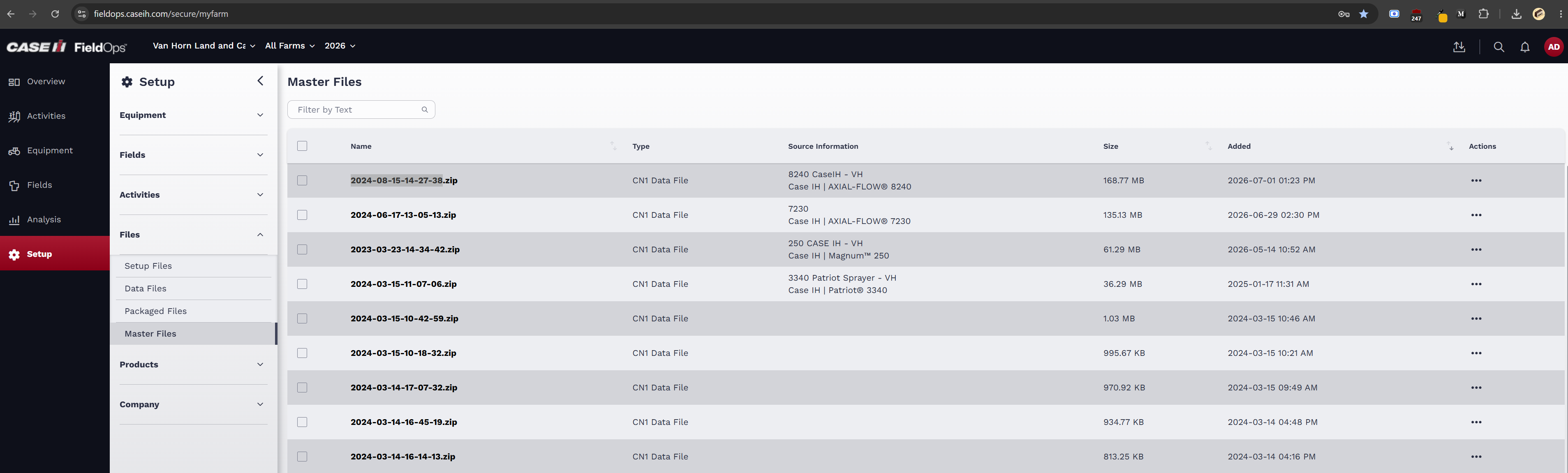
Navigation path: Setup → Files → Master Files
Identifying Harvest Files
Look for files associated with combine equipment, such as:
-
Case IH AXIAL-FLOW 8240
-
Case IH AXIAL-FLOW 7230
-
Other Case IH combine models
Harvest master files are typically larger CN1 ZIP files. Do not select files associated with tractors, planters, or sprayers when looking for harvest data.
If multiple combines were used, download each applicable master file and upload the ZIPs to INVISION separately.
Important
Do not extract, rename, reorganize, or repackage the downloaded ZIP. INVISION needs the original CN1 folder structure and supporting files.
The date in the filename or the Added date may not match the field activity date. Use the equipment type and available activity information to identify the correct files.
Master File vs. Map Export
| Master File | Processed Map Export |
|---|---|
| Original machine data | Generated visualization |
| Downloaded from Setup → Files → Master Files | Exported from the field map |
| Contains detailed harvest records | Contains summarized map layers |
| Includes yield, moisture, coordinates, timestamps, and equipment information | May contain only colored ranges and large polygons |
| Required for INVISION processing | Usually insufficient for harvest processing |
What Not to Export
Do not export data from the three-dot menu beside layers such as:
-
Yield Dry
-
Moisture
-
Speed
-
Fuel
-
Elevation
Those options export processed shapefile map layers, not the original combine data.
Before Uploading to INVISION
Confirm that:
-
The file type is CN1 Data File.
-
The source equipment is a combine.
-
The file remains in its original ZIP format.
-
Multiple combine files are uploaded separately.
-
The file was downloaded from Master Files, not from the field map.
Troubleshooting
The harvest date is not shown in the filename
Do not rely only on the filename. Check the equipment and download the applicable combine master files.
There are multiple combine files
Download all files that may contain the harvest activity. Different combines may contain separate portions of the field.
Only shapefiles are available
The data was likely exported from the processed map. Return to Setup → Files → Master Files and download the original CN1 ZIP.
The Master Files page is unavailable
The user may not have the required permissions. Contact the Case IH FieldOps account administrator or Case IH support.