
IN PROGRESS - Document Signing
Guide For Users: Document Signing
In this section, we will be showing users how to send and sign documents.
Note: Before a document can be signed, a Grower and Field must be enrolled into a protocol. If you have not yet enrolled a Grower and Field, please follow the links below:
How to Enroll a Grower - For Admins
[Placeholder for link to How to Enroll a Field - For Admins]
Navigating to Document Signing
- Login to INVISION
- Head over to the INVISION website and login.
- Navigate to your Grower's Field
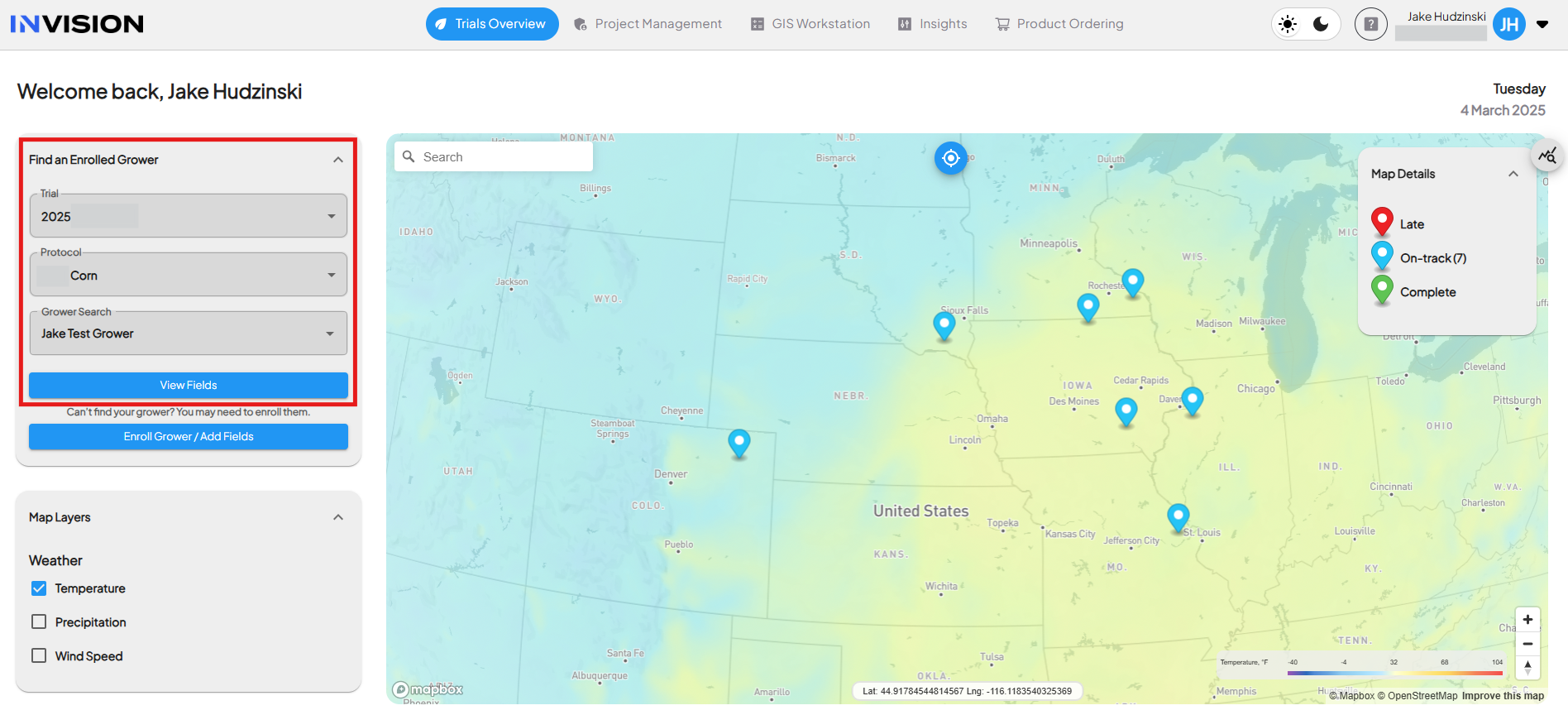
- Select the Trial, Protocol, and Grower from the Find an Enrolled Grower dropdowns. Click the View Fields button.
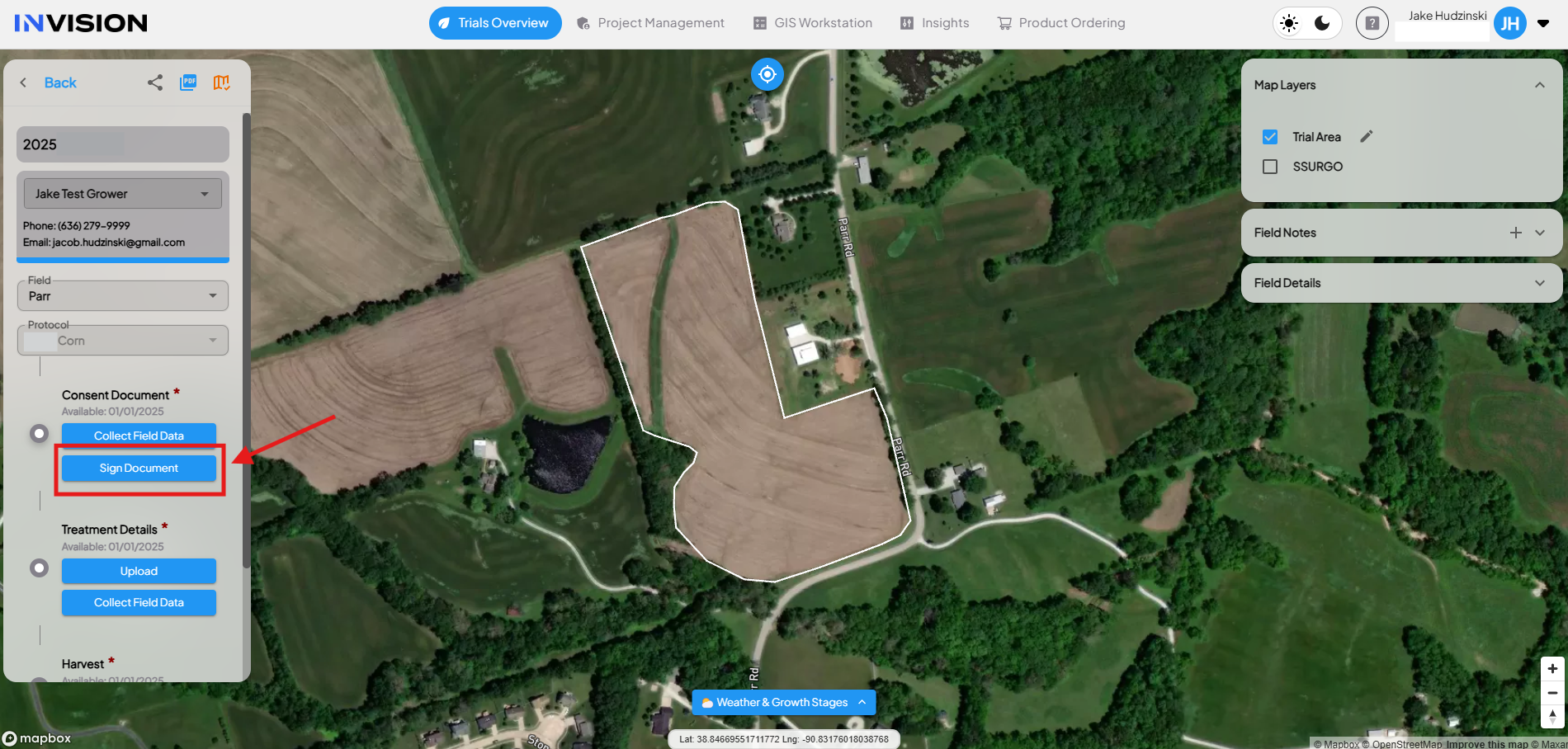
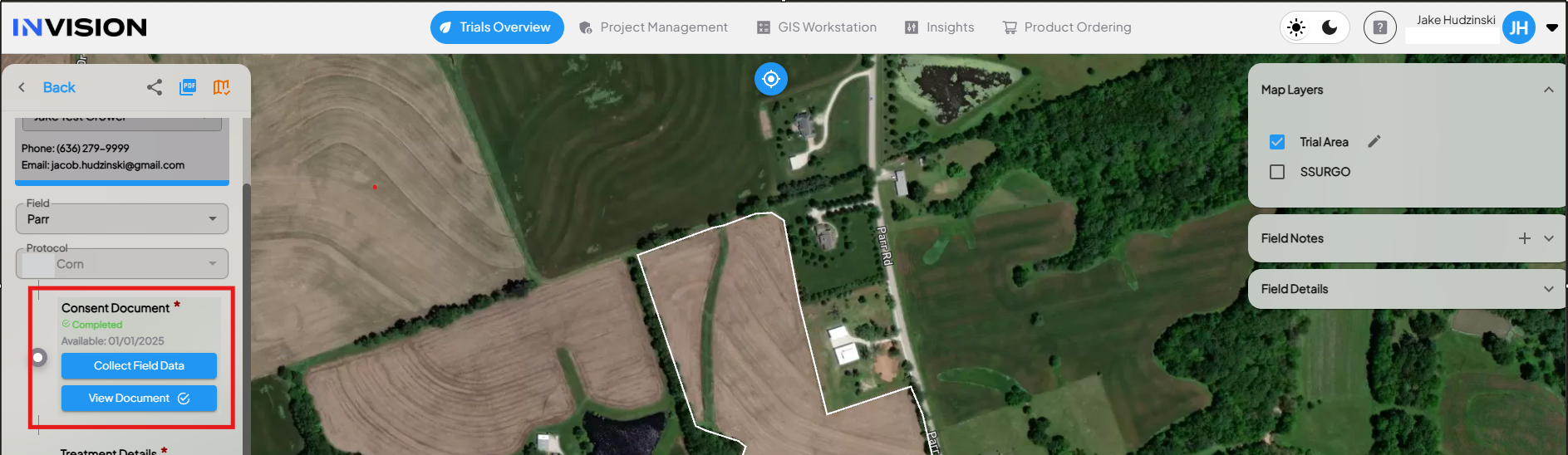
- Select "Sign Document"
- On the lefthand side, find the Protocol step with the document name, and select Sign Document.
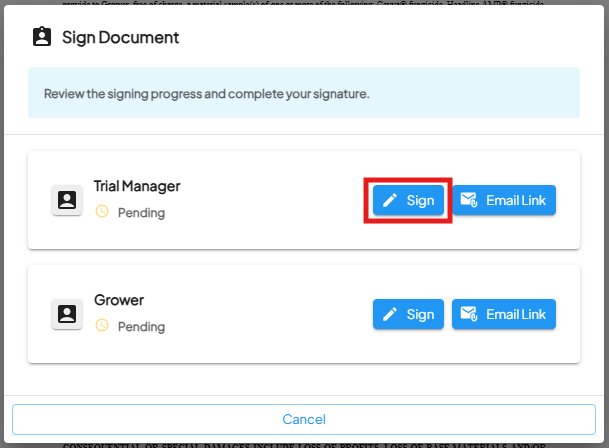
At this point, you will either sign the document or email the link to another party to sign the document. [Jump to Emailing the Link]
Signing the Document
- Sign the Document
- To sign the document, click Sign for the party you represent.
-
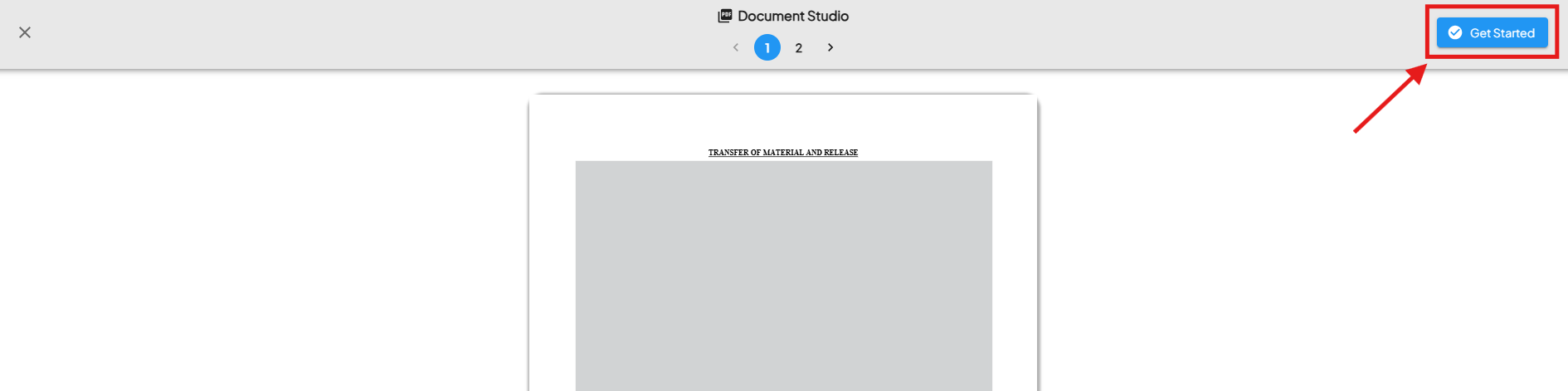
- Select Get Started in the top right corner to begin signing.
-
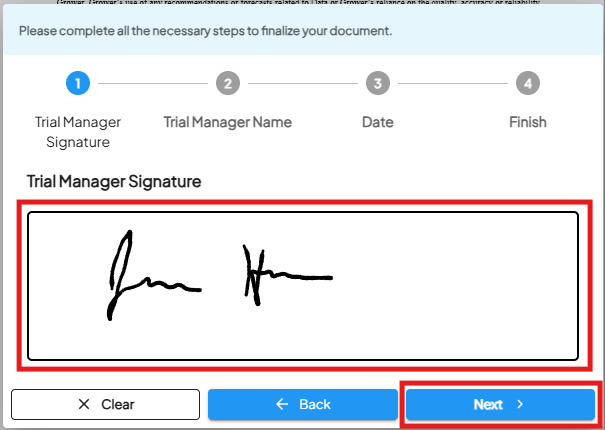
- Write your signature in the box and select Next.
-
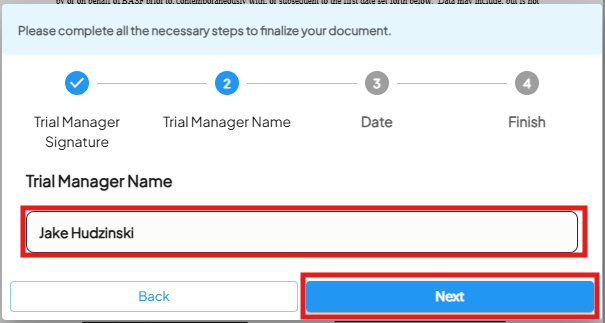
- Fill in your name and click Next.
-
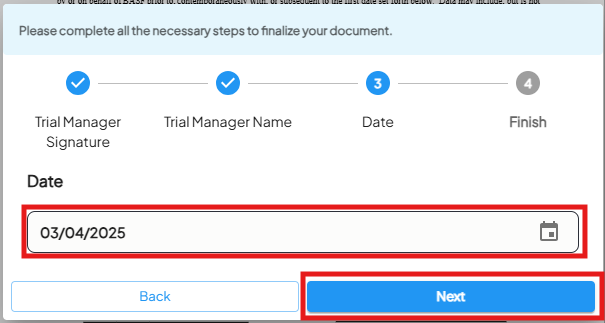
- Fill in the date and click Next.
-
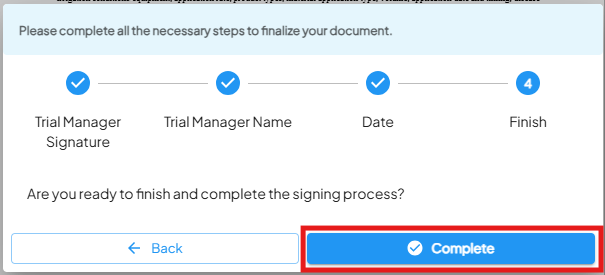
- Finally, click Complete.
-
- If you're the first party to sign, you will receive this message saying the document is still waiting on signatures from the other parties. Click Continue.

-
- Once both parties sign the document, the Protocol step will say "Completed", and the signed document will be available to view/download.
-----------------------------------------------------------------------------------------------------------------------------------------------Emailing the Link for Document Signing
- Email the Link for Document Signing
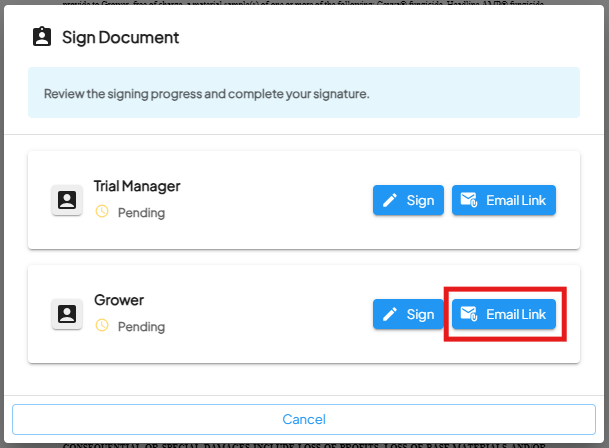
- To email the document-signing link to another party, click Email Link for the party you wish to send to.
-
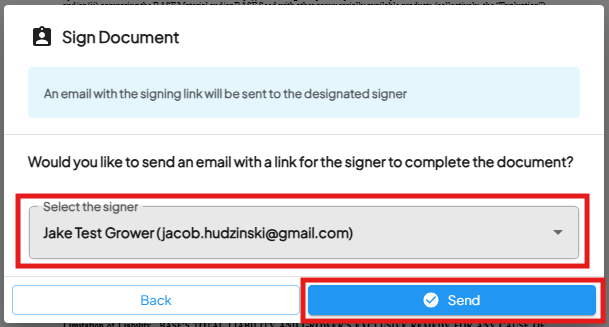
- Make sure the party's name is selected in the "Select the Signer" dropdown and click Send. The link will be sent to the user's email address. The user has one week to sign the document before the link expires.
Signing an Emailed Document
- Signing an Emailed Document
-
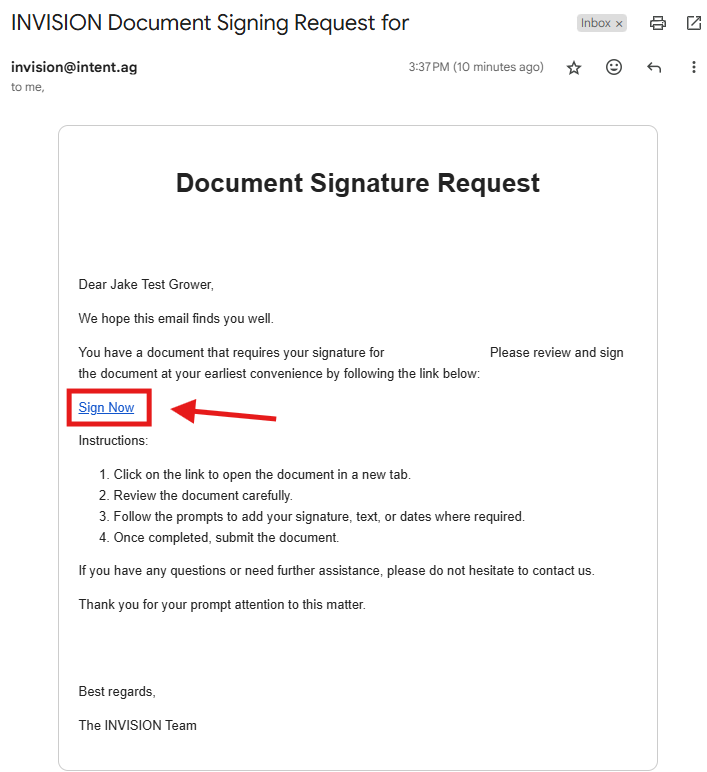
- The user will receive a Document Signature Request in their email inbox from INVISION. This document can be signed via desktop computer or mobile device.
- Click Sign Now in the message body
-
- Select Get Started in the top right corner to begin signing.
-
- Write your signature in the box and select Next.
-
- Fill in your name and click Next.
-
- Fill in the date and click Next.
-
- Finally, click Complete.