# How To Upload Machine Data Through a Third Party Connection

##### **Guide To Uploading Files Through a Third Party Connection**

Uploading or submitting your planting, application, or harvest data to the INVISION Platform is a straightforward and easy process. You have three options available to you: uploading files from your device, connecting to a third party, or manually entering data. Continue reading this guide to discover the best way for you to upload your data to INVISION.

1. **Navigate to Your Field** 
    - Find the field you have machine data for on the Trials Overview Page.
    - Open that field into View Fields. 
        - For additional help with this step, check out our [Guide To Understanding the INVISION Overview Page](https://docs.prod.intent.ag/books/invision-learning-guide/page/understanding-the-invision-overview-page).
2. **Find the Correct Protocol Step**
    - Locate the protocol step you need to upload data for. The three most common steps are the following:  
        
        - Planting
        - Application
        - Harvest
    - Click on the **Upload** button under the step you have data for.  
        [![image.png](https://docs.prod.intent.ag/uploads/images/gallery/2024-03/scaled-1680-/uC1image.png)](https://docs.prod.intent.ag/uploads/images/gallery/2024-03/uC1image.png)
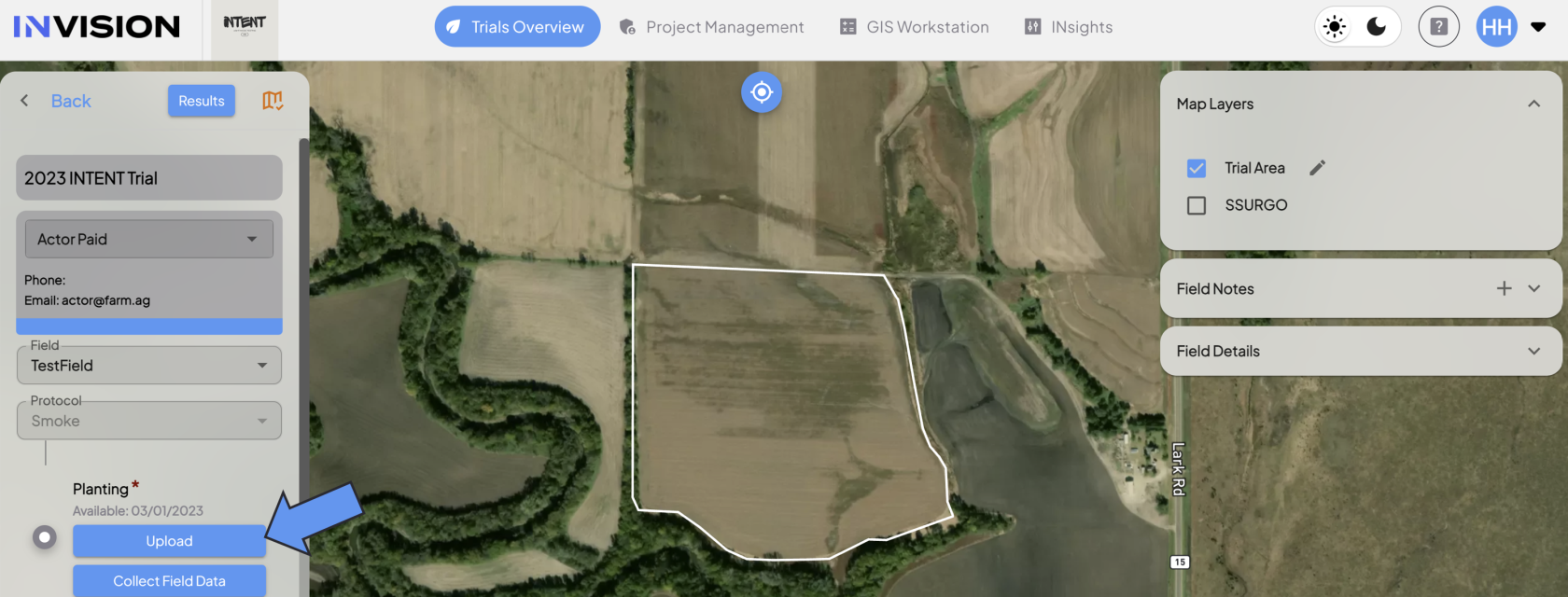
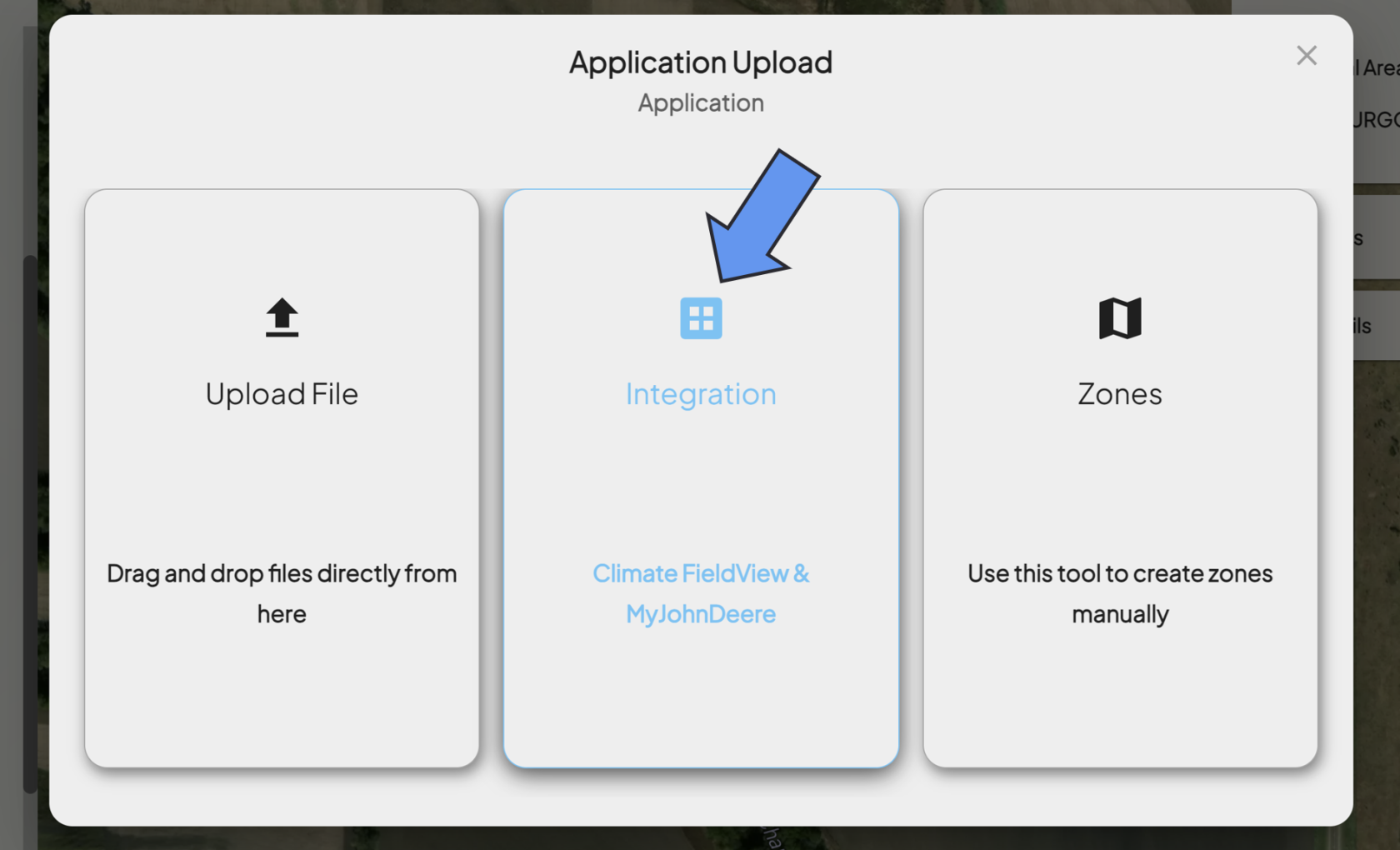
    - This will bring up a new menu where you will have different selection options to upload data. <span class="NormalTextRun SCXW184373533 BCX0">If you have machine data housed by a third party, such as </span><span class="NormalTextRun SCXW184373533 BCX0">Climate </span><span class="NormalTextRun SpellingErrorV2Themed SCXW184373533 BCX0">FieldView or MyJohnDeere</span><span class="NormalTextRun SCXW184373533 BCX0">, you will want to select the **Integration** option.</span>

1. **<span class="TextRun SCXW184373533 BCX0" data-contrast="auto" lang="EN-US" xml:lang="EN-US"><span class="NormalTextRun SCXW184373533 BCX0">Select Integration</span></span>**
    - <span class="TextRun SCXW184373533 BCX0" data-contrast="auto" lang="EN-US" xml:lang="EN-US"><span class="NormalTextRun SCXW184373533 BCX0">Click on the middle option, **Integration.  
        [![Screenshot 2024-03-26 142856.png](https://docs.prod.intent.ag/uploads/images/gallery/2024-03/scaled-1680-/screenshot-2024-03-26-142856.png)](https://docs.prod.intent.ag/uploads/images/gallery/2024-03/screenshot-2024-03-26-142856.png)** </span></span>
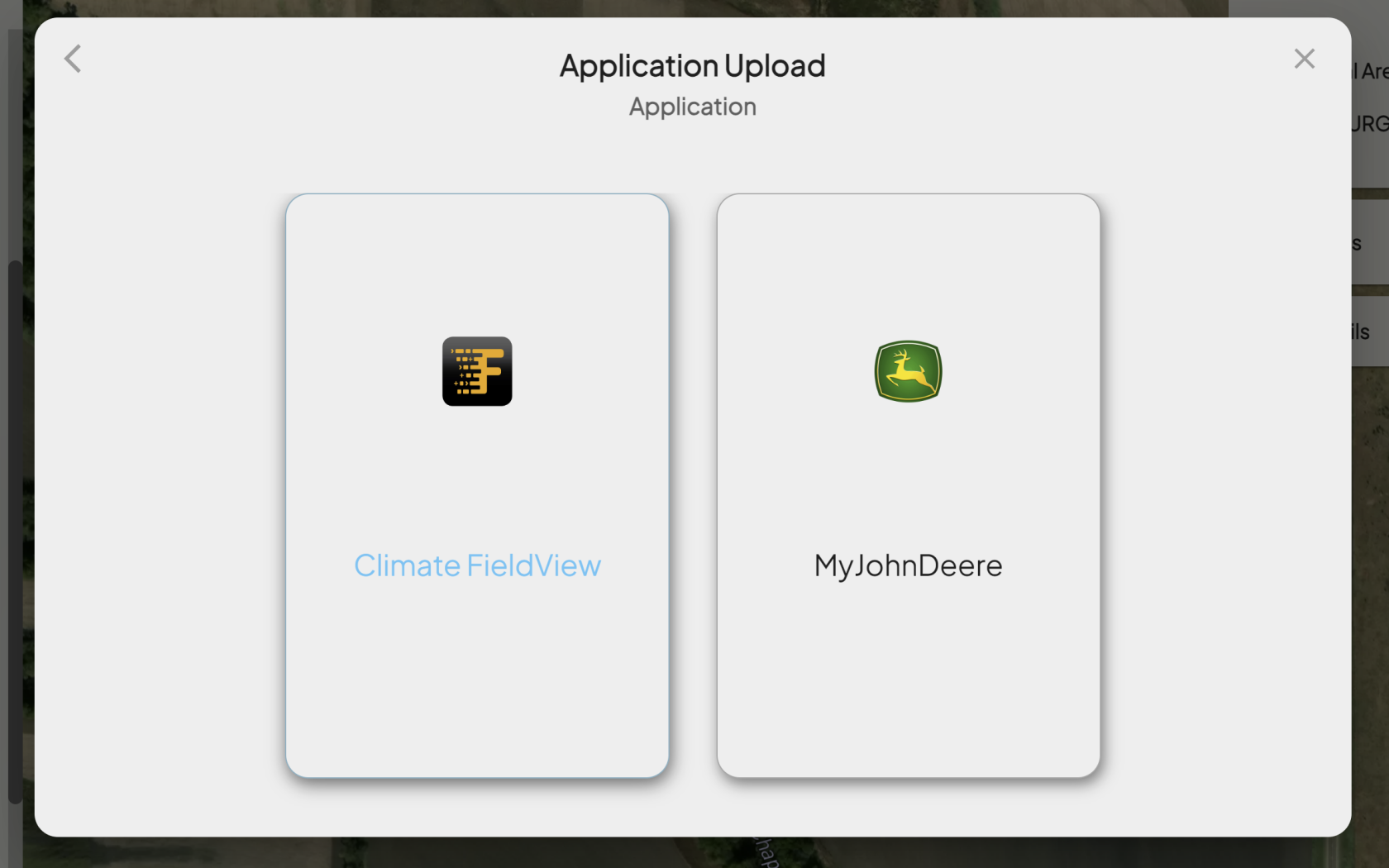
2. **<span class="TextRun SCXW184373533 BCX0" data-contrast="auto" lang="EN-US" xml:lang="EN-US"><span class="NormalTextRun SCXW184373533 BCX0">Choose Your Provider</span></span>**
    - <span class="TextRun SCXW184373533 BCX0" data-contrast="auto" lang="EN-US" xml:lang="EN-US"><span class="NormalTextRun SCXW184373533 BCX0">Click on the provider you have data with:  
        [![Screenshot 2024-03-26 143130.png](https://docs.prod.intent.ag/uploads/images/gallery/2024-03/scaled-1680-/screenshot-2024-03-26-143130.png)](https://docs.prod.intent.ag/uploads/images/gallery/2024-03/screenshot-2024-03-26-143130.png)  
        </span></span>

##### **<span class="TextRun SCXW184373533 BCX0" data-contrast="auto" lang="EN-US" xml:lang="EN-US"><span class="NormalTextRun SCXW184373533 BCX0">Climate FieldView</span></span>**

- - - - <span class="TextRun SCXW184373533 BCX0" data-contrast="auto" lang="EN-US" xml:lang="EN-US"><span class="NormalTextRun SCXW184373533 BCX0">Selecting Climate Fieldview will bring you to their portal.[![Screenshot 2024-03-26 143448.png](https://docs.prod.intent.ag/uploads/images/gallery/2024-03/scaled-1680-/screenshot-2024-03-26-143448.png)](https://docs.prod.intent.ag/uploads/images/gallery/2024-03/screenshot-2024-03-26-143448.png)</span></span>
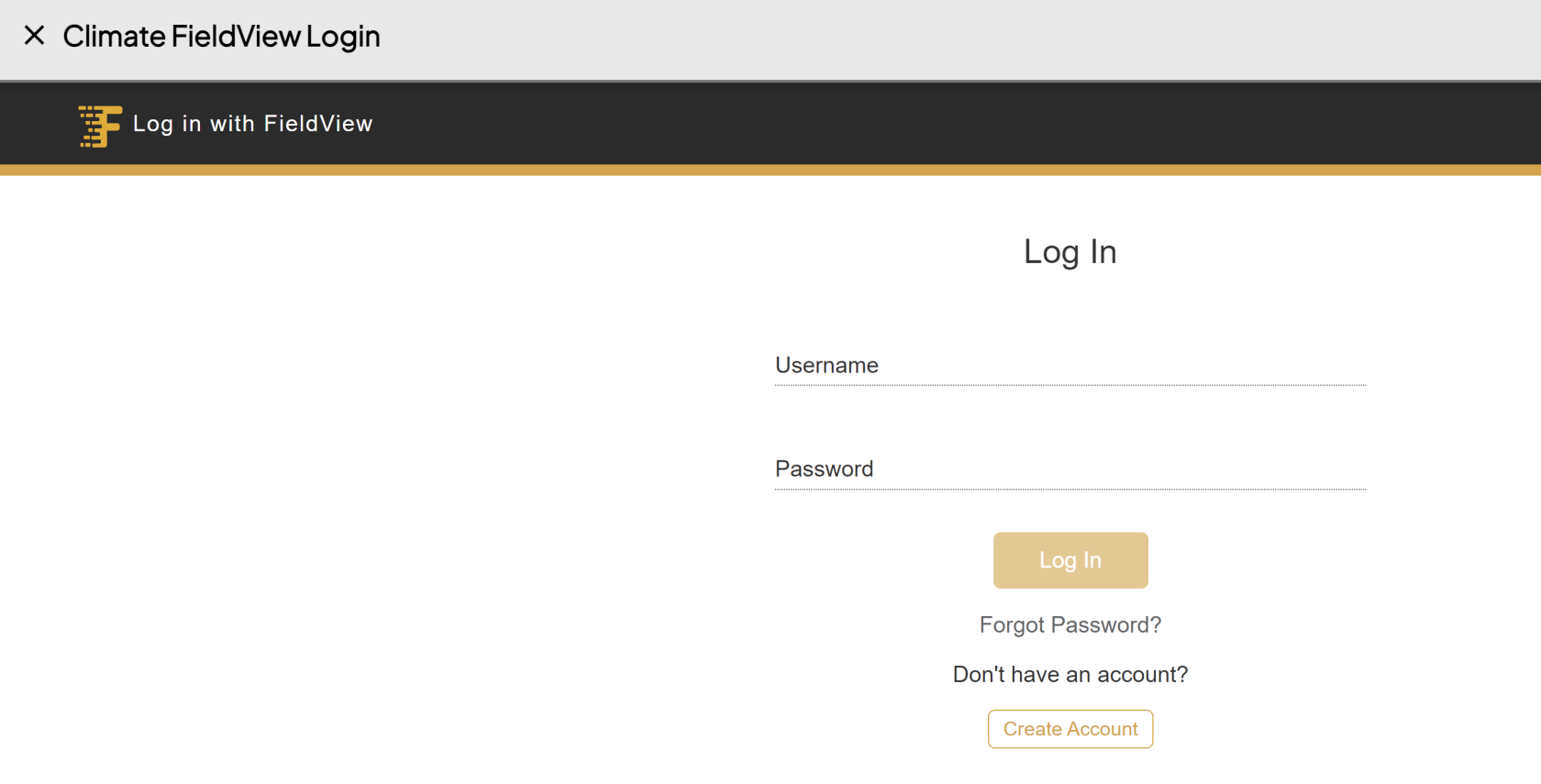
            - <span class="TextRun SCXW184373533 BCX0" data-contrast="auto" lang="EN-US" xml:lang="EN-US"><span class="NormalTextRun SCXW184373533 BCX0">Login using your username and password.  
                </span></span>
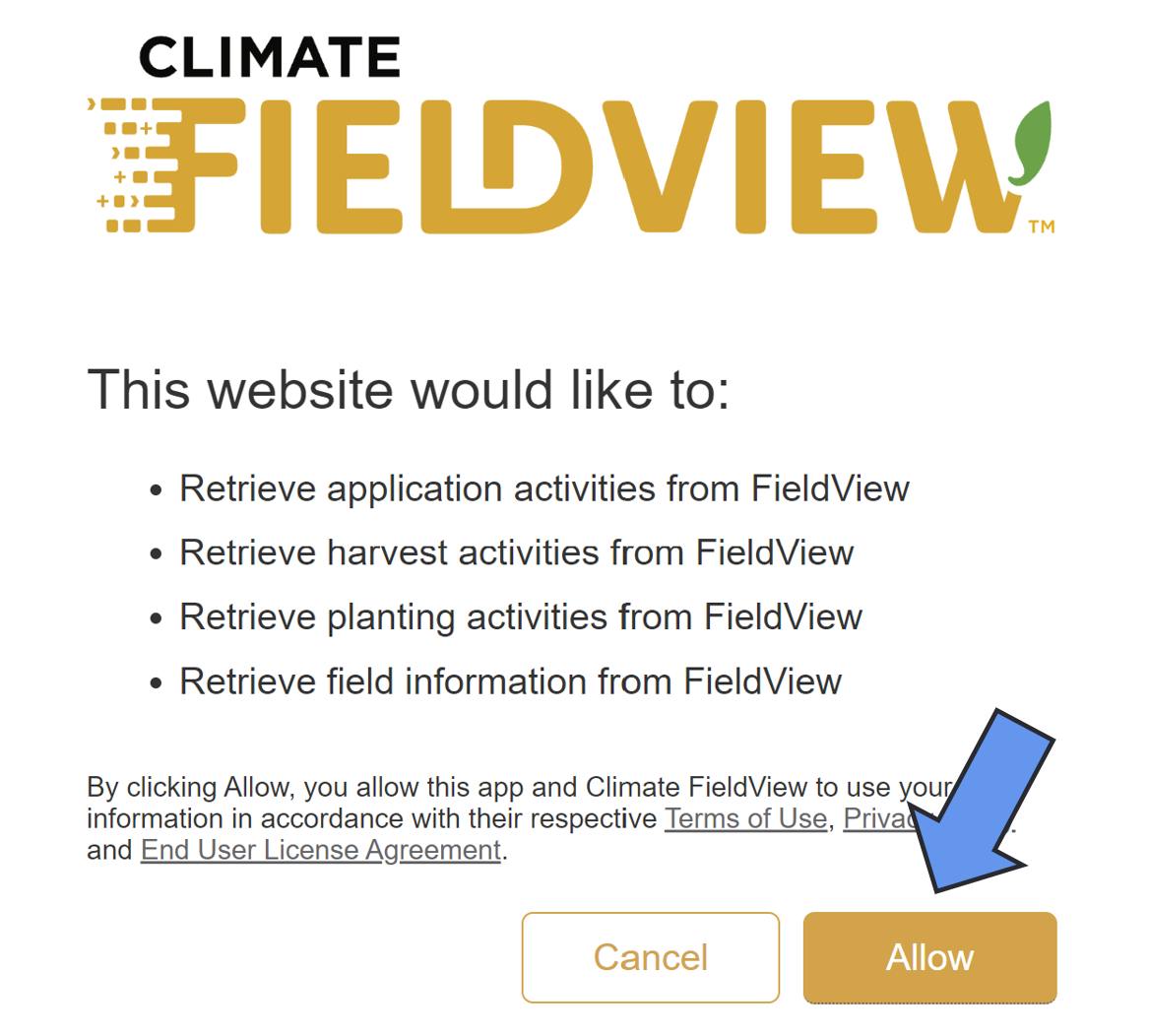
            - <span class="TextRun SCXW184373533 BCX0" data-contrast="auto" lang="EN-US" xml:lang="EN-US"><span class="NormalTextRun SCXW184373533 BCX0"><span class="TextRun SCXW240875614 BCX0" data-contrast="auto" lang="EN-US" xml:lang="EN-US"><span class="NormalTextRun SCXW240875614 BCX0">If </span><span class="NormalTextRun SCXW240875614 BCX0">you’re</span><span class="NormalTextRun SCXW240875614 BCX0"> asked about permissions, hit </span><span class="NormalTextRun SCXW240875614 BCX0">allow</span><span class="NormalTextRun SCXW240875614 BCX0"> to give access to </span><span class="NormalTextRun SCXW240875614 BCX0">retrieve</span><span class="NormalTextRun SCXW240875614 BCX0"> your files from Climate </span><span class="NormalTextRun SpellingErrorV2Themed SpellingErrorHighlight SCXW240875614 BCX0">FieldView.  
                [![Screenshot 2024-03-26 144001.png](https://docs.prod.intent.ag/uploads/images/gallery/2024-03/scaled-1680-/screenshot-2024-03-26-144001.png)](https://docs.prod.intent.ag/uploads/images/gallery/2024-03/screenshot-2024-03-26-144001.png)  
                </span></span></span></span>
            - <span class="TextRun SCXW184373533 BCX0" data-contrast="auto" lang="EN-US" xml:lang="EN-US"><span class="NormalTextRun SCXW184373533 BCX0"><span class="EOP SCXW240875614 BCX0" data-ccp-props="{}"><span class="TextRun SCXW264720413 BCX0" data-contrast="auto" lang="EN-US" xml:lang="EN-US"><span class="NormalTextRun SCXW264720413 BCX0">Once </span><span class="NormalTextRun SCXW264720413 BCX0">you’ve</span><span class="NormalTextRun SCXW264720413 BCX0"> signed in, you can use the different dropdowns to select the</span> <span class="NormalTextRun SCXW264720413 BCX0">field</span><span class="NormalTextRun SCXW264720413 BCX0"> and</span><span class="NormalTextRun SCXW264720413 BCX0"> specific dates to find the right </span><span class="NormalTextRun SCXW264720413 BCX0">data.  
                  
                </span></span></span></span></span>

 For additional help, follow along with this video on how to access and upload your files from Climate FieldView:

<iframe allowfullscreen="allowfullscreen" height="314" src="https://www.youtube.com/embed/FjJRo0_aWYY" width="560"></iframe>

#####  

##### **<span class="TextRun SCXW184373533 BCX0" data-contrast="auto" lang="EN-US" xml:lang="EN-US"><span class="NormalTextRun SCXW184373533 BCX0"><span class="EOP SCXW240875614 BCX0" data-ccp-props="{}"><span class="TextRun SCXW264720413 BCX0" data-contrast="auto" lang="EN-US" xml:lang="EN-US"><span class="NormalTextRun SCXW264720413 BCX0">MyJohnDeere</span></span></span></span></span>**

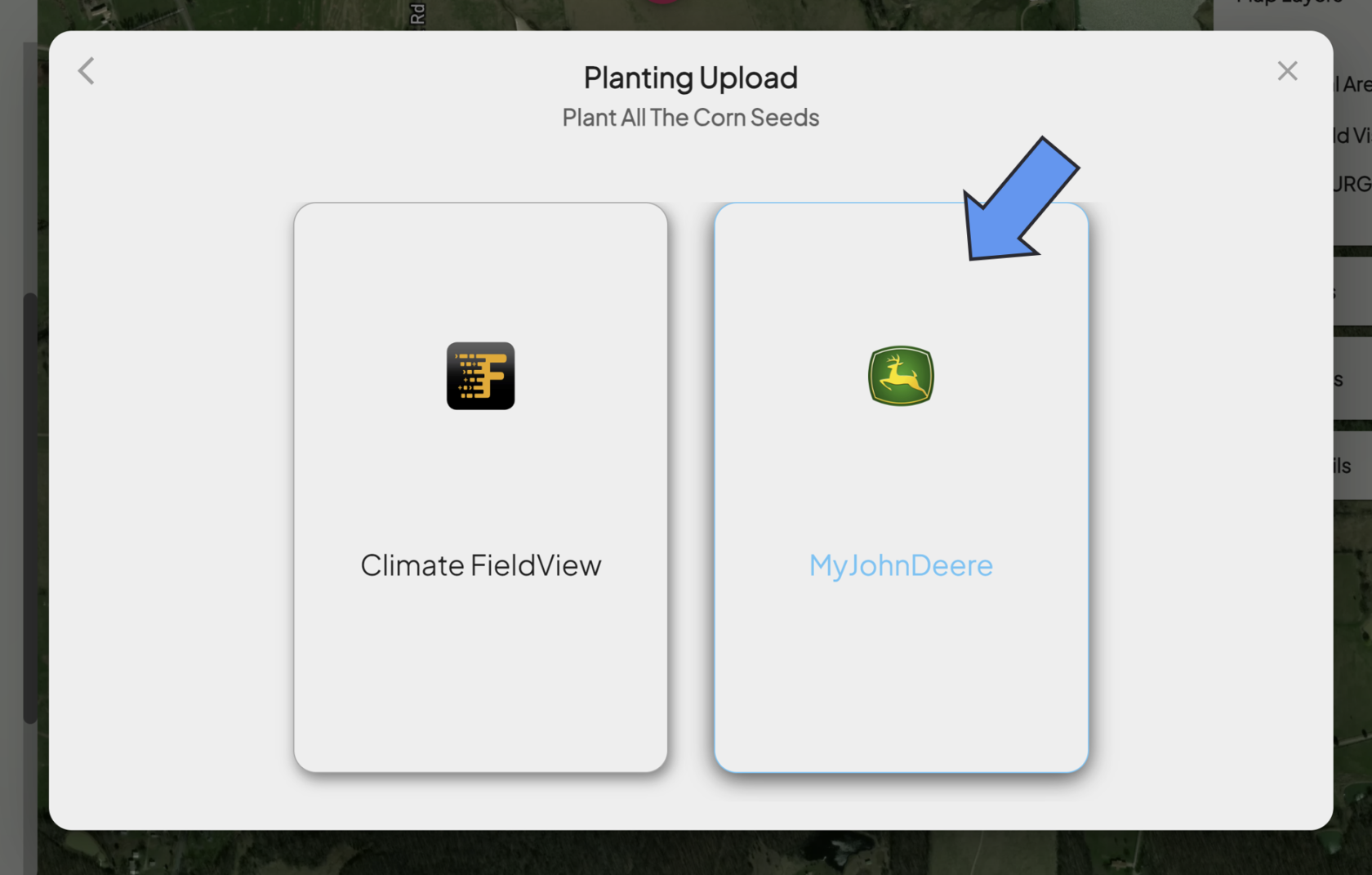
- - - - <span class="TextRun SCXW184373533 BCX0" data-contrast="auto" lang="EN-US" xml:lang="EN-US"><span class="NormalTextRun SCXW184373533 BCX0"><span class="EOP SCXW240875614 BCX0" data-ccp-props="{}"><span class="TextRun SCXW264720413 BCX0" data-contrast="auto" lang="EN-US" xml:lang="EN-US"><span class="NormalTextRun SCXW264720413 BCX0">Selecting MyJohnDeere will bring you into their portal.  
                [![Screenshot 2024-03-27 165226.png](https://docs.prod.intent.ag/uploads/images/gallery/2024-03/scaled-1680-/screenshot-2024-03-27-165226.png)](https://docs.prod.intent.ag/uploads/images/gallery/2024-03/screenshot-2024-03-27-165226.png)  
                </span></span></span></span></span>
            - <span class="TextRun SCXW184373533 BCX0" data-contrast="auto" lang="EN-US" xml:lang="EN-US"><span class="NormalTextRun SCXW184373533 BCX0"><span class="EOP SCXW240875614 BCX0" data-ccp-props="{}"><span class="TextRun SCXW264720413 BCX0" data-contrast="auto" lang="EN-US" xml:lang="EN-US"><span class="NormalTextRun SCXW264720413 BCX0">Sign in using your username and password.</span></span></span></span></span>
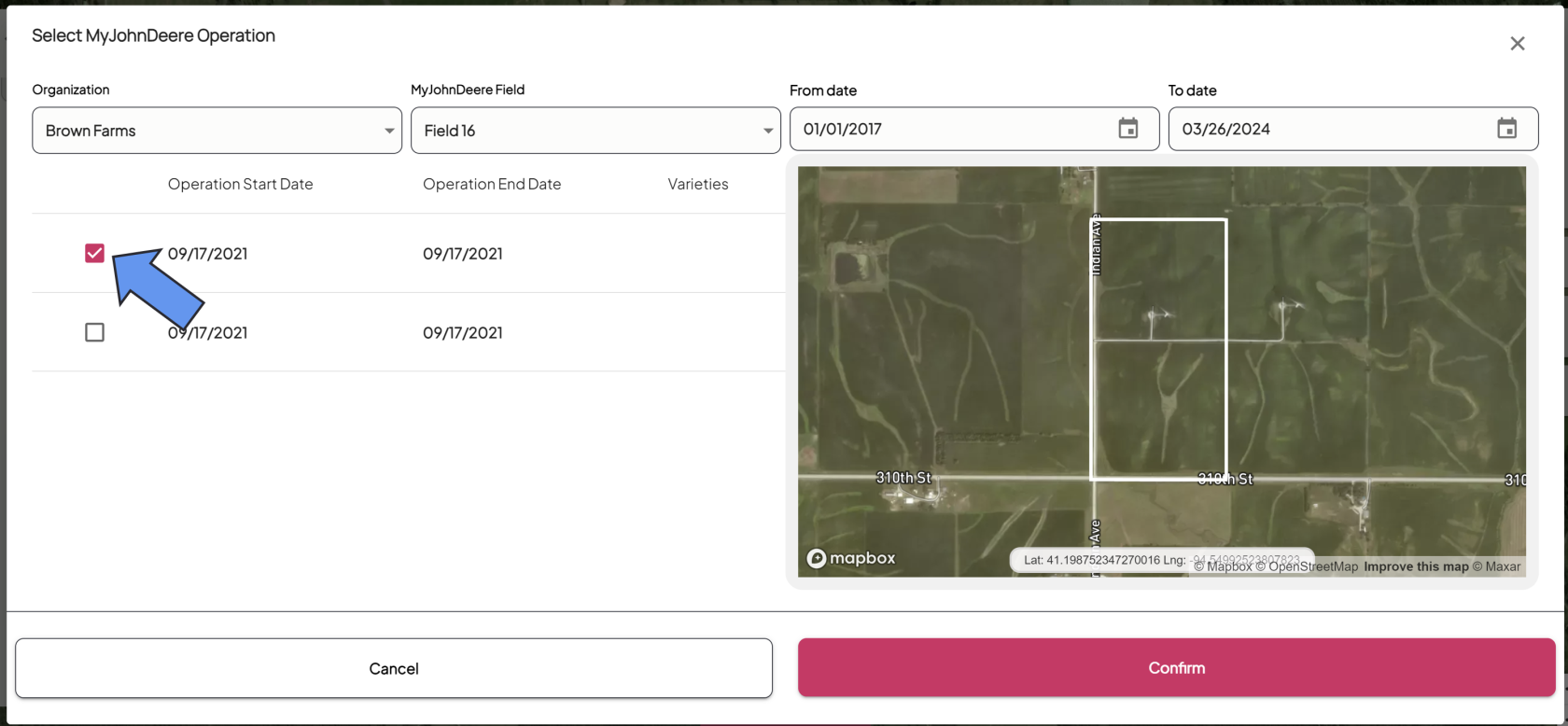
            - <span class="TextRun SCXW184373533 BCX0" data-contrast="auto" lang="EN-US" xml:lang="EN-US"><span class="NormalTextRun SCXW184373533 BCX0"><span class="EOP SCXW240875614 BCX0" data-ccp-props="{}"><span class="TextRun SCXW264720413 BCX0" data-contrast="auto" lang="EN-US" xml:lang="EN-US"><span class="NormalTextRun SCXW264720413 BCX0">Once you’ve signed in, you can use the different dropdown menus to select the field and specific dates to find the data you need to upload.  
                </span></span></span></span></span>
                - <span class="TextRun SCXW184373533 BCX0" data-contrast="auto" lang="EN-US" xml:lang="EN-US"><span class="NormalTextRun SCXW184373533 BCX0"><span class="EOP SCXW240875614 BCX0" data-ccp-props="{}"><span class="TextRun SCXW264720413 BCX0" data-contrast="auto" lang="EN-US" xml:lang="EN-US"><span class="NormalTextRun SCXW264720413 BCX0">Be sure the check the boundary on the map to ensure it's the right field.</span></span></span></span></span>
            - <span class="TextRun SCXW184373533 BCX0" data-contrast="auto" lang="EN-US" xml:lang="EN-US"><span class="NormalTextRun SCXW184373533 BCX0"><span class="EOP SCXW240875614 BCX0" data-ccp-props="{}"><span class="TextRun SCXW264720413 BCX0" data-contrast="auto" lang="EN-US" xml:lang="EN-US"><span class="NormalTextRun SCXW264720413 BCX0">Check the boxes for all of the files you want to upload.  
                [![Screenshot 2024-03-27 142109.png](https://docs.prod.intent.ag/uploads/images/gallery/2024-03/scaled-1680-/screenshot-2024-03-27-142109.png)](https://docs.prod.intent.ag/uploads/images/gallery/2024-03/screenshot-2024-03-27-142109.png)  
                </span></span></span></span></span>
            - <span class="TextRun SCXW184373533 BCX0" data-contrast="auto" lang="EN-US" xml:lang="EN-US"><span class="NormalTextRun SCXW184373533 BCX0"><span class="EOP SCXW240875614 BCX0" data-ccp-props="{}"><span class="TextRun SCXW264720413 BCX0" data-contrast="auto" lang="EN-US" xml:lang="EN-US"><span class="NormalTextRun SCXW264720413 BCX0">Select **Confirm** to upload your machine data.</span></span></span></span></span>
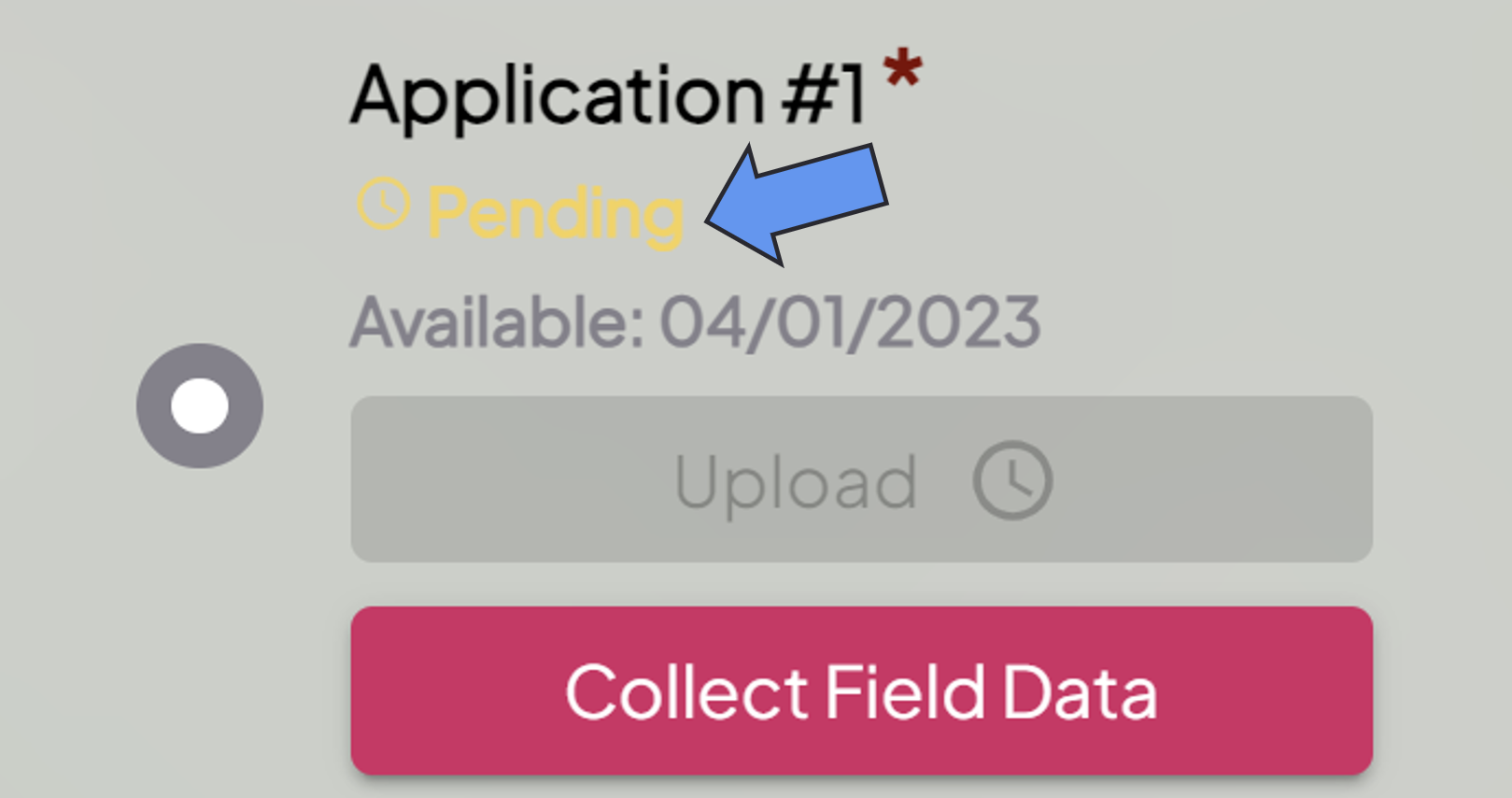
            - You will then see the status of your file underneath the step name. The following statuses are possible: 
                - **Available:** This status means you still need to upload a file for this protocol step. 
                    - If you've uploaded your file once, but come back to this step and see the status as available, that means there was an issue with your file. Please address the issue and upload again.
                - **Pending:** This status means your file is still being processed. Keep an eye on your email inbox in case there are any issues.
                - **Completed:** This status means you've successfully uploaded your machine data file.  
                    [![Screenshot 2024-03-27 164530.png](https://docs.prod.intent.ag/uploads/images/gallery/2024-03/scaled-1680-/screenshot-2024-03-27-164530.png)](https://docs.prod.intent.ag/uploads/images/gallery/2024-03/screenshot-2024-03-27-164530.png)
For additional help, follow along with this video on how to access and upload your files from MyJohnDeere:

<iframe allowfullscreen="allowfullscreen" height="314" src="https://www.youtube.com/embed/qt-8at0aWJ4" width="560"></iframe>