How to Publish and Share an Insights View in INVISION
INVISION allows teams to share Insights analysis in two ways: Private Views for internal collaboration and Published Views for sharing results externally. This guide explains the difference between the two and walks through how to create and share each type.
Understanding Private vs. Published Insights Views
Private Insights Views (Internal Sharing)
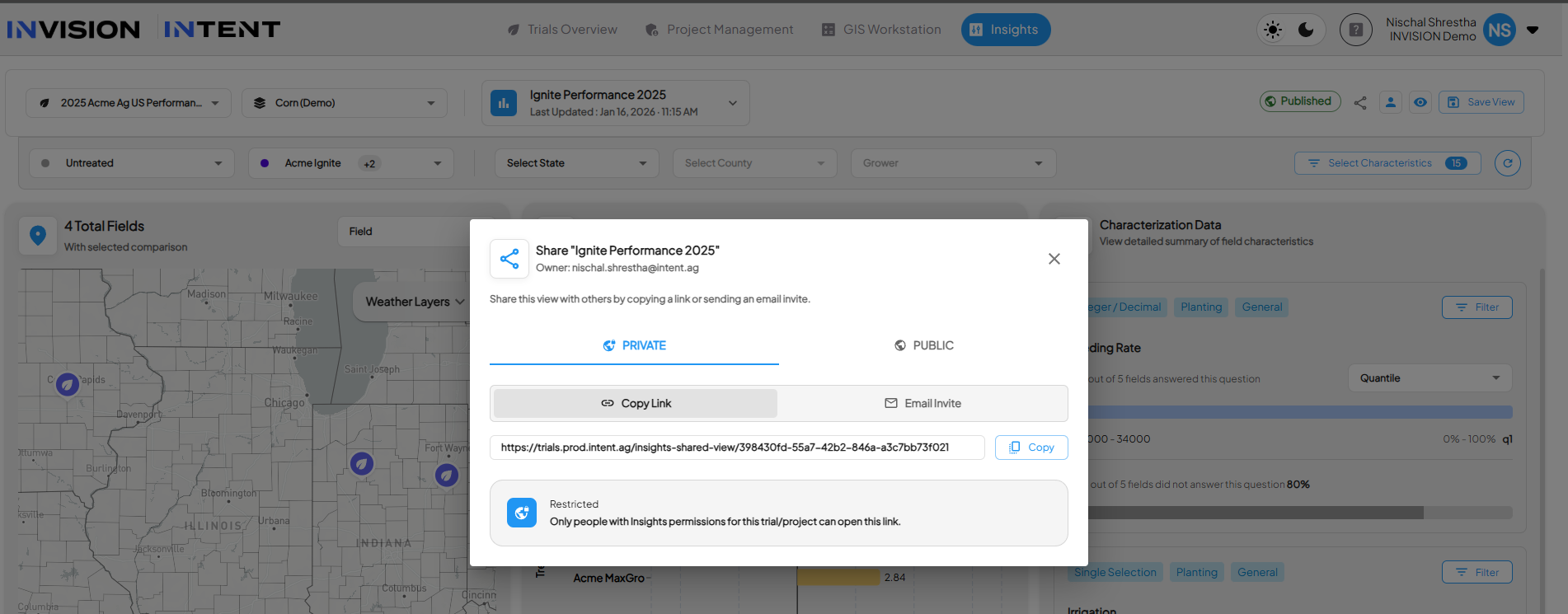
A Private Insights View is designed for collaboration within INVISION.
-
Only accessible to users with valid INVISION access
-
Respects existing trial and Insights permissions
-
Requires users to log in to view
-
Ideal for internal review, alignment, and iteration
Private Views help teams reference the same analysis without recreating filters, charts, or exports.
Published Insights Views (Public Sharing)

A Published Insights View allows Insights results to be shared with non-INVISION audiences using a secure, read-only link.
-
No login required to view
-
Rendered in a fixed, read-only state
-
Can be shared externally with partners, stakeholders, or commercial teams
-
Automatically expires after 14 days
-
Can be disabled at any time
Published Views are intended for communicating validated results beyond the platform, without exporting data or granting access to INVISION itself.
Step 1: Create an Insights View

Before a View can be shared—privately or publicly—you must first create and save it.
Once saved, the View preserves:
-
All filters and selections
-
Chart and map configuration
-
Selected characteristics and comparisons
This saved View becomes the basis for sharing.
Step 2: Share a View Privately (Internal)
-
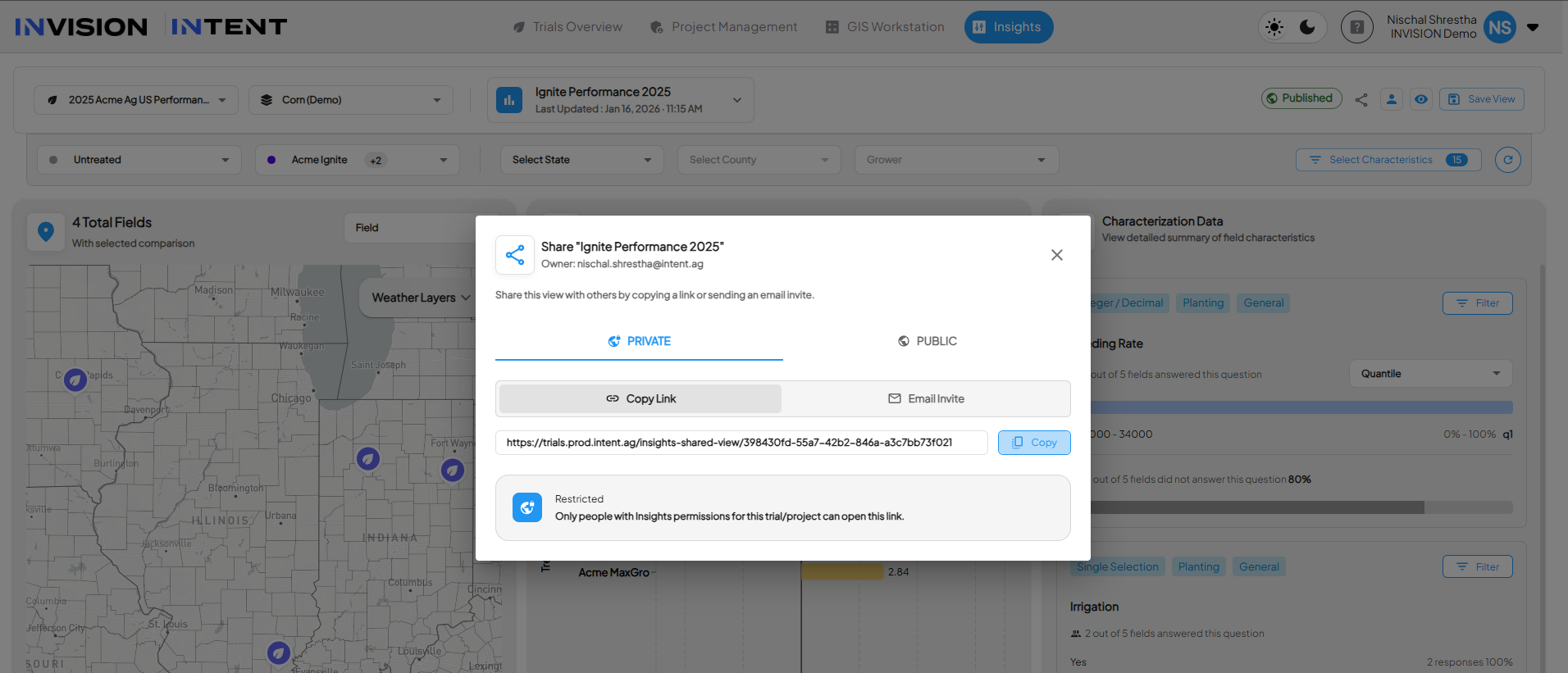
Open a saved Insights View.
-
Select Share View.
-
Choose Private Sharing.
-
Share access by:
-
Copying a secure link, or
-
Inviting teammates via email
-
When opened, the recipient:
-
Must log in to INVISION
-
Will only see the View if they already have access to the client, trial, and Insights
Private sharing is best for internal alignment, QA, and collaboration.
Step 3: Publish a View for External Sharing
-
Open a saved Insights View.
-
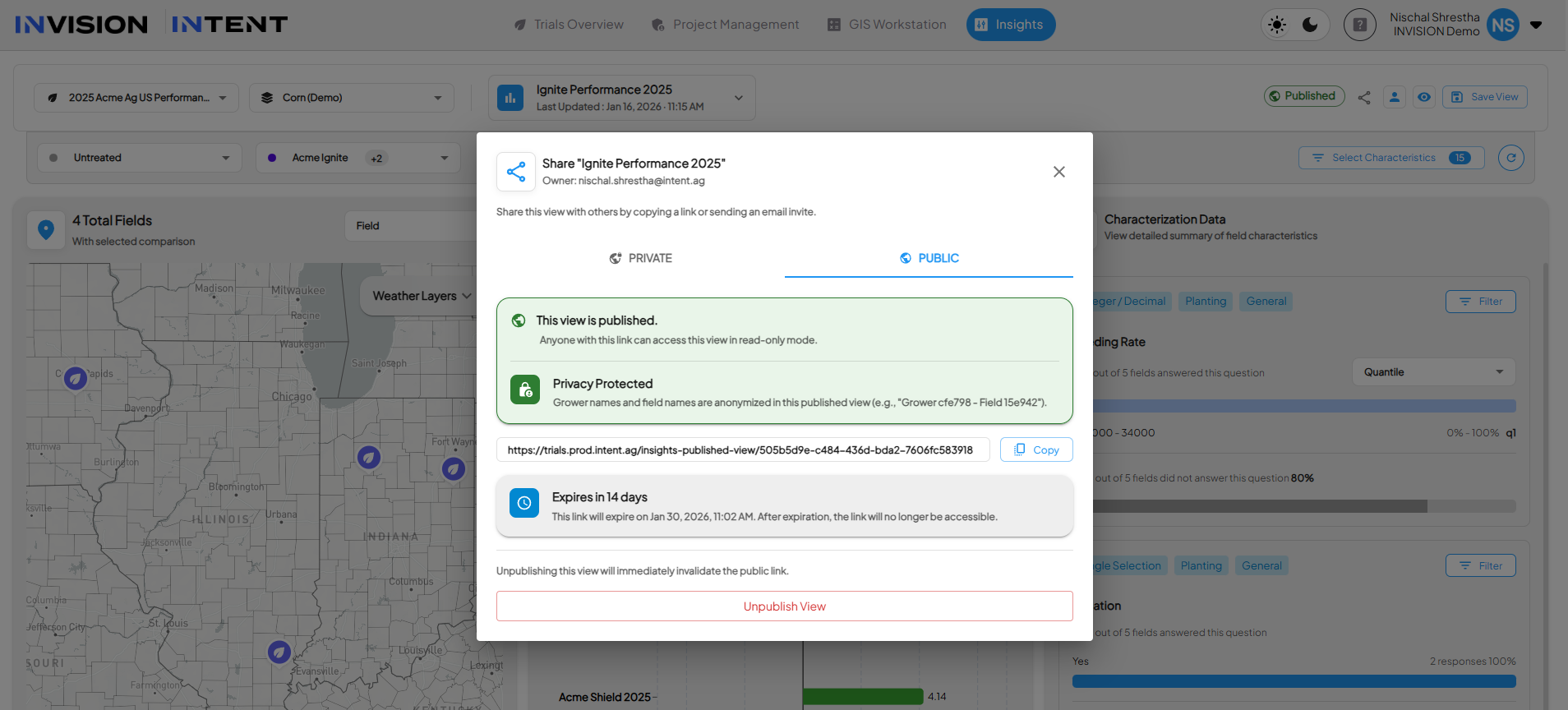
Select Publish View.
-
Choose a Privacy Mode (explained below).
-
Publish the View to generate a public link.
Once published:
-
The View becomes accessible via a public URL
-
The View is read-only and cannot be modified by viewers
-
The link expires automatically after 14 days
Privacy Modes for Published Views

When publishing a View, INVISION allows you to control how identifying information is displayed.
Standard Mode
-
Grower names and field names are shown exactly as entered
-
Best for trusted audiences or internal stakeholders without INVISION access
Example:
John Smith – North Field
Privacy Protected Mode
-
Grower and field names are anonymized
-
Analytical results, charts, and comparisons remain unchanged
-
Best for broader external sharing or commercial use
Example:
Grower cfe798 – Field 15e942
Choosing the appropriate mode ensures the shared View matches the intended audience while preserving analytical integrity.
Managing Published Views
-
Expiration: Published links automatically expire after 14 days.
-
Disable Access: A published View can be disabled at any time, immediately invalidating the link.
-
Control: Once disabled or expired, the link no longer resolves.
This ensures teams retain full control over external visibility.
When to Use Each Sharing Option
Use Private Views when:
-
Collaborating internally
-
Iterating on analysis
-
Reviewing results with teammates who have INVISION access
Use Published Views when:
-
Sharing results with external stakeholders
-
Supporting commercial or marketing discussions
-
Communicating validated outcomes without exporting data