# Exporting Digital Data from Climate FieldView
#### Exporting Digital Data from Climate FieldView
##### Log In and Navigate to Data Section
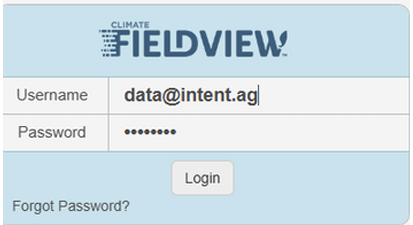
- Sign in to [https://fieldviewplus.com/](https://fieldviewplus.com/)
**Note**: Do not confuse fieldviewplus.com and climate.com. They are different and allow for different types of data export.
[](https://docs.prod.intent.ag/uploads/images/gallery/2025-05/image.png)
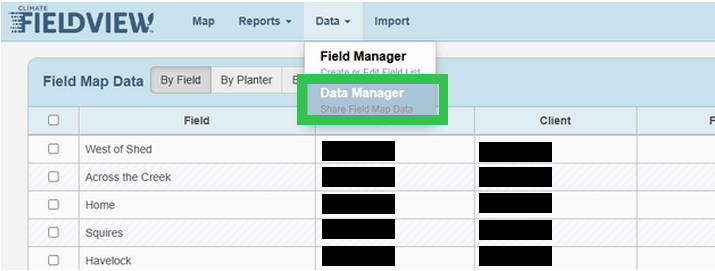
- Select the **Data** tab in the top navigation bar. This is where all field data is stored. Choose the **Data Manager** option in the dropdown list.
[](https://docs.prod.intent.ag/uploads/images/gallery/2025-05/0LLimage.png)
##### Select the Desired Field
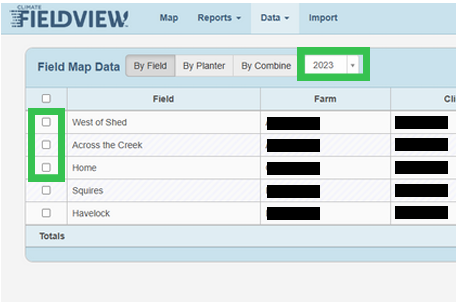
- To export data, check the box next to the desired field name
- Be sure that the year is properly filtered
**Note**: If your field does not show up on the list, that means there is no associated data for the filtered year.
[](https://docs.prod.intent.ag/uploads/images/gallery/2025-05/WEhimage.png)
##### Export and Download the Data
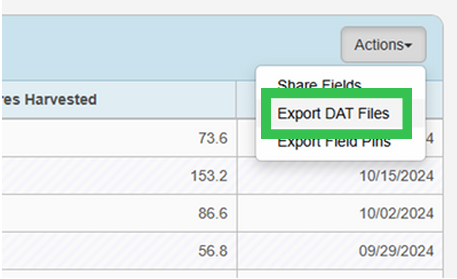
- Locate the **Actions** dropdown menu near the top right of the data table
- Select the **Export DAT Files** option
[](https://docs.prod.intent.ag/uploads/images/gallery/2025-05/Jdtimage.png)
- Once the export is complete, a download link will appear. Click the link to download the file to your computer
[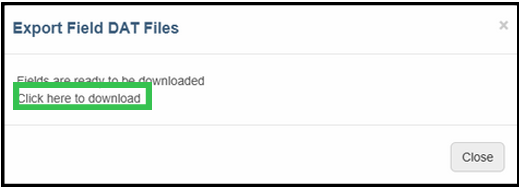](https://docs.prod.intent.ag/uploads/images/gallery/2025-05/gr3image.png)
- You can now upload the file to INVISION!