# INVISION Learning Guide

# Access to INVISION

This section describes how to access INVISION

# Access to INVISION

#### Guide to Gaining Access to INVISION

Gaining access to INVISION is a straightforward process. Follow these steps to set up your account and start utilizing the platform:

1. **Contact INTENT for Account Setup**
    
    
    - Reach out to INTENT by providing your email address. This will initiate the setup of your account for INVISION.
2. **Visit the INVISION Website**
    
    
    - Open your web browser and navigate to [INVISION Login Page](https://trials.prod.intent.ag/login). [![](https://docs.staging.intent.ag/uploads/images/gallery/2024-01/scaled-1680-/3WXd2yscreenshot-2024-01-29-125310.png)](https://docs.staging.intent.ag/uploads/images/gallery/2024-01/3WXd2yscreenshot-2024-01-29-125310.png)
3. **Verification Process**
    
    
    - On the login page, you will find an option to **Verify your Account**. Click on this.  
        [![image.png](https://docs.prod.intent.ag/uploads/images/gallery/2025-02/scaled-1680-/I65image.png)](https://docs.prod.intent.ag/uploads/images/gallery/2025-02/I65image.png)
    - Enter the email address you provided to INTENT. This is a crucial step for verifying your identity and proceeding with the setup.
4. **Check Your Email**
    
    
    - Once you have entered your email for verification, check your email inbox for a message from INVISION.
    - If you don't see the email in your inbox, remember to check your Junk or Spam folders.  
        [![image.png](https://docs.prod.intent.ag/uploads/images/gallery/2024-02/scaled-1680-/lr6image.png)](https://docs.prod.intent.ag/uploads/images/gallery/2024-02/lr6image.png)
5. **Set Up Your Password**
    
    
    - In the email from INVISION, you will find a link. Click on this link to set up a new password for your account.
    - It's important to choose a strong, secure password as this will protect your account and data.  
        [![image.png](https://docs.prod.intent.ag/uploads/images/gallery/2024-02/scaled-1680-/c0Himage.png)](https://docs.prod.intent.ag/uploads/images/gallery/2024-02/c0Himage.png)
6. **Finalizing Your Access**
    
    
    - After creating your password, you are all set to log in to INVISION.
    - Use your registered email address and the new password to login and start exploring the platform.

By following these steps, you'll successfully gain access to INVISION, where you can begin managing and standardizing geospatial agronomic data for your agricultural trials.

For additional help, follow along with this video demonstrating how to login to INVISION:

<iframe allowfullscreen="allowfullscreen" height="314" src="https://www.youtube.com/embed/YCYBlgDop2E" width="560"></iframe>

# How To Reset Your Password

#### Guide to Resetting Your Password

There are two ways to reset your password for the INVISION Platform.

**The first option is to reset your password using the email associated with INVISION.**

1. **Visit the INVISION Website**
    
    
    - Navigate to the [INVISION Login Page](https://trials.prod.intent.ag/login "INVISION Login Page") where the default option to change your password is using your email. Click on **Verify your Account**.
        
        [![image.png](https://docs.prod.intent.ag/uploads/images/gallery/2025-02/scaled-1680-/lxuimage.png)](https://docs.prod.intent.ag/uploads/images/gallery/2025-02/lxuimage.png)
2. **Verify Your Email**
    - Enter your system email and click the button that says **Send Instructions**.
        
        [![image.png](https://docs.prod.intent.ag/uploads/images/gallery/2024-02/scaled-1680-/0tcimage.png)](https://docs.prod.intent.ag/uploads/images/gallery/2024-02/0tcimage.png)
3. **Check your Email**
    
    
    - An email will be sent to you, with a link to set up your password.
    - Don’t forget to check your Junk or Spam folders, if you cannot find this email.
4. **Change Your Password**
    
    
    - In the email from INVISION, you will find a link. Click on this link to set up a new password for your account.
    - It's important to choose a strong, secure password as this will protect your account and data.
    - Enter your new password and click the button to confirm.
    - Your password has now been reset, and you can login to INVISION.
        
        [![image.png](https://docs.prod.intent.ag/uploads/images/gallery/2024-02/scaled-1680-/S4limage.png)](https://docs.prod.intent.ag/uploads/images/gallery/2024-02/S4limage.png)

**The second option is to use the phone number associated with the INVISION Platform.**

1. **Switch Verification Method to Phone**
    - You first need to select the Phone option at the top of the screen. [![Screenshot 2024-02-13 134013.png](https://docs.prod.intent.ag/uploads/images/gallery/2024-02/scaled-1680-/screenshot-2024-02-13-134013.png)](https://docs.prod.intent.ag/uploads/images/gallery/2024-02/screenshot-2024-02-13-134013.png)
2. **Input Your Phone Number**
    - Enter the phone number you have setup with INTENT.
    - Don't forget to include the country code (For the US, the country code is +1).
3. **Verify Your Phone Number**
    - Hit the button that says **Send Code.**

**[![Screenshot 2024-02-21 102701.png](https://docs.prod.intent.ag/uploads/images/gallery/2024-02/scaled-1680-/screenshot-2024-02-21-102701.png)](https://docs.prod.intent.ag/uploads/images/gallery/2024-02/screenshot-2024-02-21-102701.png)**

1. - A 6 digit code will be sent to your phone through a text message. Enter this code into the box that appears, and hit **Submit**.
    - Once the correct code is entered, you will have the option to set up or reset your password.
2. **Change Your Password**
    - It's important to choose a strong, secure password as this will protect your account and data.
    - Enter your new password and click the button to confirm.
    - Use your registered email address and the new password to login and start exploring the platform.

By following these steps, you'll successfully gain access to INVISION, where you can manage, process and standardize geospatial agronomic data and to get rapid actionable insights for your trials.

For additional help, follow along with this video demonstrating how to reset your password using your associated email:

<iframe allowfullscreen="allowfullscreen" height="461" src="https://www.youtube.com/embed/-XlsM7WtexY" style="width: 823px; height: 461px;" width="823"></iframe>

# How to Switch Your Active Client

#### **Guide to Finding Your Client in INVISION**

Within the INVISION Platform, data is secured and organized by **Client**. This means, you can only see one client's data at a time. Which client you see is controlled through the **Client Switcher.** Follow along on this quick and easy guide to switch your active client in INVISION.

##### **Selecting a Client on Login**

- If you have access to multiple clients through the INVISION Platform, when you first login you will be greeted with a window where you can select the client you would like to begin working with.

[![Screenshot 2024-03-20 114806.png](https://docs.prod.intent.ag/uploads/images/gallery/2024-03/scaled-1680-/screenshot-2024-03-20-114806.png)](https://docs.prod.intent.ag/uploads/images/gallery/2024-03/screenshot-2024-03-20-114806.png)

- Click on the client to select them, and hit the **Switch** button at the bottom of the menu to select this client as the active client for your session.

##### **Switching Your Client Mid Session**

1. **Find Your Initials**
    - Switching your client after you've logged in to INVISION is simple. Find your initials in the top right corner. There will be a small triangle to the right of your initials.
2. **Select Switch Clients**
    - Once you click on the triangle, you will see several options:  
        [![Screenshot 2024-04-02 140653.png](https://docs.prod.intent.ag/uploads/images/gallery/2024-04/scaled-1680-/screenshot-2024-04-02-140653.png)](https://docs.prod.intent.ag/uploads/images/gallery/2024-04/screenshot-2024-04-02-140653.png)  
        
        - **Switch Clients:** This is the option to choose if you need to switch your active client.
        - **Change Password:** Selecting this will bring you to a page where you have the option to change your password. For additional help with this, check out our [Guide To Resetting Your INVISION Password](https://docs.prod.intent.ag/books/invision-learning-guide/page/how-to-reset-your-password).
        - **Logout:** Selecting this option will log you out of the INVISION Platform.

# Trials Overview

This chapter describes all of the functionality that is accessible from the Trials Overview tab in INVISION.

# Understanding the INVISION Overview Page

#### **Guide to Understanding the Overview Page**

The Overview Page of INVISION is designed to offer users a comprehensive and intuitive view of their field trials. This document will guide you through the key components of the Overview Page, helping you navigate and utilize the platform effectively for optimal trial management.

#### **Components of the Overview Page**

1. **Menu &amp; Roles**
    
    
    - **Location**: Top of the page.
    - **Function**: Displays the name of the client associated with the current session. Adjacent to this, the user’s role is shown, indicating the level of access and permissions within the platform. [![Screenshot 2024-02-21 154311.png](https://docs.prod.intent.ag/uploads/images/gallery/2024-02/scaled-1680-/screenshot-2024-02-21-154311.png)](https://docs.prod.intent.ag/uploads/images/gallery/2024-02/screenshot-2024-02-21-154311.png)
2. **Map Component**
    
    
    - **Location**: Central section of the Overview Page.
    - **Function**: Offers a dynamic map view of your field trials. Key features include: 
        - **Field Location Markers**: Represented by dots, indicating the geographic location of each field.
        - **Color Coding**: Helps identify the status of each field (e.g., on track, needs attention).
        - **Interactive Elements**: Allows users to click on specific fields for more detailed information.[![Screenshot 2024-02-21 155047.png](https://docs.prod.intent.ag/uploads/images/gallery/2024-02/scaled-1680-/screenshot-2024-02-21-155047.png)](https://docs.prod.intent.ag/uploads/images/gallery/2024-02/screenshot-2024-02-21-155047.png)
3. **Find an Enrolled Grower**
    
    
    - **Location**: A dedicated search or selection component on the page.
    - **Function**: Facilitates the search for enrolled growers. Users can quickly access growers' data, enhancing the efficiency of information retrieval.[![Screenshot 2024-02-21 155330.png](https://docs.prod.intent.ag/uploads/images/gallery/2024-02/scaled-1680-/screenshot-2024-02-21-155330.png)](https://docs.prod.intent.ag/uploads/images/gallery/2024-02/screenshot-2024-02-21-155330.png)
4. **Enroll Grower / Add Fields**
    - **Location:** A dedicated button within the **Find an Enrolled Grower** Panel [![Screenshot 2024-02-19 102429.png](https://docs.prod.intent.ag/uploads/images/gallery/2024-02/scaled-1680-/screenshot-2024-02-19-102429.png)](https://docs.prod.intent.ag/uploads/images/gallery/2024-02/screenshot-2024-02-19-102429.png)
    - **Function:** Activates the **Enroll Grower / Find Fields** Panel. Users can check the current status of enrollment for growers/fields or enroll a new grower and/or field.[![Screenshot 2024-02-19 160527.png](https://docs.prod.intent.ag/uploads/images/gallery/2024-02/scaled-1680-/screenshot-2024-02-19-160527.png)](https://docs.prod.intent.ag/uploads/images/gallery/2024-02/screenshot-2024-02-19-160527.png)
5. **Map Layers**
    
    
    - **Location**: Accessible through a toggle or menu on the map.
    - **Function**: Provides layers of information over the map, including: 
        - **Precipitation**: Visualizes rainfall patterns.
        - **Temperature**: Displays current temperature data.
        - **Wind Speed**: Shows wind conditions.
        - These layers assist in understanding environmental factors affecting the fields.[![Screenshot 2024-02-21 155611.png](https://docs.prod.intent.ag/uploads/images/gallery/2024-02/scaled-1680-/screenshot-2024-02-21-155611.png)](https://docs.prod.intent.ag/uploads/images/gallery/2024-02/screenshot-2024-02-21-155611.png)
6. **Protocol Details**
    
    
    - **Location**: A designated section on the page.[![Screenshot 2024-02-22 142816.png](https://docs.prod.intent.ag/uploads/images/gallery/2024-02/scaled-1680-/screenshot-2024-02-22-142816.png)](https://docs.prod.intent.ag/uploads/images/gallery/2024-02/screenshot-2024-02-22-142816.png)
    - **Function**: Offers detailed insights into each step of the trial protocol. This includes: 
        - **Step-by-Step Progress Tracking**: Understand each phase of the trial protocol.[![Screenshot 2024-02-22 143315.png](https://docs.prod.intent.ag/uploads/images/gallery/2024-02/scaled-1680-/screenshot-2024-02-22-143315.png)](https://docs.prod.intent.ag/uploads/images/gallery/2024-02/screenshot-2024-02-22-143315.png)
        - **Issue Identification**: Alerts for steps that require attention.

#### **Navigating the Overview Page**

- The Overview Page is designed for ease of use, with intuitive navigation and interactive elements.
- Users can hover over different components for quick information or click for more detailed data.
- Tooltips and guidance messages are available to assist new users in familiarizing themselves with the platform's features.

#### **Navigating to the View Fields Page**  


- The View Fields Page is a more in depth look at a specific grower's field within a trial/protocol. Users can get there from the Overview Page in two different ways: 
    1. **Clicking on a Field Location Marker**
        - Hovering over a Field Location Marker on the map will bring uo Field and Field Owner information.
        - Clicking on the Field Location Marker will bring you to the View Fields page for that grower and field.
    2. **View Fields Button**
        1. From the **Find the Enrolled Grower panel,** select a Trial, Protocol, and Grower
        2. Once all of the above are filled out, clicking the **View Fields** button will take you to the View Fields page for that grower and field.

For additional help, follow along with this video for a tour of the **Overview Page**:

<iframe allowfullscreen="allowfullscreen" height="314" src="https://www.youtube.com/embed/a-kvZ3JM7ow" width="560"></iframe>

---

**Note**: This document can be customized further based on specific user roles, additional features of the INvision Trials platform, or any updates to the system interface.

# Understanding the INVISION View Fields Page

#### **Guide to Understanding View Fields**

The View Fields page of INVISION is designed to offer users an in depth and intuitive view of a specific grower's field and trial progress. This document will guide you through the key components of View Fields, helping you navigate and utilize the platform effectively for optimal trial management.

#### **Components of View Fields**

1. **Trial Panel**
    - **Location:** Left side of View Fields.[![Screenshot 2024-02-23 135316.png](https://docs.prod.intent.ag/uploads/images/gallery/2024-02/scaled-1680-/screenshot-2024-02-23-135316.png)](https://docs.prod.intent.ag/uploads/images/gallery/2024-02/screenshot-2024-02-23-135316.png)
    - **Function:** The Trial Panel is like the control center of View Fields. This is where users can select or change the field and/or protocol that they're viewing on the map, and it gives access to act on the protocol steps of the trial. 
        - **Trial:** Displays the Trial of the Field the user is viewing.
        - **Grower Selection:** Displays the owner of the field the user is currently viewing on the map. Users can use the dropdown to cycle through other Growers within the same trial to view in View Fields, without having to go back to the Overview Page.
        - **Protocol Selection:** Displays the protocol of the field the user is currently viewing. Users can use the dropdown to select other protocols that the current field may also be enrolled in to display on View Fields.
        - **Protocol Steps:** All steps of a protocol are represented on the right side of View Fields. Protocol steps will have one or more actionable buttons listed below them.  
            
            - Mandatory protocol steps are distinguished with an asterisk.
            - Protocol steps are displayed in the order
        - **Results Button:** Opens a PDF that summarizes the statistics and results for the specific field the user is viewing.
        - **Approve/Disapprove Icon:** For users that have access, this button controls the approval/disapproval to publish the harvest analytics for the specific field the user is viewing.[![Screenshot 2024-02-26 095013.png](https://docs.prod.intent.ag/uploads/images/gallery/2024-02/scaled-1680-/screenshot-2024-02-26-095013.png)](https://docs.prod.intent.ag/uploads/images/gallery/2024-02/screenshot-2024-02-26-095013.png)
2. **Map Component:**
    - **Location:** Central Section of View Fields.
    - **Function:** Offers a dynamic map view of a specific grower's field. 
        - **Center Button:** Pans the map so that the field is centered.[![Screenshot 2024-02-27 110256.png](https://docs.prod.intent.ag/uploads/images/gallery/2024-02/scaled-1680-/screenshot-2024-02-27-110256.png)](https://docs.prod.intent.ag/uploads/images/gallery/2024-02/screenshot-2024-02-27-110256.png)
        - **Zoom Level Controls:** Users can zoom the map in and out with a mouse or trackpad, but plus and minus buttons are also available to control the zoom level of the map. [![Screenshot 2024-02-27 110737.png](https://docs.prod.intent.ag/uploads/images/gallery/2024-02/scaled-1680-/screenshot-2024-02-27-110737.png)](https://docs.prod.intent.ag/uploads/images/gallery/2024-02/screenshot-2024-02-27-110737.png)
3. **Map Layers:**
    - **Location:** Right side of View Fields.
    - **Function:** Gives the user the ability to toggle the display of different map layers on or off. The following are examples of layers you might see in **View Fields:**
        - **Trial Area:** Users with specific permissions can edit their field boundary for a specific protocol, and the resulting layer is the **Trial Area.** This is useful if unforeseen circumstances have an impact on the field, for example, flooding in a particular area of the field prevents the application of a product. In that case, the area of the field that is still active in the trial can be outline with the **Trial Area.** [![Screenshot 2024-02-27 102154.png](https://docs.prod.intent.ag/uploads/images/gallery/2024-02/scaled-1680-/screenshot-2024-02-27-102154.png)](https://docs.prod.intent.ag/uploads/images/gallery/2024-02/screenshot-2024-02-27-102154.png)
        - **Field Visits:** When users complete field visits through the **INVISION Mobile App**, the data, including photos and location markers, are shown in **View Fields.** Users with specific permissions are able to edit the data, location, or photos captured in these field visits from the INVISION Platform. **[![Screenshot 2024-02-27 113811.png](https://docs.prod.intent.ag/uploads/images/gallery/2024-02/scaled-1680-/screenshot-2024-02-27-113811.png)](https://docs.prod.intent.ag/uploads/images/gallery/2024-02/screenshot-2024-02-27-113811.png)**
        - **Treatment Zones:** Users with specific permissions can create **Treatment Zones** for fields. These **Treatment Zones** represent areas of the field where different treatment procedures are carried out. For example, the green area in the photo below may represent where one area was treated with a different product that was applied to the red area.  
            **[![Screenshot 2024-02-27 104238.png](https://docs.prod.intent.ag/uploads/images/gallery/2024-02/scaled-1680-/screenshot-2024-02-27-104238.png)](https://docs.prod.intent.ag/uploads/images/gallery/2024-02/screenshot-2024-02-27-104238.png)**
        - **SSURGO/SWAT: SSURGO** layer for the US and **SWAT** layer for Canada provide information about the soil classification for the the field.  
            [![Screenshot 2024-02-27 114848.png](https://docs.prod.intent.ag/uploads/images/gallery/2024-02/scaled-1680-/screenshot-2024-02-27-114848.png)](https://docs.prod.intent.ag/uploads/images/gallery/2024-02/screenshot-2024-02-27-114848.png)
4. **Map Layers Legend:**
    - **Location:** Right side of View Fields.  
        [![Screenshot 2024-02-27 115416.png](https://docs.prod.intent.ag/uploads/images/gallery/2024-02/scaled-1680-/screenshot-2024-02-27-115416.png)](https://docs.prod.intent.ag/uploads/images/gallery/2024-02/screenshot-2024-02-27-115416.png)
    - **Function:** Provides context for the layers displayed on the map.
5. **Field Visits**
    - **Location:** Right side of View Fields.  
        **[![image.png](https://docs.prod.intent.ag/uploads/images/gallery/2024-02/scaled-1680-/sDEimage.png)](https://docs.prod.intent.ag/uploads/images/gallery/2024-02/sDEimage.png)**
    - **Function:** Displays the data captured during field visits, including location markers shown on the map.
6. **Field Notes:**
    1. **Location:** Right side of View Fields.
    2. **Function:** Displays the data captured in field notes, including a location marker shown on the map.  
        [![Screenshot 2024-02-26 145155.png](https://docs.prod.intent.ag/uploads/images/gallery/2024-02/scaled-1680-/screenshot-2024-02-26-145155.png)](https://docs.prod.intent.ag/uploads/images/gallery/2024-02/screenshot-2024-02-26-145155.png)
7. **Field Details:**
    - **Location:** Right side of View Fields.  
        [![Screenshot 2024-02-26 143442.png](https://docs.prod.intent.ag/uploads/images/gallery/2024-02/scaled-1680-/screenshot-2024-02-26-143442.png)](https://docs.prod.intent.ag/uploads/images/gallery/2024-02/screenshot-2024-02-26-143442.png)
    - **Function:** Displays quick facts about the field shown on the map.
8. **Season at a Glance:**
    - **Location:** Bottom center of the map.  
        [![Screenshot 2024-02-26 103223.png](https://docs.prod.intent.ag/uploads/images/gallery/2024-02/scaled-1680-/screenshot-2024-02-26-103223.png)](https://docs.prod.intent.ag/uploads/images/gallery/2024-02/screenshot-2024-02-26-103223.png)
    - **Function:** A chart which displays Precipitation on the left vertical axes, Historical Growing Degree Days on the right vertical access, and time (in months) on the horizontal access.   
        **[![Screenshot 2024-02-26 103549.png](https://docs.prod.intent.ag/uploads/images/gallery/2024-02/scaled-1680-/screenshot-2024-02-26-103549.png)](https://docs.prod.intent.ag/uploads/images/gallery/2024-02/screenshot-2024-02-26-103549.png)**


For additional help, follow along with this video for a tour of **View Fields:**

**<iframe allowfullscreen="allowfullscreen" height="314" src="https://www.youtube.com/embed/d0BNgZ0mRMQ" width="560"></iframe>**

# How to Enroll a Grower - For Admins

#### **Guide For Admins: How to Enroll a Grower**

The enrollment process for the INVISION Platform is a two step process:

1. **Grower Enrollment:** Growers need to be enrolled into a Trial and Protocol. Through this process we collect contact information about the grower, and
2. **Field Enrollment:** Once the grower is enrolled in a trial/protocol, the field they're using for the trial needs to be enrolled. Through this process we collect the field boundary, which makes it possible to collect and analyze data specific to this field.

This document will walk admins through the process of **Grower Enrollment.**

1. **Login to INVISION**
    - Head over to the [INVISION website](https://trials.prod.intent.ag/login) and login.
2. **Choose the Trial and Protocol**  
    
    - From the Trials Overview page, select the correct Trial and Protocol that the grower needs to be enrolled into using the *Find an Enrolled Grower* panel.  
        [![Screenshot 2024-03-08 134708.png](https://docs.prod.intent.ag/uploads/images/gallery/2024-03/scaled-1680-/screenshot-2024-03-08-134708.png)](https://docs.prod.intent.ag/uploads/images/gallery/2024-03/screenshot-2024-03-08-134708.png)
3. **Open the Enrollment Panel**
    - Once you've selected the trial/protocol click the **Enroll Grower / Add Fields** button at the bottom of the panel.  
        [![Screenshot 2024-03-08 144128.png](https://docs.prod.intent.ag/uploads/images/gallery/2024-03/scaled-1680-/screenshot-2024-03-08-144128.png)](https://docs.prod.intent.ag/uploads/images/gallery/2024-03/screenshot-2024-03-08-144128.png)
    - This will open the Enrollment Panel, where you now have two options:  
        [![Screenshot 2024-03-08 145811.png](https://docs.prod.intent.ag/uploads/images/gallery/2024-03/scaled-1680-/screenshot-2024-03-08-145811.png)](https://docs.prod.intent.ag/uploads/images/gallery/2024-03/screenshot-2024-03-08-145811.png)  
        
        1. **Enroll a Grower Into A Trial For the First Time**
            - If you need to enroll a grower into a trial/protocol for the first time, click on the **Enroll a new grower** button in the top right corner of the enrollment panel.  
                [![Screenshot 2024-03-08 151251.png](https://docs.prod.intent.ag/uploads/images/gallery/2024-03/scaled-1680-/screenshot-2024-03-08-151251.png)](https://docs.prod.intent.ag/uploads/images/gallery/2024-03/screenshot-2024-03-08-151251.png)
            - This will bring up a popup where you will enter in the grower's information.
            - You first need to check that the grower is not already in our system. Enter the growers email in the *Email Address* field, and click the **Check Email** button.  
                [![Screenshot 2024-03-08 153125.png](https://docs.prod.intent.ag/uploads/images/gallery/2024-03/scaled-1680-/screenshot-2024-03-08-153125.png)](https://docs.prod.intent.ag/uploads/images/gallery/2024-03/screenshot-2024-03-08-153125.png)
            - If the grower is familiar to our system, most fields will be auto filled and you only need to select the protocol from the dropdown.[![Screenshot 2024-03-08 153522.png](https://docs.prod.intent.ag/uploads/images/gallery/2024-03/scaled-1680-/screenshot-2024-03-08-153522.png)](https://docs.prod.intent.ag/uploads/images/gallery/2024-03/screenshot-2024-03-08-153522.png)
            - Hitting the **Next** button will complete the grower enrollment.
            - If the grower is new to our system, you will need to fill out the following blank fields:  
                [![Screenshot 2024-03-08 152614.png](https://docs.prod.intent.ag/uploads/images/gallery/2024-03/scaled-1680-/screenshot-2024-03-08-152614.png)](https://docs.prod.intent.ag/uploads/images/gallery/2024-03/screenshot-2024-03-08-152614.png)  
                
                - Grower's first name
                - Grower's last name
                - Grower's phone number (optional)
                - Select the correct protocol
            - Hitting the **Next** button will complete the grower enrollment.
        2. **Enroll a Grower That's Been Previously Enrolled**
            - If you know a grower has been enrolled in a trial previously, you'll be able to find them in the table in the Enrollment Panel.
            - You can use the search bar at the top to search for the grower's name.  
                [![Screenshot 2024-03-12 085902.png](https://docs.prod.intent.ag/uploads/images/gallery/2024-03/scaled-1680-/screenshot-2024-03-12-085902.png)](https://docs.prod.intent.ag/uploads/images/gallery/2024-03/screenshot-2024-03-12-085902.png)
            - There are also three filters at the top to help find your grower more easily in the table:  
                [![Screenshot 2024-03-12 091847.png](https://docs.prod.intent.ag/uploads/images/gallery/2024-03/scaled-1680-/screenshot-2024-03-12-091847.png)](https://docs.prod.intent.ag/uploads/images/gallery/2024-03/screenshot-2024-03-12-091847.png)  
                
                - **All:** This filter will show all growers, regardless of their enrollment status
                - **Enrolled:** This filter will only show growers that are enrolled in the trial/protocol that are selected
                - **Unenrolled:** This filter will only show growers that are *not* enrolled in the selected trial/protocol
            - Once you've found the grower in the table that you need to enroll, you can see the status of that grower's enrollment under the *ENROLL / ADD FILTERS* column in the table.  
                [![Screenshot 2024-03-12 142304.png](https://docs.prod.intent.ag/uploads/images/gallery/2024-03/scaled-1680-/screenshot-2024-03-12-142304.png)](https://docs.prod.intent.ag/uploads/images/gallery/2024-03/screenshot-2024-03-12-142304.png)  
                
                - The grower will have one of the following statuses: 
                    - **Enroll:** This status means the grower is not currently enrolled in any trials/protocols
                    - **Re-Enroll:** This status means the grower was previously enrolled in a trial/protocol but was dropped out.
                    - **View \[#\] enrolled fields:** This status means the grower is enrolled in more than one trials/protocols
                    - **Enrollment process not completed:** This status means the the grower enrollment is complete, but the field enrollment is not
                - Select the enrollment status of the grower to enroll them in whichever trial/protocol you need. 
                    - Selecting the status will open a new menu that lays out all fields that are enrolled for that grower, and the trial/protocol that they are enrolled into.  
                        [![Screenshot 2024-03-12 143255.png](https://docs.prod.intent.ag/uploads/images/gallery/2024-03/scaled-1680-/screenshot-2024-03-12-143255.png)](https://docs.prod.intent.ag/uploads/images/gallery/2024-03/screenshot-2024-03-12-143255.png)
                    - To enroll the grower, select the **Add New Field** button in the top right corner.
                    - This will trigger a pop-up where you can both enroll the selected grower into a new trial/protocol, and complete their field enrollment.  
                        [![Screenshot 2024-03-12 144041.png](https://docs.prod.intent.ag/uploads/images/gallery/2024-03/scaled-1680-/screenshot-2024-03-12-144041.png)](https://docs.prod.intent.ag/uploads/images/gallery/2024-03/screenshot-2024-03-12-144041.png)  
                        
                        - The *Protocol* field will default to the protocol that was originally selected, but can be changed to any protocol within the trial.
                        - Existing field boundaries can be selected from the dropdown menu under *Select Field or Create New.*
                            - A new field can also be created here. For additional information, please see our [Guide To Field Enrollment - For Admins](https://docs.prod.intent.ag/books/invision-learning-guide/page/how-to-enroll-a-field-for-admins).
                        - Once the field boundary is selected/created, ensure the boundary looks correct on the map, and double check that the protocol is correct.  
                            [![Screenshot 2024-03-12 144834.png](https://docs.prod.intent.ag/uploads/images/gallery/2024-03/scaled-1680-/screenshot-2024-03-12-144834.png)](https://docs.prod.intent.ag/uploads/images/gallery/2024-03/screenshot-2024-03-12-144834.png)
                        - Hitting **Next** will complete the enrollment process.  
                            [![Screenshot 2024-03-12 144916.png](https://docs.prod.intent.ag/uploads/images/gallery/2024-03/scaled-1680-/screenshot-2024-03-12-144916.png)](https://docs.prod.intent.ag/uploads/images/gallery/2024-03/screenshot-2024-03-12-144916.png)

- For additional help, follow along with this video demonstrating how to enroll a grower in a trial:

<iframe allowfullscreen="allowfullscreen" height="314" src="https://www.youtube.com/embed/PFcsYiSAMrY" width="560"></iframe>

# How to Enroll a Field - For Admins

#### **Guide For Admins: How to Enroll a Field**

The enrollment process for the INVISION Platform is a two step process:

1. **Grower Enrollment:** Growers need to be enrolled into a Trial and Protocol. Through this process we collect contact information about the grower, and
2. **Field Enrollment:** Once the grower is enrolled in a trial/protocol, the field they're using for the trial needs to be enrolled. Through this process we collect the field boundary, which makes it possible to collect and analyze data specific to this field.

This document will walk admins through the process of **Field Enrollment.** Field Enrollment cannot be started unless the Grower Enrollment has been completed. Please see our [Guide to Enrolling a Grower In a Trial - For Admins](https://docs.prod.intent.ag/books/invision-learning-guide/page/how-to-enroll-a-grower-for-admins) if you haven't completed this step first.

##### **Jump to Sections Below:**  


**[Enroll a Field from Grower Enrollment](https://docs.prod.intent.ag/books/invision-learning-guide/page/how-to-enroll-a-field-for-admins-updated-352025#bkmrk-enroll-a-field-from--1)**

- [Enrolling a Field That Already Exists in the System](https://docs.prod.intent.ag/books/invision-learning-guide/page/how-to-enroll-a-field-for-admins-updated-352025#bkmrk-enrolling-a-field-th-2)
- [Enrolling a New Field](https://docs.prod.intent.ag/books/invision-learning-guide/page/how-to-enroll-a-field-for-admins-updated-352025#bkmrk-enrolling-a-new-fiel)

[**Standalone Field Enrollment**](https://docs.prod.intent.ag/books/invision-learning-guide/page/how-to-enroll-a-field-for-admins-updated-352025#bkmrk-standalone-field-enr-1)

- [Enrolling a Field That Already Exists in the System](https://docs.prod.intent.ag/books/invision-learning-guide/page/how-to-enroll-a-field-for-admins-updated-352025#bkmrk-enrolling-a-field-th-3)
- [Enrolling a New Field](https://docs.prod.intent.ag/books/invision-learning-guide/page/how-to-enroll-a-field-for-admins-updated-352025#bkmrk-enrolling-a-new-fiel-1)

##### **Enroll a Field from Grower Enrollment**  


If you've just completed enrolling a grower into a trial, your confirmation window has an option to continue onto the field enrollment.

- **Start Field Enrollment**
    - Click the **Continue to Field Enrollment** to start the process.

[![Screenshot 2024-03-15 161350.png](https://docs.prod.intent.ag/uploads/images/gallery/2024-03/scaled-1680-/screenshot-2024-03-15-161350.png)](https://docs.prod.intent.ag/uploads/images/gallery/2024-03/screenshot-2024-03-15-161350.png)

- **Select Which Type of Field**  
    
    - At this point, you have two different options for enrolling a field: 
        - **Enroll a field that already exists in the system.**
        - **Create a new field boundary and enroll that field.**

##### **Enrolling a Field That Already Exists in the System**

1. **Select A Previously Created Field**
    - If you have enrolled fields in a trial before, you can select them from the **dropdown menu.**
        - You do not need to redraw boundaries for fields that have already been created and enrolled in a previous trial.

[![Screenshot 2024-03-06 103950.png](https://docs.prod.intent.ag/uploads/images/gallery/2024-03/scaled-1680-/screenshot-2024-03-06-103950.png)](https://docs.prod.intent.ag/uploads/images/gallery/2024-03/screenshot-2024-03-06-103950.png)

- **Check the Boundary**
    
    
    - - After selecting one of your fields from the dropdown menu, check that the boundary is correct by viewing it on the map.

[![Screenshot 2024-03-06 104948.png](https://docs.prod.intent.ag/uploads/images/gallery/2024-03/scaled-1680-/screenshot-2024-03-06-104948.png)](https://docs.prod.intent.ag/uploads/images/gallery/2024-03/screenshot-2024-03-06-104948.png)

- **Select Trial Tag (if applicable)**
    - If your Trial uses Agency or Territory Codes, you will be able to select them from the Trial Tags dropdown.

[![image.png](https://docs.prod.intent.ag/uploads/images/gallery/2025-02/scaled-1680-/kwDimage.png)](https://docs.prod.intent.ag/uploads/images/gallery/2025-02/kwDimage.png)

- **Confirm and Enroll**
    - If this is the correct field, hitting the **Next** button will enroll that field.

[![Screenshot 2024-03-06 105053.png](https://docs.prod.intent.ag/uploads/images/gallery/2024-03/scaled-1680-/screenshot-2024-03-06-105053.png)](https://docs.prod.intent.ag/uploads/images/gallery/2024-03/screenshot-2024-03-06-105053.png)

- - You should then see a confirmation screen. Click **Done** to complete the enrollment process.

[![Screenshot 2024-03-06 105228.png](https://docs.prod.intent.ag/uploads/images/gallery/2024-03/scaled-1680-/screenshot-2024-03-06-105228.png)](https://docs.prod.intent.ag/uploads/images/gallery/2024-03/screenshot-2024-03-06-105228.png)

##### **Enrolling a New Field**

1. **Create A Field Boundary**
    - To start enrolling your field, you click **Create New** beside the dropdown. **[![Screenshot 2024-03-06 111509.png](https://docs.prod.intent.ag/uploads/images/gallery/2024-03/scaled-1680-/screenshot-2024-03-06-111509.png)](https://docs.prod.intent.ag/uploads/images/gallery/2024-03/screenshot-2024-03-06-111509.png)**
    - **Name Your Field**
        
        
        - Choose a unique name for your field and enter it into the *Field Name* box.
            
            [![Screenshot 2024-12-10 125736.png](https://docs.prod.intent.ag/uploads/images/gallery/2024-12/scaled-1680-/screenshot-2024-12-10-125736.png)](https://docs.prod.intent.ag/uploads/images/gallery/2024-12/screenshot-2024-12-10-125736.png)

- - **Select Trial Tag (if applicable)**
        - If your Trial uses Agency or Territory Codes, you will be able to select them from the Trial Tags dropdown.

[![image.png](https://docs.prod.intent.ag/uploads/images/gallery/2025-02/scaled-1680-/JBDimage.png)](https://docs.prod.intent.ag/uploads/images/gallery/2025-02/JBDimage.png)

- - **Decide Which Boundary Creation Method to Use**
        
        
        - From here, you have three options to create your field boundary:
            
            
            1. **Draw the Boundary**
                - Select **Create Using the Map**

**[![Screenshot 2024-12-10 134057.png](https://docs.prod.intent.ag/uploads/images/gallery/2024-12/scaled-1680-/screenshot-2024-12-10-134057.png)](https://docs.prod.intent.ag/uploads/images/gallery/2024-12/screenshot-2024-12-10-134057.png)**

- - - - - You can use the search bar to navigate to the area on the map where your field is located.

[![Screenshot 2024-12-10 134738.png](https://docs.prod.intent.ag/uploads/images/gallery/2024-12/scaled-1680-/screenshot-2024-12-10-134738.png)](https://docs.prod.intent.ag/uploads/images/gallery/2024-12/screenshot-2024-12-10-134738.png)

- - - - - You can also search by State-Township-Range-Section.

[![Screenshot 2024-12-10 140407.png](https://docs.prod.intent.ag/uploads/images/gallery/2024-12/scaled-1680-/screenshot-2024-12-10-140407.png)](https://docs.prod.intent.ag/uploads/images/gallery/2024-12/screenshot-2024-12-10-140407.png)

- - - - - Once you're in the correct area, you have two different drawing tools available to you. 
                    - - The *rectangular polygon tool* will create a rectangular polygon shape as you drag your mouse.

[![Screenshot 2024-12-10 141729.png](https://docs.prod.intent.ag/uploads/images/gallery/2024-12/scaled-1680-/screenshot-2024-12-10-141729.png)](https://docs.prod.intent.ag/uploads/images/gallery/2024-12/screenshot-2024-12-10-141729.png)

- - - - - - - The *star shaped polygon* *tool* will allow you to drop connected points to create a polygon. This tool provides more control over the shape of the field boundary you create.

[![Screenshot 2024-12-10 142256.png](https://docs.prod.intent.ag/uploads/images/gallery/2024-12/scaled-1680-/screenshot-2024-12-10-142256.png)](https://docs.prod.intent.ag/uploads/images/gallery/2024-12/screenshot-2024-12-10-142256.png)

- - - - - - Double clicking on a point you've created will give you the option to edit that point, allowing you to move it around.
                    - You can use the trash can icon to delete the boundary if you need to start over.

[![Screenshot 2024-12-10 142505.png](https://docs.prod.intent.ag/uploads/images/gallery/2024-12/scaled-1680-/screenshot-2024-12-10-142505.png)](https://docs.prod.intent.ag/uploads/images/gallery/2024-12/screenshot-2024-12-10-142505.png)

- - - - - Once your boundary looks correct, clicking the **Next** button will enroll the field you've just created.

[![Screenshot 2024-12-10 142700.png](https://docs.prod.intent.ag/uploads/images/gallery/2024-12/scaled-1680-/screenshot-2024-12-10-142700.png)](https://docs.prod.intent.ag/uploads/images/gallery/2024-12/screenshot-2024-12-10-142700.png)

- - - - - Select **Done** on the confirmation box to complete the field enrollment process.

[![Screenshot 2024-12-10 145234.png](https://docs.prod.intent.ag/uploads/images/gallery/2024-12/scaled-1680-/screenshot-2024-12-10-145234.png)](https://docs.prod.intent.ag/uploads/images/gallery/2024-12/screenshot-2024-12-10-145234.png)

2\. **Select a Pre-made Boundary**

- - The second option to create a field boundary is to select one or more pre-made boundaries, also known as Common Land Units (CLUs) in the US or Legal Land Description (LLDs) for Canada.
    - Select **Create Using the Map**.

**[![Screenshot 2024-12-10 134057.png](https://docs.prod.intent.ag/uploads/images/gallery/2024-12/scaled-1680-/screenshot-2024-12-10-134057.png)](https://docs.prod.intent.ag/uploads/images/gallery/2024-12/screenshot-2024-12-10-134057.png)**

- - Click the **Turn on Pre-made Boundaries button to use these boundaries. You can use any of the previously mentioned search methods to find the location of your field.

[![Screenshot 2024-12-10 144002.png](https://docs.prod.intent.ag/uploads/images/gallery/2024-12/scaled-1680-/screenshot-2024-12-10-144002.png)](https://docs.prod.intent.ag/uploads/images/gallery/2024-12/screenshot-2024-12-10-144002.png)

- - Scroll in on the map, and you should start to see the boundaries outlined in white. Clicking inside a boundary will select it. Clicking a second time will deselect it.

[![Screenshot 2024-12-10 144303.png](https://docs.prod.intent.ag/uploads/images/gallery/2024-12/scaled-1680-/screenshot-2024-12-10-144303.png)](https://docs.prod.intent.ag/uploads/images/gallery/2024-12/screenshot-2024-12-10-144303.png)

- - - - - Continue selecting boundaries until the shape of your field is complete. **Selected boundaries must be contiguous.**

**[![Screenshot 2024-12-10 144725.png](https://docs.prod.intent.ag/uploads/images/gallery/2024-12/scaled-1680-/screenshot-2024-12-10-144725.png)](https://docs.prod.intent.ag/uploads/images/gallery/2024-12/screenshot-2024-12-10-144725.png)**

- - - - - Once your field looks correct, selecting the **Next** button will enroll the field you created.
                - Click **Done** on the confirmation box to complete the enrollment process.

[![Screenshot 2024-12-10 145234.png](https://docs.prod.intent.ag/uploads/images/gallery/2024-12/scaled-1680-/screenshot-2024-12-10-145234.png)](https://docs.prod.intent.ag/uploads/images/gallery/2024-12/screenshot-2024-12-10-145234.png)

3\. **Upload** **a Shapefile**

- The third boundary creation option is to upload a zipped **shapefile**.  
    Shapefiles are a popular file format for geographic information system (GIS) software.  
    A shapefile actually consists of a collection of files with the same filename but different extensions that work together. These files store different types of data:
    
    
    - **.shp**: This file stores the geometry of the feature, which, in the case of a polygon shapefile, includes the coordinates of the vertices that make up the polygon boundaries.
    - **.shx**: This is the index file that allows for efficient access to the geometry data stored in the .shp file.
    - **.dbf**: This file is a dBASE table that stores attribute data or information about each feature in the shapefile. For polygons, this might include information such as the area's name, population, or any other relevant data.
    - All of the above files are necessary, and need to be zipped into one file before uploading to INVISION.
- Select **Upload a Field Boundary.**

[![image.png](https://docs.prod.intent.ag/uploads/images/gallery/2024-12/scaled-1680-/image.png)](https://docs.prod.intent.ag/uploads/images/gallery/2024-12/image.png)

- You can click inside the dotted boundary, which will open the files available on your computer, and select the zipped shapefile. You can also drag and drop a file into the dotted boundary.

![image.png](https://docs.prod.intent.ag/uploads/images/gallery/2024-12/scaled-1680-/KIbimage.png)

- Once the field boundary file is correctly uploaded, you will see a preview of the boundary on the map. **Ensure that it is the correct field.**

![image.png](https://docs.prod.intent.ag/uploads/images/gallery/2024-12/scaled-1680-/9Znimage.png)

- If it happens to be the wrong field, selecting *UPLOAD* again will reset the page so that you can upload another file.

[![image.png](https://docs.prod.intent.ag/uploads/images/gallery/2024-12/scaled-1680-/UAuimage.png)](https://docs.prod.intent.ag/uploads/images/gallery/2024-12/UAuimage.png)

- Clicking the **Next** button will enroll that field.
- Click **Done** on the confirmation box to complete the enrollment process.

[![Screenshot 2024-12-10 145234.png](https://docs.prod.intent.ag/uploads/images/gallery/2024-12/scaled-1680-/screenshot-2024-12-10-145234.png)](https://docs.prod.intent.ag/uploads/images/gallery/2024-12/screenshot-2024-12-10-145234.png)

---

##### **Standalone Field Enrollment**

If you need to enroll a field for a grower that is already enrolled, you can do so through the Enrollment Panel on the Trials Overview page. Follow the steps below to learn more.

1. **Login to INVISION**
    - Head over to the [INVISION website](https://trials.prod.intent.ag/login) and login.
2. **Choose the Trial and Protocol**  
    
    - From the Trials Overview page, select the correct Trial and Protocol that the grower needs to be enrolled into using the *Find an Enrolled Grower* panel.  
        [![Screenshot 2024-03-08 134708.png](https://docs.prod.intent.ag/uploads/images/gallery/2024-03/scaled-1680-/screenshot-2024-03-08-134708.png)](https://docs.prod.intent.ag/uploads/images/gallery/2024-03/screenshot-2024-03-08-134708.png)
3. **Open the Enrollment Panel**
    - Once you've selected the trial/protocol click the **Enroll Grower / Add Fields** button at the bottom of the panel.  
        [![Screenshot 2024-03-08 144128.png](https://docs.prod.intent.ag/uploads/images/gallery/2024-03/scaled-1680-/screenshot-2024-03-08-144128.png)](https://docs.prod.intent.ag/uploads/images/gallery/2024-03/screenshot-2024-03-08-144128.png)
4. **Find the Grower**
    - This will open the Enrollment Panel.  
        [![image.png](https://docs.prod.intent.ag/uploads/images/gallery/2024-03/scaled-1680-/HEYimage.png)](https://docs.prod.intent.ag/uploads/images/gallery/2024-03/HEYimage.png)
    - Find the grower in the Enrollment Panel that has the field you need to enroll.
        
        
        - You can use the search bar at the top to search for the grower's name.  
            [![Screenshot 2024-03-12 085902.png](https://docs.prod.intent.ag/uploads/images/gallery/2024-03/scaled-1680-/screenshot-2024-03-12-085902.png)](https://docs.prod.intent.ag/uploads/images/gallery/2024-03/screenshot-2024-03-12-085902.png)
        - There are also three filters at the top to help find your grower more easily in the table:  
            [![Screenshot 2024-03-12 091847.png](https://docs.prod.intent.ag/uploads/images/gallery/2024-03/scaled-1680-/screenshot-2024-03-12-091847.png)](https://docs.prod.intent.ag/uploads/images/gallery/2024-03/screenshot-2024-03-12-091847.png)  
            
            - **All:** This filter will show all growers, regardless of their enrollment status
            - **Enrolled:** This filter will only show growers that are enrolled in the trial/protocol that are selected
            - **Unenrolled:** This filter will only show growers that are *not* enrolled in the selected trial/protocol
    - Select their enrollment status under the *ENROLL / ADD FIELDS* column of the table.  
        [![image.png](https://docs.prod.intent.ag/uploads/images/gallery/2024-03/scaled-1680-/CDdimage.png)](https://docs.prod.intent.ag/uploads/images/gallery/2024-03/CDdimage.png)
5. **Add or Create a Field**
    - Selecting the enrollment status will open a new menu that lays out all fields that are enrolled for that grower, and the trial/protocol that they are enrolled into.
    - To enroll a field, select the **Add New Field** button in the top right corner.  
        [![image.png](https://docs.prod.intent.ag/uploads/images/gallery/2024-03/scaled-1680-/wvuimage.png)](https://docs.prod.intent.ag/uploads/images/gallery/2024-03/wvuimage.png)
6. **Select Which Type of Field**  
    
    - A new window will pop up that will allow you to start field enrollment. At this point, you have two different options for enrolling a field: 
        - **Enroll a field that already exists in the system.**
        - **Create a new field boundary and enroll that field.**

##### **Enrolling a Field That Already Exists in the System**

1. **Select A Previously Created Field**
    - If you have enrolled fields in a trial before, you can select them from the **dropdown menu.**
        - You do not need to redraw boundaries for fields that have already been created and enrolled in a previous trial.

[![Screenshot 2024-03-06 103950.png](https://docs.prod.intent.ag/uploads/images/gallery/2024-03/scaled-1680-/screenshot-2024-03-06-103950.png)](https://docs.prod.intent.ag/uploads/images/gallery/2024-03/screenshot-2024-03-06-103950.png)

- **Check the Boundary**
    
    
    - - After selecting one of your fields from the dropdown menu, check that the boundary is correct by viewing it on the map.

[![Screenshot 2024-03-06 104948.png](https://docs.prod.intent.ag/uploads/images/gallery/2024-03/scaled-1680-/screenshot-2024-03-06-104948.png)](https://docs.prod.intent.ag/uploads/images/gallery/2024-03/screenshot-2024-03-06-104948.png)

- **Select Trial Tag (if applicable)**
    - If your Trial uses Agency or Territory Codes, you will be able to select them from the Trial Tags dropdown.

[![image.png](https://docs.prod.intent.ag/uploads/images/gallery/2025-02/scaled-1680-/kwDimage.png)](https://docs.prod.intent.ag/uploads/images/gallery/2025-02/kwDimage.png)

- **Confirm and Enroll**
    - If this is the correct field, hitting the **Next** button will enroll that field.

[![Screenshot 2024-03-06 105053.png](https://docs.prod.intent.ag/uploads/images/gallery/2024-03/scaled-1680-/screenshot-2024-03-06-105053.png)](https://docs.prod.intent.ag/uploads/images/gallery/2024-03/screenshot-2024-03-06-105053.png)

- - You should then see a confirmation screen. Click **Done** to complete the enrollment process.

[![Screenshot 2024-03-06 105228.png](https://docs.prod.intent.ag/uploads/images/gallery/2024-03/scaled-1680-/screenshot-2024-03-06-105228.png)](https://docs.prod.intent.ag/uploads/images/gallery/2024-03/screenshot-2024-03-06-105228.png)

##### **Enrolling a New Field**

1. **Create A Field Boundary**
    - To start enrolling your field, you click **Create New** beside the dropdown. **[![Screenshot 2024-03-06 111509.png](https://docs.prod.intent.ag/uploads/images/gallery/2024-03/scaled-1680-/screenshot-2024-03-06-111509.png)](https://docs.prod.intent.ag/uploads/images/gallery/2024-03/screenshot-2024-03-06-111509.png)**
    - **Name Your Field**
        
        
        - Choose a unique name for your field and enter it into the *Field Name* box.
            
            [![Screenshot 2024-12-10 125736.png](https://docs.prod.intent.ag/uploads/images/gallery/2024-12/scaled-1680-/screenshot-2024-12-10-125736.png)](https://docs.prod.intent.ag/uploads/images/gallery/2024-12/screenshot-2024-12-10-125736.png)

- - **Select Trial Tag (if applicable)**
        - If your Trial uses Agency or Territory Codes, you will be able to select them from the Trial Tags dropdown.

[![image.png](https://docs.prod.intent.ag/uploads/images/gallery/2025-02/scaled-1680-/JBDimage.png)](https://docs.prod.intent.ag/uploads/images/gallery/2025-02/JBDimage.png)

- - **Decide Which Boundary Creation Method to Use**
        
        
        - From here, you have three options to create your field boundary:
            
            
            1. **Draw the Boundary**
                - Select **Create Using the Map**

**[![Screenshot 2024-12-10 134057.png](https://docs.prod.intent.ag/uploads/images/gallery/2024-12/scaled-1680-/screenshot-2024-12-10-134057.png)](https://docs.prod.intent.ag/uploads/images/gallery/2024-12/screenshot-2024-12-10-134057.png)**

- - - - - You can use the search bar to navigate to the area on the map where your field is located.

[![Screenshot 2024-12-10 134738.png](https://docs.prod.intent.ag/uploads/images/gallery/2024-12/scaled-1680-/screenshot-2024-12-10-134738.png)](https://docs.prod.intent.ag/uploads/images/gallery/2024-12/screenshot-2024-12-10-134738.png)

- - - - - You can also search by State-Township-Range-Section.

[![Screenshot 2024-12-10 140407.png](https://docs.prod.intent.ag/uploads/images/gallery/2024-12/scaled-1680-/screenshot-2024-12-10-140407.png)](https://docs.prod.intent.ag/uploads/images/gallery/2024-12/screenshot-2024-12-10-140407.png)

- - - - - Once you're in the correct area, you have two different drawing tools available to you. 
                    - - The *rectangular polygon tool* will create a rectangular polygon shape as you drag your mouse.

[![Screenshot 2024-12-10 141729.png](https://docs.prod.intent.ag/uploads/images/gallery/2024-12/scaled-1680-/screenshot-2024-12-10-141729.png)](https://docs.prod.intent.ag/uploads/images/gallery/2024-12/screenshot-2024-12-10-141729.png)

- - - - - - - The *star shaped polygon* *tool* will allow you to drop connected points to create a polygon. This tool provides more control over the shape of the field boundary you create.

[![Screenshot 2024-12-10 142256.png](https://docs.prod.intent.ag/uploads/images/gallery/2024-12/scaled-1680-/screenshot-2024-12-10-142256.png)](https://docs.prod.intent.ag/uploads/images/gallery/2024-12/screenshot-2024-12-10-142256.png)

- - - - - - Double clicking on a point you've created will give you the option to edit that point, allowing you to move it around.
                    - You can use the trash can icon to delete the boundary if you need to start over.

[![Screenshot 2024-12-10 142505.png](https://docs.prod.intent.ag/uploads/images/gallery/2024-12/scaled-1680-/screenshot-2024-12-10-142505.png)](https://docs.prod.intent.ag/uploads/images/gallery/2024-12/screenshot-2024-12-10-142505.png)

- - - - - Once your boundary looks correct, clicking the **Next** button will enroll the field you've just created.

[![Screenshot 2024-12-10 142700.png](https://docs.prod.intent.ag/uploads/images/gallery/2024-12/scaled-1680-/screenshot-2024-12-10-142700.png)](https://docs.prod.intent.ag/uploads/images/gallery/2024-12/screenshot-2024-12-10-142700.png)

- - - - - Select **Done** on the confirmation box to complete the field enrollment process.

[![Screenshot 2024-12-10 145234.png](https://docs.prod.intent.ag/uploads/images/gallery/2024-12/scaled-1680-/screenshot-2024-12-10-145234.png)](https://docs.prod.intent.ag/uploads/images/gallery/2024-12/screenshot-2024-12-10-145234.png)

2\. **Select a Pre-made Boundary**

- - The second option to create a field boundary is to select one or more pre-made boundaries, also known as Common Land Units (CLUs) in the US or Legal Land Description (LLDs) for Canada.
    - Select **Create Using the Map**.

**[![Screenshot 2024-12-10 134057.png](https://docs.prod.intent.ag/uploads/images/gallery/2024-12/scaled-1680-/screenshot-2024-12-10-134057.png)](https://docs.prod.intent.ag/uploads/images/gallery/2024-12/screenshot-2024-12-10-134057.png)**

- - Click the **Turn on Pre-made Boundaries button to use these boundaries. You can use any of the previously mentioned search methods to find the location of your field.

[![Screenshot 2024-12-10 144002.png](https://docs.prod.intent.ag/uploads/images/gallery/2024-12/scaled-1680-/screenshot-2024-12-10-144002.png)](https://docs.prod.intent.ag/uploads/images/gallery/2024-12/screenshot-2024-12-10-144002.png)

- - Scroll in on the map, and you should start to see the boundaries outlined in white. Clicking inside a boundary will select it. Clicking a second time will deselect it.

[![Screenshot 2024-12-10 144303.png](https://docs.prod.intent.ag/uploads/images/gallery/2024-12/scaled-1680-/screenshot-2024-12-10-144303.png)](https://docs.prod.intent.ag/uploads/images/gallery/2024-12/screenshot-2024-12-10-144303.png)

- - - - - Continue selecting boundaries until the shape of your field is complete. **Selected boundaries must be contiguous.**

**[![Screenshot 2024-12-10 144725.png](https://docs.prod.intent.ag/uploads/images/gallery/2024-12/scaled-1680-/screenshot-2024-12-10-144725.png)](https://docs.prod.intent.ag/uploads/images/gallery/2024-12/screenshot-2024-12-10-144725.png)**

- - - - - Once your field looks correct, selecting the **Next** button will enroll the field you created.
                - Click **Done** on the confirmation box to complete the enrollment process.

[![Screenshot 2024-12-10 145234.png](https://docs.prod.intent.ag/uploads/images/gallery/2024-12/scaled-1680-/screenshot-2024-12-10-145234.png)](https://docs.prod.intent.ag/uploads/images/gallery/2024-12/screenshot-2024-12-10-145234.png)

3\. **Upload** **a Shapefile**

- The third boundary creation option is to upload a zipped **shapefile**.  
    Shapefiles are a popular file format for geographic information system (GIS) software.  
    A shapefile actually consists of a collection of files with the same filename but different extensions that work together. These files store different types of data:
    
    
    - **.shp**: This file stores the geometry of the feature, which, in the case of a polygon shapefile, includes the coordinates of the vertices that make up the polygon boundaries.
    - **.shx**: This is the index file that allows for efficient access to the geometry data stored in the .shp file.
    - **.dbf**: This file is a dBASE table that stores attribute data or information about each feature in the shapefile. For polygons, this might include information such as the area's name, population, or any other relevant data.
    - All of the above files are necessary, and need to be zipped into one file before uploading to INVISION.
- Select **Upload a Field Boundary.**

[![image.png](https://docs.prod.intent.ag/uploads/images/gallery/2024-12/scaled-1680-/image.png)](https://docs.prod.intent.ag/uploads/images/gallery/2024-12/image.png)

- You can click inside the dotted boundary, which will open the files available on your computer, and select the zipped shapefile. You can also drag and drop a file into the dotted boundary.

![image.png](https://docs.prod.intent.ag/uploads/images/gallery/2024-12/scaled-1680-/KIbimage.png)

- Once the field boundary file is correctly uploaded, you will see a preview of the boundary on the map. **Ensure that it is the correct field.**

![image.png](https://docs.prod.intent.ag/uploads/images/gallery/2024-12/scaled-1680-/9Znimage.png)

- If it happens to be the wrong field, selecting *UPLOAD* again will reset the page so that you can upload another file.

[![image.png](https://docs.prod.intent.ag/uploads/images/gallery/2024-12/scaled-1680-/UAuimage.png)](https://docs.prod.intent.ag/uploads/images/gallery/2024-12/UAuimage.png)

- Clicking the **Next** button will enroll that field.
- Click **Done** on the confirmation box to complete the enrollment process.

[![Screenshot 2024-12-10 145234.png](https://docs.prod.intent.ag/uploads/images/gallery/2024-12/scaled-1680-/screenshot-2024-12-10-145234.png)](https://docs.prod.intent.ag/uploads/images/gallery/2024-12/screenshot-2024-12-10-145234.png)

For additional help, follow along with this video demonstrating how to enroll a new field for a grower:

<iframe allowfullscreen="allowfullscreen" height="314" src="https://www.youtube.com/embed/PFcsYiSAMrY" width="560"></iframe>

# How To Enroll a Field - For Growers

#### **Guide For Growers: How to Enroll a Field**

In this section, we will be showing **Growers** how to enroll their fields in a trial. If an admin has enrolled you as a **Grower** in a trial, you need to enroll your field to complete the enrollment process.


##### **Enrolling a Field That Already Exists in the System**

1. **Login to INVISION**
    - To start enrolling your field, you need to login to [**INVISION**](https://trials.prod.intent.ag/login), where a window will pop up so that you can enroll your field.  
        **[![Screenshot 2024-03-06 103852.png](https://docs.prod.intent.ag/uploads/images/gallery/2024-03/scaled-1680-/screenshot-2024-03-06-103852.png)](https://docs.prod.intent.ag/uploads/images/gallery/2024-03/screenshot-2024-03-06-103852.png)**
    - Select the **Enroll** button to continue.
2. **Select A Previously Created Field**
    - If you have enrolled fields in a trial before, you can select them from the **dropdown menu.**
        - You do not need to redraw boundaries for fields that have already been created and enrolled in a previous trials.  
            [![Screenshot 2024-03-06 103950.png](https://docs.prod.intent.ag/uploads/images/gallery/2024-03/scaled-1680-/screenshot-2024-03-06-103950.png)](https://docs.prod.intent.ag/uploads/images/gallery/2024-03/screenshot-2024-03-06-103950.png)
3. **Check the Boundary**
    
    
    - After selecting one of your fields from the dropdown menu, check that the boundary is correct by viewing it on the map.  
        [![Screenshot 2024-03-06 104948.png](https://docs.prod.intent.ag/uploads/images/gallery/2024-03/scaled-1680-/screenshot-2024-03-06-104948.png)](https://docs.prod.intent.ag/uploads/images/gallery/2024-03/screenshot-2024-03-06-104948.png)
4. **Confirm and Enroll**
    
    
    - If this is the correct field, hitting the **Next** button will enroll that field.  
        [![Screenshot 2024-03-06 105053.png](https://docs.prod.intent.ag/uploads/images/gallery/2024-03/scaled-1680-/screenshot-2024-03-06-105053.png)](https://docs.prod.intent.ag/uploads/images/gallery/2024-03/screenshot-2024-03-06-105053.png)
    - You should then see a confirmation screen. Click **Done** to complete the enrollment process.  
        [![Screenshot 2024-03-06 105228.png](https://docs.prod.intent.ag/uploads/images/gallery/2024-03/scaled-1680-/screenshot-2024-03-06-105228.png)](https://docs.prod.intent.ag/uploads/images/gallery/2024-03/screenshot-2024-03-06-105228.png)

##### **Enrolling a New Field**

1. **Login to INVISION**
    - If you need to enroll a **new field**, you first need to login to [**INVISION**](https://trials.prod.intent.ag/login), where a window will pop up so that you can enroll your field.
    - Click **Enroll** to continue.  
        [![Screenshot 2024-03-06 103852.png](https://docs.prod.intent.ag/uploads/images/gallery/2024-03/scaled-1680-/screenshot-2024-03-06-103852.png)](https://docs.prod.intent.ag/uploads/images/gallery/2024-03/screenshot-2024-03-06-103852.png)
    - To start enrolling your field, you click **Create New** beneath the dropdown.  
        [![Screenshot 2024-12-10 124433.png](https://docs.prod.intent.ag/uploads/images/gallery/2024-12/scaled-1680-/screenshot-2024-12-10-124433.png)](https://docs.prod.intent.ag/uploads/images/gallery/2024-12/screenshot-2024-12-10-124433.png)
2. **Name Your Field**
    
    
    - Choose a unique name for your field and enter it into the *Field Name* box.
        
        [![Screenshot 2024-12-10 125736.png](https://docs.prod.intent.ag/uploads/images/gallery/2024-12/scaled-1680-/screenshot-2024-12-10-125736.png)](https://docs.prod.intent.ag/uploads/images/gallery/2024-12/screenshot-2024-12-10-125736.png)
3. **Decide Which Boundary Creation Method to Use**
    
    
    - From here, you have three options to create your field boundary:
        
        
        1. **Draw the Boundary**
            - Select **Create Using the Map[![Screenshot 2024-12-10 134057.png](https://docs.prod.intent.ag/uploads/images/gallery/2024-12/scaled-1680-/screenshot-2024-12-10-134057.png)](https://docs.prod.intent.ag/uploads/images/gallery/2024-12/screenshot-2024-12-10-134057.png)**
            - Use the search bar to navigate to the area on the map where your field is located.  
                [![Screenshot 2024-12-10 134738.png](https://docs.prod.intent.ag/uploads/images/gallery/2024-12/scaled-1680-/screenshot-2024-12-10-134738.png)](https://docs.prod.intent.ag/uploads/images/gallery/2024-12/screenshot-2024-12-10-134738.png)
            - You can also search by State-Township-Range-Section.[![Screenshot 2024-12-10 140407.png](https://docs.prod.intent.ag/uploads/images/gallery/2024-12/scaled-1680-/screenshot-2024-12-10-140407.png)](https://docs.prod.intent.ag/uploads/images/gallery/2024-12/screenshot-2024-12-10-140407.png)
            - Once you're in the correct area, you have two different drawing tools available to you. 
                - The *rectangular polygon tool* will create a rectangular polygon shape as your drag your mouse.  
                    [![Screenshot 2024-12-10 141729.png](https://docs.prod.intent.ag/uploads/images/gallery/2024-12/scaled-1680-/screenshot-2024-12-10-141729.png)](https://docs.prod.intent.ag/uploads/images/gallery/2024-12/screenshot-2024-12-10-141729.png)
                - The *star shaped polygon* *tool* will allow you to drop connected points to create a polygon.  
                    [![Screenshot 2024-12-10 142256.png](https://docs.prod.intent.ag/uploads/images/gallery/2024-12/scaled-1680-/screenshot-2024-12-10-142256.png)](https://docs.prod.intent.ag/uploads/images/gallery/2024-12/screenshot-2024-12-10-142256.png)  
                    
                    - This tool gives you more control over the shape of the field boundary you create.
                    - Double clicking on a point you've created will give you the option to edit that point, allowing you to move it around.  
                        [![Screenshot 2024-12-10 142505.png](https://docs.prod.intent.ag/uploads/images/gallery/2024-12/scaled-1680-/screenshot-2024-12-10-142505.png)](https://docs.prod.intent.ag/uploads/images/gallery/2024-12/screenshot-2024-12-10-142505.png)
                    - You can use the trash can icon to delete the boundary if you need to start over.
                - Once your boundary looks correct, clicking the **Next** button will enroll the field you've just created.  
                    [![Screenshot 2024-12-10 142700.png](https://docs.prod.intent.ag/uploads/images/gallery/2024-12/scaled-1680-/screenshot-2024-12-10-142700.png)](https://docs.prod.intent.ag/uploads/images/gallery/2024-12/screenshot-2024-12-10-142700.png)
                - Select **Done** on the confirmation box to complete the field enrollment process.  
                    [![Screenshot 2024-03-06 105228.png](https://docs.prod.intent.ag/uploads/images/gallery/2024-03/scaled-1680-/screenshot-2024-03-06-105228.png)](https://docs.prod.intent.ag/uploads/images/gallery/2024-03/screenshot-2024-03-06-105228.png)
        2. **Select a Pre-made Boundary**
            - The second option to create a field boundary is to select one or more pre-made boundaries, also known as Common Land Units (CLUs) in the US or Legal Land Description (LLDs) for Canada.
            - Select **Create Using the Map[![Screenshot 2024-12-10 134057.png](https://docs.prod.intent.ag/uploads/images/gallery/2024-12/scaled-1680-/screenshot-2024-12-10-134057.png)](https://docs.prod.intent.ag/uploads/images/gallery/2024-12/screenshot-2024-12-10-134057.png)**
            - Click the **Turn on Pre-made Boundaries button to use these boundaries. You can use any of the previously mentioned search methods to find the location of your field.  
                [![Screenshot 2024-12-10 144002.png](https://docs.prod.intent.ag/uploads/images/gallery/2024-12/scaled-1680-/screenshot-2024-12-10-144002.png)](https://docs.prod.intent.ag/uploads/images/gallery/2024-12/screenshot-2024-12-10-144002.png)  
                
                - Scroll in on the map, and you should start to see the boundaries outlined in white. Clicking inside a boundary will select it. Clicking a second time will deselect it.  
                    [![Screenshot 2024-12-10 144303.png](https://docs.prod.intent.ag/uploads/images/gallery/2024-12/scaled-1680-/screenshot-2024-12-10-144303.png)](https://docs.prod.intent.ag/uploads/images/gallery/2024-12/screenshot-2024-12-10-144303.png)
                - Continue selecting boundaries until the shape of your field is complete. **Selected boundaries must be contiguous. [![Screenshot 2024-12-10 144725.png](https://docs.prod.intent.ag/uploads/images/gallery/2024-12/scaled-1680-/screenshot-2024-12-10-144725.png)](https://docs.prod.intent.ag/uploads/images/gallery/2024-12/screenshot-2024-12-10-144725.png)**
                - Once your field looks correct, selecting the **Next** button will enroll the field you created
                - Click **Done** on the confirmation box to complete the enrollment process.[![Screenshot 2024-12-10 145234.png](https://docs.prod.intent.ag/uploads/images/gallery/2024-12/scaled-1680-/screenshot-2024-12-10-145234.png)](https://docs.prod.intent.ag/uploads/images/gallery/2024-12/screenshot-2024-12-10-145234.png)
        3. **Upload a Shapefile**
            - The third boundary creation option is to upload a zipped **shapefile**.  
                  
                Shapefiles are a popular file format for geographic information system (GIS) software.  
                A shapefile actually consists of a collection of files with the same filename but different extensions that work together. These files store different types of data:
                
                
                - **.shp**: This file stores the geometry of the feature, which, in the case of a polygon shapefile, includes the coordinates of the vertices that make up the polygon boundaries.
                - **.shx**: This is the index file that allows for efficient access to the geometry data stored in the .shp file.
                - **.dbf**: This file is a dBASE table that stores attribute data or information about each feature in the shapefile. For polygons, this might include information such as the area's name, population, or any other relevant data.
                - All of the above files are necessary and need to be zipped into one file before uploading to INVISION.

- - - - Select **Upload a Field Boundary**  
                [![image.png](https://docs.prod.intent.ag/uploads/images/gallery/2024-12/scaled-1680-/image.png)](https://docs.prod.intent.ag/uploads/images/gallery/2024-12/image.png)
            - You can click inside the dotted boundary, which will open the files available on your computer, and select the zipped shapefile. You can also drag and drop a file into the dotted boundary. [![image.png](https://docs.prod.intent.ag/uploads/images/gallery/2024-12/scaled-1680-/KIbimage.png)](https://docs.prod.intent.ag/uploads/images/gallery/2024-12/KIbimage.png)
            - Once the field boundary file is correctly uploaded, you will see a preview of the boundary on the map. **Ensure that it is the correct field.**  
                [![image.png](https://docs.prod.intent.ag/uploads/images/gallery/2024-12/scaled-1680-/9Znimage.png)](https://docs.prod.intent.ag/uploads/images/gallery/2024-12/9Znimage.png)
            - If it happens to be the wrong field, clicking the back button again will reset the page so that you can upload another file. [![image.png](https://docs.prod.intent.ag/uploads/images/gallery/2024-12/scaled-1680-/UAuimage.png)](https://docs.prod.intent.ag/uploads/images/gallery/2024-12/UAuimage.png)
            - Clicking the **Next** button will enroll that field.
            - Click **Done** on the confirmation box to complete the enrollment process

For additional help, follow along with this video demonstrating how a grower can enroll their field in a trial:

<iframe allow="accelerometer; autoplay; clipboard-write; encrypted-media; gyroscope; picture-in-picture; web-share" allowfullscreen="allowfullscreen" frameborder="0" height="459" src="https://www.youtube.com/embed/_CyeEGS6A9I?si=DnfKEFL6XDYGiQWn?rel=0" style="width: 820px; height: 459px;" width="820"></iframe>

# How to Upload Data in View Fields

This chapter goes into depth on the various way to upload your data to the INVISION Platform

# How To Upload Machine Data From Your Device

##### Guide To Uploading Machine Data Files From Your Device

Uploading or submitting your planting, application, or harvest data to the INVISION Platform is a straightforward and easy process. You have three options available to you: uploading files from your device, connecting to a third party, or manually entering data. Continue reading this guide to discover the best way for you to upload your data to INVISION.

1. **Navigate to Your Field** 
    - Find the field you have machine data for on the Trials Overview Page.
    - Open that field into View Fields. 
        - For additional help with this step, check out our [Guide To Understanding the INVISION Overview Page](https://docs.prod.intent.ag/books/invision-learning-guide/page/understanding-the-invision-overview-page).
2. **Find the Correct Protocol Step**
    - Locate the protocol step you need to upload data for. The three most common steps are the following:  
        
        - Planting
        - Application
        - Harvest
    - Click on the **Upload** button under the step you have data for.  
        [![image.png](https://docs.prod.intent.ag/uploads/images/gallery/2024-03/scaled-1680-/uC1image.png)](https://docs.prod.intent.ag/uploads/images/gallery/2024-03/uC1image.png)
    - This will bring up a new menu where you will have different selection options to upload data. If you have your machine files located on your computer or other device, **Upload File** is the option you will want to choose.

1. **Select Upload File**
    - Click on the Upload File option.  
        [![image.png](https://docs.prod.intent.ag/uploads/images/gallery/2024-03/scaled-1680-/kUfimage.png)](https://docs.prod.intent.ag/uploads/images/gallery/2024-03/kUfimage.png)

<p class="callout info">All machine files need to be zipped into one folder in order to be uploaded.</p>

1. **Attach Your File**
    - A new popup will appear where you have two options to locate your file: 
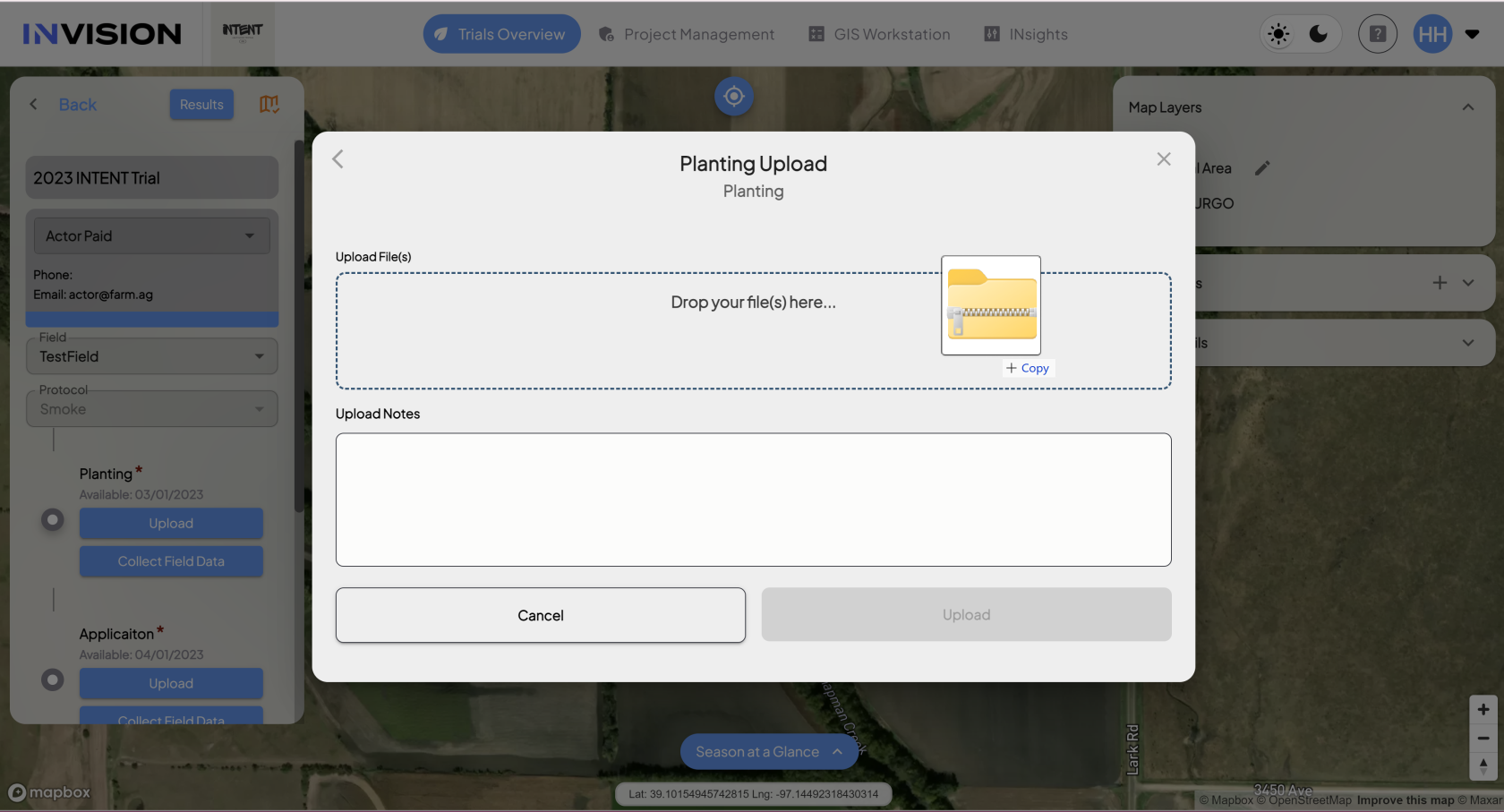
        - **Browse Your Files:** You can click inside the dotted boundary, which will open the files available on your computer, where you can select the zipped folder containing the machine data files you're wanting to upload.
        - **Drag and Drop:** You can also drag and drop folders into the dotted boundary.  
            [![Screenshot (71).png](https://docs.prod.intent.ag/uploads/images/gallery/2024-03/scaled-1680-/screenshot-71.png)](https://docs.prod.intent.ag/uploads/images/gallery/2024-03/screenshot-71.png)
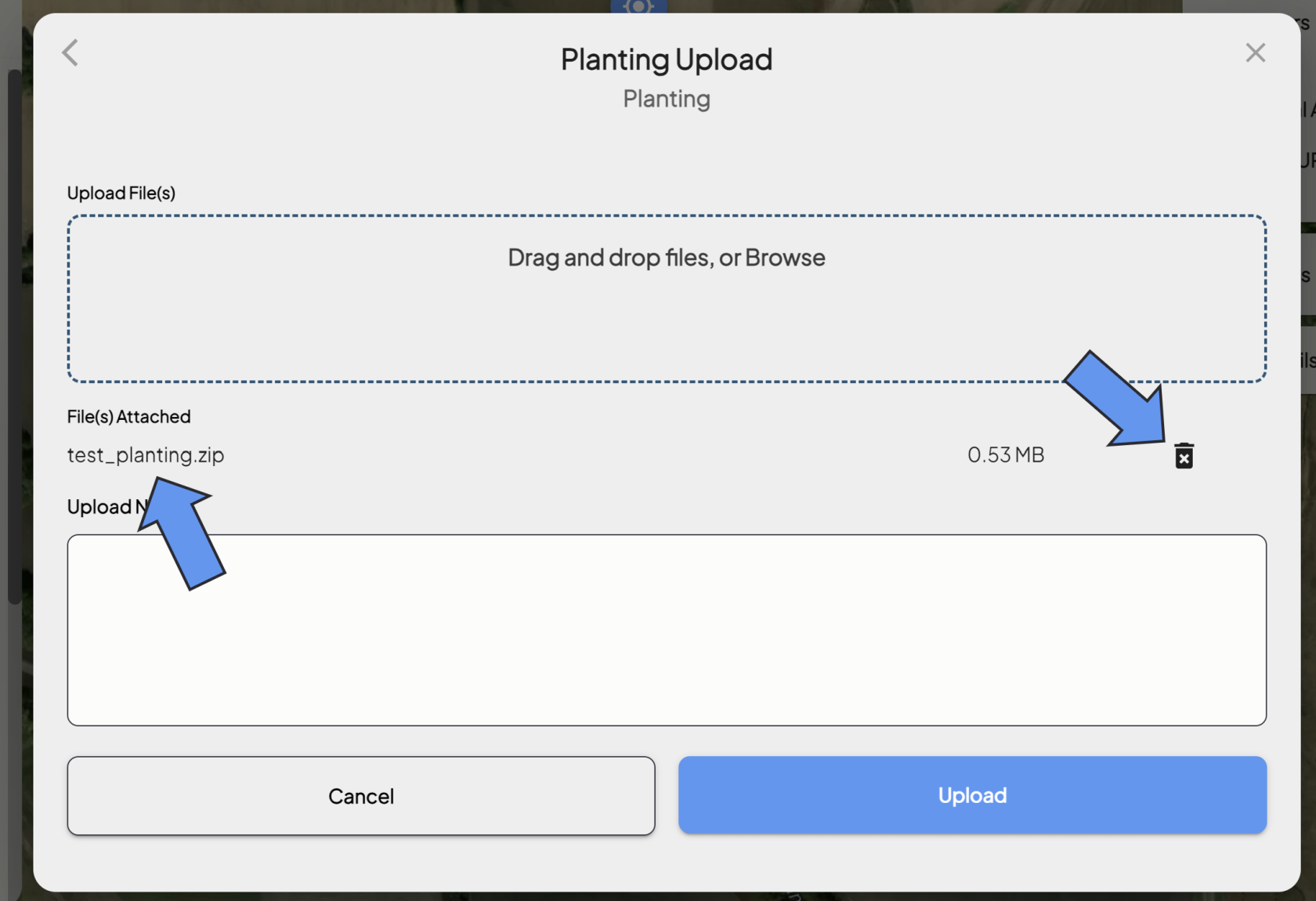
        - Once your files are uploaded, you'll see the name of the folder you've selected. 
            - Double check you've selected the correct folder.
            - You can remove it using the trash can icon, and select a new folder if needed.  
                [![image.png](https://docs.prod.intent.ag/uploads/images/gallery/2024-03/scaled-1680-/rrfimage.png)](https://docs.prod.intent.ag/uploads/images/gallery/2024-03/rrfimage.png)
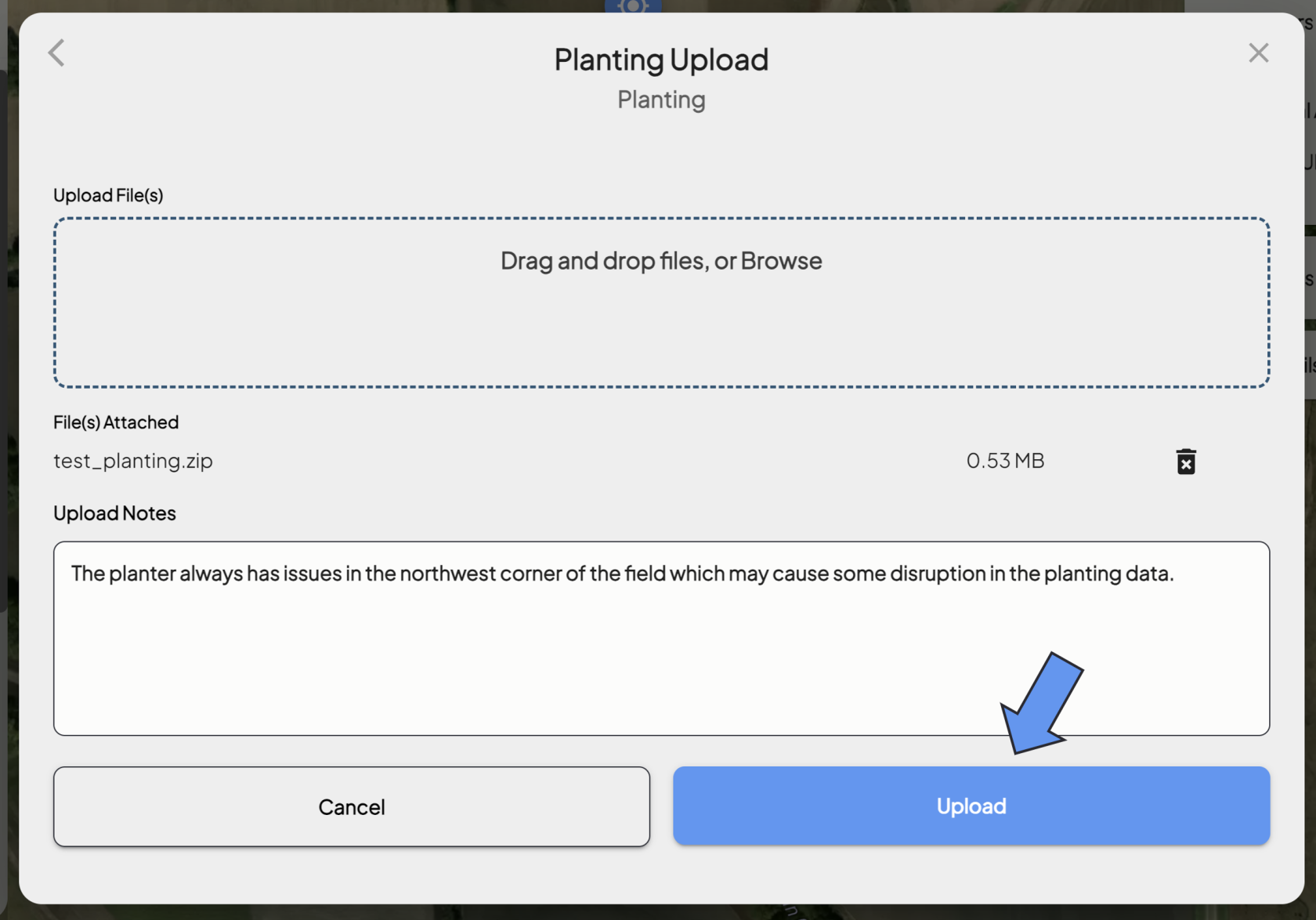
    - **Fill Out Upload Notes**
        - You have the option to fill out field notes before you upload.
        - Please include any information that will be helpful to the data processor that look at this data, such as: 
            - Any complications with the operation
            - Any landmarks that identify areas of interest
            - Any weather events that could potentially have affected the operation
            - Any useful information that is not obvious from the data alone
2. **Upload Your Data**
    - Once you've attached your folder, checked it, and filled out the upload notes, click the **Upload** button to finish the upload process.  
        [![image.png](https://docs.prod.intent.ag/uploads/images/gallery/2024-03/scaled-1680-/h0wimage.png)](https://docs.prod.intent.ag/uploads/images/gallery/2024-03/h0wimage.png)
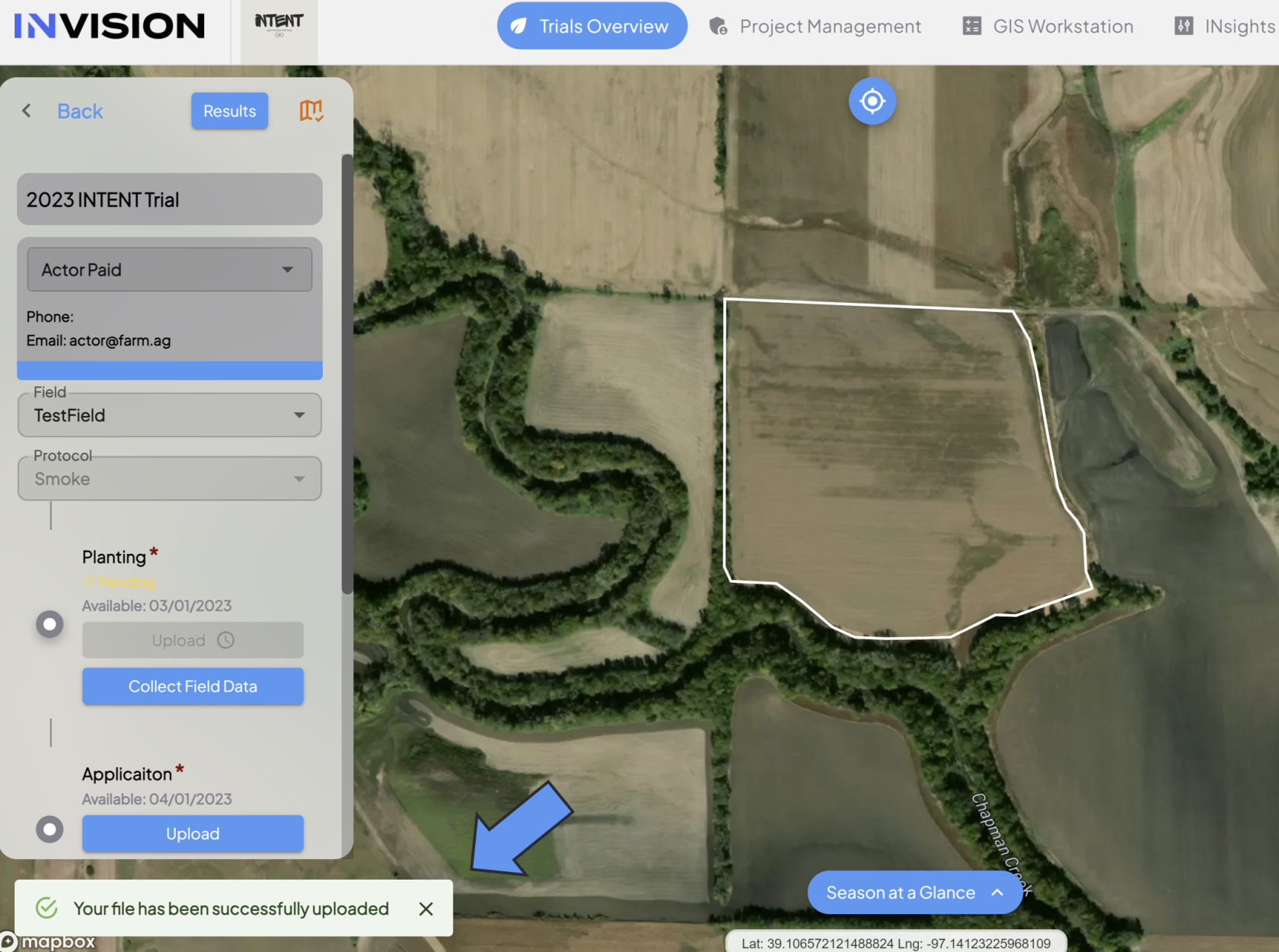
    - Once the files have been uploaded, you'll see a notification in the bottom left corner of View Fields confirming the upload was successful.  
        [![Screenshot 2024-03-26 135245.png](https://docs.prod.intent.ag/uploads/images/gallery/2024-03/scaled-1680-/screenshot-2024-03-26-135245.png)](https://docs.prod.intent.ag/uploads/images/gallery/2024-03/screenshot-2024-03-26-135245.png)
        - If there happens to be any issues with the files you've uploaded, you'll receive an email with an update of what the issue was, and next steps to follow.
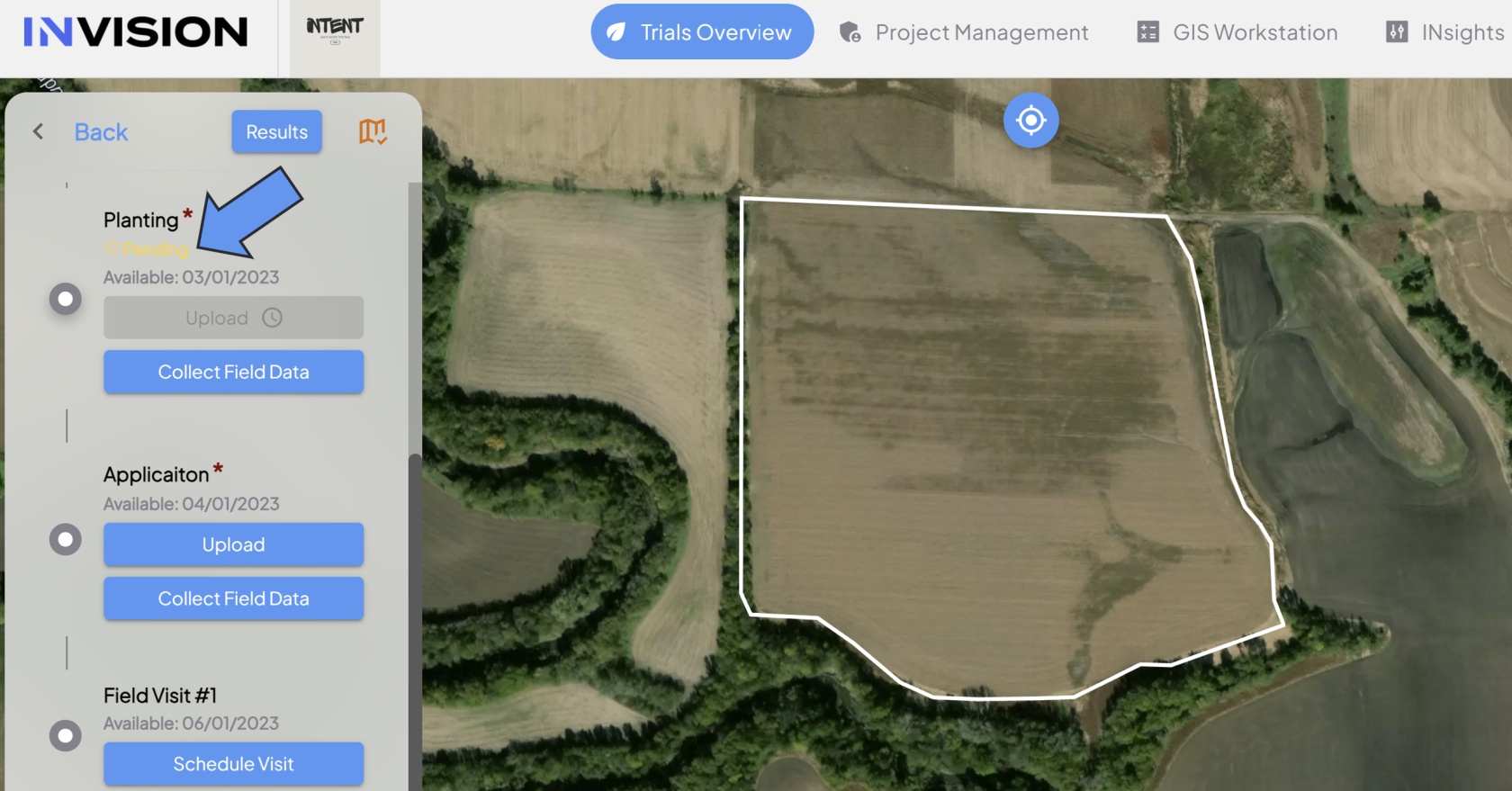
3. **Check Your File Status**
    - You can see the status of your upload underneath the step name. The following statuses are possible: 
        - **Available:** This status means you still need to upload files for this protocol step. 
            - If you've uploaded your files once, but come back to this step and see the status as available, that means there was an issue with your files. Please address the issue and upload again.
        - **Pending:** This status means your files are still being processed. Keep an eye on your email inbox in case there are any issues.
        - **Completed:** This status means you've successfully uploaded your machine data files.  
            [![Screenshot 2024-03-26 135640.png](https://docs.prod.intent.ag/uploads/images/gallery/2024-03/scaled-1680-/screenshot-2024-03-26-135640.png)](https://docs.prod.intent.ag/uploads/images/gallery/2024-03/screenshot-2024-03-26-135640.png)
# How To Upload Machine Data Through a Third Party Connection

##### **Guide To Uploading Files Through a Third Party Connection**

Uploading or submitting your planting, application, or harvest data to the INVISION Platform is a straightforward and easy process. You have three options available to you: uploading files from your device, connecting to a third party, or manually entering data. Continue reading this guide to discover the best way for you to upload your data to INVISION.

1. **Navigate to Your Field** 
    - Find the field you have machine data for on the Trials Overview Page.
    - Open that field into View Fields. 
        - For additional help with this step, check out our [Guide To Understanding the INVISION Overview Page](https://docs.prod.intent.ag/books/invision-learning-guide/page/understanding-the-invision-overview-page).
2. **Find the Correct Protocol Step**
    - Locate the protocol step you need to upload data for. The three most common steps are the following:  
        
        - Planting
        - Application
        - Harvest
    - Click on the **Upload** button under the step you have data for.  
        [![image.png](https://docs.prod.intent.ag/uploads/images/gallery/2024-03/scaled-1680-/uC1image.png)](https://docs.prod.intent.ag/uploads/images/gallery/2024-03/uC1image.png)
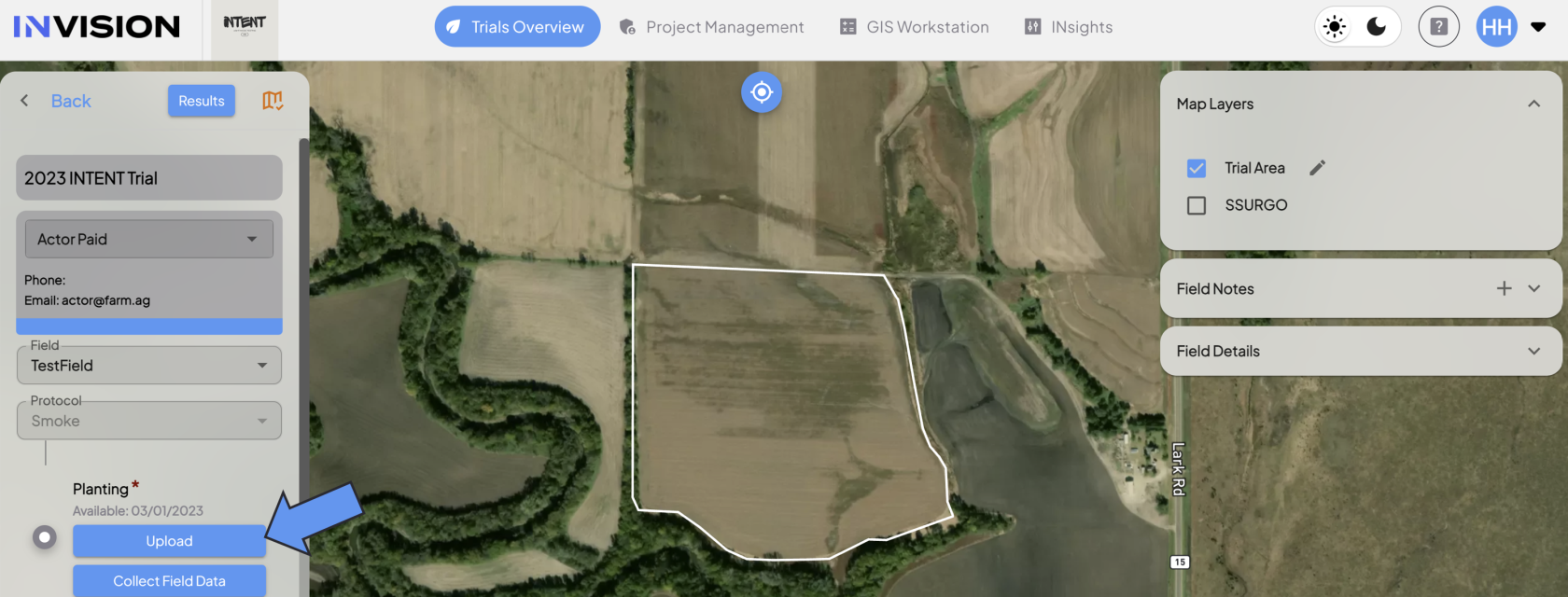
    - This will bring up a new menu where you will have different selection options to upload data. <span class="NormalTextRun SCXW184373533 BCX0">If you have machine data housed by a third party, such as </span><span class="NormalTextRun SCXW184373533 BCX0">Climate </span><span class="NormalTextRun SpellingErrorV2Themed SCXW184373533 BCX0">FieldView or MyJohnDeere</span><span class="NormalTextRun SCXW184373533 BCX0">, you will want to select the **Integration** option.</span>

1. **<span class="TextRun SCXW184373533 BCX0" data-contrast="auto" lang="EN-US" xml:lang="EN-US"><span class="NormalTextRun SCXW184373533 BCX0">Select Integration</span></span>**
    - <span class="TextRun SCXW184373533 BCX0" data-contrast="auto" lang="EN-US" xml:lang="EN-US"><span class="NormalTextRun SCXW184373533 BCX0">Click on the middle option, **Integration.  
        [![Screenshot 2024-03-26 142856.png](https://docs.prod.intent.ag/uploads/images/gallery/2024-03/scaled-1680-/screenshot-2024-03-26-142856.png)](https://docs.prod.intent.ag/uploads/images/gallery/2024-03/screenshot-2024-03-26-142856.png)** </span></span>
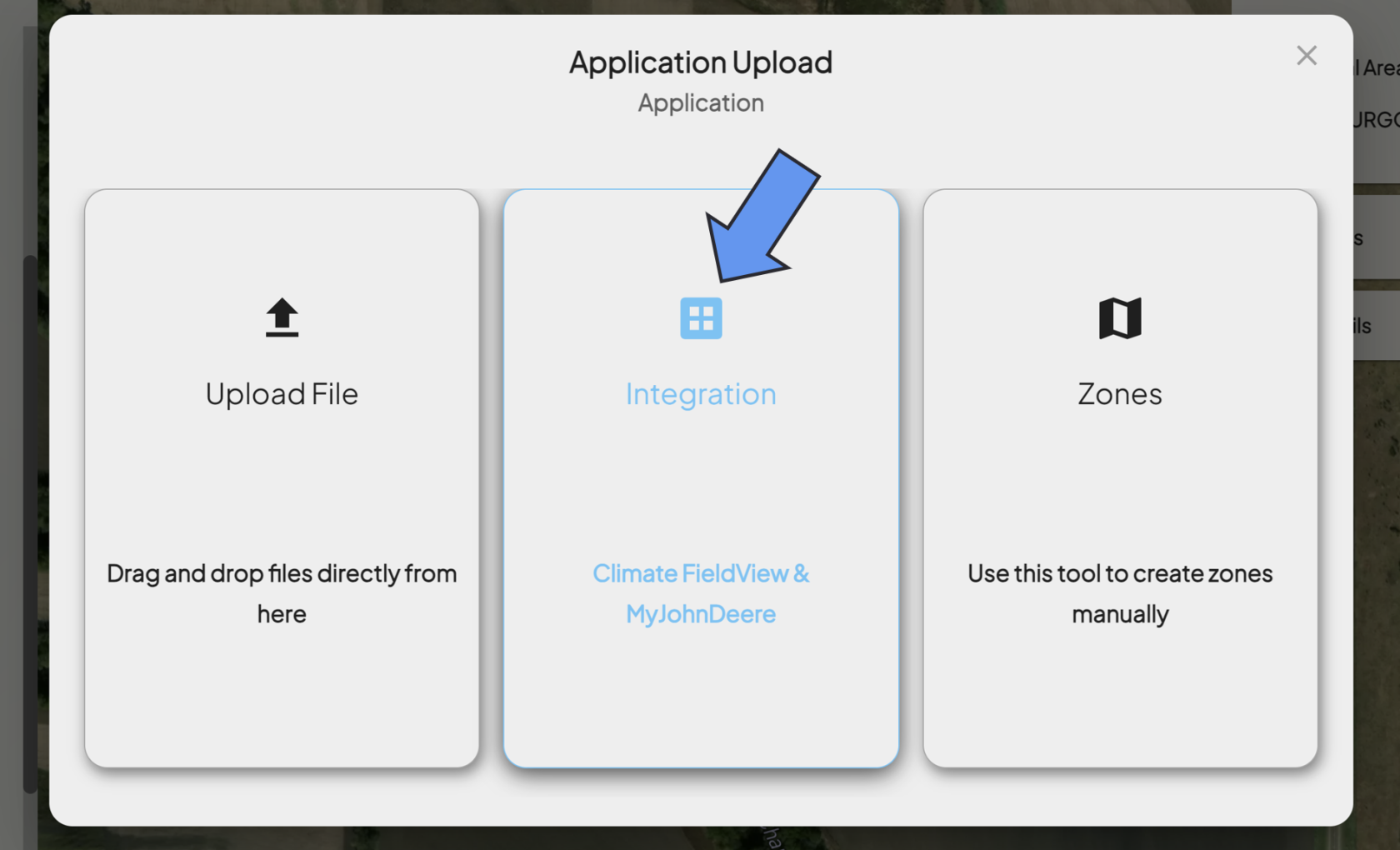
2. **<span class="TextRun SCXW184373533 BCX0" data-contrast="auto" lang="EN-US" xml:lang="EN-US"><span class="NormalTextRun SCXW184373533 BCX0">Choose Your Provider</span></span>**
    - <span class="TextRun SCXW184373533 BCX0" data-contrast="auto" lang="EN-US" xml:lang="EN-US"><span class="NormalTextRun SCXW184373533 BCX0">Click on the provider you have data with:  
        [![Screenshot 2024-03-26 143130.png](https://docs.prod.intent.ag/uploads/images/gallery/2024-03/scaled-1680-/screenshot-2024-03-26-143130.png)](https://docs.prod.intent.ag/uploads/images/gallery/2024-03/screenshot-2024-03-26-143130.png)  
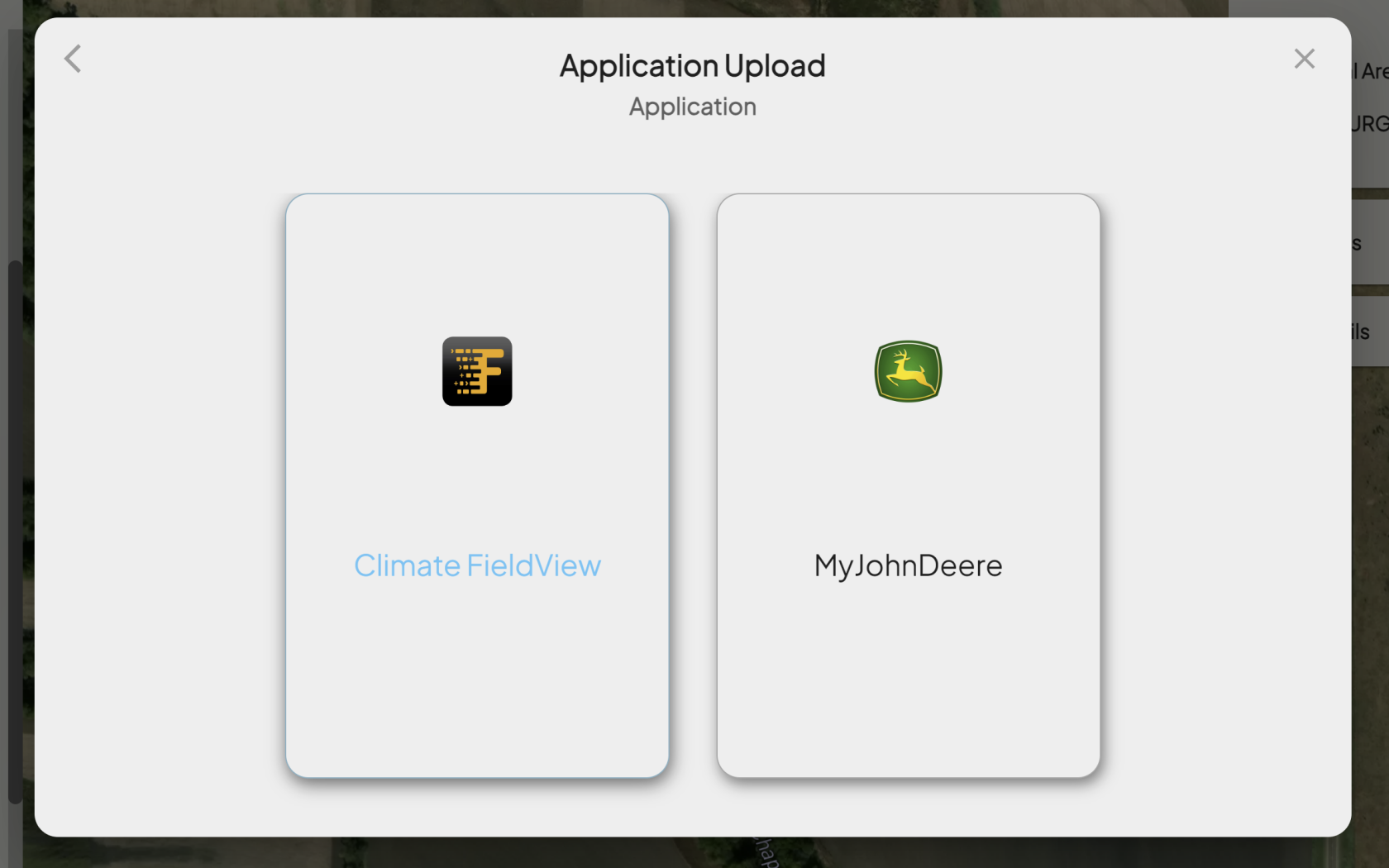
        </span></span>

##### **<span class="TextRun SCXW184373533 BCX0" data-contrast="auto" lang="EN-US" xml:lang="EN-US"><span class="NormalTextRun SCXW184373533 BCX0">Climate FieldView</span></span>**

- - - - <span class="TextRun SCXW184373533 BCX0" data-contrast="auto" lang="EN-US" xml:lang="EN-US"><span class="NormalTextRun SCXW184373533 BCX0">Selecting Climate Fieldview will bring you to their portal.[![Screenshot 2024-03-26 143448.png](https://docs.prod.intent.ag/uploads/images/gallery/2024-03/scaled-1680-/screenshot-2024-03-26-143448.png)](https://docs.prod.intent.ag/uploads/images/gallery/2024-03/screenshot-2024-03-26-143448.png)</span></span>
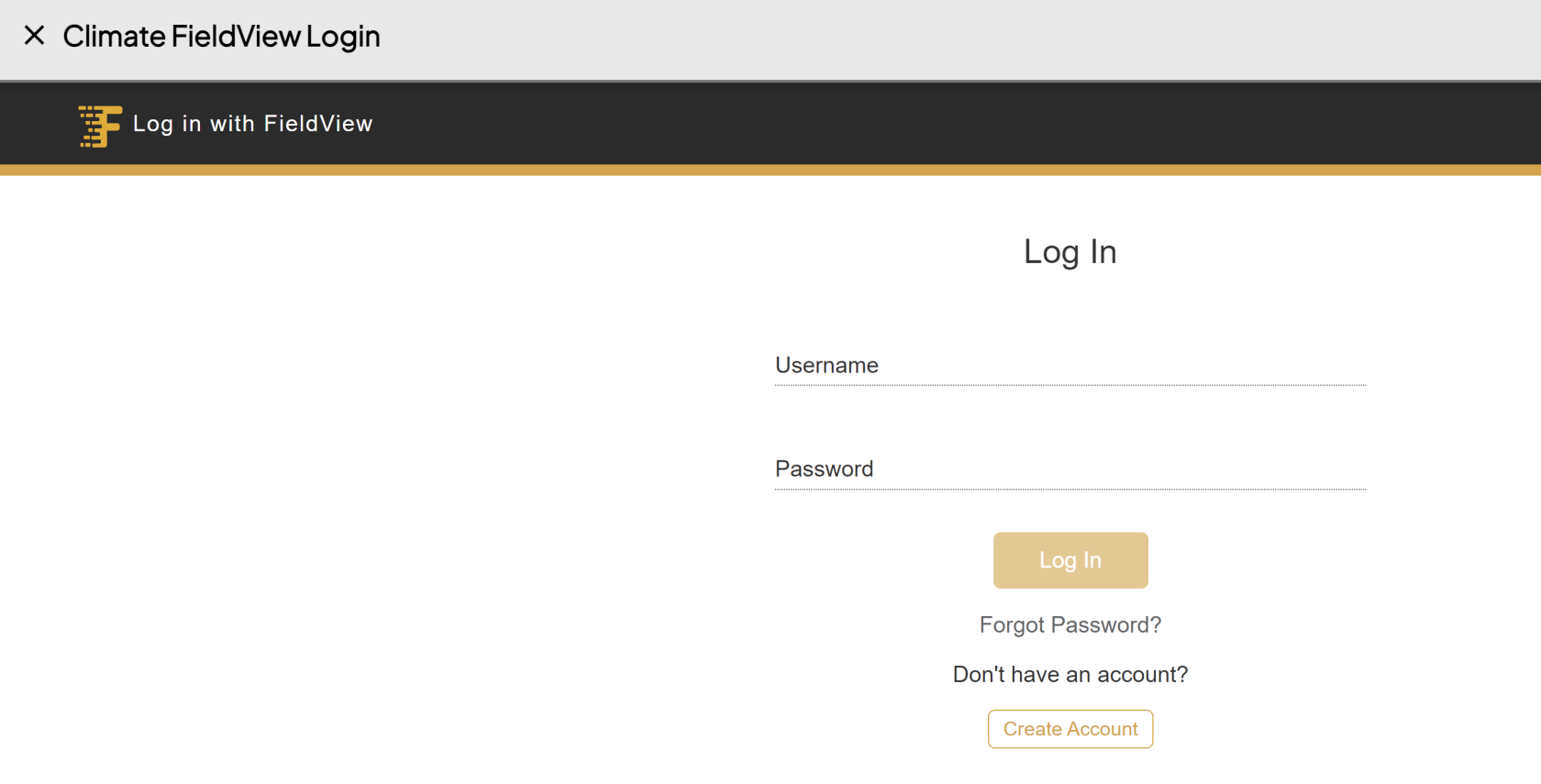
            - <span class="TextRun SCXW184373533 BCX0" data-contrast="auto" lang="EN-US" xml:lang="EN-US"><span class="NormalTextRun SCXW184373533 BCX0">Login using your username and password.  
                </span></span>
            - <span class="TextRun SCXW184373533 BCX0" data-contrast="auto" lang="EN-US" xml:lang="EN-US"><span class="NormalTextRun SCXW184373533 BCX0"><span class="TextRun SCXW240875614 BCX0" data-contrast="auto" lang="EN-US" xml:lang="EN-US"><span class="NormalTextRun SCXW240875614 BCX0">If </span><span class="NormalTextRun SCXW240875614 BCX0">you’re</span><span class="NormalTextRun SCXW240875614 BCX0"> asked about permissions, hit </span><span class="NormalTextRun SCXW240875614 BCX0">allow</span><span class="NormalTextRun SCXW240875614 BCX0"> to give access to </span><span class="NormalTextRun SCXW240875614 BCX0">retrieve</span><span class="NormalTextRun SCXW240875614 BCX0"> your files from Climate </span><span class="NormalTextRun SpellingErrorV2Themed SpellingErrorHighlight SCXW240875614 BCX0">FieldView.  
                [![Screenshot 2024-03-26 144001.png](https://docs.prod.intent.ag/uploads/images/gallery/2024-03/scaled-1680-/screenshot-2024-03-26-144001.png)](https://docs.prod.intent.ag/uploads/images/gallery/2024-03/screenshot-2024-03-26-144001.png)  
                </span></span></span></span>
            - <span class="TextRun SCXW184373533 BCX0" data-contrast="auto" lang="EN-US" xml:lang="EN-US"><span class="NormalTextRun SCXW184373533 BCX0"><span class="EOP SCXW240875614 BCX0" data-ccp-props="{}"><span class="TextRun SCXW264720413 BCX0" data-contrast="auto" lang="EN-US" xml:lang="EN-US"><span class="NormalTextRun SCXW264720413 BCX0">Once </span><span class="NormalTextRun SCXW264720413 BCX0">you’ve</span><span class="NormalTextRun SCXW264720413 BCX0"> signed in, you can use the different dropdowns to select the</span> <span class="NormalTextRun SCXW264720413 BCX0">field</span><span class="NormalTextRun SCXW264720413 BCX0"> and</span><span class="NormalTextRun SCXW264720413 BCX0"> specific dates to find the right </span><span class="NormalTextRun SCXW264720413 BCX0">data.  
                  
                </span></span></span></span></span>

 For additional help, follow along with this video on how to access and upload your files from Climate FieldView:

<iframe allowfullscreen="allowfullscreen" height="314" src="https://www.youtube.com/embed/FjJRo0_aWYY" width="560"></iframe>

#####  

##### **<span class="TextRun SCXW184373533 BCX0" data-contrast="auto" lang="EN-US" xml:lang="EN-US"><span class="NormalTextRun SCXW184373533 BCX0"><span class="EOP SCXW240875614 BCX0" data-ccp-props="{}"><span class="TextRun SCXW264720413 BCX0" data-contrast="auto" lang="EN-US" xml:lang="EN-US"><span class="NormalTextRun SCXW264720413 BCX0">MyJohnDeere</span></span></span></span></span>**

- - - - <span class="TextRun SCXW184373533 BCX0" data-contrast="auto" lang="EN-US" xml:lang="EN-US"><span class="NormalTextRun SCXW184373533 BCX0"><span class="EOP SCXW240875614 BCX0" data-ccp-props="{}"><span class="TextRun SCXW264720413 BCX0" data-contrast="auto" lang="EN-US" xml:lang="EN-US"><span class="NormalTextRun SCXW264720413 BCX0">Selecting MyJohnDeere will bring you into their portal.  
                [![Screenshot 2024-03-27 165226.png](https://docs.prod.intent.ag/uploads/images/gallery/2024-03/scaled-1680-/screenshot-2024-03-27-165226.png)](https://docs.prod.intent.ag/uploads/images/gallery/2024-03/screenshot-2024-03-27-165226.png)  
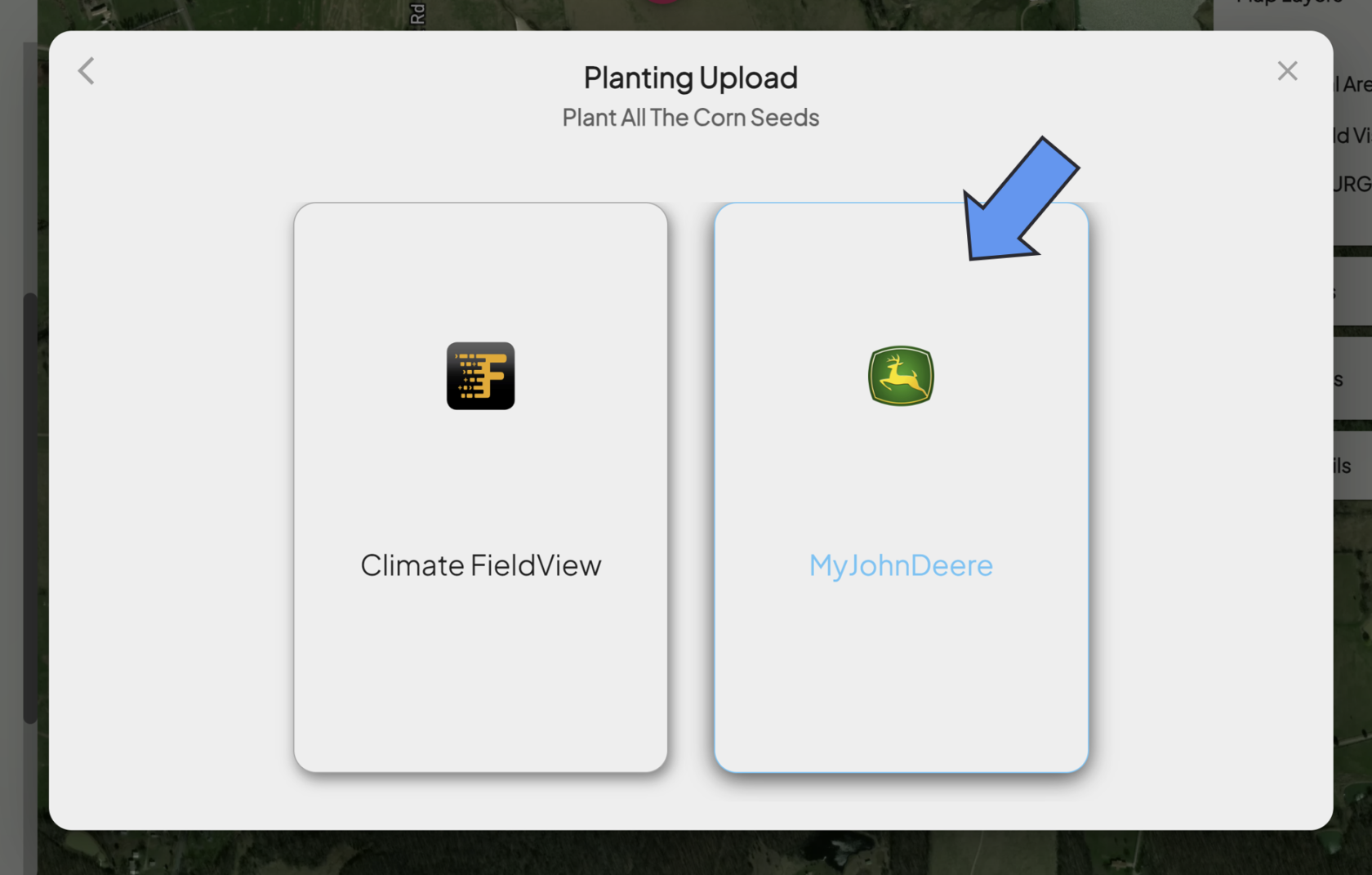
                </span></span></span></span></span>
            - <span class="TextRun SCXW184373533 BCX0" data-contrast="auto" lang="EN-US" xml:lang="EN-US"><span class="NormalTextRun SCXW184373533 BCX0"><span class="EOP SCXW240875614 BCX0" data-ccp-props="{}"><span class="TextRun SCXW264720413 BCX0" data-contrast="auto" lang="EN-US" xml:lang="EN-US"><span class="NormalTextRun SCXW264720413 BCX0">Sign in using your username and password.</span></span></span></span></span>
            - <span class="TextRun SCXW184373533 BCX0" data-contrast="auto" lang="EN-US" xml:lang="EN-US"><span class="NormalTextRun SCXW184373533 BCX0"><span class="EOP SCXW240875614 BCX0" data-ccp-props="{}"><span class="TextRun SCXW264720413 BCX0" data-contrast="auto" lang="EN-US" xml:lang="EN-US"><span class="NormalTextRun SCXW264720413 BCX0">Once you’ve signed in, you can use the different dropdown menus to select the field and specific dates to find the data you need to upload.  
                </span></span></span></span></span>
                - <span class="TextRun SCXW184373533 BCX0" data-contrast="auto" lang="EN-US" xml:lang="EN-US"><span class="NormalTextRun SCXW184373533 BCX0"><span class="EOP SCXW240875614 BCX0" data-ccp-props="{}"><span class="TextRun SCXW264720413 BCX0" data-contrast="auto" lang="EN-US" xml:lang="EN-US"><span class="NormalTextRun SCXW264720413 BCX0">Be sure the check the boundary on the map to ensure it's the right field.</span></span></span></span></span>
            - <span class="TextRun SCXW184373533 BCX0" data-contrast="auto" lang="EN-US" xml:lang="EN-US"><span class="NormalTextRun SCXW184373533 BCX0"><span class="EOP SCXW240875614 BCX0" data-ccp-props="{}"><span class="TextRun SCXW264720413 BCX0" data-contrast="auto" lang="EN-US" xml:lang="EN-US"><span class="NormalTextRun SCXW264720413 BCX0">Check the boxes for all of the files you want to upload.  
                [![Screenshot 2024-03-27 142109.png](https://docs.prod.intent.ag/uploads/images/gallery/2024-03/scaled-1680-/screenshot-2024-03-27-142109.png)](https://docs.prod.intent.ag/uploads/images/gallery/2024-03/screenshot-2024-03-27-142109.png)  
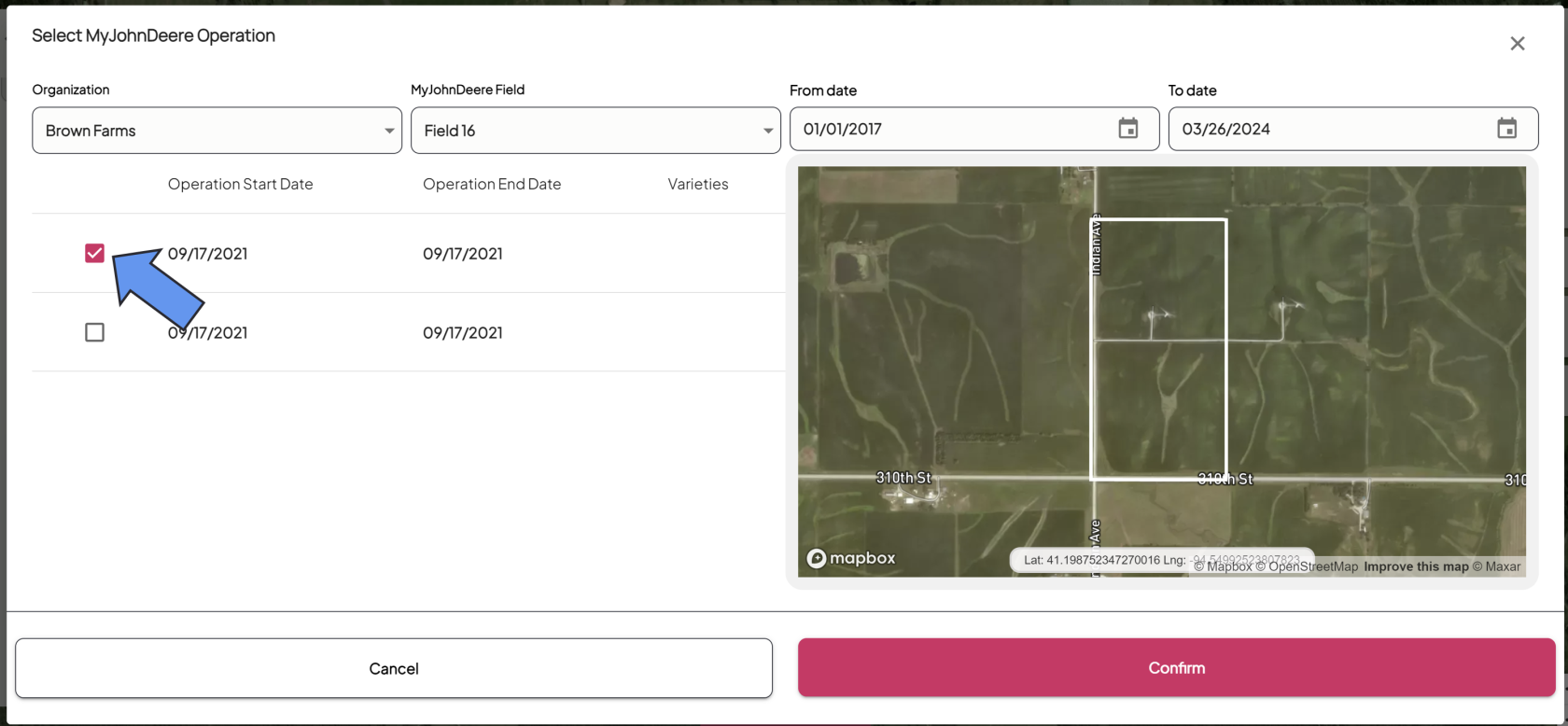
                </span></span></span></span></span>
            - <span class="TextRun SCXW184373533 BCX0" data-contrast="auto" lang="EN-US" xml:lang="EN-US"><span class="NormalTextRun SCXW184373533 BCX0"><span class="EOP SCXW240875614 BCX0" data-ccp-props="{}"><span class="TextRun SCXW264720413 BCX0" data-contrast="auto" lang="EN-US" xml:lang="EN-US"><span class="NormalTextRun SCXW264720413 BCX0">Select **Confirm** to upload your machine data.</span></span></span></span></span>
            - You will then see the status of your file underneath the step name. The following statuses are possible: 
                - **Available:** This status means you still need to upload a file for this protocol step. 
                    - If you've uploaded your file once, but come back to this step and see the status as available, that means there was an issue with your file. Please address the issue and upload again.
                - **Pending:** This status means your file is still being processed. Keep an eye on your email inbox in case there are any issues.
                - **Completed:** This status means you've successfully uploaded your machine data file.  
                    [![Screenshot 2024-03-27 164530.png](https://docs.prod.intent.ag/uploads/images/gallery/2024-03/scaled-1680-/screenshot-2024-03-27-164530.png)](https://docs.prod.intent.ag/uploads/images/gallery/2024-03/screenshot-2024-03-27-164530.png)
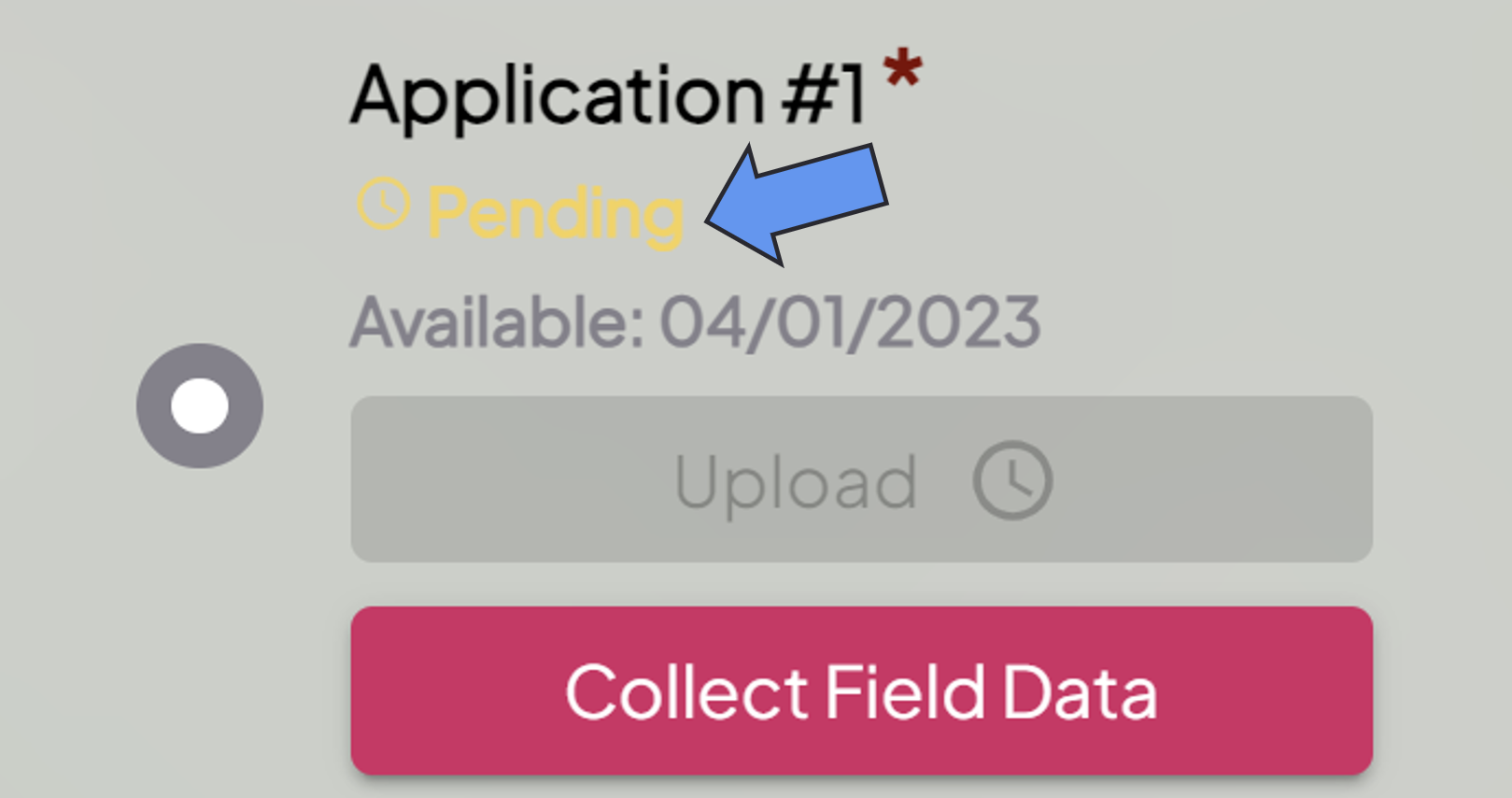
For additional help, follow along with this video on how to access and upload your files from MyJohnDeere:

<iframe allowfullscreen="allowfullscreen" height="314" src="https://www.youtube.com/embed/qt-8at0aWJ4" width="560"></iframe>

# How to Enter Manual Data

#### **Guide to Uploading Machine Data** 

Uploading or submitting your planting, application, or harvest data to the INVISION Platform is a straightforward and easy process. You have three options available to you: uploading files from your device, connecting to a third party, or manually entering data. Continue reading this guide to discover the best way for you to upload your data to INVISION.

1. **Navigate to Your Field** 
    - Find the field you have machine data for on the Trials Overview Page.
    - Open that field into View Fields. 
        - For additional help with this step, check out our [Guide To Understanding the INVISION Overview Page](https://docs.prod.intent.ag/books/invision-learning-guide/page/understanding-the-invision-overview-page).
2. **Find the Correct Protocol Step**
    - Locate the protocol step you need to upload data for. The three most common steps are the following:  
        
        - Planting
        - Application
        - Harvest
    - Click on the **Upload** button under the step you have data for.  
        [![image.png](https://docs.prod.intent.ag/uploads/images/gallery/2024-03/scaled-1680-/uC1image.png)](https://docs.prod.intent.ag/uploads/images/gallery/2024-03/uC1image.png)

    - This will bring up a new menu where you will have different selection options to upload data. If you have no machine data files and need to manually upload data, **Zones/Manual Harvest** is the option for you. How you manually upload depends on the type of data you need to submit.

##### **<span class="TextRun SCXW184373533 BCX0" data-contrast="auto" lang="EN-US" xml:lang="EN-US"><span class="NormalTextRun SCXW184373533 BCX0">Planting/Application</span></span>**

1. **<span class="TextRun SCXW184373533 BCX0" data-contrast="auto" lang="EN-US" xml:lang="EN-US"><span class="NormalTextRun SCXW184373533 BCX0">Select Zones</span></span>**
    - <span class="TextRun SCXW184373533 BCX0" data-contrast="auto" lang="EN-US" xml:lang="EN-US"><span class="NormalTextRun SCXW184373533 BCX0">If you need to submit planting or application information manually, you'll need to draw in zones. Click on the **Zones** option.  
        [![Screenshot 2024-03-26 144945.png](https://docs.prod.intent.ag/uploads/images/gallery/2024-03/scaled-1680-/screenshot-2024-03-26-144945.png)](https://docs.prod.intent.ag/uploads/images/gallery/2024-03/screenshot-2024-03-26-144945.png)</span></span>
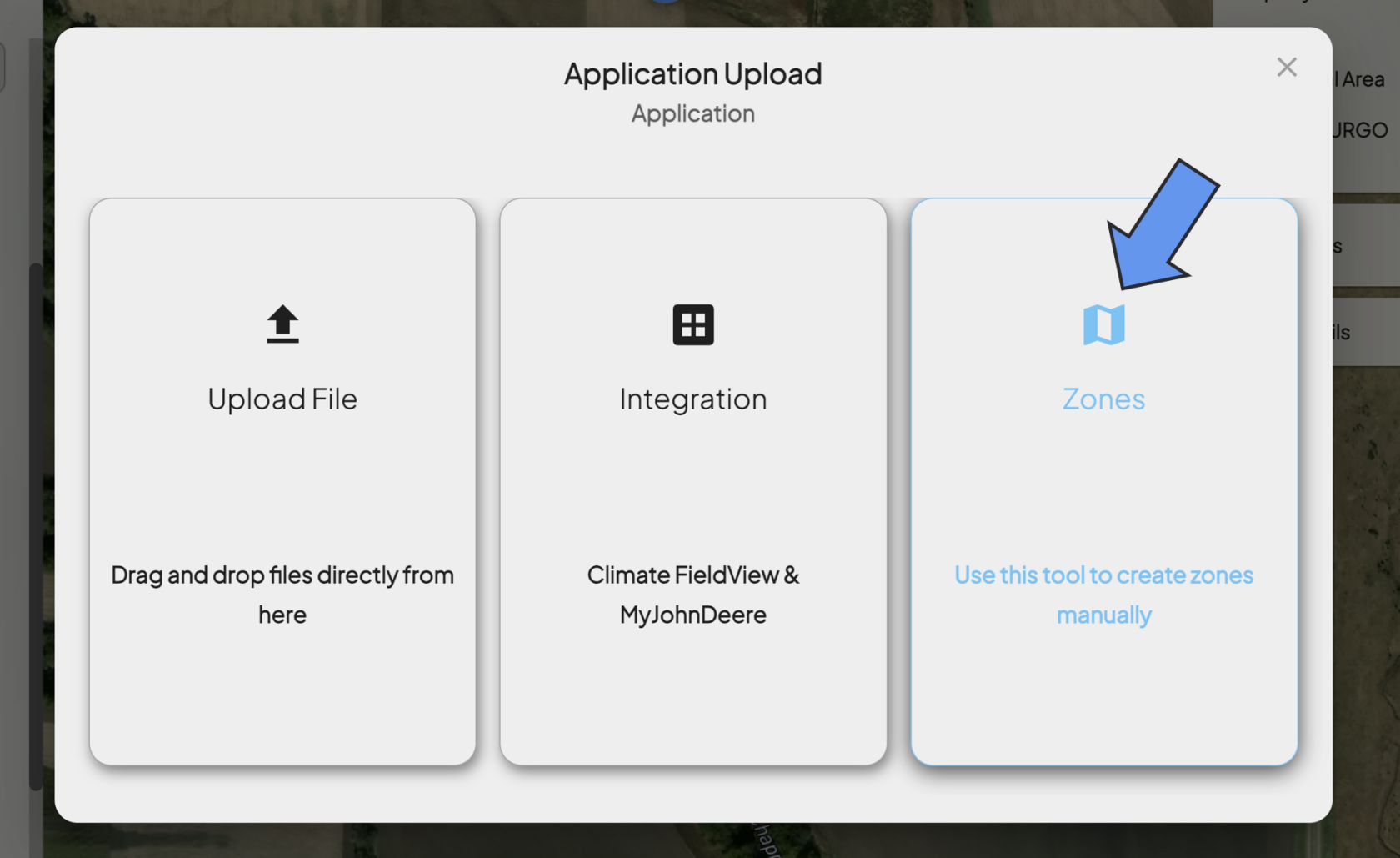
2. **<span class="TextRun SCXW184373533 BCX0" data-contrast="auto" lang="EN-US" xml:lang="EN-US"><span class="NormalTextRun SCXW184373533 BCX0">Fill Out Operation Date</span></span>**
    - <span class="TextRun SCXW184373533 BCX0" data-contrast="auto" lang="EN-US" xml:lang="EN-US"><span class="NormalTextRun SCXW184373533 BCX0">Select the date the operation took place.  
        [![Screenshot 2024-03-26 145452.png](https://docs.prod.intent.ag/uploads/images/gallery/2024-03/scaled-1680-/screenshot-2024-03-26-145452.png)](https://docs.prod.intent.ag/uploads/images/gallery/2024-03/screenshot-2024-03-26-145452.png)</span></span>
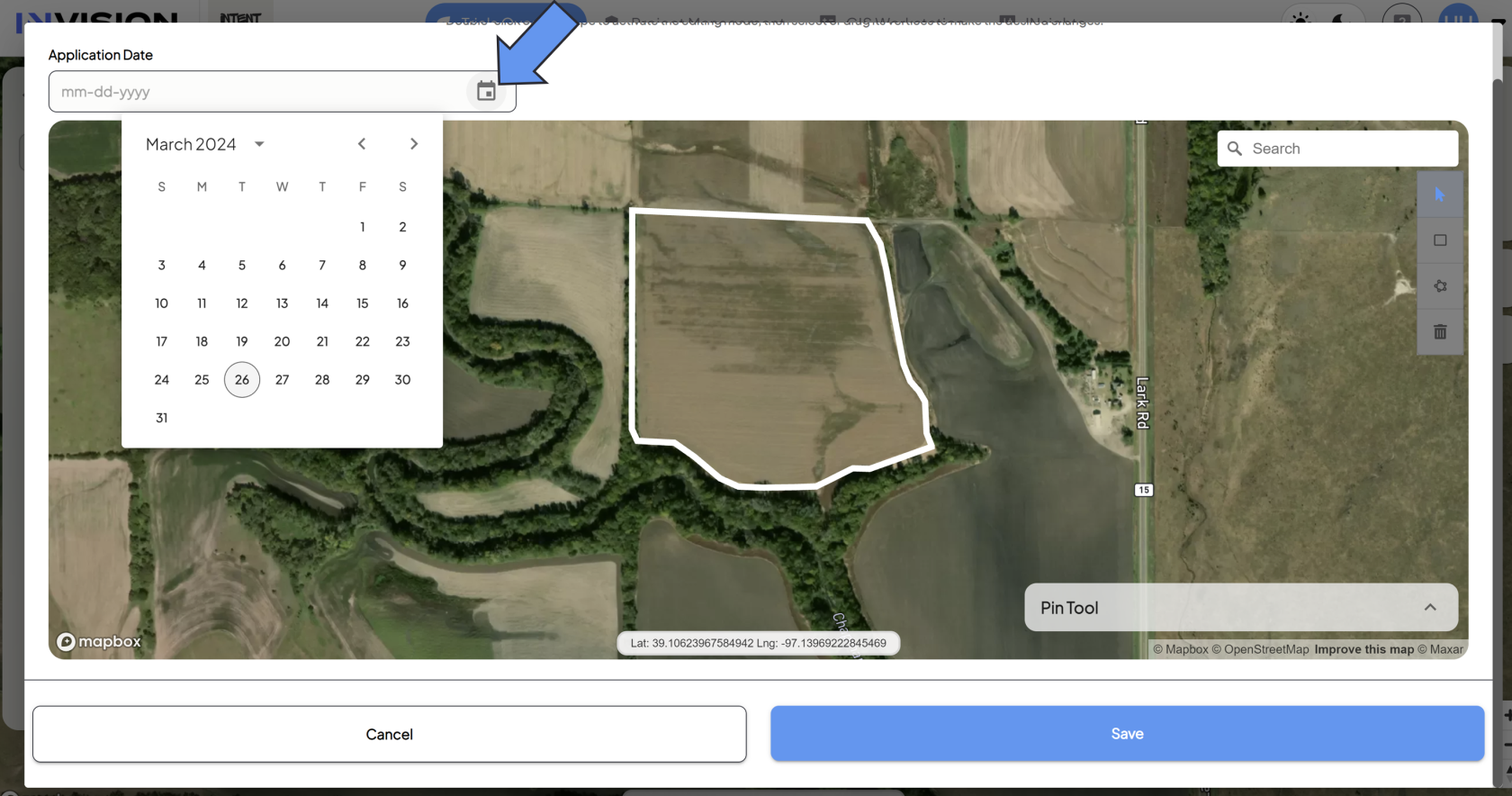
3. **Draw A Zone**
    - You will need to draw a zone for each product in your protocol. You have a variety of polygon tools to work with: 
        - The *rectangular polygon tool* will create a rectangular polygon shape as your drag your mouse.  
            [![Screenshot 2024-03-26 150422.png](https://docs.prod.intent.ag/uploads/images/gallery/2024-03/scaled-1680-/screenshot-2024-03-26-150422.png)](https://docs.prod.intent.ag/uploads/images/gallery/2024-03/screenshot-2024-03-26-150422.png)
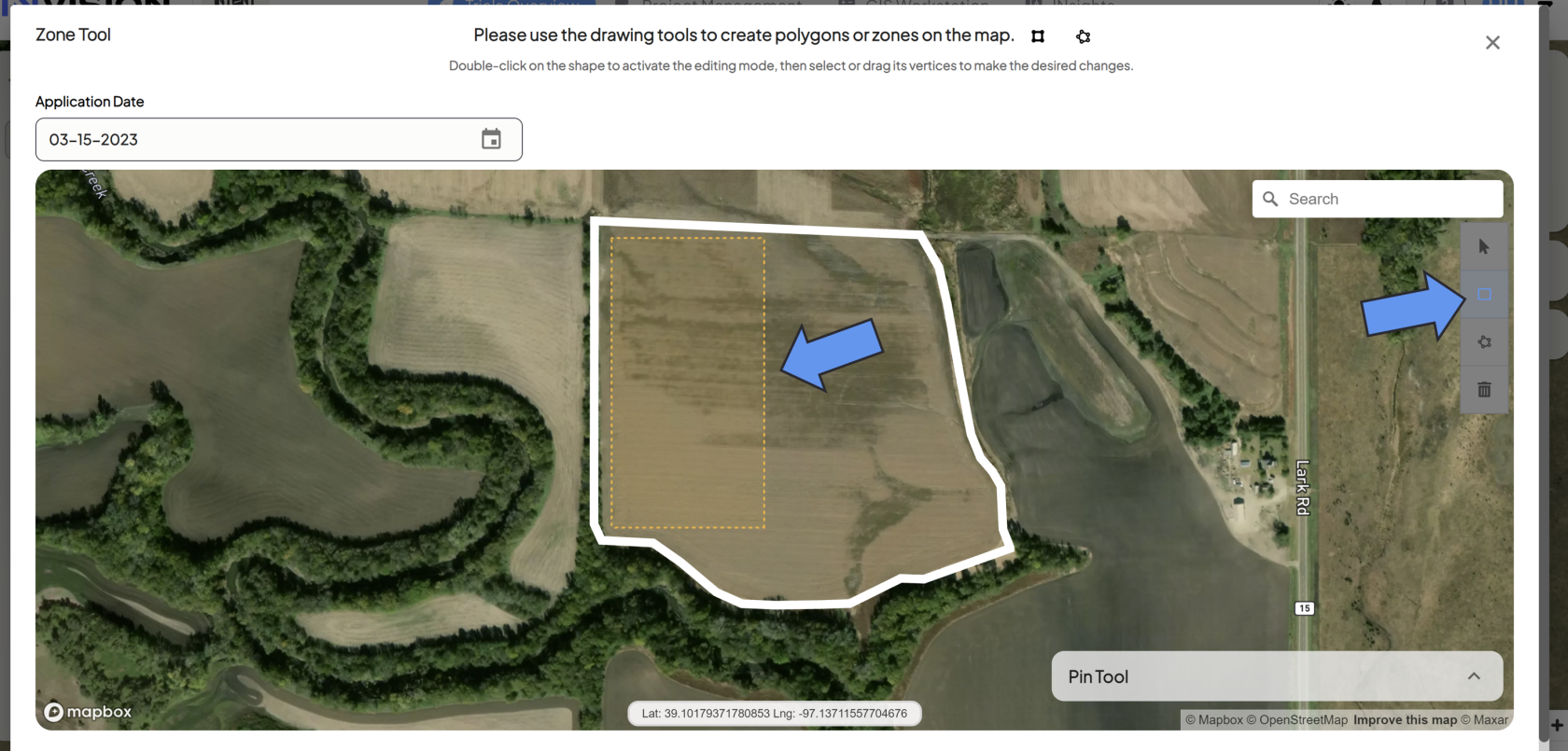
        - The *star shaped polygon* *tool* will allow you to drop connected points to create a polygon.  
            [![Screenshot 2024-03-26 151854.png](https://docs.prod.intent.ag/uploads/images/gallery/2024-03/scaled-1680-/screenshot-2024-03-26-151854.png)](https://docs.prod.intent.ag/uploads/images/gallery/2024-03/screenshot-2024-03-26-151854.png)
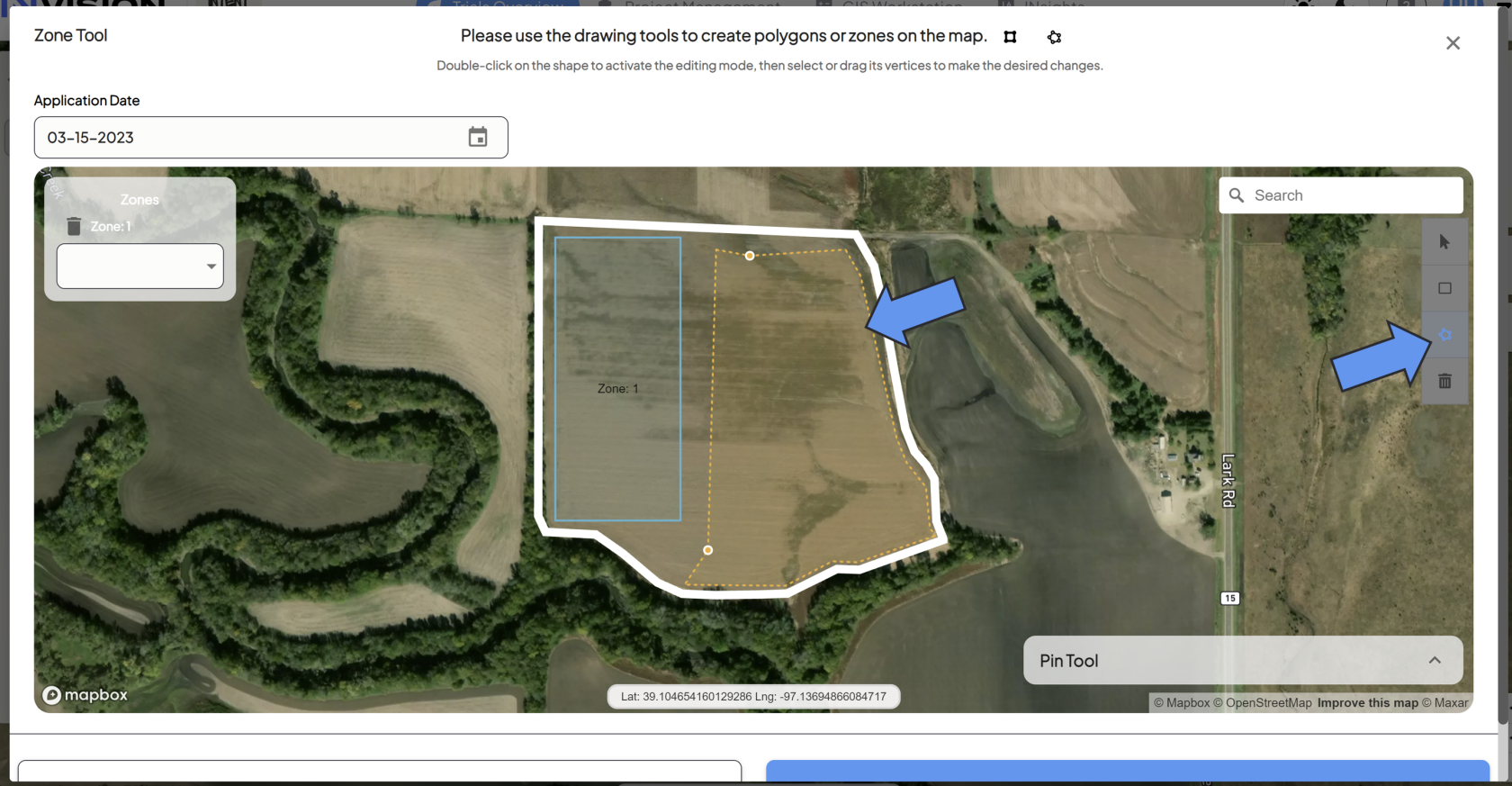
        - The *Pin Tool* will allow you to drop pins at specific latitude + longitude measurements to assist you in zone creation.  
            [![Screenshot 2024-03-26 152922.png](https://docs.prod.intent.ag/uploads/images/gallery/2024-03/scaled-1680-/screenshot-2024-03-26-152922.png)](https://docs.prod.intent.ag/uploads/images/gallery/2024-03/screenshot-2024-03-26-152922.png)
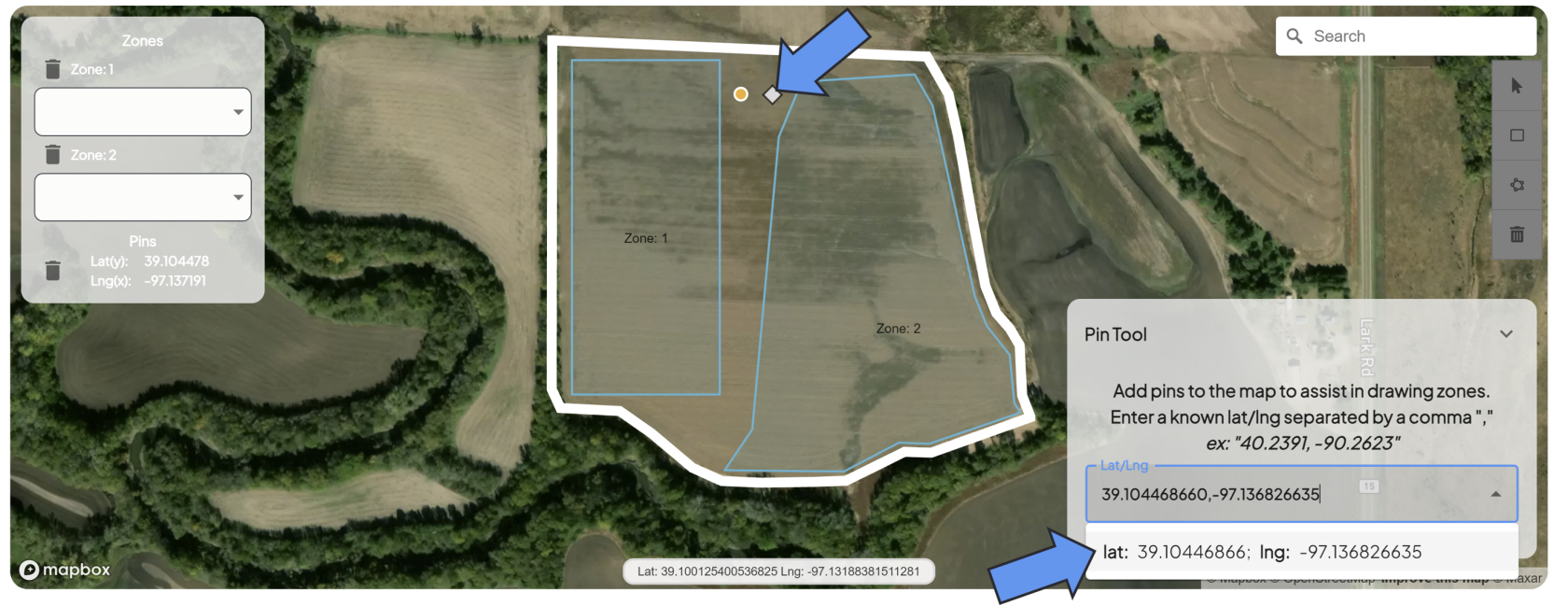
4. **Make Edits to Your Zones**
    - You can double click on zones you've created to edit them. 
        - You can select any of the vertices, which will allow you to drag them around to create the shape you need.
    - Use the trash can icon to delete any zones or pins you're unhappy with.
5. **Grower Standard Practice**
    - You might need to draw in a zone for any untreated areas of the field, sometimes referred to as the *Grower Standard Practice (GSP)* area.
    - Whether you need to or not will depend on if the *Untreated* functionality is disabled or not. Reach out to your point of contact with INTENT if you're unsure.
6. **Select Your Products**
    - For each zone you draw, you need to select which Product is associated with it.  
        [![Screenshot 2024-03-26 155605.png](https://docs.prod.intent.ag/uploads/images/gallery/2024-03/scaled-1680-/screenshot-2024-03-26-155605.png)](https://docs.prod.intent.ag/uploads/images/gallery/2024-03/screenshot-2024-03-26-155605.png)
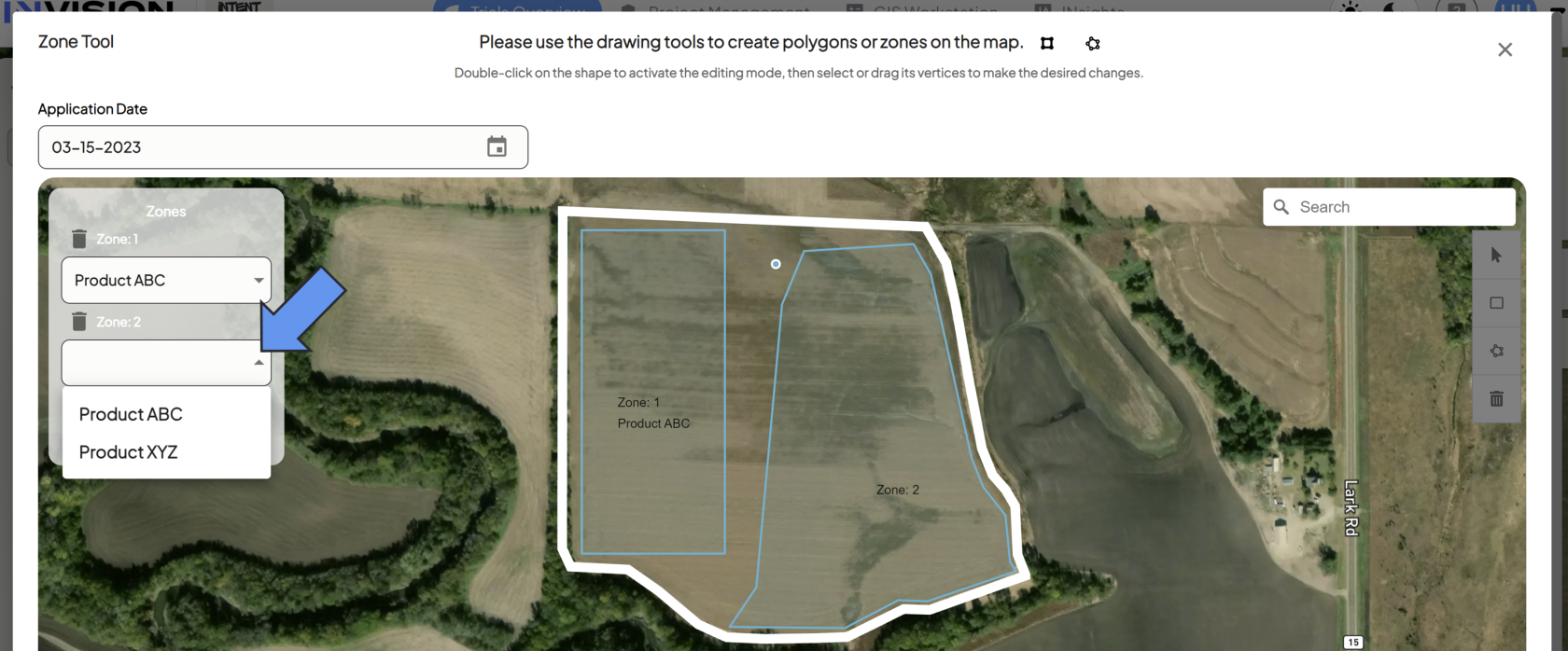
7. **Submit Manual Planting/Application Data**
    - Once your operation date is filled out, your zones are drawn, and products are assigned, you're ready to manually submit your data. Click the **Save** button to continue.
    - If the submission was successful, you'll see a notification in the bottom left corner of View Fields, and you'll see your newly created zones on the map.  
        [![Screenshot 2024-03-26 161035.png](https://docs.prod.intent.ag/uploads/images/gallery/2024-03/scaled-1680-/screenshot-2024-03-26-161035.png)](https://docs.prod.intent.ag/uploads/images/gallery/2024-03/screenshot-2024-03-26-161035.png)
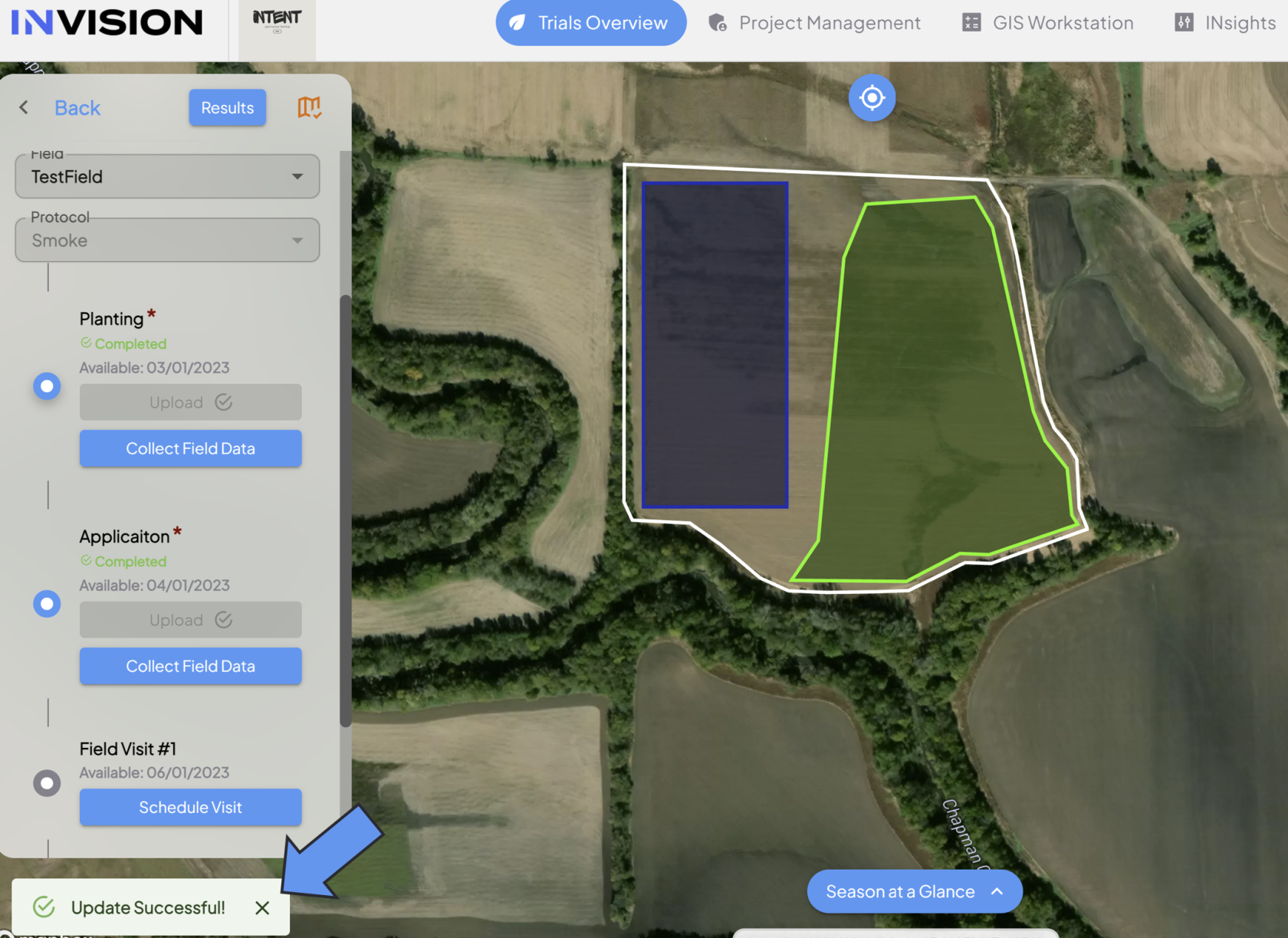
    - Some roles have the credentials to edit these zones, called *Treatment Zones.* 
        - If you don't see the edit icon in View Fields next to the Treatment Zones but need them edited, reach out to your contact at INTENT.  
            [![Screenshot 2024-03-26 161545.png](https://docs.prod.intent.ag/uploads/images/gallery/2024-03/scaled-1680-/screenshot-2024-03-26-161545.png)](https://docs.prod.intent.ag/uploads/images/gallery/2024-03/screenshot-2024-03-26-161545.png)
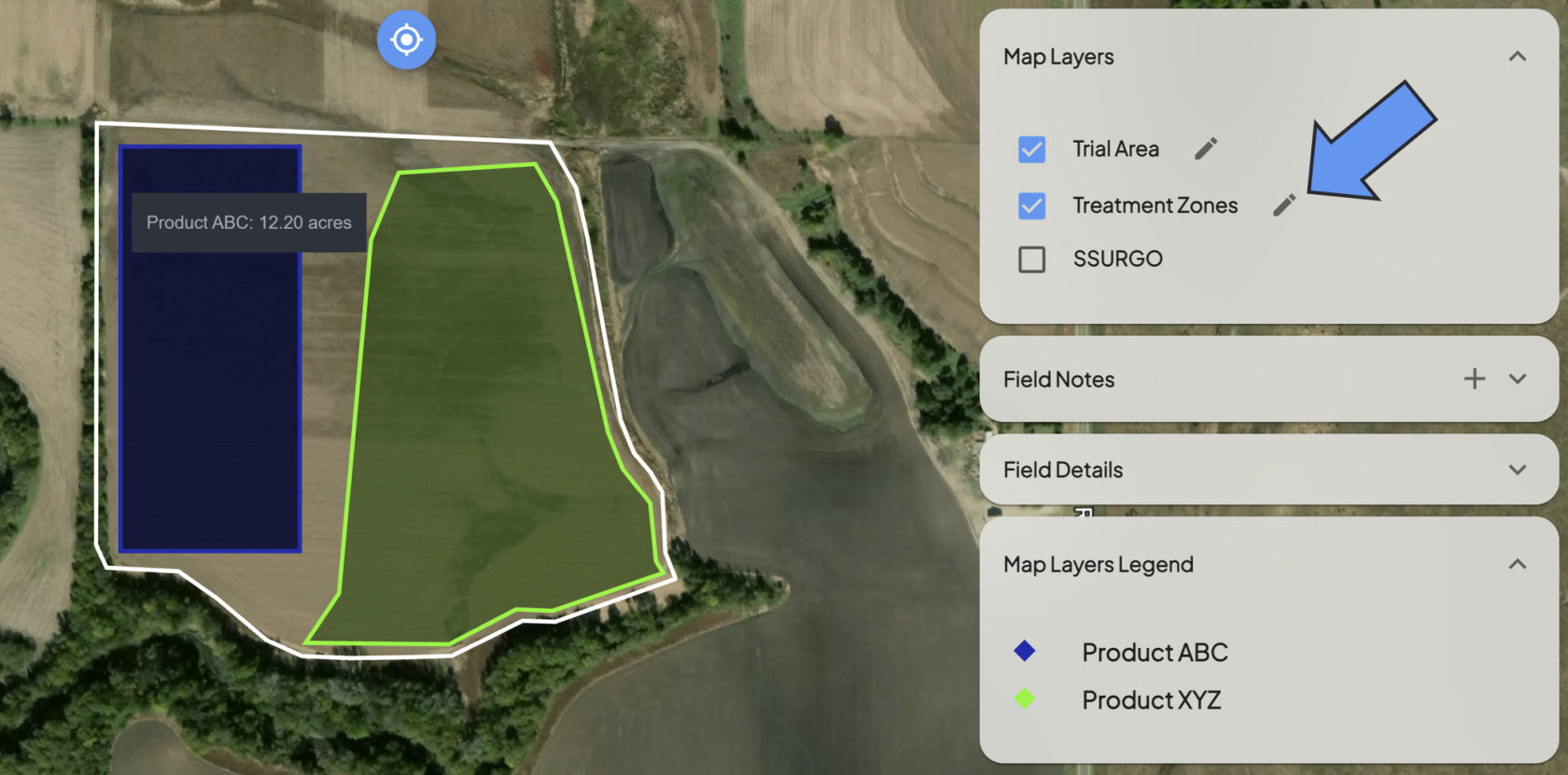
For additional help, follow along with this video demonstrating how to manually create treatment zones:

<iframe allowfullscreen="allowfullscreen" height="314" src="https://www.youtube.com/embed/7eBLGvvOywA" width="560"></iframe>

##### **<span class="TextRun SCXW184373533 BCX0" data-contrast="auto" lang="EN-US" xml:lang="EN-US"><span class="NormalTextRun SCXW184373533 BCX0">Harvest</span></span>**

1. **Treatment Zones** are necessary to submit manual harvest data. A Planting or Application step must be completed before manual harvest data can be submitted.
2. **<span class="TextRun SCXW184373533 BCX0" data-contrast="auto" lang="EN-US" xml:lang="EN-US"><span class="NormalTextRun SCXW184373533 BCX0">Select Manual Harvest </span></span>**
    - If you do not have a harvest machine data file, you need to submit your harvest data manually. Select the **Manual Harvest** option.[![Screenshot 2024-03-26 162006.png](https://docs.prod.intent.ag/uploads/images/gallery/2024-03/scaled-1680-/screenshot-2024-03-26-162006.png)](https://docs.prod.intent.ag/uploads/images/gallery/2024-03/screenshot-2024-03-26-162006.png)
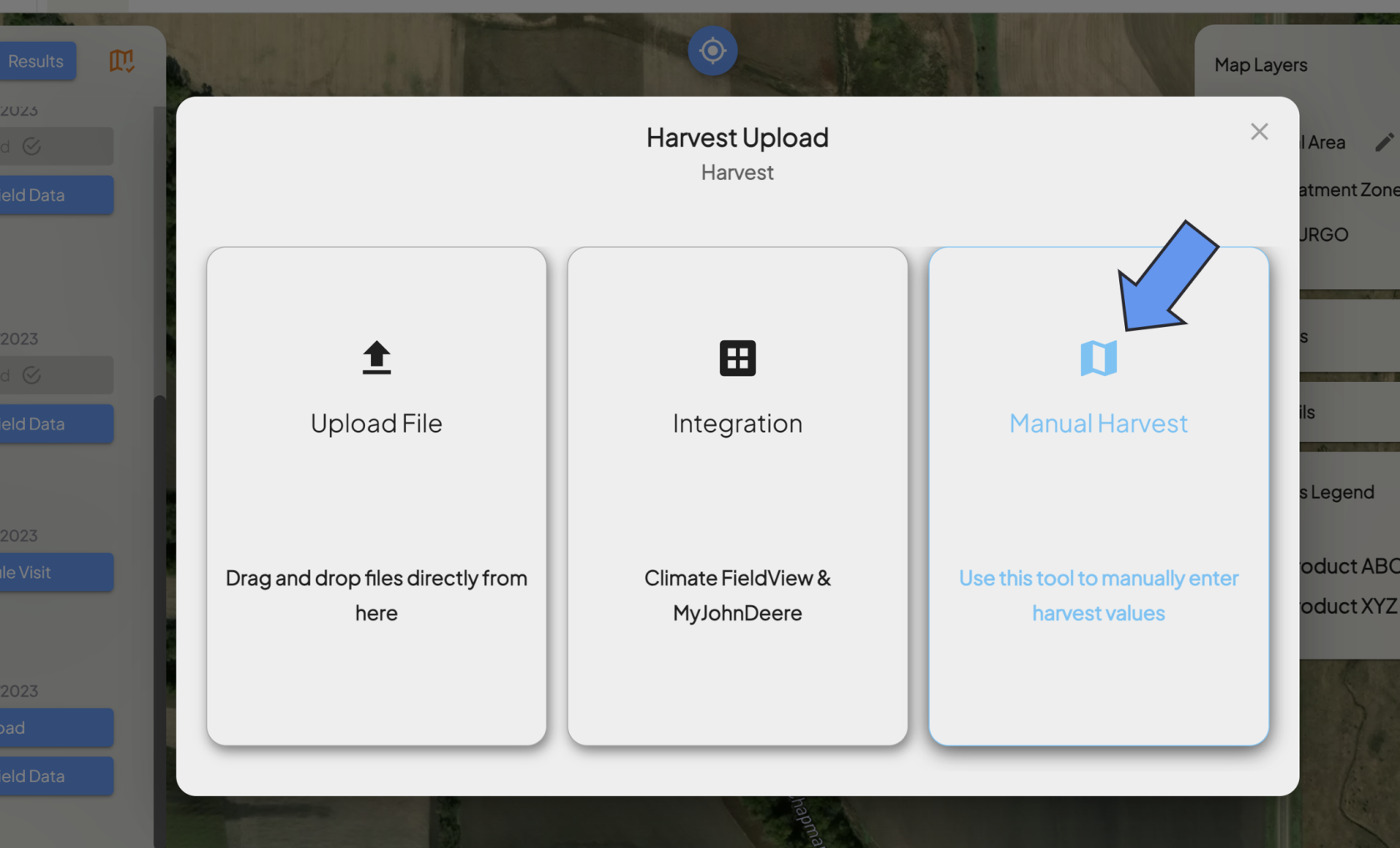
3. **<span class="TextRun SCXW184373533 BCX0" data-contrast="auto" lang="EN-US" xml:lang="EN-US"><span class="NormalTextRun SCXW184373533 BCX0">Select Harvest Date</span></span>**
    - Enter in the date when the harvest occurred.  
        [![image.png](https://docs.prod.intent.ag/uploads/images/gallery/2024-04/scaled-1680-/image.png)](https://docs.prod.intent.ag/uploads/images/gallery/2024-04/image.png)
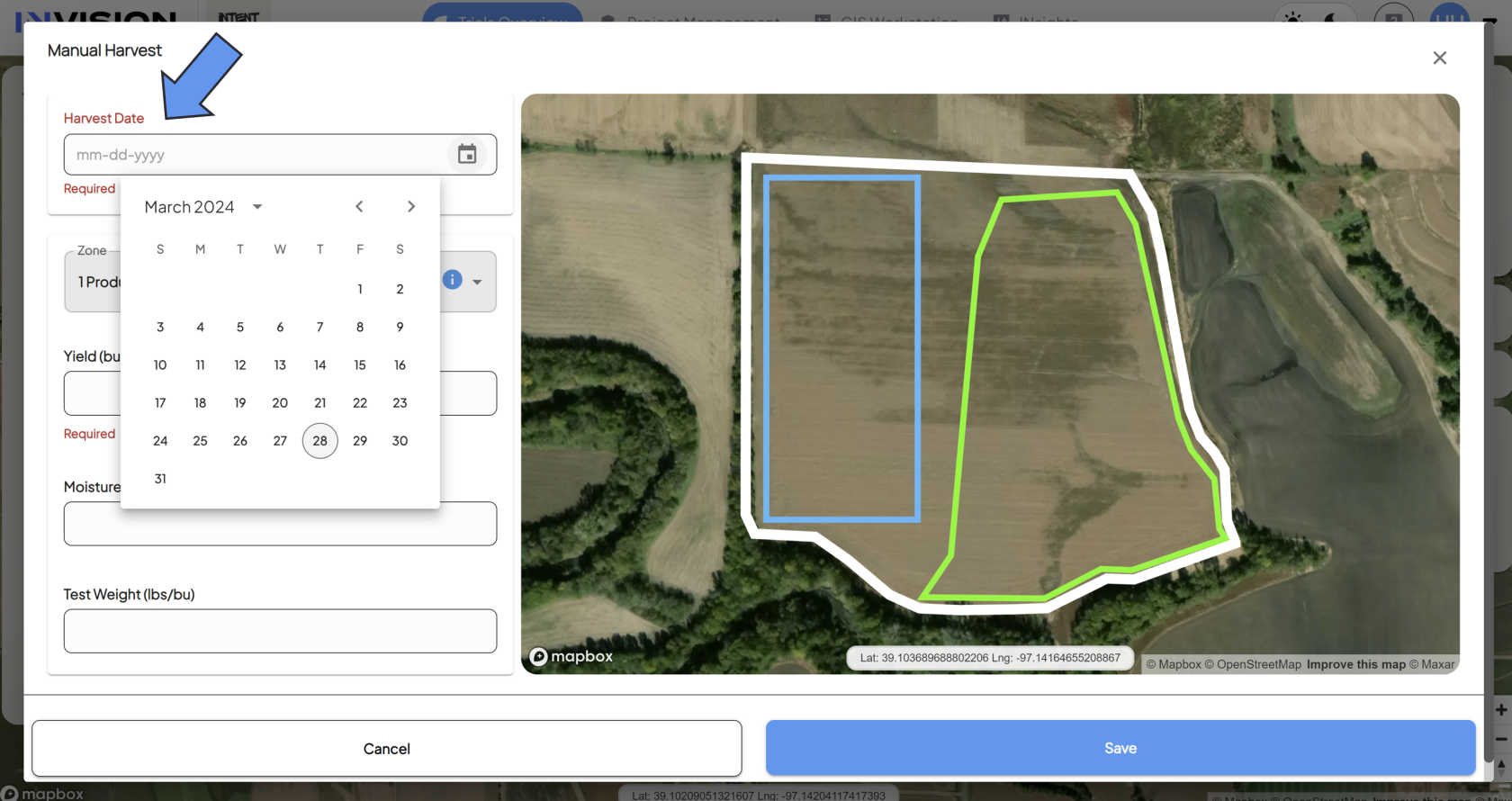
4. **Select the Zone/Product**
    - You need to enter in data for each treatment zone in your field. Select the zone/product from the *Zone* dropdown menu.

[![Screenshot 2024-03-28 125300.png](https://docs.prod.intent.ag/uploads/images/gallery/2024-03/scaled-1680-/screenshot-2024-03-28-125300.png)](https://docs.prod.intent.ag/uploads/images/gallery/2024-03/screenshot-2024-03-28-125300.png)
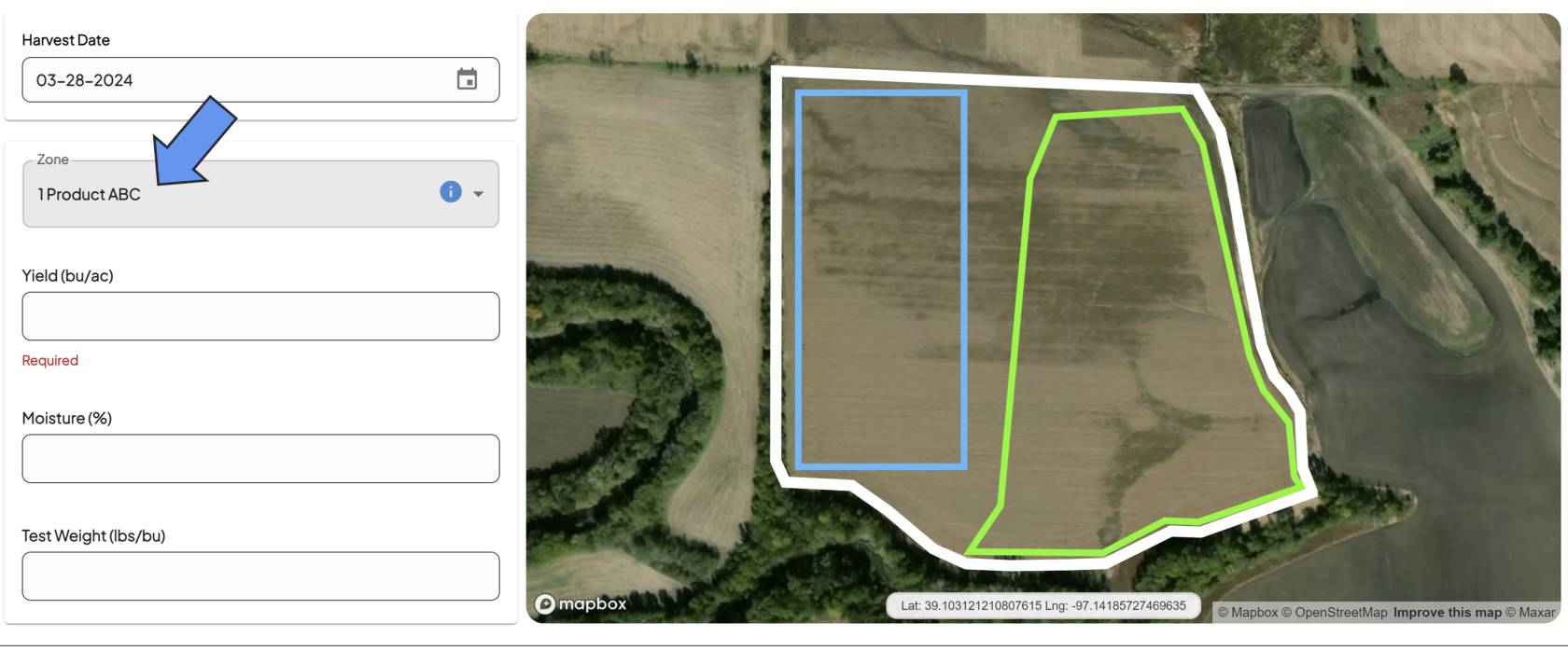
1. - - The zone you're selecting will be highlighted blue on the map.
2. **Enter The Following Information For Selected Zone**
    - Yield
    
    
    - Moisture
    - Test Weight
3. **Repeat for Each Zone**
    - Select the next zone from the *Zone* dropdown menu.  
        [![Screenshot 2024-03-28 125702.png](https://docs.prod.intent.ag/uploads/images/gallery/2024-03/scaled-1680-/screenshot-2024-03-28-125702.png)](https://docs.prod.intent.ag/uploads/images/gallery/2024-03/screenshot-2024-03-28-125702.png)
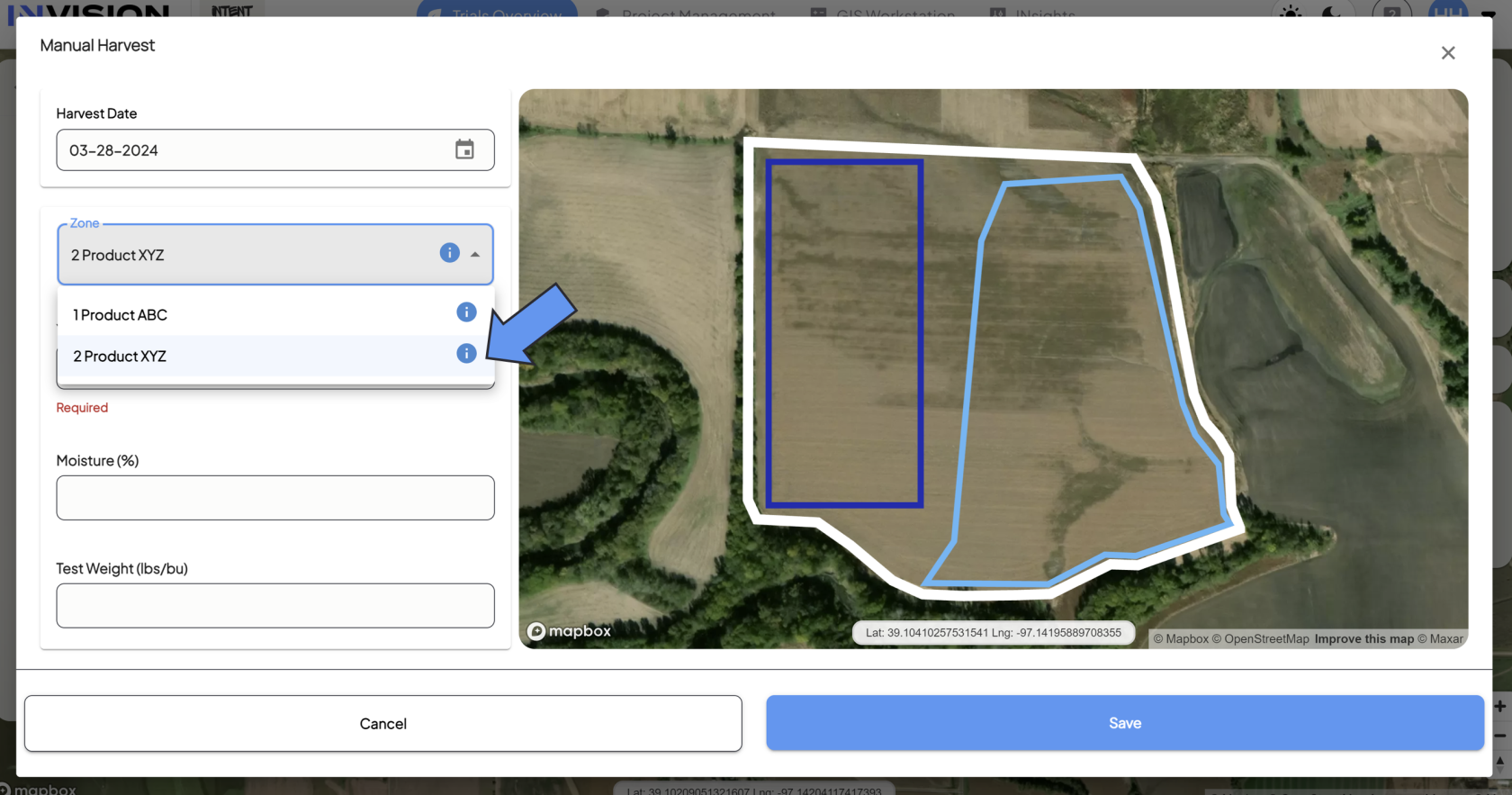
    - Fill out the remaining fields for that zone: 
        - Yield
        - Moisture
        - Test Weight
4. **Submit Your Manual Harvest Data**
    - Once you've filled out all fields for each zone, you're ready to submit your data.
    - Click the **Save** button to complete the Manual Harvest Submission.
5. **Confirm Submission**
    - After you hit save, you should see a notification in the bottom left corner of View Fields if your data was saved successfully.
    - You'll also see the protocol step status as Completed.  
         [![Screenshot 2024-03-28 130855.png](https://docs.prod.intent.ag/uploads/images/gallery/2024-03/scaled-1680-/screenshot-2024-03-28-130855.png)](https://docs.prod.intent.ag/uploads/images/gallery/2024-03/screenshot-2024-03-28-130855.png)
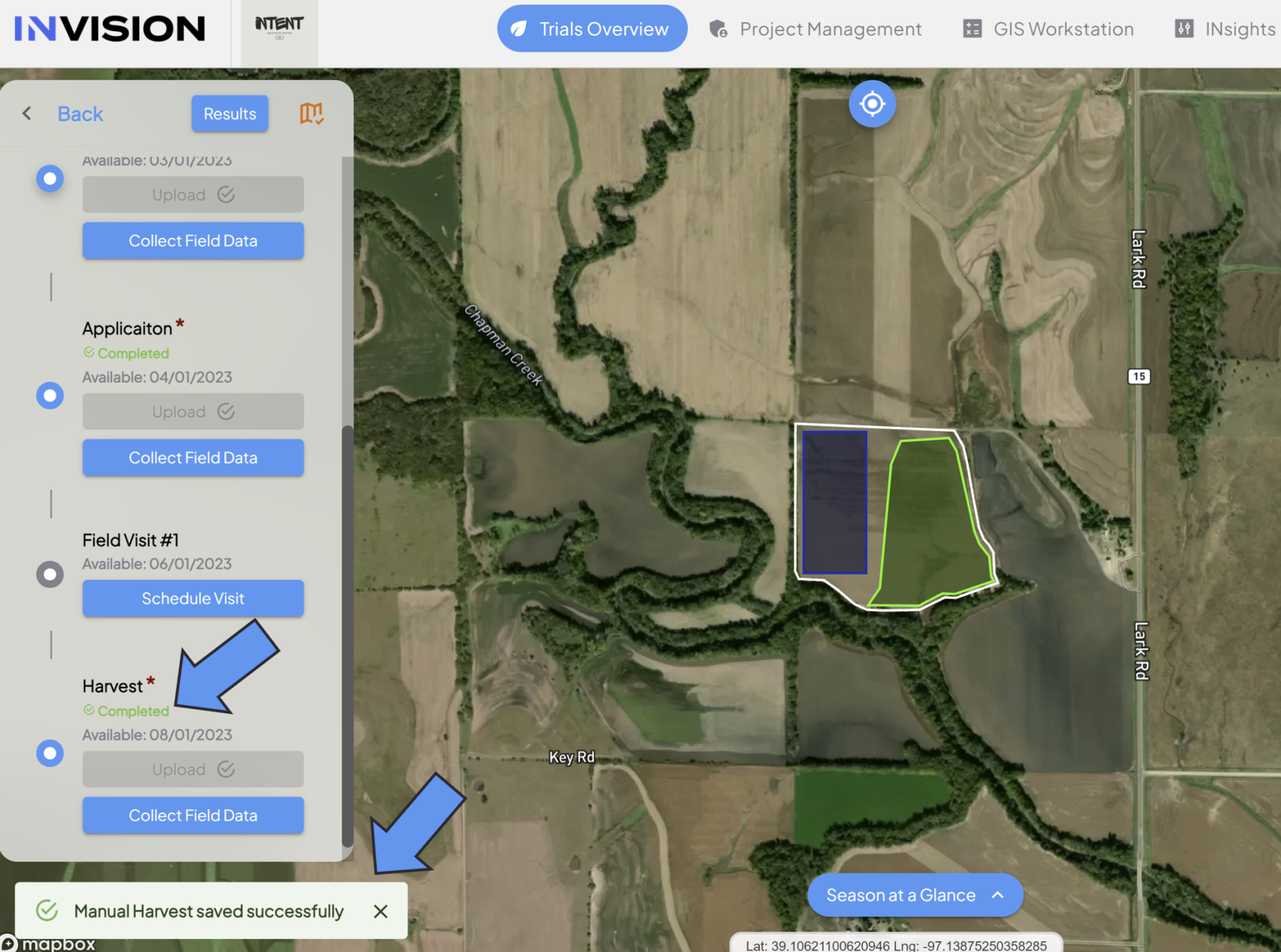
# Project Management


# Understanding the Project Management Page

#### **Guide to Understanding the Project Management Tab**

The Project Management tab of the INVISION Platform is designed to give users access to all the tools they need to design and manage a trial. It's divided into several sections, outlined below.

#### **Users**

The Users section of Project Management is used to add users, edit user profiles, and to assign permissions.  
  
[![Screenshot 2024-03-25 155926.png](https://docs.prod.intent.ag/uploads/images/gallery/2024-03/scaled-1680-/screenshot-2024-03-25-155926.png)](https://docs.prod.intent.ag/uploads/images/gallery/2024-03/screenshot-2024-03-25-155926.png)
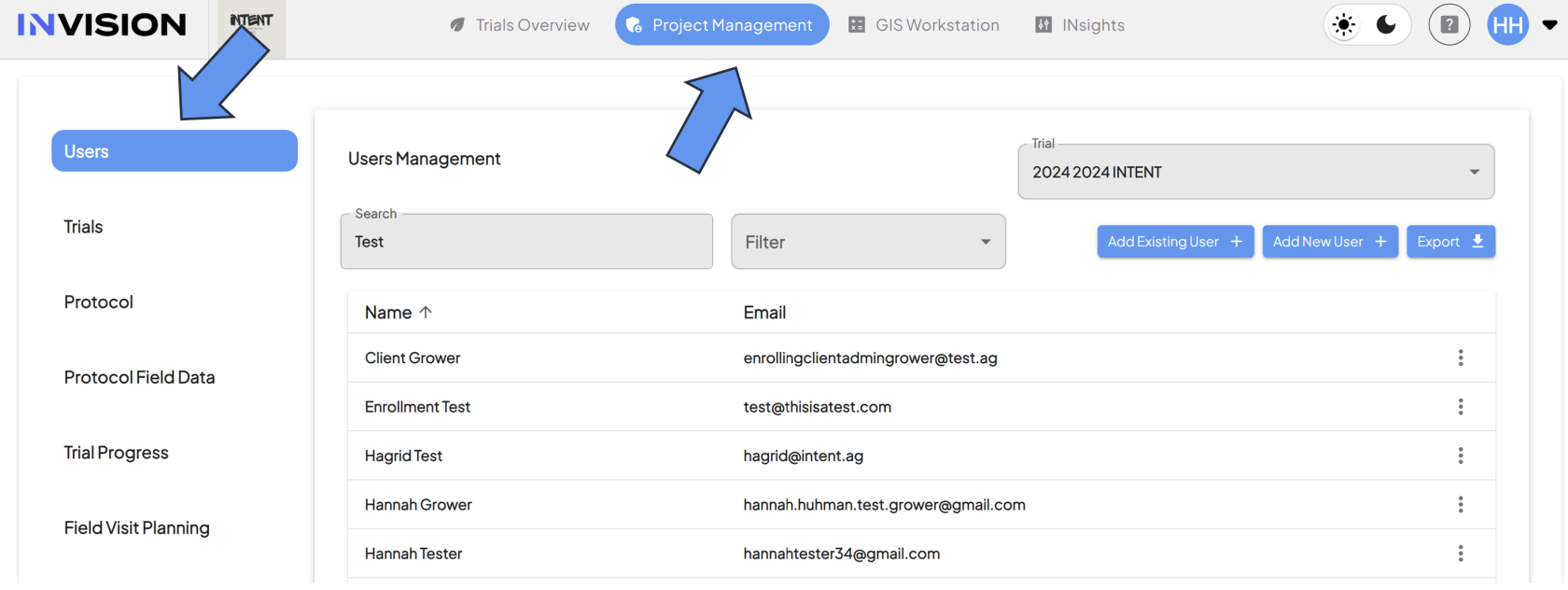
<details id="bkmrk-components-of-the-us"><summary>Components of the User Section</summary>

1. **User Management**
    - **Function:** Displays a table containing users based on trial selection, search results, and/or specific filters that are applied.
2. **Trial Selection**
    - **Function:** Use this dropdown menu to see users associated with a specific trial.
3. **Search:**
    - **Function:** Search for users using first/last name or email address.
4. **Filter:**
    - **Function:** Use this filter to find users that have been assigned specific roles.
5. **Add Existing User:**
    - **Function:** Use this option to add users to a trial that you know are already in our system. For example, you would use this button to add a user from a previous trial to a new trial.
6. **Add New Users:**
    - **Function:** Use this option to add completely new users to a trial.
7. **Export:**
    - **Function:** Selecting this button will download a .csv file with all users, their contact information, and their role in our system.
8. **User Profile:** 
    - **Location:** Select the three dots to the right of the user's email to pull up a menu.  
          
        [![image.png](https://docs.prod.intent.ag/uploads/images/gallery/2024-03/scaled-1680-/OiVimage.png)](https://docs.prod.intent.ag/uploads/images/gallery/2024-03/OiVimage.png)
    - **Function:** This menu provides access to the following: 
        - User Details
        - Assign Permissions
        - Edit User
        - Delete User

</details>To see a list of all the available roles and how to assign them, check out our [Guide to Understanding Roles in the INVISION Platform](https://docs.prod.intent.ag/books/invision-learning-guide/page/available-roles-and-how-to-assign-them).

---

#### **Trials**

A Trial is an experiment conducted on an agricultural field to test one or multiple products, such as fertilizer, fungicide, insecticide, etc.

[![image.png](https://docs.prod.intent.ag/uploads/images/gallery/2024-03/scaled-1680-/QeCimage.png)](https://docs.prod.intent.ag/uploads/images/gallery/2024-03/QeCimage.png)

<details id="bkmrk-components-of-the-tr"><summary>Components of the Trials Section</summary>

1. **Trials Management**
    - **Function:** Displays a table containing all trials created for your active client.
2. **Create Trial**
    - **Function:** Selecting this button will allow you to start the process of creating a trial.
3. **Edit Trial**  
    
    - **Function:** Select the pencil on the far left in the table to edit that trial.

</details>To learn more about Trial creation, check out our [Guide to Creating a New Trial](https://docs.prod.intent.ag/books/invision-learning-guide/page/how-to-create-a-new-trial).

---

#### **Protocol**

A protocol is a series of steps that need to be carried out to complete the Trial experiment. A protocol is specific to both a single trial and a single crop, but trials can have multiple protocols. Protocols can have both mandatory and optional steps.

[![image.png](https://docs.prod.intent.ag/uploads/images/gallery/2024-03/scaled-1680-/fijimage.png)](https://docs.prod.intent.ag/uploads/images/gallery/2024-03/fijimage.png)

<details id="bkmrk-components-of-the-pr"><summary>Components of the Protocol Section</summary>

1. **Protocol Management:**
    - **Function:** Displays a table containing all available protocols that have been created, based on the trial selection.
2. **Trial Selection:**
    - **Function:** Use this dropdown menu to see protocols associated with a specific trial.
3. **Create Protocol:**
    - **Function:** Selecting this button will allow you to start the protocol creation process.
4. **Protocol Steps:**
    - **Function:**
5. **Edit Protocol:**
    - **Function:** Select the pencil icon on the far left of the table to edit that protocol.
6. **Delete Protocol:**
    - **Function:** Select the trash can icon on the left side of the table to delete that protocol. 
        - Protocols cannot be deleted once data is associated to it. If you need assistance, submit a help desk request, or connect with your point of contact at INTENT.  
            [![image.png](https://docs.prod.intent.ag/uploads/images/gallery/2024-03/scaled-1680-/V0vimage.png)](https://docs.prod.intent.ag/uploads/images/gallery/2024-03/V0vimage.png)

</details>To learn more about Protocol creation, check out our [Guide To Creating a Trial Protocol](https://docs.prod.intent.ag/books/invision-learning-guide/page/how-to-create-a-trial-protocol).

---

#### **Protocol Field Data**

Setting up protocol field data is a way to set up questions for a field visit, or collect extra information you need from growers about any of the protocol steps you've set up. For example, if you have a set of questions your grower needs to fill out in relation to the planting step, you can set that up in the Protocol Field Data section of Project Management.

[![image.png](https://docs.prod.intent.ag/uploads/images/gallery/2024-04/scaled-1680-/zbGimage.png)](https://docs.prod.intent.ag/uploads/images/gallery/2024-04/zbGimage.png)

<details id="bkmrk-components-of-the-pr-1"><summary>Components of the Protocol Field Data Section</summary>

1. **Protocol Field Data Management:**
    - **Function:** Expandable sections for each protocol step created in the selected trial and protocol.
2. **Trial Selection:**
    - **Function:** Use this dropdown menu to select the trial you want to add protocol field data for.
3. **Protocol Selection:**
    - **Function:** Use this dropdown menu to see the protocols associated with a specific trial.
4. **Protocol Steps:**
    - **Function:** Each step expands so that you can add questions for growers or edit question that have already been created.

</details>To learn more about add protocol field data, check out our guide on [How To Add Field Data Questions to a Protocol Step](https://docs.prod.intent.ag/books/invision-learning-guide/page/how-to-add-field-data-questions-to-a-protocol-step).

---

#### **Trial Progress**

The Trial Progress section of Project Management is designed to be a tool for admins to closely keep track of the progress of all of their trials. It has a variety of of filters, as well as an option to export the data you want to see as a CSV file.

<details id="bkmrk-components-of-the-tr-1"><summary>Components of the Trial Progress Section</summary>

1. **Trial Progress Management:**
    - **Function:** Displays a table that provides all protocol steps and the dates they were completed, organized by growers. 
        - **Optional:** Some columns are editable, allowing admins to manually enter in specific dates.
2. **Trials Selection:**
    - **Function:** Use this dropdown menu to filter the table to only display data associated with the selected trial.
3. **Optional Filters:**
    - **Protocol:** Use this dropdown menu to filter the table to only display data associated with the selected protocol.
    - **Grower:** Use this dropdown menu to filter the table to only display data associated with the selected grower.
4. **Years:** 
    - **Function:** Use this dropdown menu to filter the table to only display data associated with the selected year.
5. **Show Dropouts:**
    - **Function:** Use this toggle to show or hide grower's that have been dropped out of their trial/protocol.

</details>To learn more about the Trial Progress table, check out our guide on [How to View and Export Trial Progress](https://www.youtube.com/watch?v=jarrlmWJBeA).


---

#### **Field Visit Planning**  


Field Visit Planning

<details id="bkmrk-components-of-the-fi"><summary>Components of the Field Visit Planning Section</summary>

1. **Field Visit Management**
2. **Trials Selection:**
3. **Crop Selection:**
4. **Grower Selection:**
5. **Assignee Selection:**
6. **Optimal Start Date:**
7. **Optimal End Date:**
8. **Growth Stage Selection:**
9. **Years:**
10. **Show Dropouts**
11. **View Selection**

</details>##### **Components of Field Visit Planning**

###   

# How to Add Users to a Project

#### **Guide to Adding Users to a Project**  


1. **Navigate to the Users section of the Project Management tab**
    - From the **Admin** tab, select **Users** from the left panel.[![Screenshot 2024-02-21 125452.png](https://docs.prod.intent.ag/uploads/images/gallery/2024-02/scaled-1680-/screenshot-2024-02-21-125452.png)](https://docs.prod.intent.ag/uploads/images/gallery/2024-02/screenshot-2024-02-21-125452.png)
2. **Select the Trial**
    
    
    - Choose the correct Trial from the drop-down box.
3. **Add Existing User**
    
    
    - Choose **Add Existing User** if you know the user is already in the INVISION system.
    - The **Add** **Existing User** button will give access to a list of all existing users in your system.
    - Search for the user by typing their email in the search bar.[![Screenshot (42).png](https://docs.prod.intent.ag/uploads/images/gallery/2024-02/scaled-1680-/screenshot-42.png)](https://docs.prod.intent.ag/uploads/images/gallery/2024-02/screenshot-42.png)
    - Once you find them, select the email and click the **Save** button.
4. **Add New User**
    
    
    - Choose **Add New User** if you need to add someone to the INVISION system that's never used it before.
    - The **Add New User** button will pull up a window where you will enter the new user’s details.[![Screenshot 2024-02-21 142353.png](https://docs.prod.intent.ag/uploads/images/gallery/2024-02/scaled-1680-/screenshot-2024-02-21-142353.png)](https://docs.prod.intent.ag/uploads/images/gallery/2024-02/screenshot-2024-02-21-142353.png)
    - Fill out the user's details, and click **Save.**

By following these steps, you'll successfully add users to your project, giving them access to the INVISION platform and an opportunity to begin managing and standardizing geospatial agronomic data for your agricultural trials.

For additional help, follow along with this video demonstrating how to add users to a project:

<iframe allowfullscreen="allowfullscreen" height="449" src="https://www.youtube.com/embed/NKmZ2Mtlnpc" style="width: 801px; height: 449px;" width="801"></iframe>

# Available Roles and How to Assign Them

##### Guide to Understanding Roles in the INVISION Platform

Every user needs to be assigned one or more role(s) to use the INVISION platform. These roles control what a user can and cannot see, and can provides access to certain privileges. The following is a list of all the available roles that can be assigned to users in INVISION. All permissions are stackable, there are no distinct levels or hierarchy.

- **Client-Admin:** Full INVISION access with the pre-created client
- **Trial-Admin:** Full Trials Overview &amp; Project Management access to specific trails
- **Trial-Manager:** Partial Trial Overview access, no Project Management access
- **Trial-Grower:** FIeld owners with participation access to enrolled trials
- **Trial-Operative:** Similar to Trial-Grower, but can complete actions for other fields that have been assigned to them
- **Trial-Field-Worker:** For carrying out field visits using the INVISION mobile app
- **Imagery-Admin:** For ordering imagery
- **Trial-Analytics-Admin:** For editing trial areas and approving/unapproving trial results

Roles can be assigned through the Users section of the Project Management tab.

1. **Navigate to the Users section of the Project Management tab.**
    - From the Admin tab, select Users from the left panel. [![image.png](https://docs.prod.intent.ag/uploads/images/gallery/2024-02/scaled-1680-/ML8image.png)](https://docs.prod.intent.ag/uploads/images/gallery/2024-02/ML8image.png)
2. **Access the User's Details**
    - Select the three dots next to the user that needs a role assigned. [![Screenshot 2024-02-13 124346.png](https://docs.prod.intent.ag/uploads/images/gallery/2024-02/scaled-1680-/screenshot-2024-02-13-124346.png)](https://docs.prod.intent.ag/uploads/images/gallery/2024-02/screenshot-2024-02-13-124346.png)
3. **Select Assign Permissions.**
    - A menu will pop up with different options, select the **Assign Permissions** option.[![adding_roles2](https://docs.prod.intent.ag/uploads/images/gallery/2024-02/scaled-1680-/screenshot-2024-02-13-130331.png)](https://docs.prod.intent.ag/uploads/images/gallery/2024-02/screenshot-2024-02-13-130331.png)
4. **Add a Group.**
    - A new popup will display. This popup will show the roles that the user has been assigned, if any.[![Screenshot 2024-02-21 144841.png](https://docs.prod.intent.ag/uploads/images/gallery/2024-02/scaled-1680-/screenshot-2024-02-21-144841.png)](https://docs.prod.intent.ag/uploads/images/gallery/2024-02/screenshot-2024-02-21-144841.png)
    - Select the **Add a Group** button to assign the first or a new role.
    - Selecting the role from the list will add that role to the user.

Some roles are designed so that a user can act on behalf of other users. For example, Trial-Operatives can enroll fields on behalf of growers that are assigned to them. To do so, the specific grower needs to be assigned to the Trial-Operative user.

1. **Select Assign Users**
    - Once the user has the role assigned to them that let's them act on behalf of growers, select the three dots to the right of their name to access their details.
    - A menu will pop with different options, select the **Assign Users** option.[![Screenshot 2024-02-13 130638.png](https://docs.prod.intent.ag/uploads/images/gallery/2024-02/scaled-1680-/screenshot-2024-02-13-130638.png)](https://docs.prod.intent.ag/uploads/images/gallery/2024-02/screenshot-2024-02-13-130638.png)
2. **Search for Growers to Assign**
    - A new popup will display. This popup will show if any growers have already been assigned to this user. [![Screenshot 2024-02-21 150011.png](https://docs.prod.intent.ag/uploads/images/gallery/2024-02/scaled-1680-/screenshot-2024-02-21-150011.png)](https://docs.prod.intent.ag/uploads/images/gallery/2024-02/screenshot-2024-02-21-150011.png)
    - You can select a new grower to add by typing their name in the **Select a Grower** search bar, and selecting the grower from the drop down.
3. **Confirm Assignment** 
    - Once the grower is selected, confirm the assignment by clicking the **Assign** button. [![Screenshot 2024-02-21 150523.png](https://docs.prod.intent.ag/uploads/images/gallery/2024-02/scaled-1680-/screenshot-2024-02-21-150523.png)](https://docs.prod.intent.ag/uploads/images/gallery/2024-02/screenshot-2024-02-21-150523.png)

# How To Create a New Trial

#### **Guide to Creating a New Trial**

1. **Navigate to the Trials Section of Project Management**
    - From the **Admin** tab, select **Trials** from the left pane.  
        [![Screenshot 2024-02-27 125405.png](https://docs.prod.intent.ag/uploads/images/gallery/2024-02/scaled-1680-/screenshot-2024-02-27-125405.png)](https://docs.prod.intent.ag/uploads/images/gallery/2024-02/screenshot-2024-02-27-125405.png)
2. **Create a New Trial**
    
    
    - Click the **Create Trial** button.  
        [![Screenshot 2024-02-27 131701.png](https://docs.prod.intent.ag/uploads/images/gallery/2024-02/scaled-1680-/screenshot-2024-02-27-131701.png)](https://docs.prod.intent.ag/uploads/images/gallery/2024-02/screenshot-2024-02-27-131701.png)
3. **Name Your New Trial**
    
    
    - A popup will appear where you can fill out all of the details for your trial.
    - Enter a name for your trial/project in the *Trial Name* field.  
        [![Screenshot 2024-02-27 132030.png](https://docs.prod.intent.ag/uploads/images/gallery/2024-02/scaled-1680-/screenshot-2024-02-27-132030.png)](https://docs.prod.intent.ag/uploads/images/gallery/2024-02/screenshot-2024-02-27-132030.png)
4. **Determine the Products To Be Used**
    
    
    1. Enter the name of the product in the *Name* field.
    2. Click the **Add a Product** button to add more products that will be included in the trial.
    3. Click the trash can icon next to the *Name* field to delete any products.  
        [![Screenshot 2024-02-27 134429.png](https://docs.prod.intent.ag/uploads/images/gallery/2024-02/scaled-1680-/screenshot-2024-02-27-134429.png)](https://docs.prod.intent.ag/uploads/images/gallery/2024-02/screenshot-2024-02-27-134429.png)
5. **Customize Your Color Palette**
    
    
    - Customize the product color by clicking on the color picker icon, choosing the desired branding/color for each product.  
        [![Screenshot 2024-02-27 134704.png](https://docs.prod.intent.ag/uploads/images/gallery/2024-02/scaled-1680-/screenshot-2024-02-27-134704.png)](https://docs.prod.intent.ag/uploads/images/gallery/2024-02/screenshot-2024-02-27-134704.png)
    - Note that this will be used in the data processing and visualization of the products in **View Fields**.
6. **Disable Untreated**
    - Check the **Disable Untreated** box if you do not want the system to automatically label unzoned areas (i.e. areas that are not determined to be treatment zones) as "untreated."  
          
        [![Screenshot 2024-02-27 135323.png](https://docs.prod.intent.ag/uploads/images/gallery/2024-02/scaled-1680-/screenshot-2024-02-27-135323.png)](https://docs.prod.intent.ag/uploads/images/gallery/2024-02/screenshot-2024-02-27-135323.png)
7. **Determine the Country Where the Trial is Held**
    
    
    - Select the country where the trial will take place from the *Country* dropdown menu.  
        [![Screenshot 2024-02-27 140550.png](https://docs.prod.intent.ag/uploads/images/gallery/2024-02/scaled-1680-/screenshot-2024-02-27-140550.png)](https://docs.prod.intent.ag/uploads/images/gallery/2024-02/screenshot-2024-02-27-140550.png)
8. **Determine the Year of the Trial**
    
    
    - Enter the year of the trial in the *Year* field.  
        [![Screenshot 2024-02-27 140705.png](https://docs.prod.intent.ag/uploads/images/gallery/2024-02/scaled-1680-/screenshot-2024-02-27-140705.png)](https://docs.prod.intent.ag/uploads/images/gallery/2024-02/screenshot-2024-02-27-140705.png)
9. **Include Product Information**  
    
    - Fill out the *Product Info* text box. Include information such as: 
        - The names of all products being used.
        - The type of products they are.
        - A description of the products.  
            [![Screenshot 2024-02-27 141441.png](https://docs.prod.intent.ag/uploads/images/gallery/2024-02/scaled-1680-/screenshot-2024-02-27-141441.png)](https://docs.prod.intent.ag/uploads/images/gallery/2024-02/screenshot-2024-02-27-141441.png)
    - This information will populate the Field Performance Report that summarizes the statistics and performance of the trial on a field level.
10. **Include Application** **Information**
    - Fill out the Application Info text box. Include information such as:
        
        
        - Application method of all products being used.
        - Type of products being applied.
            
            [![Screenshot 2024-02-27 141458.png](https://docs.prod.intent.ag/uploads/images/gallery/2024-02/scaled-1680-/screenshot-2024-02-27-141458.png)](https://docs.prod.intent.ag/uploads/images/gallery/2024-02/screenshot-2024-02-27-141458.png)
    - This information will populate the Field Performance Report that summarizes the statistics and performance of the trial on a field level.
11. **Activate Your Trial**
    
    
    - Check the **Active** box if you’re ready to kick off your project.  
        [![Screenshot 2024-02-27 141907.png](https://docs.prod.intent.ag/uploads/images/gallery/2024-02/scaled-1680-/screenshot-2024-02-27-141907.png)](https://docs.prod.intent.ag/uploads/images/gallery/2024-02/screenshot-2024-02-27-141907.png)
    - You can leave your trial as inactive as long as necessary, but it will be hidden from the **Overview Page/View Fields Page** until activated.
12. **Review and Confirm**
    
    
    - Review the information you've entered and make any necessary edits.
    - Click the **Save** button to save your trial/project configuration.
    - You can return and edit the information you've submitted by clicking on the relevant trial/project from the dashboard and selecting the **Edit** icon.  
        [![Screenshot 2024-02-27 142247.png](https://docs.prod.intent.ag/uploads/images/gallery/2024-02/scaled-1680-/screenshot-2024-02-27-142247.png)](https://docs.prod.intent.ag/uploads/images/gallery/2024-02/screenshot-2024-02-27-142247.png)  
          
          
        For additional help, follow along with this video demonstrating how to create a new trial:

<iframe allowfullscreen="allowfullscreen" height="314" src="https://www.youtube.com/embed/IU1s24cLcZc" width="560"></iframe>

# How To Create a Trial Protocol

##### **Guide to Creating a Trial Protocol**

1. **Navigate to the Protocol section of the Project Management tab**
    - From the **Admin** tab, select **Protocol** from the left panel.  
        [![Screenshot 2024-02-27 163438.png](https://docs.prod.intent.ag/uploads/images/gallery/2024-02/scaled-1680-/screenshot-2024-02-27-163438.png)](https://docs.prod.intent.ag/uploads/images/gallery/2024-02/screenshot-2024-02-27-163438.png)
2. **Select a Trial**
    - Choose the correct Trial from the drop-down box.  
        [![Screenshot 2024-02-27 163540.png](https://docs.prod.intent.ag/uploads/images/gallery/2024-02/scaled-1680-/screenshot-2024-02-27-163540.png)](https://docs.prod.intent.ag/uploads/images/gallery/2024-02/screenshot-2024-02-27-163540.png)
3. **Get Started on Your Protocol**
    - Click the **Create Protocol** button.  
        [![Screenshot 2024-02-27 163652.png](https://docs.prod.intent.ag/uploads/images/gallery/2024-02/scaled-1680-/screenshot-2024-02-27-163652.png)](https://docs.prod.intent.ag/uploads/images/gallery/2024-02/screenshot-2024-02-27-163652.png)
4. **Select and Name and Crop**  
    
    - Name your Protocol, select your Crop, and click **Save  
        [![Screenshot 2024-02-27 154140.png](https://docs.prod.intent.ag/uploads/images/gallery/2024-02/scaled-1680-/screenshot-2024-02-27-154140.png)](https://docs.prod.intent.ag/uploads/images/gallery/2024-02/screenshot-2024-02-27-154140.png)**
    - Before building out your Protocol, determine the objectives for your trial.
    - Think about what kind of data points you need to collect and how you want to collect them.
    - You may also have multiple protocols for a single trial.
5. **Create the Steps For Your Protocol**
    - Once you’re ready to get started, click on the **Steps** button to the right of the trial   
        [![Screenshot 2024-02-27 164528.png](https://docs.prod.intent.ag/uploads/images/gallery/2024-02/scaled-1680-/screenshot-2024-02-27-164528.png)](https://docs.prod.intent.ag/uploads/images/gallery/2024-02/screenshot-2024-02-27-164528.png)
    - Click **Create New Step** to add your first step to your protocol.  
        [![Screenshot 2024-02-27 164718.png](https://docs.prod.intent.ag/uploads/images/gallery/2024-02/scaled-1680-/screenshot-2024-02-27-164718.png)](https://docs.prod.intent.ag/uploads/images/gallery/2024-02/screenshot-2024-02-27-164718.png)
    - A popup will appear where you can fill out all of the details for your protocol step.
6. **Name Your Protocol Step**
    - Fill out the *Label* field to name your protocol step.  
        [![Screenshot 2024-02-27 165013.png](https://docs.prod.intent.ag/uploads/images/gallery/2024-02/scaled-1680-/screenshot-2024-02-27-165013.png)](https://docs.prod.intent.ag/uploads/images/gallery/2024-02/screenshot-2024-02-27-165013.png)
    - This label is what identifies the protocol step in **View Fields.**
7. **Determine the Type of Step**
    - Choose the Type from one of the 6 different pre-built step types: 
        - Plating
        - Application
        - Survey
        - Field-Visit
        - Imagery
        - SWAT (Soil Water and Topographical maps)  
            [![Screenshot 2024-02-27 165254.png](https://docs.prod.intent.ag/uploads/images/gallery/2024-02/scaled-1680-/screenshot-2024-02-27-165254.png)](https://docs.prod.intent.ag/uploads/images/gallery/2024-02/screenshot-2024-02-27-165254.png)
8. **Set the Start Date**
    - Select the date on which this step will become available to your users.  
        [![Screenshot 2024-02-27 165639.png](https://docs.prod.intent.ag/uploads/images/gallery/2024-02/scaled-1680-/screenshot-2024-02-27-165639.png)](https://docs.prod.intent.ag/uploads/images/gallery/2024-02/screenshot-2024-02-27-165639.png)
9. **Set the End Date**
    - Select the date on which this step becomes unavailable to your users.
10. **Fill Out the Description**
    - Provide a description for this protocol step.  
        [![Screenshot 2024-02-27 170010.png](https://docs.prod.intent.ag/uploads/images/gallery/2024-02/scaled-1680-/screenshot-2024-02-27-170010.png)](https://docs.prod.intent.ag/uploads/images/gallery/2024-02/screenshot-2024-02-27-170010.png)
    - The description can be found later in **View Fields.**
11. **Determine if the Step is Mandatory or Optional**
    - Check the following box if this protocol step should be mandatory. 
        - Mandatory boxes are denoted with an asterisk in **View Fields.  
            [![Screenshot 2024-02-27 170152.png](https://docs.prod.intent.ag/uploads/images/gallery/2024-02/scaled-1680-/screenshot-2024-02-27-170152.png)](https://docs.prod.intent.ag/uploads/images/gallery/2024-02/screenshot-2024-02-27-170152.png)**
    - Protocol steps are defaulted as optional, unless this box is checked.
12. **Determine if Location Should Be Collected**
    - If the step you're creating is a field-visit type, you can check this box so that location is automatically captured when data is collected.  
        [![Screenshot 2024-02-27 170240.png](https://docs.prod.intent.ag/uploads/images/gallery/2024-02/scaled-1680-/screenshot-2024-02-27-170240.png)](https://docs.prod.intent.ag/uploads/images/gallery/2024-02/screenshot-2024-02-27-170240.png)
13. **Review and Confirm**
    - Review the information and click the **Save** button.  
        [![Screenshot 2024-02-27 170414.png](https://docs.prod.intent.ag/uploads/images/gallery/2024-02/scaled-1680-/screenshot-2024-02-27-170414.png)](https://docs.prod.intent.ag/uploads/images/gallery/2024-02/screenshot-2024-02-27-170414.png)
    - This step will now appear in your Protocol. You can also edit the step if needed.  
        [![Screenshot 2024-02-27 170712.png](https://docs.prod.intent.ag/uploads/images/gallery/2024-02/scaled-1680-/screenshot-2024-02-27-170712.png)](https://docs.prod.intent.ag/uploads/images/gallery/2024-02/screenshot-2024-02-27-170712.png)
    - Continue following these steps until your full Protocol has been defined, from beginning to end.
    - You can return to the Protocol screen to **Edit** or **Delete** Protocol Steps that have been created by clicking on the icons to the left.

For additional help, follow along with this video demonstrating how to setup a Trial Protocol:

<iframe allowfullscreen="allowfullscreen" height="314" src="https://www.youtube.com/embed/GoU7NivH6Zo" width="560"></iframe>

# How To Add Field Data Questions to a Protocol Step

#### **Guide to Adding Field Data Questions to a Protocol Step**

Field Data are the additional questions to be asked during a protocol step. They help to inform the overall trial and provide additional context and insight.

1. **Navigate to the Protocol Field Data section of Project Management** 
    - From the **Admin** tab, select **Protocol Field Data** from the left pane.  
        [![Screenshot 2024-02-28 152300.png](https://docs.prod.intent.ag/uploads/images/gallery/2024-02/scaled-1680-/screenshot-2024-02-28-152300.png)](https://docs.prod.intent.ag/uploads/images/gallery/2024-02/screenshot-2024-02-28-152300.png)
2. **Select Your Trial**
    - Choose the correct Trial from the drop-down box, as well as the correct Protocol.  
        [![Screenshot 2024-02-28 152155.png](https://docs.prod.intent.ag/uploads/images/gallery/2024-02/scaled-1680-/screenshot-2024-02-28-152155.png)](https://docs.prod.intent.ag/uploads/images/gallery/2024-02/screenshot-2024-02-28-152155.png)
3. **Select Your Protocol**
    - Choose the correct Protocol from the dropdown menu.
    - Once you select the Protocol, all of your Protocol steps will be displayed.  
        [![Screenshot 2024-02-28 152513.png](https://docs.prod.intent.ag/uploads/images/gallery/2024-02/scaled-1680-/screenshot-2024-02-28-152513.png)](https://docs.prod.intent.ag/uploads/images/gallery/2024-02/screenshot-2024-02-28-152513.png)
4. **Expand the Protocol Step**
    - Click on the Protocol Step where you would like to add additional questions.  
        [![Screenshot 2024-02-28 152702.png](https://docs.prod.intent.ag/uploads/images/gallery/2024-02/scaled-1680-/screenshot-2024-02-28-152702.png)](https://docs.prod.intent.ag/uploads/images/gallery/2024-02/screenshot-2024-02-28-152702.png)
5. **Create a Section**
    - If you have several questions that are related, you can group them in a section. If you do not need your questions organized in groups, they will automatically be placed in the *General* section.
    - Click the **Create Section** button to build a section for your questions to be grouped under.  
        [![Screenshot 2024-02-28 155944.png](https://docs.prod.intent.ag/uploads/images/gallery/2024-02/scaled-1680-/screenshot-2024-02-28-155944.png)](https://docs.prod.intent.ag/uploads/images/gallery/2024-02/screenshot-2024-02-28-155944.png)
    - Enter a Label for the Section and a Description.
    - Choose the Products the Section applies to. If you choose only one Product, the questions in this section will only apply to that Product on the Protocol.  
        [![Screenshot 2024-02-28 160503.png](https://docs.prod.intent.ag/uploads/images/gallery/2024-02/scaled-1680-/screenshot-2024-02-28-160503.png)](https://docs.prod.intent.ag/uploads/images/gallery/2024-02/screenshot-2024-02-28-160503.png)
    - Click the **Save** button.
6. **Organize the Order of Your Sections**
    
    
    1. If you have multiple sections, you can edit the order of them by holding down and dragging the dots menu icon.  
        [![Screenshot 2024-02-29 135322.png](https://docs.prod.intent.ag/uploads/images/gallery/2024-02/scaled-1680-/screenshot-2024-02-29-135322.png)](https://docs.prod.intent.ag/uploads/images/gallery/2024-02/screenshot-2024-02-29-135322.png)
7. **Add Characteristics to Your Sections**
    - Click the **Create New Characteristic** button to add a question directly.
    - Enter the question in the Label field, and choose the type of question from the drop-down.
    - Select whether this question will be mandatory or now.
    - Click the **Save** button.  
        [![Screenshot 2024-02-29 140004.png](https://docs.prod.intent.ag/uploads/images/gallery/2024-02/scaled-1680-/screenshot-2024-02-29-140004.png)](https://docs.prod.intent.ag/uploads/images/gallery/2024-02/screenshot-2024-02-29-140004.png)
8. **Edit Your Characteristics** 
    - Click the pencil icon to edit the label or type of question.
    - Click the trash can icon to delete a characteristic.
    - Click the copy icon to duplicate the questions. 
        - Questions that are duplicated need to be placed within a section.  
            [![Screenshot 2024-02-29 140247.png](https://docs.prod.intent.ag/uploads/images/gallery/2024-02/scaled-1680-/screenshot-2024-02-29-140247.png)](https://docs.prod.intent.ag/uploads/images/gallery/2024-02/screenshot-2024-02-29-140247.png)
9. **Edit the Order of Your Characteristics**
    - You can order the questions in each section by holding down and dragging the dots menu icon. 
        - The way they're ordered, from top to bottom in Project Management, is how they will appear for the user when they're answering the questions.  
            [![Screenshot 2024-02-29 151610.png](https://docs.prod.intent.ag/uploads/images/gallery/2024-02/scaled-1680-/screenshot-2024-02-29-151610.png)](https://docs.prod.intent.ag/uploads/images/gallery/2024-02/screenshot-2024-02-29-151610.png)

For additional help, follow along with this video demonstrating how to add field data questions to a protocol step:

<iframe allowfullscreen="allowfullscreen" height="314" src="https://www.youtube.com/embed/fbnXVcdupNU" width="560"></iframe>

# Project Management - Introducing Protocol Season Start Dates

In agriculture, **timing drives everything** from seed selection and planting to harvest and performance review. Whether you're monitoring a cover crop trial or managing a network of plots across regions, **understanding when a season truly starts** is key to planning, consistency, and insight accuracy.

But here’s the catch: not every crop or protocol follows the same seasonal rhythm.

#### The Problem with a One-Size-Fits-All Start Date

Most platforms default to the **planting date** as the start of the season. While convenient, this can create misalignments for:

- Crops that have growth cycles that being prior to spring (e.g., winter wheat, camelina, covercress).
- Trials that need to track **weather, GDD, or pre-season field activities.**
- Protocols that vary by **region or product.**

In short: relying only on planting dates limits visibility and planning precision.

#### The INVISION Solution – Season Start at the Protocol Level

INVISION introduces **Season Start Settings** right where they matter most — in **Protocol configuration**, the heart of project planning.

Here’s how it works:

#### 🔐 Admin-Only Access

Only users with **Admin privileges** can configure season start settings at the **protocol level**. This ensures consistency across trials and prevents misconfigurations.

#### Crop-Specific Settings

Admins select the crop (e.g., *CoverCress*, *Winter Wheat*) when setting up the protocol. Each crop can have its own season logic.

#### Season Start Type – Two Flexible Options

A new dropdown lets you choose how a season begins:

[![image.png](https://docs.prod.intent.ag/uploads/images/gallery/2025-04/scaled-1680-/image.png)](https://docs.prod.intent.ag/uploads/images/gallery/2025-04/image.png)

1. **Planting Date** *(Default)*
    
    
    - Season starts on the actual planting date of each field.
2. **Custom Date**
    
    
    - Admin can pick a fixed calendar date via date picker.
    - This becomes the start point for the entire season across all enrolled fields.

#### What Changes When You Set a Custom Date?

If a custom season start is selected, INVISION uses this date to:

[![image.png](https://docs.prod.intent.ag/uploads/images/gallery/2025-04/scaled-1680-/K6iimage.png)](https://docs.prod.intent.ag/uploads/images/gallery/2025-04/K6iimage.png)

- Anchor **Season-at-a-Glance** weather summaries.
- Drive **Growing Degree Days (GDD)** calculations.
- Set clearer expectations for **growth stages, field visits, and data collection windows.**
- Align **remote sensing overlays and alerts** with the actual seasonal timeline.

[![image.png](https://docs.prod.intent.ag/uploads/images/gallery/2025-04/scaled-1680-/wp1image.png)](https://docs.prod.intent.ag/uploads/images/gallery/2025-04/wp1image.png)

#### Why It Matters for Project Management

In large-scale field trials, small timing differences can cause major gaps in data consistency. INVISION’s protocol-level season start configuration solves that by giving project leads the ability to:

- Standardize planning windows across trials.
- Schedule **field visits**, **sampling**, and **scouting** more accurately.
- Align analytics across geographies and crop types.
- Avoid guesswork when interpreting weather or phenology charts.

Whether you're launching a national hybrid trial or managing 20 small plots, this feature helps turn season-based variability into **structured, actionable timelines**.

### Protocol Season Start Dates

In INVISION, the availability of **imagery, weather data, and GDD calculations** for a trial is controlled by the **Season Start logic** configured at the protocol level. This logic determines the earliest date from which the system will display and analyze seasonal data for fields enrolled in the protocol.

To determine the effective season start date, INVISION evaluates the following three dates and selects the **earliest available value**:

1. **Field Planting Date** – If a planting date has been recorded for the field.
2. **Protocol Season Start Date** – A custom date configured in the protocol settings.
3. **January 1 of the Trial Year** – Used as a default fallback if no other date is available.

This calculated date becomes the **starting point for seasonal data**, including:

- Satellite imagery availability in the field view
- Weather data timelines
- Growing Degree Day (GDD) accumulation
- Imagery ordering windows

If no planting date has been entered and no protocol season start date is configured, the system will default to **January 1 of the trial year**. In this case, imagery from the previous fall will not appear in the interface, even if that imagery exists in the dataset.

For crops that span across calendar years—such as winter crops or trials where imagery from the previous fall is important—users can configure a **custom Protocol Season Start Date**. For example, a 2026 trial could set a protocol season start date of **September 1, 2025** to ensure imagery and weather data from Fall 2025 are included.

When adjusting the protocol season start date, it is important to note that this date also becomes the **starting point for weather and GDD calculations**. Field-level weather and GDD values are calculated dynamically in most views, so updates to the season start date will apply automatically when the data is recalculated.

Using the protocol season start date allows teams to accurately define the agronomic season for each protocol and ensures that relevant imagery and environmental data are included in the analysis.

# How to Import Protocol Steps for Faster Trial Setup in INVISION

INVISION allows teams to reuse existing protocol steps when setting up new or recurring trials. Importing protocol steps helps reduce repetitive configuration work, maintain consistency year over year, and speed up trial setup.

This guide explains when to use protocol step imports and how the process works.

##### What Is a Protocol Step Import?

A **Protocol Step Import** allows you to copy an existing protocol step **within the same client** and reuse it in another protocol.

When a step is imported, INVISION brings forward:

- The protocol step itself
- All associated **sections**
- All configured **characteristics**
- Default settings and structure

This makes it easy to start from a proven setup instead of rebuilding field data forms from scratch.

---

##### When to Use Protocol Step Import

Protocol step imports are especially useful when:

- Running similar trials year over year
- Repeating standard data collection steps (e.g., planting, harvest, stewardship calls)
- Maintaining consistency across multiple trials or programs
- Reducing setup time at the start of a new trial season

Rather than recreating steps manually, teams can focus on updating only what has changed.

---

#### Step 1: Navigate to Protocol Management

[![image.png](https://docs.prod.intent.ag/uploads/images/gallery/2026-01/scaled-1680-/HFEimage.png)](https://docs.prod.intent.ag/uploads/images/gallery/2026-01/HFEimage.png)

1. Open the **Trial** you are setting up.
2. Navigate to **Project Management**.
3. Open the **Protocol** you want to edit.
4. Locate the **Steps** section within the protocol.

---

#### Step 2: Import an Existing Protocol Step

[![image.png](https://docs.prod.intent.ag/uploads/images/gallery/2026-01/scaled-1680-/nzximage.png)](https://docs.prod.intent.ag/uploads/images/gallery/2026-01/nzximage.png)

1. In the protocol’s Steps list, select **Import Protocol Step**.
2. Choose a source protocol from the same client.
3. Select the protocol step you want to import.
4. Confirm the import.

The selected step will be added to your protocol with its sections and characteristics intact.

---

#### Step 3: Review and Update Step Dates

[![image.png](https://docs.prod.intent.ag/uploads/images/gallery/2026-01/scaled-1680-/Lt7image.png)](https://docs.prod.intent.ag/uploads/images/gallery/2026-01/Lt7image.png)

After importing a step:

- INVISION prompts you to review the **start and end dates**.
- Imported dates reflect the source protocol and must be updated to match the current trial year.

This ensures timelines remain accurate and prevents accidental reuse of outdated dates.

---

#### What Happens After Import

Once imported and updated:

- The step behaves like any other protocol step.
- Characteristics can be edited, added, or removed as needed.
- The imported structure does not modify the original source protocol.

Each trial remains independent, preserving historical accuracy.

---

#### Best Practices

- Use imports to establish a baseline, then adjust as needed for the current year.
- Review imported characteristics to ensure they still apply to the trial objectives.
- Always update dates immediately after import.
- Use consistent naming for steps to improve clarity across trials.

# GIS Workstation


# Tasks Page Overview

Welcome to the Tasks page tutorial in INvision! This guide will help you understand the features and functionalities of the Tasks page.

#### Tasks Page: 

- There are two ways to access the Tasks page, 
    - Select the "GIS Workstation" tab at the top of the page.
    - Select the Tasks tab on the left-hand admin navigation panel.
- Tasks are defined as geospatial files that have been uploaded to a trial that are not in a processed state.

#### Filters: 

- You can filter data using the following criteria: 
    - Trial
    - Protocol
- If you have multiple trials or protocols, you can use the drop-down menus at the top of the page to select the specific trial or protocol you want to visualize.

#### Data Table:

- Tasks are geospatial files uploaded to a trial that are not in a processed state. Each row in the task list represents a single geospatial file uploaded to a trial.
- Columns include: 
    - Grower name
    - Field name
    - File type
    - Upload status
    - Upload date
- Navigating to the Trial Data Screen: To review the data collected for a trial, select the "Open" button next to a task. This will navigate you to the Trial Data Screen, which is where you will be able to complete the work QA and process the file.

<iframe allowfullscreen="allowfullscreen" height="450" src="https://www.youtube.com/embed/ZQtblBJ44Eg" style="width: 815px; height: 450px;" width="815"></iframe>

# Trial Data Page Overview

Welcome to the trial data page tutorial in INvision! This guide will help you understand the features and functionalities of the trial data page.

#### Trial Data Page:

- There are two ways to access the trial data page: 
    - Click the "open" button on an unfinished task or the task list.
    - Select the trial data tab on the left-hand admin navigation panel.

#### Filters:

- You can filter data using the following criteria: 
    - Trial
    - Protocol
    - Grover Name
    - Field Name
    - File Status 
        - - Failed
            - Converted
            - Processed
            - Archived
            - Pending
    - File Type
    - Toggle switch to show or hide dropped out growers.

#### Data Table:

- Distinct files uploaded to a trial.
- File types that will appear include planting, application, harvest, manually drawn treatment zones, and soil maps.
- Each file status indicates its position in the trial data processing workflow.
- Columns include: 
    - Grower Name
    - Field Name
    - Step Type
    - File Type
    - Source
    - Uploaded By
    - Upload Date
    - File Status
    - Assignee
    - Actions
- The table shows 10 results per page.

<iframe allowfullscreen="allowfullscreen" height="451" src="https://www.youtube.com/embed/x7hNjwSiFbY" style="width: 818px; height: 451px;" width="818"></iframe>

# INSIGHTS


# Learning Insights

##### **Introduction**

Historically, **Insights** has been built around yield data which is valuable, but limiting for those collecting broader on-farm information.

Each season, **INVISION** captures a large amount of structured data from trials. This includes products, management practices, soil types, planting and harvest dates, field visits, and performance results. **Insights** organizes and aggregates that data so it can be compared, summarized, and visualized for better decision-making. This type of information is called **characteristics data.**

##### **Characteristic Data**

**[![image.png](https://docs.prod.intent.ag/uploads/images/gallery/2025-10/scaled-1680-/Jd0image.png)](https://docs.prod.intent.ag/uploads/images/gallery/2025-10/Jd0image.png)**

- Characteristic data refers to all non-yield information collected throughout the season.
- It includes what is captured during **field visits**, **surveys**, and **setup steps** inside each project.
- These values describe how the field was managed, what conditions it experienced, and what was observed during the season.
- Examples include: 
    - **Field Information:** soil type, tillage system, irrigation, soil CEC, and management practices.
    - **Planting Details:** hybrid or variety, planting date, and prior crop.
    - **Field Visits:** stand counts, biomass weights, trial quality ratings, comments, or photos.
- Once these are configured and collected in a project, they automatically appear inside Insights as aggregated, filterable data.
- Users can combine these attributes with yield results to understand patterns, compare management approaches, and evaluate product performance under different field conditions.

##### **Views**

[![image.png](https://docs.prod.intent.ag/uploads/images/gallery/2025-10/scaled-1680-/nfhimage.png)](https://docs.prod.intent.ag/uploads/images/gallery/2025-10/nfhimage.png)

- A View saves the entire configuration of your current Insights session.
- Each View remembers what protocol you selected, what treatments were compared, which filters and characteristics were applied, and how charts were displayed.
- Views can be created, updated, and shared so that users do not need to rebuild the same setup every time.
- There are two visibility options when saving a View: 
    - **Private:** visible only to the person who created it.
    - **Public:** visible to all users who have access to Insights under the same client account.
- Views make it easier for teams to maintain consistency across analysis and reporting, ensuring everyone is looking at the same dataset and configuration.
- They also allow quick switching between saved setups for different comparisons, such as region-based, treatment-based, or management-based analyses.

#### Walkthrough: Insights

##### **1. Go to Insights** 

[![image.png](https://docs.prod.intent.ag/uploads/images/gallery/2025-10/scaled-1680-/T68image.png)](https://docs.prod.intent.ag/uploads/images/gallery/2025-10/T68image.png)

- When you open **Insights**, your **active trial automatically loads** based on the project you are working in.
- The default view displays your **map**, **Treatment Comparison**, **Yield by Field Comparison**, and the **Select Characteristics button** on the right.
- In the top bar, you will see two dropdowns: 
    - **Trial** is your trial selector.
    - **Protocol** is your protocol selector.
- The page will also default to your **Primary Treatment**, showing it as selected automatically.
- You can add **Secondary Treatments** (multi select) if you want a comparison.
- Optional geography filters are available to narrow the map and charts: 
    - **State**
    - **County**
    - **Province (for Canada)**

Once this context is set, you can begin exploring or filtering the characteristics data.

##### **2. Select Characteristics**

The **Select Characteristics** button is where you decide what data to bring into your Insights workspace. It defines what you can analyze across fields, treatments, and management practices.

[![image.png](https://docs.prod.intent.ag/uploads/images/gallery/2025-10/scaled-1680-/W6Yimage.png)](https://docs.prod.intent.ag/uploads/images/gallery/2025-10/W6Yimage.png)

- Click **Select Characteristics** in the top-right corner of the page.
- A panel opens showing **protocol steps** on the left. Each step represents a stage in the season where data was collected: 
    - **Field Information** – grower setup details and field-level information
    - **Planting Upload** – planting information and equipment data
    - **Application** – input or treatment details applied to the field
    - **Visit** – field observations or measurements collected during the season
    - **Harvest** – harvest and yield details[![image.png](https://docs.prod.intent.ag/uploads/images/gallery/2025-10/scaled-1680-/J11image.png)](https://docs.prod.intent.ag/uploads/images/gallery/2025-10/J11image.png)
- Once you select a step, you’ll see **sections** and the **characteristics** inside it. Each characteristic appears with its data type, such as Selection, Multi-Selection, Integer, Decimal, Flag, Text, Upload, or Date.
- Review the list and check the characteristics you want to load. You can select one or multiple from any step.
- Click **Apply** when you’re done.

**Insights** will then:

- Load those characteristics into the **Characterization Data** panel on the right.
- Display them in an aggregated format so you can quickly see distributions, counts, or averages.
- Automatically link them to the yield and treatment charts on the left meaning any filter you apply here also filters your yield analysis.

For example, if you filter **Soil Type = Loamy**, every chart and field shown in Insights will update to include only Loamy fields.

##### **3. Filter by Data Type**

Once characteristics are loaded, the **Characterization Data** panel on the right displays all selected characteristics grouped by their data type.

Each data type behaves slightly differently and offers its own visualization and filtering options.

##### **Selection and Multi-Selection**

[![image.png](https://docs.prod.intent.ag/uploads/images/gallery/2025-10/scaled-1680-/ZLCimage.png)](https://docs.prod.intent.ag/uploads/images/gallery/2025-10/ZLCimage.png)

- Displays a **bar chart** showing how many fields answered each option.
- You can filter by selecting one or multiple values directly from the chart or from the filter dropdown.
- Example: Select **No-till** under *Tillage Type* to view only fields using that system.

##### **Flag (Boolean)**

[![image.png](https://docs.prod.intent.ag/uploads/images/gallery/2025-10/scaled-1680-/ML3image.png)](https://docs.prod.intent.ag/uploads/images/gallery/2025-10/ML3image.png)

- Shows a **a bar view** (Yes vs No) with response counts and percentages.
- Click **Yes** or **No** to instantly filter all charts to that subset.
- Example: Choose **Yes** under *Irrigated* to view only irrigated fields.

##### **Integer / Decimal**

[![image.png](https://docs.prod.intent.ag/uploads/images/gallery/2025-10/scaled-1680-/wO9image.png)](https://docs.prod.intent.ag/uploads/images/gallery/2025-10/wO9image.png)

[![image.png](https://docs.prod.intent.ag/uploads/images/gallery/2025-10/scaled-1680-/4ppimage.png)](https://docs.prod.intent.ag/uploads/images/gallery/2025-10/4ppimage.png)

- Displays a **distribution chart** showing the numeric spread across all fields.
- You can toggle between **Quantile** or **Equal Interval** views to adjust how the data is grouped.
- Use the **Min** and **Max** fields to filter a specific numeric range.
- Example: Filter *Population* between **31,000–33,000** to isolate fields within that range.

##### **Text** 

[![image.png](https://docs.prod.intent.ag/uploads/images/gallery/2025-10/scaled-1680-/lJBimage.png)](https://docs.prod.intent.ag/uploads/images/gallery/2025-10/lJBimage.png)

- Shows **all unique answers per field** in a scrollable list format.
- Ideal for freeform questions like comments, hybrid names, or notes.
- This view is for review only and text fields cannot be filtered.

##### **Upload** 

[![image.png](https://docs.prod.intent.ag/uploads/images/gallery/2025-10/scaled-1680-/2Awimage.png)](https://docs.prod.intent.ag/uploads/images/gallery/2025-10/2Awimage.png)

- Displays a **carousel of photos** uploaded during field visits or surveys.
- You can click on **View Field** link to open the corresponding field directly.
- Useful for visually verifying field conditions or validation photos.

---

Every filter you apply in the Characterization Data panel dynamically updates all yield and treatment charts in real time, keeping your entire analysis in sync.

##### **4. Create and Save a View**

Once you’ve configured your Insights workspace, selected your trial, treatments, filters, and characteristics then you can save that setup as a **View**.

Views allow you to return to the same analysis later without having to rebuild it.

##### **How to Create a View** 

[![image.png](https://docs.prod.intent.ag/uploads/images/gallery/2025-10/scaled-1680-/zpUimage.png)](https://docs.prod.intent.ag/uploads/images/gallery/2025-10/zpUimage.png)

1. Click **Save View** at the top right of the page.
2. Choose **Create New View.**
3. Enter a descriptive **View Title:** for example, *“Corn Fungicide – Loamy Fields”* .
4. Under **Visibility**, decide who can access it: 
    - **Private:** Only you can see and use this view.
    - **Public:** Anyone within your client organization who has access to Insights can see and use it.
5. Click **Save View.**

Your new view now appears in the **View Selector** at the top of the page.

##### **How to Edit an Existing View** 

[![image.png](https://docs.prod.intent.ag/uploads/images/gallery/2025-10/scaled-1680-/YSLimage.png)](https://docs.prod.intent.ag/uploads/images/gallery/2025-10/YSLimage.png)

1. Open the view you want to update.
2. Adjust filters, treatments, or selected characteristics as needed.
3. Click **Save View**, then select **Edit Existing View.**
4. Confirm your changes to overwrite the previous version.

---

##### **How to Switch Between Views** 

[![image.png](https://docs.prod.intent.ag/uploads/images/gallery/2025-10/scaled-1680-/kFZimage.png)](https://docs.prod.intent.ag/uploads/images/gallery/2025-10/kFZimage.png)

- Use the **View Selector** dropdown at the top to switch between your saved setups.
- Each view remembers your: 
    - Trial and protocol context
    - Selected characteristics and filters
    - Primary and comparison treatments
    - Chart display preferences

---

##### **Tips for Using Views**

- Use **Private Views** for personal analysis or work in progress.
- Use **Public Views** for shared reporting or team-wide analysis consistency.
- Every view updates automatically when new field data or characteristics are synced into INVISION, so saved setups always reflect the latest information.

##### **5. Understanding Public vs Private Views**

When saving a view in Insights, you decide whether it’s **Public** or **Private.** This setting controls who in your organization can see and use that view.

[![image.png](https://docs.prod.intent.ag/uploads/images/gallery/2025-10/scaled-1680-/22Gimage.png)](https://docs.prod.intent.ag/uploads/images/gallery/2025-10/22Gimage.png)

##### **Private Views**

- A **Private View** is visible **only to you**.
- It’s ideal for personal analysis, early exploration, or in-progress setups you’re not ready to share yet.
- Any filters, characteristics, or chart configurations you create will remain private to your account.
- These are automatically stored under your profile, and you can modify or delete them anytime without affecting anyone else’s work.

##### **Public Views**

- A **Public View** is visible to **everyone within your client organization** who has access to Insights.
- It’s used for shared reporting or standardized views that multiple team members reference.
- Anyone can load and use a public view exactly as it was saved: same filters, same charts, same treatments ensuring consistent analysis across users.
- Public views can be created by any Insights user.

#### **Putting It All Together** 

[![image.png](https://docs.prod.intent.ag/uploads/images/gallery/2025-10/scaled-1680-/zFYimage.png)](https://docs.prod.intent.ag/uploads/images/gallery/2025-10/zFYimage.png)

The redesigned Insights experience is built around **flexibility, consistency, and speed** giving every user the tools to explore and understand field data without needing a custom export or dashboard.

By combining **characteristics**, **filters**, and **views**, you can move from raw trial data to actionable insights in just a few clicks.

- **Characteristics** define *what* data you’re analyzing: field information, management practices, planting details, or observations collected during the season.
- **Filtering** lets you isolate trends, compare management systems, or see how specific variables like irrigation or soil type affect results.
- **Views** preserve your entire analysis setup, so you can come back to it anytime or share it with your team.

Together, they make Insights a living workspace, not just a reporting tool, where agronomy, data, and operations teams can explore patterns, validate results, and make faster, better-informed decisions.

# How to Publish and Share an Insights View in INVISION

INVISION allows teams to share Insights analysis in two ways: **Private Views** for internal collaboration and **Published Views** for sharing results externally. This guide explains the difference between the two and walks through how to create and share each type.

#### Understanding Private vs. Published Insights Views

##### Private Insights Views (Internal Sharing)

A **Private Insights View** is designed for collaboration *within* INVISION.

- Only accessible to users with valid INVISION access
- Respects existing trial and Insights permissions
- Requires users to log in to view
- Ideal for internal review, alignment, and iteration

Private Views help teams reference the same analysis without recreating filters, charts, or exports.

[![image.png](https://docs.prod.intent.ag/uploads/images/gallery/2026-01/scaled-1680-/zIwimage.png)](https://docs.prod.intent.ag/uploads/images/gallery/2026-01/zIwimage.png)

##### Published Insights Views (Public Sharing)

[![image.png](https://docs.prod.intent.ag/uploads/images/gallery/2026-01/scaled-1680-/22dimage.png)](https://docs.prod.intent.ag/uploads/images/gallery/2026-01/22dimage.png)

A **Published Insights View** allows Insights results to be shared with **non-INVISION audiences** using a secure, read-only link.

- No login required to view
- Rendered in a fixed, read-only state
- Can be shared externally with partners, stakeholders, or commercial teams
- Automatically expires after **14 days**
- Can be disabled at any time

Published Views are intended for communicating validated results beyond the platform, without exporting data or granting access to INVISION itself.

#### Step 1: Create an Insights View

[![image.png](https://docs.prod.intent.ag/uploads/images/gallery/2026-01/scaled-1680-/NFvimage.png)](https://docs.prod.intent.ag/uploads/images/gallery/2026-01/NFvimage.png)

Before a View can be shared—privately or publicly—you must first create and save it.

1. Navigate to **Insights** for the desired trial and protocol.
2. Configure your analysis:
    
    
    - Apply filters (locations, characteristics, tags, etc.)
    - Select charts, comparisons, and map views
    - Adjust display options as needed
3. Click **Save View**.
4. Give the View a clear, descriptive name.

Once saved, the View preserves:

- All filters and selections
- Chart and map configuration
- Selected characteristics and comparisons

This saved View becomes the basis for sharing.

---

## Step 2: Share a View Privately (Internal)

[![image.png](https://docs.prod.intent.ag/uploads/images/gallery/2026-01/scaled-1680-/WJeimage.png)](https://docs.prod.intent.ag/uploads/images/gallery/2026-01/WJeimage.png)

To share a View internally:

1. Open a saved Insights View.
2. Select **Share View**.
3. Choose **Private Sharing**.
4. Share access by:
    
    
    - Copying a secure link, or
    - Inviting teammates via email

When opened, the recipient:

- Must log in to INVISION
- Will only see the View if they already have access to the client, trial, and Insights

Private sharing is best for internal alignment, QA, and collaboration.

---

## Step 3: Publish a View for External Sharing

[![image.png](https://docs.prod.intent.ag/uploads/images/gallery/2026-01/scaled-1680-/tOeimage.png)](https://docs.prod.intent.ag/uploads/images/gallery/2026-01/tOeimage.png)

To share Insights results outside INVISION:

1. Open a saved Insights View.
2. Select **Publish View**.
3. Choose a **Privacy Mode** (explained below).
4. Publish the View to generate a public link.

Once published:

- The View becomes accessible via a public URL
- The View is read-only and cannot be modified by viewers
- The link expires automatically after 14 days

---

##### Privacy Modes for Published Views

[![image.png](https://docs.prod.intent.ag/uploads/images/gallery/2026-01/scaled-1680-/HSkimage.png)](https://docs.prod.intent.ag/uploads/images/gallery/2026-01/HSkimage.png)

When publishing a View, INVISION allows you to control how identifying information is displayed.

Standard Mode

- Grower names and field names are shown exactly as entered
- Best for trusted audiences or internal stakeholders without INVISION access

**Example:**  
John Smith – North Field

---

Privacy Protected Mode

- Grower and field names are anonymized
- Analytical results, charts, and comparisons remain unchanged
- Best for broader external sharing or commercial use

**Example:**  
Grower cfe798 – Field 15e942

---

Choosing the appropriate mode ensures the shared View matches the intended audience while preserving analytical integrity.

---

**Managing Published Views**

- **Expiration:** Published links automatically expire after 14 days.
- **Disable Access:** A published View can be disabled at any time, immediately invalidating the link.
- **Control:** Once disabled or expired, the link no longer resolves.

This ensures teams retain full control over external visibility.

---

##### **When to Use Each Sharing Option**

**Use Private Views when:**

- Collaborating internally
- Iterating on analysis
- Reviewing results with teammates who have INVISION access

**Use Published Views when:**

- Sharing results with external stakeholders
- Supporting commercial or marketing discussions
- Communicating validated outcomes without exporting data

# INVISION MOBILE

Simplify your data collection and analysis process with INVISION Mobile, and turn every field visit into a data-driven decision-making opportunity. Designed for agricultural professionals, this progressive web app enhances field visits by enabling efficient collection of observations, from photos and videos to detailed data on plant health and soil conditions. 

Discover more with INVISION MOBILE

# INVISION Mobile Download Instructions and Location Services Setup

#### INVISION Mobile Download Instructions and Location Services Setup

##### **iPhone Instructions**

- Using your browser, enter the following link: trials.intent.ag
- Username and password are identical to desktop version of INVISION
- Select **INVISION Trials Mobile**

[![image.png](https://docs.prod.intent.ag/uploads/images/gallery/2025-05/scaled-1680-/M7Vimage.png)](https://docs.prod.intent.ag/uploads/images/gallery/2025-05/M7Vimage.png)

- On the bottom of your phone screen, elect the **Share** icon

[![image.png](https://docs.prod.intent.ag/uploads/images/gallery/2025-05/scaled-1680-/NPSimage.png)](https://docs.prod.intent.ag/uploads/images/gallery/2025-05/NPSimage.png)

- Select **Add to Home Screen**

[![image.png](https://docs.prod.intent.ag/uploads/images/gallery/2025-05/scaled-1680-/nTdimage.png)](https://docs.prod.intent.ag/uploads/images/gallery/2025-05/nTdimage.png)

The INVISION app should now show up on your iPhone home screen. You are ready to continue setting up Location Services.

[![image.png](https://docs.prod.intent.ag/uploads/images/gallery/2025-05/scaled-1680-/u3Timage.png)](https://docs.prod.intent.ag/uploads/images/gallery/2025-05/u3Timage.png)

##### **iPhone Instructions - Location Services**

- Go to your **Settings** app, select **Privacy &amp; Security**, then select **Location Services**
- Scroll down until you see **Safari Websites**, select it, and then select **While Using the App**

[![image.png](https://docs.prod.intent.ag/uploads/images/gallery/2025-05/scaled-1680-/QVPimage.png)](https://docs.prod.intent.ag/uploads/images/gallery/2025-05/QVPimage.png)

- Return to your **Settings**, and scroll all the way down and select **Apps**
- Scroll down until you find **Safari**, select it, and then scroll down and select **Location**
- On this page, make sure **Allow** is selected

[![image.png](https://docs.prod.intent.ag/uploads/images/gallery/2025-05/scaled-1680-/iALimage.png)](https://docs.prod.intent.ag/uploads/images/gallery/2025-05/iALimage.png)

- Once you begin a field visit, make sure to select **Allow** so that INVISION Mobile can use your location while using the app

[![image.png](https://docs.prod.intent.ag/uploads/images/gallery/2025-05/scaled-1680-/Fedimage.png)](https://docs.prod.intent.ag/uploads/images/gallery/2025-05/Fedimage.png)

##### **Android Instructions**

- Using your browser, enter the following link: trials.intent.ag
- Username and password are identical to desktop version of INVISION
- Select **INVISION Trials Mobile**

[![image.png](https://docs.prod.intent.ag/uploads/images/gallery/2025-05/scaled-1680-/elqimage.png)](https://docs.prod.intent.ag/uploads/images/gallery/2025-05/elqimage.png)

- Once in the Mobile app, tap the banner at the bottom of your screen to share the mobile app to your home screen
- Select **Install**

[![image.png](https://docs.prod.intent.ag/uploads/images/gallery/2025-05/scaled-1680-/ap4image.png)](https://docs.prod.intent.ag/uploads/images/gallery/2025-05/ap4image.png)

##### **Android Instructions - Location Services**

- Select the three dots in the upper right hand corner, and select **Settings**
- Select **Site Settings**
- Select **Location**, and toggle it on so that it **asks before allowing sites to know your location**

[![image.png](https://docs.prod.intent.ag/uploads/images/gallery/2025-05/scaled-1680-/4Qgimage.png)](https://docs.prod.intent.ag/uploads/images/gallery/2025-05/4Qgimage.png)

# How to Install INVISION Mobile on Your Home Screen

Progressive Web Apps (PWAs) like INVISION Mobile can be easily added to your home screen, making them accessible just like any other app. Here's how you can install INVISION Mobile on different browsers:

**For Safari on iOS:**

1. Open Safari and navigate to [INVISION Mobile](https://trials-mobile.prod.intent.ag/signin).
2. Tap the share icon at the bottom of the screen (the square with an arrow pointing out).
3. Scroll through the options and choose "Add to Home Screen."  
    [![image.png](https://docs.prod.intent.ag/uploads/images/gallery/2024-03/scaled-1680-/2neimage.png)](https://docs.prod.intent.ag/uploads/images/gallery/2024-03/2neimage.png)
4. You'll be prompted to name the shortcut before adding it. The default name is usually the title of the web page.
5. Tap "Add" in the upper right corner of the screen.
6. The INVISION Mobile icon will appear on your home screen for easy access.

**For Chrome on Android:**

1. Launch Chrome and go to [INVISION Mobile](https://trials-mobile.prod.intent.ag/signin).
2. Tap the three dots in the upper right corner to open the menu.
3. Select "Add to Home Screen."
4. Name the shortcut, then tap "Add."
5. You may be asked to confirm your choice. If so, tap "Add" again.
6. The INVISION Mobile icon will now be on your home screen.

**For Other Browsers:** The steps are similar across most browsers and involve:

1. Navigating to the [INVISION Mobile](https://trials-mobile.prod.intent.ag/signin) site.
2. Opening the browser's menu (usually represented by three dots or lines).
3. Looking for the "Add to Home Screen" option.
4. Naming the shortcut and confirming the action.

**Tips:**

- The exact wording of "Add to Home Screen" may vary slightly depending on the browser and operating system.
- Some browsers might prompt you to add the app to your home screen automatically if you visit the site frequently.

Once installed, you can tap the INVISION Mobile icon from your home screen and use the app without navigating through the browser each time, making your field data management more efficient.

# Accessing INVISION Mobile: A Step-by-Step Guide

Gaining access to INVISION Mobile is designed to be a seamless process, enabling you to quickly start capturing agronomic data observations with precision. Follow the steps below to activate your account and dive into the mobile capabilities of INVISION:

**Step 1: Navigate to the INVISION Mobile Sign-In Page**

- Open the web browser on your mobile device and go to the INVISION Mobile sign-in page at [INVISION MOBILE](https://trials-mobile.prod.intent.ag/)

 **Step 2: Sign In**

- On the INVISION Mobile sign-in page, enter the email and password you already use for the INVISION web app.  
       
    [![image.png](https://docs.prod.intent.ag/uploads/images/gallery/2024-03/scaled-1680-/TDYimage.png)](https://docs.prod.intent.ag/uploads/images/gallery/2024-03/TDYimage.png)

**Step 3: Access to your trial data**

- After logging in, you'll instantly gain the same level of access as you have on the INVISION web platform. This unified access means you can start capturing and managing your field visits right away.

You're now equipped to use INVISION Mobile for on-the-go data collection and management.

# How to Perform a Field Visit in INVISION Mobile

**Step 1: Home Screen**

- Launch [INVISION Mobile](https://trials-mobile.prod.intent.ag/) and on your browser, select the trial, protocol, and grower for the field visit.
- Tap on the 'View' button associated with the chosen grower.  
    [![image.png](https://docs.prod.intent.ag/uploads/images/gallery/2024-03/scaled-1680-/dMfimage.png)](https://docs.prod.intent.ag/uploads/images/gallery/2024-03/dMfimage.png)
    
     **Step 2: Enter Field Screen**
    
    
    - You'll now enter a screen displaying all fields for the selected grower.
    
    [![image.png](https://docs.prod.intent.ag/uploads/images/gallery/2024-03/scaled-1680-/J9Jimage.png)](https://docs.prod.intent.ag/uploads/images/gallery/2024-03/J9Jimage.png)
    
     **Explore Functionality**
    
    
    - **Navigate:** The 'Navigate' feature is a tool for finding the best route to your field location. It is integrated with the device's map system to provide real-time driving directions, ensuring you reach your destination efficiently. This is particularly useful when visiting remote areas or unfamiliar fields.
    - **Field Map:** When you select 'Field Map', you're presented with a detailed view of the field's boundary. It also layers valuable information such as treatment zones and soil types.
    - **Field Notes:** 'Field Notes' is a versatile feature that allows you to jot down qualitative observations or attach notes to specific locations within a field. With the ability to add photos that are geotagged, you can document and later pinpoint exactly where an observation was made. Whether you're noting plant health, soil conditions, or pest presence, these notes can be referenced for detailed analysis and future visits.
    - **Visits: Protocol-Driven Data Collection**
        
        
        - The 'Visits' section is where you can engage with the core of your data collection work. After tapping this button, you'll see a list of planned visits tailored to the selected protocol. This is where the data you collect is most structured and directly linked to your agronomic research or management goals. By starting a visit, you activate a specific set of questions or data collection prompts that must be addressed, ensuring consistency and rigor in the data capture process.
        - **Field Visits Details:**
            
            
            - After clicking on 'Visits', you'll see a list of scheduled visits for the selected field and protocol.
            - Choose the visit you wish to perform by tapping 'Start' next to the relevant visit entry. [![image.png](https://docs.prod.intent.ag/uploads/images/gallery/2024-03/scaled-1680-/PY0image.png)](https://docs.prod.intent.ag/uploads/images/gallery/2024-03/PY0image.png)
- **Step 3: Conducting the Field Visit**
    
    
    - As you start the visit within the app, you're taken to the field location map which serves as your digital canvas. This map is interactive and may allow you to locate where you are in the map and even view treatment plots for which you are gathering data.
    - Proceed to answer the data collection questions specific to the visit. The questions might cover aspects like stand counts, plant health, pest presence, or soil conditions. Navigate through the questionnaire, entering observations and responses as prompted. If required, capture and upload photos directly through the app.  
          
        [![image.png](https://docs.prod.intent.ag/uploads/images/gallery/2024-03/scaled-1680-/D5cimage.png)](https://docs.prod.intent.ag/uploads/images/gallery/2024-03/D5cimage.png)

**Step 4: Review and Complete the Visit**

- After answering all questions, review your responses for accuracy.
- Submit the visit by tapping on the 'Complete' button .The data will automatically sync with the INVISION platform.
- Once submitted, you can review completed visits and access or edit the captured data on both INVISION Mobile and the INVISION web app.  
    [![image.png](https://docs.prod.intent.ag/uploads/images/gallery/2024-03/scaled-1680-/CcAimage.png)](https://docs.prod.intent.ag/uploads/images/gallery/2024-03/CcAimage.png)

# Using the Planner for Low Service Visits

#### **Using the Planner for Low Service Visits**

Prior to visiting a field where you anticipate having low/no service, download the Field Visit to your mobile device by creating a Plan in the INVISION Planner

- Visit [https://trials-mobile.prod.intent.ag/](https://trials-mobile.prod.intent.ag/) or open the INVISION Mobile all and login using your email and password

[![image.png](https://docs.prod.intent.ag/uploads/images/gallery/2025-05/scaled-1680-/WHbimage.png)](https://docs.prod.intent.ag/uploads/images/gallery/2025-05/WHbimage.png)

- Plans are Client-specific, so be sure you are in the correct Client. 
    - To change Clients, click in the **Profile** tab and select **Change**

[![image.png](https://docs.prod.intent.ag/uploads/images/gallery/2025-05/scaled-1680-/uUgimage.png)](https://docs.prod.intent.ag/uploads/images/gallery/2025-05/uUgimage.png)

- Select the **Planner** tab

[![image.png](https://docs.prod.intent.ag/uploads/images/gallery/2025-05/scaled-1680-/g5uimage.png)](https://docs.prod.intent.ag/uploads/images/gallery/2025-05/g5uimage.png)

- Select **Start Planning Now**

[![image.png](https://docs.prod.intent.ag/uploads/images/gallery/2025-05/scaled-1680-/U1Pimage.png)](https://docs.prod.intent.ag/uploads/images/gallery/2025-05/U1Pimage.png)

- Create a name for the visits and click **Next**

[![image.png](https://docs.prod.intent.ag/uploads/images/gallery/2025-05/scaled-1680-/8Dqimage.png)](https://docs.prod.intent.ag/uploads/images/gallery/2025-05/8Dqimage.png)

- Select your **Trial**, **Protocol**, and **Grower** from the dropdowns, find the field you plan on visiting, and select **Add**
    - You will repeat this step for all fields you wish to add to your Plan

[![image.png](https://docs.prod.intent.ag/uploads/images/gallery/2025-05/scaled-1680-/hL3image.png)](https://docs.prod.intent.ag/uploads/images/gallery/2025-05/hL3image.png)

- Click **Next**, and a download will begin. When it's finished, you will see a green checkmark next to the field and a success message. Select **Return to Planner**

[![image.png](https://docs.prod.intent.ag/uploads/images/gallery/2025-05/scaled-1680-/7Lrimage.png)](https://docs.prod.intent.ag/uploads/images/gallery/2025-05/7Lrimage.png)

- You will now see the Plan you created in your Planner

[![image.png](https://docs.prod.intent.ag/uploads/images/gallery/2025-05/scaled-1680-/esKimage.png)](https://docs.prod.intent.ag/uploads/images/gallery/2025-05/esKimage.png)

- To start the Field Visit when you don't have any service, select the **Planner** tab, select **View** on the Plan you created, and select **Go** on the field, and click **Start**

[![image.png](https://docs.prod.intent.ag/uploads/images/gallery/2025-05/scaled-1680-/VOgimage.png)](https://docs.prod.intent.ag/uploads/images/gallery/2025-05/VOgimage.png)

# EXPORTING DIGITAL DATA FROM CFV & JD


# Exporting Digital Data from Climate FieldView

#### Exporting Digital Data from Climate FieldView  


##### Log In and Navigate to Data Section

- Sign in to [https://fieldviewplus.com/](https://fieldviewplus.com/)

<span style="text-decoration: underline;">**Note**</span>: Do not confuse fieldviewplus.com and climate.com. They are different and allow for different types of data export.

[![image.png](https://docs.prod.intent.ag/uploads/images/gallery/2025-05/scaled-1680-/image.png)](https://docs.prod.intent.ag/uploads/images/gallery/2025-05/image.png)

- Select the **Data** tab in the top navigation bar. This is where all field data is stored. Choose the **Data Manager** option in the dropdown list.

[![image.png](https://docs.prod.intent.ag/uploads/images/gallery/2025-05/scaled-1680-/0LLimage.png)](https://docs.prod.intent.ag/uploads/images/gallery/2025-05/0LLimage.png)

##### Select the Desired Field

- To export data, check the box next to the desired field name
- Be sure that the year is properly filtered

<span style="text-decoration: underline;">**Note**</span>: If your field does not show up on the list, that means there is no associated data for the filtered year.

[![image.png](https://docs.prod.intent.ag/uploads/images/gallery/2025-05/scaled-1680-/WEhimage.png)](https://docs.prod.intent.ag/uploads/images/gallery/2025-05/WEhimage.png)

##### Export and Download the Data

- Locate the **Actions** dropdown menu near the top right of the data table
- Select the **Export DAT Files** option

[![image.png](https://docs.prod.intent.ag/uploads/images/gallery/2025-05/scaled-1680-/Jdtimage.png)](https://docs.prod.intent.ag/uploads/images/gallery/2025-05/Jdtimage.png)

- Once the export is complete, a download link will appear. Click the link to download the file to your computer

[![image.png](https://docs.prod.intent.ag/uploads/images/gallery/2025-05/scaled-1680-/gr3image.png)](https://docs.prod.intent.ag/uploads/images/gallery/2025-05/gr3image.png)

- You can now upload the file to INVISION!

# Exporting Digital Data from JohnDeere

#### Exporting Digital Data from JohnDeere

##### Log In and Select Your Field

- Sign in to [www.myjohndeere.com](https://www.myjohndeere.com) and select **Operations Center**

[![image.png](https://docs.prod.intent.ag/uploads/images/gallery/2025-05/scaled-1680-/WTAimage.png)](https://docs.prod.intent.ag/uploads/images/gallery/2025-05/WTAimage.png)

- Select **Fields**, and then select the specific field you want to view. Then, select **Field Analyzer**

[![image.png](https://docs.prod.intent.ag/uploads/images/gallery/2025-05/scaled-1680-/Ms1image.png)](https://docs.prod.intent.ag/uploads/images/gallery/2025-05/Ms1image.png)

##### Selecting Data Layers to Export

- Select the layers or data you want to show on the map. You can select Planting, Harvest, or Application layers to export. Be sure to select variety for Planting, Yield for Harvest, and Applied Rate for the Applicaiton layer

[![image.png](https://docs.prod.intent.ag/uploads/images/gallery/2025-05/scaled-1680-/Bf1image.png)](https://docs.prod.intent.ag/uploads/images/gallery/2025-05/Bf1image.png)

##### Share/Export Data

- Once you have your layers selected, click **Share/Export** at the top right of the screen
- Select the **Export Work Data** tab and check the **Export to my organization's Files** radio button
- Name the file something you will recognize, and then select **Export Work Data** in the bottom right

[![image.png](https://docs.prod.intent.ag/uploads/images/gallery/2025-05/scaled-1680-/QfXimage.png)](https://docs.prod.intent.ag/uploads/images/gallery/2025-05/QfXimage.png)

##### Navigate to the Files Page

- Select the **More** dropdown and click **Files**

[![image.png](https://docs.prod.intent.ag/uploads/images/gallery/2025-05/scaled-1680-/26Jimage.png)](https://docs.prod.intent.ag/uploads/images/gallery/2025-05/26Jimage.png)

##### Export the Files to your Computer

- Locate the file you exported from the **Files** page in the **Work Data** tab
- Check the box next to the file you wish to download and select the **Download** button

[![image.png](https://docs.prod.intent.ag/uploads/images/gallery/2025-05/scaled-1680-/odzimage.png)](https://docs.prod.intent.ag/uploads/images/gallery/2025-05/odzimage.png)

- Select **Download File .zip** and then **Download**

[![image.png](https://docs.prod.intent.ag/uploads/images/gallery/2025-05/scaled-1680-/nUKimage.png)](https://docs.prod.intent.ag/uploads/images/gallery/2025-05/nUKimage.png)

- You can now upload the file to INVISION!

# Product Ordering Overview

#### **Guide For Users: Product Ordering**

In this section, we will be showing users how to use the Product Ordering tab in INVISION.


##### **Creating a New Work Order**

- **Login to INVISION**
    - Head over to the [INVISION website](https://trials.prod.intent.ag/login) and login.
- **Navigate to the Product Ordering tab**

[![image.png](https://docs.prod.intent.ag/uploads/images/gallery/2025-02/scaled-1680-/ONLimage.png)](https://docs.prod.intent.ag/uploads/images/gallery/2025-02/ONLimage.png)

- **Select "Create New Work Order"**

[![image.png](https://docs.prod.intent.ag/uploads/images/gallery/2025-02/scaled-1680-/ZnBimage.png)](https://docs.prod.intent.ag/uploads/images/gallery/2025-02/ZnBimage.png)

- **Complete Shipping Details Form**
    - Your Name and Email Address will be prepopulated. Click on the **Select Retailer** dropdown to view the current list of Retailers and addresses.

[![image.png](https://docs.prod.intent.ag/uploads/images/gallery/2025-02/scaled-1680-/iVuimage.png)](https://docs.prod.intent.ag/uploads/images/gallery/2025-02/iVuimage.png)

- - Type the name of the Retailer or the address to search the list.

[![image.png](https://docs.prod.intent.ag/uploads/images/gallery/2025-02/scaled-1680-/Qflimage.png)](https://docs.prod.intent.ag/uploads/images/gallery/2025-02/Qflimage.png)

- - If the Retailer/address is missing from the list, click **Create New Retailer**. Fill out the Retailer details and select **Create Retailer**. The new Retailer will show up in the **Select Retailer** list.

[![image.png](https://docs.prod.intent.ag/uploads/images/gallery/2025-02/scaled-1680-/BbDimage.png)](https://docs.prod.intent.ag/uploads/images/gallery/2025-02/BbDimage.png)

- - Selecting a Retailer will populate the Retailer and Shipping Address fields. The **On Site Individual Name** and **On Site Phone Number** fields must be completed before continuing to Product Selection. Click **Continue to Product Select**.

[![image.png](https://docs.prod.intent.ag/uploads/images/gallery/2025-02/scaled-1680-/BZEimage.png)](https://docs.prod.intent.ag/uploads/images/gallery/2025-02/BZEimage.png)

- **Complete Product Selection Form**
    - Select a **Product** from the **Product** dropdown
    - Fill out the number of **Cases** needed of that **Product**
    - Click **Add Product** to create another line for **Products** and **Cases**
    - Select **Submit Order** to complete Product Selection and submit the order

[![image.png](https://docs.prod.intent.ag/uploads/images/gallery/2025-02/scaled-1680-/oYqimage.png)](https://docs.prod.intent.ag/uploads/images/gallery/2025-02/oYqimage.png)

- **Your order will appear at the top of the Work Orders list with a Pending status.**

[![image.png](https://docs.prod.intent.ag/uploads/images/gallery/2025-02/scaled-1680-/lP7image.png)](https://docs.prod.intent.ag/uploads/images/gallery/2025-02/lP7image.png)

# Document Signing

#### **Guide For Users: Document Signing**

In this section, we will be showing users how to send and sign documents.

**Note:** Before a document can be signed, a Grower and Field must be enrolled into a protocol. If you have not yet enrolled a Grower and Field, please follow the links below:

[How to Enroll a Grower - For Admins](https://docs.prod.intent.ag/books/invision-learning-guide/page/how-to-enroll-a-grower-for-admins)

[How to Enroll a Field - For Admins](https://docs.prod.intent.ag/books/invision-learning-guide/page/how-to-enroll-a-field-for-admins)


##### **Navigating to Document Signing**

- **Login to INVISION**
    - Head over to the [INVISION website](https://trials.prod.intent.ag/login) and login.
- **Navigate to your Grower's Field**
    - Select the Trial, Protocol, and Grower from the Find an Enrolled Grower dropdowns. Click the **View Fields** button.

[![image.png](https://docs.prod.intent.ag/uploads/images/gallery/2025-03/scaled-1680-/image.png)](https://docs.prod.intent.ag/uploads/images/gallery/2025-03/image.png)

- **Select "Sign Document"**  
    
    - On the lefthand side, find the Protocol step with the document name, and select **Sign Document**.

[![image.png](https://docs.prod.intent.ag/uploads/images/gallery/2025-03/scaled-1680-/MRhimage.png)](https://docs.prod.intent.ag/uploads/images/gallery/2025-03/MRhimage.png)

At this point, you will either sign the document or email the link to another party to sign the document. [Jump to Emailing the Link](https://docs.prod.intent.ag/books/invision-learning-guide/page/document-signing#bkmrk---------------------)

##### **Signing the Document**

- **Sign the Document**   
    
    - To sign the document, click **Sign** for the party you represent.

[![image.png](https://docs.prod.intent.ag/uploads/images/gallery/2025-03/scaled-1680-/X6iimage.png)](https://docs.prod.intent.ag/uploads/images/gallery/2025-03/X6iimage.png)

- - Select **Get Started** in the top right corner to begin signing.

[![image.png](https://docs.prod.intent.ag/uploads/images/gallery/2025-03/scaled-1680-/A6Mimage.png)](https://docs.prod.intent.ag/uploads/images/gallery/2025-03/A6Mimage.png)

- - Write your signature in the box and select **Next**.

[![image.png](https://docs.prod.intent.ag/uploads/images/gallery/2025-03/scaled-1680-/v4limage.png)](https://docs.prod.intent.ag/uploads/images/gallery/2025-03/v4limage.png)

- - Fill in your name and click **Next**.

[![image.png](https://docs.prod.intent.ag/uploads/images/gallery/2025-03/scaled-1680-/eOKimage.png)](https://docs.prod.intent.ag/uploads/images/gallery/2025-03/eOKimage.png)

- - Fill in the date and click **Next**.

[![image.png](https://docs.prod.intent.ag/uploads/images/gallery/2025-03/scaled-1680-/8tPimage.png)](https://docs.prod.intent.ag/uploads/images/gallery/2025-03/8tPimage.png)

- - Finally, click **Complete**.

[![image.png](https://docs.prod.intent.ag/uploads/images/gallery/2025-03/scaled-1680-/jqXimage.png)](https://docs.prod.intent.ag/uploads/images/gallery/2025-03/jqXimage.png)

- - If you're the first party to sign, you will receive this message saying the document is still waiting on signatures from the other parties. Click **Continue**.

[![image.png](https://docs.prod.intent.ag/uploads/images/gallery/2025-03/scaled-1680-/oS2image.png)](https://docs.prod.intent.ag/uploads/images/gallery/2025-03/oS2image.png)

##### **Emailing the Link for Document Signing**

- **Email the Link for Document Signing**
    - To email the document-signing link to another party, click **Email Link** for the party you wish to send to.

[![image.png](https://docs.prod.intent.ag/uploads/images/gallery/2025-03/scaled-1680-/Vtzimage.png)](https://docs.prod.intent.ag/uploads/images/gallery/2025-03/Vtzimage.png)

- - Make sure the party's name is selected in the "Select the Signer" dropdown and click **Send**. The link will be sent to the user's email address. <span style="text-decoration: underline;">**The user has one week to sign the document before the link expires**</span>.

[![image.png](https://docs.prod.intent.ag/uploads/images/gallery/2025-03/scaled-1680-/d33image.png)](https://docs.prod.intent.ag/uploads/images/gallery/2025-03/d33image.png)

##### **Signing an Emailed Document**

- **Signing an Emailed Document**
    - The user will receive a Document Signature Request in their email inbox from INVISION. This document can be signed via desktop computer or mobile device.
    - Click **Sign Now** in the message body

[![image.png](https://docs.prod.intent.ag/uploads/images/gallery/2025-03/scaled-1680-/iUJimage.png)](https://docs.prod.intent.ag/uploads/images/gallery/2025-03/iUJimage.png)

- - Select **Get Started** in the top right corner to begin signing.

[![image.png](https://docs.prod.intent.ag/uploads/images/gallery/2025-03/scaled-1680-/A6Mimage.png)](https://docs.prod.intent.ag/uploads/images/gallery/2025-03/A6Mimage.png)

- - Write your signature in the box and select **Next**.

[![image.png](https://docs.prod.intent.ag/uploads/images/gallery/2025-03/scaled-1680-/v4limage.png)](https://docs.prod.intent.ag/uploads/images/gallery/2025-03/v4limage.png)

- - Fill in your name and click **Next**.

[![image.png](https://docs.prod.intent.ag/uploads/images/gallery/2025-03/scaled-1680-/eOKimage.png)](https://docs.prod.intent.ag/uploads/images/gallery/2025-03/eOKimage.png)

- - Fill in the date and click **Next**.

[![image.png](https://docs.prod.intent.ag/uploads/images/gallery/2025-03/scaled-1680-/8tPimage.png)](https://docs.prod.intent.ag/uploads/images/gallery/2025-03/8tPimage.png)

- - Finally, click **Complete**.

[![image.png](https://docs.prod.intent.ag/uploads/images/gallery/2025-03/scaled-1680-/jqXimage.png)](https://docs.prod.intent.ag/uploads/images/gallery/2025-03/jqXimage.png)

##### **Signing Complete**  


- - Once all parties sign the document, the Protocol step will say "Completed", and the signed document will be available to view/download.

[![image.png](https://docs.prod.intent.ag/uploads/images/gallery/2025-03/scaled-1680-/H40image.png)](https://docs.prod.intent.ag/uploads/images/gallery/2025-03/H40image.png)

# Downloading Harvest Report PDFs in INVISION

#### Downloading Harvest Report PDFs in INVISION

- Log in to your INVISION account at [https://intent.ag/login](https://intent.ag/login)

[![image.png](https://docs.prod.intent.ag/uploads/images/gallery/2025-05/scaled-1680-/FLrimage.png)](https://docs.prod.intent.ag/uploads/images/gallery/2025-05/FLrimage.png)

- Select your Trial, the Grower's name, and **View Fields**

[![image.png](https://docs.prod.intent.ag/uploads/images/gallery/2025-05/scaled-1680-/u4yimage.png)](https://docs.prod.intent.ag/uploads/images/gallery/2025-05/u4yimage.png)

- Once you're viewing the correct field, click the small **PDF** button in the top-left corner. This will generate a preview of the Harvest Report PDF

[![image.png](https://docs.prod.intent.ag/uploads/images/gallery/2025-05/scaled-1680-/f0gimage.png)](https://docs.prod.intent.ag/uploads/images/gallery/2025-05/f0gimage.png)

- Click **Download Report** in the top-right corner. The PDF will be downloaded to your Downloads folder.

[![image.png](https://docs.prod.intent.ag/uploads/images/gallery/2025-05/scaled-1680-/Skyimage.png)](https://docs.prod.intent.ag/uploads/images/gallery/2025-05/Skyimage.png)

[![image.png](https://docs.prod.intent.ag/uploads/images/gallery/2025-05/scaled-1680-/DZzimage.png)](https://docs.prod.intent.ag/uploads/images/gallery/2025-05/DZzimage.png)

# User Roles & Permissions

Users can be assigned various **permission groups**, which define their level of access and capabilities within INVISION. These permissions are divided into **Standard User Permissions** and **Addon Permissions**.

## **Standard User Permissions**

Each user can be granted one or multiple permission roles:

<table id="bkmrk-permission-group-acc" style="width: 77.9012%;"><tbody><tr><th style="width: 33.9547%;">**Permission Group**</th><th style="width: 66.0453%;">**Access Level &amp; Description**</th></tr><tr><td style="width: 33.9547%;">**Client-Admin**</td><td style="width: 66.0453%;">Full INVISION Trials access within a pre-created client.</td></tr><tr><td style="width: 33.9547%;">**Trial-Admin**</td><td style="width: 66.0453%;">Full Trials Overview &amp; Project Management access for specific trials.</td></tr><tr><td style="width: 33.9547%;">**Trial-Manager**</td><td style="width: 66.0453%;">Partial Trial Overview access but no Project Management access.</td></tr><tr><td style="width: 33.9547%;">**Trial-Operative**</td><td style="width: 66.0453%;">Similar to Trial-Grower but can complete actions for other assigned fields.</td></tr><tr><td style="width: 33.9547%;">**Trial-Grower**</td><td style="width: 66.0453%;">Field owners with participation access to enrolled trials.</td></tr><tr><td style="width: 33.9547%;">**Trial-Field-Worker**</td><td style="width: 66.0453%;">Can carry out field visits using the mobile app.</td></tr><tr><td style="width: 33.9547%;">**Trial-Analytics-Admin**</td><td style="width: 66.0453%;">Can edit trial area and approve/unapprove trial results.</td></tr></tbody></table>

## **Addon Permissions**

These additional permissions enhance user capabilities and can be assigned separately:

<table id="bkmrk-permission-group-acc-1"><tbody><tr><td>**Permission Group**</td><td>**Access Level &amp; Description**</td></tr><tr><td>**Trial-Processor**</td><td>Grants access to the **GIS Workstation** and can be combined with other permissions to determine accessible fields.</td></tr><tr><td>**Imagery-Admin**</td><td>Allows scheduling of imagery.</td></tr><tr><td> </td><td> </td></tr></tbody></table>

### 1. Client-Admin

- **General Permissions:**
    
    
    - Full INvision Trials access within the pre-created client areas.
    - Access, enroll, dropout growers and fields.
    - View and upload data; edit data and field areas.
    - Approve or unapprove results.
    - Full access to project management: create, edit trials, and set trial activity status.
    - Manage users, assign permissions, and manage protocols (create, delete, edit name, and edit steps).
    - Field characterization, visits, and setting up data characterizations.
- **Special Permissions:**
    
    
    - No access to imagery management or ordering.
    - Cannot approve or unapprove trial analytics or edit trial areas.

### 2. Trial-Admin

- **General Permissions:**
    
    
    - Full Trials Overview and Project Management access.
    - Can perform all the tasks allowed to Client-Admin except adding users and assigning permissions.
    - Enroll growers, fields, view and upload data.
    - Edit data and field areas, approve or unapprove results.
- **Special Permissions:**
    
    
    - Manage imagery (admin rights) and order imagery.
    - Limited analytics administration: only approve results within their assigned trials.

### 3. Trial-Manager

- **General Permissions:**
    
    
    - Partial access to Trial Overview, no Project Management.
    - Can enroll growers, view and upload data.
    - Partial permissions for editing data and field areas.
    - Can conduct field visits and characterization.
    - Does not have access to managing trials, protocols, or user permissions.
- **Special Permissions:**
    
    
    - No access to imagery management or ordering.
    - Limited trial analytics administration: can approve results but cannot edit trial areas.

### 4. Trial-Grower

- **General Permissions:**
    
    
    - Field owners with access to enroll their fields, view individual field data.
    - Partial access to data upload and editing within their own fields.
    - Can carry out field visits.
- **Special Permissions:**
    
    
    - No access to imagery management, ordering, or trial analytics administration.

### 5. Trial-Operative

- **General Permissions:**
    
    
    - Similar permissions to Trial-Grower but can complete activities and participate in trials.
    - Partial access to Trial Overview, similar to Trial-Grower for data access and edit.
- **Special Permissions:**
    
    
    - No special permissions for imagery or analytics.

### 6. Trial-Field-Worker

- **General Permissions:**
    
    
    - For carrying out field visits and collecting data via the mobile app.
    - Partial access to view and upload field data.
- **Special Permissions:**
    
    
    - No access to imagery management, ordering, or trial analytics administration.

# Remote Sensing

## Introduction

Welcome to the comprehensive guide on INVISION Remote Sensing. INVISION leverages advanced remote sensing capabilities through a partnership with Planet Labs. This document details the remote sensing variables accessible via INVISION, emphasizing their significance in agriculture, specifically for trials, demonstrations, and commercial applications.

#### <span role="text">**PlanetScope Subscription &amp; Usage Model in INVISION**</span>

INVISION configures PlanetScope subscriptions using a multi-year acquisition window aligned to trial context:

- **Start Date**: Automatically set to *(trial\_year - 2 years)*
- **End Date**: Set to *end of trial year*

For example:

- A **2026 trial** will create a subscription with: 
    - **Start Date**: January 1, 2024
    - **End Date**: December 31, 2026

This configuration allows INVISION to access:

- Historical imagery (pre-trial context)
- In-season monitoring
- Post-season analysis within the same subscription

### PlanetScope

**PlanetScope** imagery provides high-resolution, frequent monitoring capabilities that are essential for precision agriculture. Below are the key variables:

<table id="bkmrk-imagery-type-descrip" style="width: 100%;"><thead><tr><th style="width: 17.4289%;">**Imagery Type**</th><th style="width: 22.3733%;">**Description**</th><th style="width: 11.1248%;">**Bands Used**</th><th style="width: 10.754%;">**Spatial Resolution**</th><th style="width: 12.6046%;">**Temporal Resolution**</th><th style="width: 25.5907%;">**Key Applications**</th></tr></thead><tbody><tr><td style="width: 17.4289%;">**NDVI (Normalized Difference Vegetation Index)**</td><td style="width: 22.3733%;">Quantifies vegetation health using red and NIR bands</td><td style="width: 11.1248%;">Red, NIR</td><td style="width: 10.754%;">3 meters</td><td style="width: 12.6046%;">Daily</td><td style="width: 25.5907%;">Vegetation health, crop monitoring, yield prediction</td></tr><tr><td style="width: 17.4289%;">**SAVI (Soil Adjusted Vegetation Index)**</td><td style="width: 22.3733%;">Adjusted vegetation index minimizing soil brightness impact</td><td style="width: 11.1248%;">Red, NIR (+ correction factor)</td><td style="width: 10.754%;">3 meters</td><td style="width: 12.6046%;">Daily</td><td style="width: 25.5907%;">Accurate vegetation monitoring in sparse areas, arid region analysis</td></tr><tr><td style="width: 17.4289%;">**EVI (Enhanced Vegetation Index)**</td><td style="width: 22.3733%;">Enhanced vegetation index reducing atmospheric and soil influences</td><td style="width: 11.1248%;">Red, NIR, Blue</td><td style="width: 10.754%;">3 meters</td><td style="width: 12.6046%;">Daily</td><td style="width: 25.5907%;">High biomass sensitivity, reliable under varying atmospheric conditions, detailed vegetation analysis</td></tr><tr><td style="width: 17.4289%;">**RGB (Red, Green, Blue)**</td><td style="width: 22.3733%;">Captures visible light, similar to human vision</td><td style="width: 11.1248%;">Red, Green, Blue</td><td style="width: 10.754%;">3 meters</td><td style="width: 12.6046%;">Daily</td><td style="width: 25.5907%;">Visual assessment, communication of field conditions, baseline monitoring</td></tr></tbody></table>

### Planetary Variables

**Planetary Variables** offer specialized insights critical for detailed agricultural analysis and decision-making:

<table id="bkmrk-imagery-type-descrip-1" style="width: 100%;"><thead><tr><th style="width: 18.047%;">**Imagery Type**</th><th style="width: 24.2274%;">**Description**</th><th style="width: 10.5068%;">**Bands Used**</th><th style="width: 11.0012%;">**Spatial Resolution**</th><th style="width: 11.4929%;">**Temporal Resolution**</th><th style="width: 24.7246%;">**Key Applications**</th></tr></thead><tbody><tr><td style="width: 18.047%;">**NDRE (Normalized Difference Red Edge)**</td><td style="width: 24.2274%;">Measures chlorophyll content using red edge and NIR bands</td><td style="width: 10.5068%;">Red Edge, NIR</td><td style="width: 11.0012%;">3 meters</td><td style="width: 11.4929%;">Daily</td><td style="width: 24.7246%;">Chlorophyll monitoring, early stress detection, precision agriculture</td></tr><tr><td style="width: 18.047%;">**Biomass**</td><td style="width: 24.2274%;">Estimates total mass of living plants</td><td style="width: 10.5068%;">Multi-spectral (varies)</td><td style="width: 11.0012%;">3 meters</td><td style="width: 11.4929%;">Daily</td><td style="width: 24.7246%;">Productivity assessment, nutrient management, sustainable practices</td></tr></tbody></table>


### Detailed Explanation of Each Variable

#### NDVI (Normalized Difference Vegetation Index)

- **Description**: NDVI is a widely used index for quantifying vegetation health by measuring the difference between near-infrared (which vegetation strongly reflects) and red light (which vegetation absorbs).
- **Importance**: It provides essential information on plant vigor and health, useful for monitoring crop growth, assessing biomass production, and predicting yields.
- **Applications in INVISION**: Used extensively in agricultural trials to monitor crop health and development, helping to optimize resource allocation and improve decision-making.

#### SAVI (Soil Adjusted Vegetation Index)

- **Description**: SAVI adjusts the NDVI to minimize soil brightness influences, which is particularly useful in areas with sparse vegetation.
- **Importance**: Enhances the accuracy of vegetation monitoring by reducing the impact of soil reflectance, crucial in arid and semi-arid regions.
- **Applications in INVISION**: Valuable in field trials and demo plots located in areas with less dense vegetation, ensuring accurate vegetation analysis.

#### EVI (Enhanced Vegetation Index)

- **Description**: EVI improves upon NDVI by reducing atmospheric and soil background influences, providing better sensitivity in high biomass regions.
- **Importance**: More accurately captures vegetation details under high biomass conditions and varied atmospheric conditions.
- **Applications in INVISION**: Suitable for detailed vegetation studies and high-yield crops in commercial trials, offering precise vegetation health metrics.

#### RGB (Red, Green, Blue)

- **Description**: RGB imagery captures visible light, providing images similar to what the human eye sees.
- **Importance**: Allows for straightforward visual inspection of crop conditions, making it easy to communicate field status to stakeholders.
- **Applications in INVISION**: Used for baseline monitoring and visual assessments in all types of agricultural trials, facilitating easy interpretation and sharing of field conditions.

#### NDRE (Normalized Difference Red Edge)

- **Description**: NDRE uses the red edge and near-infrared bands to measure chlorophyll content, which is a strong indicator of plant health.
- **Importance**: Particularly effective for early detection of crop stress and chlorophyll levels, allowing for timely intervention.
- **Applications in INVISION**: Critical in precision agriculture and high-value crops, used in both demo and commercial trials for early stress detection and management.

#### Crop Biomass

- **Description**: Biomass estimation from satellite imagery measures the total mass of living plants in a given area.
- **Importance**: Provides insights into crop productivity and health, essential for yield prediction and management.
- **Applications in INVISION**: Key for assessing productivity in large-scale commercial trials and ensuring sustainable nutrient management practices.

INVISION's integration with Planet Labs' remote sensing capabilities empowers agricultural professionals with advanced tools for monitoring and managing their fields. By utilizing a combination of PlanetScope and Planetary Variables, users can gain comprehensive insights into their crops, ensuring better outcomes in agricultural trials, demos, and commercial operations. Embrace the future of agriculture with INVISION and unlock the potential of your fields.

### Sources:

- PlanetScope data specifications and product details​<span class="" data-state="closed"><span class="text-token-text-secondary"> (</span>[Sentinel Hub](https://docs.sentinel-hub.com/api/latest/data/planet/planet-scope/)<span class="text-token-text-secondary">)</span></span>​​<span class="" data-state="closed"><span class="text-token-text-secondary"> (</span>[Planet Developer Center](https://developers.planet.com/docs/data/planetscope/)<span class="text-token-text-secondary">)</span></span>​​<span class="" data-state="closed"><span class="text-token-text-secondary"> (</span>[Planet](https://www.planet.com/pulse/more-spectral-bands-50cm-global-analytics-change-detection/)<span class="text-token-text-secondary">)</span></span>​​<span class="" data-state="closed"><span class="text-token-text-secondary"> (</span>[cloudeo AG](https://www.cloudeo.group/shop/planetscope-archive-71)<span class="text-token-text-secondary">)</span></span>​.
- Planetary Variables information from Planet Labs documentation​<span class="" data-state="closed"><span class="text-token-text-secondary"> (</span>[Planet Developer Center](https://developers.planet.com/docs/data/planetscope/)<span class="text-token-text-secondary">)</span></span>​.

# Field Access Management: Step-by-Step Guide

#### Overview

Field Access Management allows clients to organize user roles and field assignments hierarchically using Sets and Tags. This system improves access control and permissions management, making it easier to manage large and complex field trials.

#### Step 1: Enable Field Access Management for a Client

1. **Login to INVISION - Project Management**.
2. **Navigate to the Client Management section**.
3. **Select the Client** you want to enable Field Access Management for.
4. **Enable the 'Field Access Management' Flag**. 
    - This will make the Field Access Management options available for all trials under this client.  
          
        [![image.png](https://docs.prod.intent.ag/uploads/images/gallery/2024-08/scaled-1680-/jVyimage.png)](https://docs.prod.intent.ag/uploads/images/gallery/2024-08/jVyimage.png)*This is the only part where super-admins need to configure. Rest of the setup can be done by other admin roles.*

#### Step 2: Create a Set  


<details id="bkmrk-what-is-a-set%3F-what-"><summary>What is a set?</summary>

**What is it?**

- **Set**: A collection of Tags assigned to a trial. A Set groups related Tags under a single organizational structure, such as a company hierarchy or regional grouping.

**Use and Where it Works**

- A Set allows clients to organize and manage multiple Tags, providing a streamlined way to control access and permissions across different trials.

</details>1. **Navigate to Project Management**.
2. **Go to Field Access Management**.
3. **Click on 'Create Set'**.  
      
    [![image.png](https://docs.prod.intent.ag/uploads/images/gallery/2024-08/scaled-1680-/PZNimage.png)](https://docs.prod.intent.ag/uploads/images/gallery/2024-08/PZNimage.png)
4. **Fill in the Set Details**: 
    - **Label**: Name the set (e.g., Client A Hierarchy).
5. **Save the Set**.

#### Step 3: Assign the Set to a Trial

1. **Navigate to Trials**.
2. **Select the Trial** you want to assign the set to.
3. **Open the Field Access Management Tab**.
4. **Select the Set** from the dropdown.  
      
    [![image.png](https://docs.prod.intent.ag/uploads/images/gallery/2024-08/scaled-1680-/GGSimage.png)](https://docs.prod.intent.ag/uploads/images/gallery/2024-08/GGSimage.png)
5. **Save the Trial Settings**.

#### Step 4: Create Tags  


<details id="bkmrk-what-is-a-tag%3F-what-"><summary>What is a tag?</summary>

**What is it?**

- **Tag**: Represents a collection of enrolled fields within a Set. Tags can be associated with specific groups (retailers/coops), regions, or roles within the organization.

**Use and Where it Works**

- Tags allow for granular control of access and permissions, ensuring that users can only access fields relevant to their role or region.

</details>1. **Go to Field Access Management**.
2. **Select the Set** you want to add tags to.
3. **Click on 'New Tag'**.  
    [![image.png](https://docs.prod.intent.ag/uploads/images/gallery/2024-08/scaled-1680-/Makimage.png)](https://docs.prod.intent.ag/uploads/images/gallery/2024-08/Makimage.png)
4. **Fill in the Tag Details**: 
    - **Label**: Name the tag (e.g., Retailer A).
    - **Owner ID** (Optional): Assign an owner to the tag.
5. **Save the Tag**.

#### Step 5: Assign Users to Tags

<details id="bkmrk-what-does-this-do%3F-w"><summary>What does this do?</summary>

**What is it?**

- Assigning users to Tags allows specific users to have access to the fields and data associated with those Tags.

**Use and Where it Works**

- This ensures that users have appropriate access to fields based on their assigned tags.

</details>1. **Navigate to Field Access Management**.
2. **Select the Set** containing the tags.
3. **Select the Tag** you want to assign users to.
4. **Click on the number on 'Granted Users'**.  
    [![image.png](https://docs.prod.intent.ag/uploads/images/gallery/2024-08/scaled-1680-/ECRimage.png)](https://docs.prod.intent.ag/uploads/images/gallery/2024-08/ECRimage.png)
5. **Move Users (Trial Operatives)** from the list to assign to the tag.
6. **Save the Assignments**.

#### Step 6: Grant Ownership to Tags (Optional)

1. On the **Owner drop down** on the **Tag** you want to assign an owner to.
2. **Assign an Owner** by selecting a user from the dropdown.

#### Step 7: Create Sub-Tags

<details id="bkmrk-what-is-a-sub-tag%3F-w"><summary>What is a sub-tag?</summary>

**What is it?**

- **Sub-Tag**: A nested tag within a parent tag, allowing for further granularity in access control and organization.

**Use and Where it Works**

- Sub-Tags enable more detailed and specific organization within a broader Tag, useful for complex hierarchies.

</details>**How to Create Sub-Tags**

1. **Navigate to Field Access Management**.
2. **Select the Set**.
3. **Select the Tag** to which you want to add a sub-tag.
4. **Click on 'Create Sub-Tag'**.
5. **Fill in the Sub-Tag Details**: 
    - **Label**: Name the sub-tag.
6. **Save the Sub-Tag**.

#### Step 9: Managing Tags

1. **Navigate to Field Access Management**.
2. **Select the Set**.
3. **View and Manage Tags**: 
    - **Move Tags**: Drag and drop to reorder.
    - **Edit Tags**: Click on the tag to modify details.
    - **Delete Tags**: Click on the delete icon to remove a tag.

#### Step 10: Utilize the System

1. **Monitor Access and Permissions**: 
    - Users will see fields and other users associated with their assigned tags.
    - Permissions are regulated based on the tags assigned to the users.
2. **Trial Operative Management**: 
    - Assign roles to trial operatives.
    - Ensure operatives have access to the correct fields and trials.

#### Additional Notes:

- **Maximum Sub-Tag Levels**: The maximum allowed depth of 3 levels for sub-tags. Please adjust your selections accordingly.
- **Sort Tags**: Use the sort feature to organize tags and sub-tags for better visibility.

### Conclusion

Field Access Management provides a robust framework for managing field trials with hierarchical structures. By following these steps, you can efficiently set up and manage Sets and Tags, ensuring proper access control and permissions for all users involved in the trial.

---

---

---

### Field Enrollment Guide

#### Overview

Field Enrollment is the process of assigning fields to specific Tags within a Set. This allows users who are assigned to those Tags to see and manage the fields accordingly.

### Steps to Enroll a Field and Assign a Tag

1. **Navigate to the Trial (with Field Access Management)** in which you want to enroll the field.
2. **Go to the Field Enrollment Section**.
3. **Click on 'Add Field'**.
4. **Enter the Field Details**: 
    - **Field Name**
    - **Location**
5. **Assigning a Tag to a field ensures that only users with permissions for that Tag can access and manage the field.**

[![image.png](https://docs.prod.intent.ag/uploads/images/gallery/2024-08/scaled-1680-/FBqimage.png)](https://docs.prod.intent.ag/uploads/images/gallery/2024-08/FBqimage.png)

[![image.png](https://docs.prod.intent.ag/uploads/images/gallery/2024-08/scaled-1680-/J1eimage.png)](https://docs.prod.intent.ag/uploads/images/gallery/2024-08/J1eimage.png)

[![image.png](https://docs.prod.intent.ag/uploads/images/gallery/2024-08/scaled-1680-/eEKimage.png)](https://docs.prod.intent.ag/uploads/images/gallery/2024-08/eEKimage.png)

#### User (Trial Operatives) Access to Enrolled Fields

Trial Operatives assigned to Tags can access fields associated with those Tags. This ensures that users can only see and manage fields for which they have been granted access through their assigned Tags.

---

---

---

### Example: Using Field Access Management for a Retailer

#### Scenario

Let's consider a client, "FarmCo," which has a complex organizational structure that includes multiple retailers. They want to use Field Access Management to streamline access and permissions for their field trials.

**Objective**: Organize access for two retailers, "Retailer X" and "Retailer Y," under the "2024 Corn Trial" to ensure only relevant users have access to specific fields.

[![example-field-management.png](https://docs.prod.intent.ag/uploads/images/gallery/2024-08/scaled-1680-/dzlexample-field-management.png)](https://docs.prod.intent.ag/uploads/images/gallery/2024-08/dzlexample-field-management.png)

#### Implementation

1. **Enable Field Access Management**:
    
    
    - The admin enables Field Access Management for FarmCo in the INVISION Admin Panel.
2. **Create a Set**:
    
    
    - The admin creates a set named "FarmCo Hierarchy" under the "2024 Corn Trial".
3. **Create Tags for Retailers**:
    
    
    - Under the "FarmCo Hierarchy" set, the admin creates two tags: "Retailer X" and "Retailer Y".
4. **Assign Users to Tags**:
    
    
    - The admin assigns users to the respective tags. For instance, users from "Retailer X" are assigned to the "Retailer X" tag, and users from "Retailer Y" are assigned to the "Retailer Y" tag.
5. **Assign Fields to Tags**:
    
    
    - The admin assigns specific fields to each tag. For example, fields located in the northern region are assigned to "Retailer X," and fields in the southern region are assigned to "Retailer Y".
6. **Grant Ownership to Tags**:
    
    
    - The admin designates an owner for each tag. The owner of "Retailer X" tag can manage users and fields within that tag, ensuring decentralized management.
7. **Utilize the System**:
    
    
    - Users from "Retailer X" can only access fields and data assigned to the "Retailer X" tag. Similarly, users from "Retailer Y" have access only to their respective fields.
    - The field operatives can perform their tasks without interference or access to unrelated data, ensuring data security and efficiency.

**Outcome**:

FarmCo now has a streamlined and hierarchical access control system where each retailer can only access and manage their respective fields. This ensures organized data management, enhanced security, and efficient field trial operations.

Feel free to reach out to our support team if you have any questions or need further assistance.

# Document Studio: Step-by-Step Guide

#### Overview

The Document Studio in INVISION allows users to set up, sign, and manage PDF documents efficiently. This guide will walk you through the three main parts of the Document Studio workflow:

1. Admin Setup of the Document in Protocol
2. User Signing in View Fields
3. Emailing to Request Signature Signing

#### Part 1: Admin Setup in Protocol

**1. Create a New Protocol Step**

1. Navigate to Project Management → Protocol -→ Steps.
2. Create a new protocol step type 'signature'.  
    [![image.png](https://docs.prod.intent.ag/uploads/images/gallery/2024-08/scaled-1680-/Oqeimage.png)](https://docs.prod.intent.ag/uploads/images/gallery/2024-08/Oqeimage.png)
3. At the end of the step after you hit save, a dialog box will show up for PDF upload.

**2. PDF Upload**

- Use the drag-and-drop feature or click to browse to upload the PDF.  
    [![image.png](https://docs.prod.intent.ag/uploads/images/gallery/2024-08/scaled-1680-/BFximage.png)](https://docs.prod.intent.ag/uploads/images/gallery/2024-08/BFximage.png)
- You can only upload one PDF per step.

**Annotate the PDF**

- Use the PDF viewer to switch pages and scroll through the document.
- Add signers and create annotation steps using the buttons on the left panel for each signer:
- Click and Drag to create these following annotations: 
    - Add a signature
    - Add text
    - Add date stamps
- Reference to the drawing tool to place annotations.
- Annotations are displayed with labels in a sidebar.
- Once you are done creating annotations, hit Save &amp; Exit.

[![image.png](https://docs.prod.intent.ag/uploads/images/gallery/2024-08/scaled-1680-/C7Mimage.png)](https://docs.prod.intent.ag/uploads/images/gallery/2024-08/C7Mimage.png)

### Part 2: User Signing in View Fields

1. **Access the 'Signature' Protocol Step**
    
    
    - In the View Fields section, find the 'Signature' protocol step on the left-side navigation.
2. **Sign Today**
    
    
    - Click the "Sign Document" button.  
        [![image.png](https://docs.prod.intent.ag/uploads/images/gallery/2024-08/scaled-1680-/B3dimage.png)](https://docs.prod.intent.ag/uploads/images/gallery/2024-08/B3dimage.png)
    - A dialog will ask, Select the appropriate signer.  
        [![image.png](https://docs.prod.intent.ag/uploads/images/gallery/2024-08/scaled-1680-/uH7image.png)](https://docs.prod.intent.ag/uploads/images/gallery/2024-08/uH7image.png)
3. **Complete the Signature Steps**
    
    
    - Once you pick the signer, click on Get Started.
    - The PDF will display with all annotation placeholders.
    - It will prompt you step by step to provide the necessary input (e.g., draw or type a signature, add text or dates).  
        [![image.png](https://docs.prod.intent.ag/uploads/images/gallery/2024-08/scaled-1680-/Kjsimage.png)](https://docs.prod.intent.ag/uploads/images/gallery/2024-08/Kjsimage.png)
    - Once all steps and signers are completed, the protocol step is marked as complete.
4. **Download the Signed PDF**
    
    
    - The "Sign Today" button changes to a "Download" button.
    - Click the "Download" button to download the signed PDF.
    - You can also review when the document was signed by each signer.   
        [![image.png](https://docs.prod.intent.ag/uploads/images/gallery/2024-08/scaled-1680-/sxEimage.png)](https://docs.prod.intent.ag/uploads/images/gallery/2024-08/sxEimage.png)
5. **Prompt for Multiple Fields**
    
    
    - If you have multiple fields to sign, you will be prompted: “Would you like to sign the document signature for all the other existing fields for this grower?” Select YES or NO.

### Part 3: Emailing to Request Signature Signing

1. **Send Email for Signature**
    
    
    - In the "Document" protocol step, click the "Email Link" button.  
        [![image.png](https://docs.prod.intent.ag/uploads/images/gallery/2024-08/scaled-1680-/B5Simage.png)](https://docs.prod.intent.ag/uploads/images/gallery/2024-08/B5Simage.png)
2. **Email Sent to Grower**
    
    
    - You can email the signature link to the grower or you are given an option to pick as well.  
        [![image.png](https://docs.prod.intent.ag/uploads/images/gallery/2024-08/scaled-1680-/CWgimage.png)](https://docs.prod.intent.ag/uploads/images/gallery/2024-08/CWgimage.png)
    - An email is sent to the grower with a unique, secure link to access the document.  
        [![image.png](https://docs.prod.intent.ag/uploads/images/gallery/2024-08/scaled-1680-/6ftimage.png)](https://docs.prod.intent.ag/uploads/images/gallery/2024-08/6ftimage.png)
3. **Email Content**
    
    
    - The email includes a link to the document and instructions on how to sign it:  
          
        [![image.png](https://docs.prod.intent.ag/uploads/images/gallery/2024-08/scaled-1680-/2JMimage.png)](https://docs.prod.intent.ag/uploads/images/gallery/2024-08/2JMimage.png)
4. **Signing from the email:**
    1. **Signing Workflow**
        
        
        - The grower clicks the link, which opens a secure webpage to review and sign the document.
        - Once signed, the system captures who signed the document, the date of completion, and any additional metadata.
    2. **Download Signed PDF**
        
        
        - After the document is signed through the email link, users can download the signed PDF from the INVISION platform.  
              
            [![image.png](https://docs.prod.intent.ag/uploads/images/gallery/2024-08/scaled-1680-/Y8uimage.png)](https://docs.prod.intent.ag/uploads/images/gallery/2024-08/Y8uimage.png)
            
            [![image.png](https://docs.prod.intent.ag/uploads/images/gallery/2024-08/scaled-1680-/c5Bimage.png)](https://docs.prod.intent.ag/uploads/images/gallery/2024-08/c5Bimage.png)

### Conclusion

The Document Studio in INVISION streamlines the document signing process, making it easy for admins to set up documents, users to sign them, and request signatures via email. Follow these steps to ensure a smooth and efficient workflow for all users involved. If you have any questions or need further assistance, please contact our support team.

---

---

---

### Example Use Cases:  


1. **Trial Agreements and Protocols:**
    
    
    - Efficiently manage and obtain signatures for trial agreements, treatment protocols, and consent forms from multiple stakeholders across various regions, reducing delays and errors.
2. **Compliance and Regulatory Documents:**
    
    
    - Ensure all regulatory documents, such as pesticide application records, environmental impact assessments, and worker safety agreements, are properly signed and securely stored, minimizing the risk of non-compliance.
3. **Grower and Land Use Contracts:**
    
    
    - Coordinate and track the signing of grower agreements, land use contracts, and crop management plans across different regions, ensuring all necessary documents are signed and up-to-date.
4. **Field Visit and Inspection Reports:**
    
    
    - Streamline the process of capturing signatures for field visit reports, inspection checklists, and compliance audits conducted by agronomists and field inspectors.
5. **Research and Development Documentation:**
    
    
    - Manage the signing of research protocols, experiment setup forms, and data sharing agreements for agricultural research and development projects.

# How to Create a Performance Website in INVISION

<section class="text-token-text-primary w-full focus:outline-none [--shadow-height:45px] has-data-writing-block:pointer-events-none has-data-writing-block:-mt-(--shadow-height) has-data-writing-block:pt-(--shadow-height) [&:has([data-writing-block])>*]:pointer-events-auto [content-visibility:auto] supports-[content-visibility:auto]:[contain-intrinsic-size:auto_100lvh] R6Vx5W_threadScrollVars scroll-mb-[calc(var(--scroll-root-safe-area-inset-bottom,0px)+var(--thread-response-height))] scroll-mt-[calc(var(--header-height)+min(200px,max(70px,20svh)))]" data-scroll-anchor="false" data-testid="conversation-turn-66" data-turn="assistant" data-turn-id="request-WEB:b5bb736d-9f54-404c-af15-78f91a9002c8-33" dir="auto" id="bkmrk-audience%3A-super-admi">**Audience:** Super Admins only  
**Purpose:** This guide explains how to create and publish a client-facing Performance Website through INVISION.

## Overview

Performance Websites allow approved trial results to be published as a polished, public-facing experience that can be shared with clients, commercial teams, partners, and external audiences.

Super Admins can now create these websites directly from INVISION using a guided setup workflow.

## Step 1: Open Performance Websites

From the INVISION left navigation, go to:

**Super Admin → Performance Websites**

  
This page displays all existing Performance Websites, including their status and last updated timestamp.

To create a new website, click **Create Website**.

## Step 2: Configure Website Basics

[![image.png](https://docs.prod.intent.ag/uploads/images/gallery/2026-05/scaled-1680-/GAKimage.png)](https://docs.prod.intent.ag/uploads/images/gallery/2026-05/GAKimage.png)

In the **Website Basics** step, enter the foundational website information.

Complete the following fields:

**Client**  
Select the client the Performance Website belongs to.

**Website Name**  
Enter the internal website name. This name is used in the admin list and helps identify the website inside INVISION.

**URL Slug**  
Enter the public URL slug for the website. The slug should use lowercase letters, numbers, and hyphens only.

Example:

`/performance/invision`

After completing this step, continue to the dataset selection step.

## Step 3: Select Trial Data

In the **Dataset** step, choose which trial protocols should be included on the Performance Website.

[![image.png](https://docs.prod.intent.ag/uploads/images/gallery/2026-05/scaled-1680-/SBiimage.png)](https://docs.prod.intent.ag/uploads/images/gallery/2026-05/SBiimage.png)

Use the protocol table to review available trial data by:

<div class="text-base my-auto mx-auto pb-10 [--thread-content-margin:var(--thread-content-margin-xs,calc(var(--spacing)*4))] @w-sm/main:[--thread-content-margin:var(--thread-content-margin-sm,calc(var(--spacing)*6))] @w-lg/main:[--thread-content-margin:var(--thread-content-margin-lg,calc(var(--spacing)*16))] px-(--thread-content-margin)"><div class="[--thread-content-max-width:40rem] @w-lg/main:[--thread-content-max-width:48rem] mx-auto max-w-(--thread-content-max-width) flex-1 group/turn-messages focus-visible:outline-hidden relative flex w-full min-w-0 flex-col agent-turn"><div class="flex max-w-full flex-col gap-4 grow"><div class="min-h-8 text-message relative flex w-full flex-col items-end gap-2 text-start break-words whitespace-normal outline-none keyboard-focused:focus-ring [.text-message+&]:mt-1" data-message-author-role="assistant" data-message-id="4d8091c9-70e6-45a8-8f64-a2142b95007c" data-message-model-slug="gpt-5-5-thinking" data-turn-start-message="true" dir="auto" tabindex="0"><div class="flex w-full flex-col gap-1 empty:hidden"><div class="markdown prose dark:prose-invert wrap-break-word w-full dark markdown-new-styling">- Protocol name
- Crop
- Year
- Field count

</div></div></div></div></div></div>Select the checkbox next to each protocol that should appear on the public-facing website.

You can also use the search field to filter protocols and quickly find the correct trial data.

## Step 4: Configure Template and Branding

In the **Template &amp; Branding** step, configure how the public website should look and what supporting information should appear.

Complete the following fields:

[![image.png](https://docs.prod.intent.ag/uploads/images/gallery/2026-05/scaled-1680-/FqXimage.png)](https://docs.prod.intent.ag/uploads/images/gallery/2026-05/FqXimage.png)

**Website Title**  
The title shown on the public Performance Website.

**Subtitle**  
Supporting text that appears under the title.

**Icon / Logo**  
Add the website logo or icon using a URL or file upload.

**Primary Color**  
Choose the main brand color for the website.

**Contrast Text Color**  
Choose the text color used against the primary color.

**Disclaimer Text**  
Add any disclaimer or supporting message that should appear on the public website.

You can also configure website options such as:

<div class="text-base my-auto mx-auto pb-10 [--thread-content-margin:var(--thread-content-margin-xs,calc(var(--spacing)*4))] @w-sm/main:[--thread-content-margin:var(--thread-content-margin-sm,calc(var(--spacing)*6))] @w-lg/main:[--thread-content-margin:var(--thread-content-margin-lg,calc(var(--spacing)*16))] px-(--thread-content-margin)"><div class="[--thread-content-max-width:40rem] @w-lg/main:[--thread-content-max-width:48rem] mx-auto max-w-(--thread-content-max-width) flex-1 group/turn-messages focus-visible:outline-hidden relative flex w-full min-w-0 flex-col agent-turn"><div class="flex max-w-full flex-col gap-4 grow"><div class="min-h-8 text-message relative flex w-full flex-col items-end gap-2 text-start break-words whitespace-normal outline-none keyboard-focused:focus-ring [.text-message+&]:mt-1" data-message-author-role="assistant" data-message-id="4d8091c9-70e6-45a8-8f64-a2142b95007c" data-message-model-slug="gpt-5-5-thinking" data-turn-start-message="true" dir="auto" tabindex="0"><div class="flex w-full flex-col gap-1 empty:hidden"><div class="markdown prose dark:prose-invert wrap-break-word w-full dark markdown-new-styling">- Publish website
- Enable data auto update
- Show Powered By
- Enable Map Clustering

</div></div></div></div></div></div>If needed, add external links that should appear on the website, such as a company website or related performance page.

## Step 5: Publish the Website

[![image.png](https://docs.prod.intent.ag/uploads/images/gallery/2026-05/scaled-1680-/F6Dimage.png)](https://docs.prod.intent.ag/uploads/images/gallery/2026-05/F6Dimage.png)

Once the website basics, dataset, and branding are configured, publish the website.

After publishing, INVISION will display a **Website Published** confirmation screen.

The website will then appear in the **Performance Websites** list with a published status.

## Step 6: Open the Published Website

After the website is published, return to the **Performance Websites** list.

The website row will show:

<div class="text-base my-auto mx-auto pb-10 [--thread-content-margin:var(--thread-content-margin-xs,calc(var(--spacing)*4))] @w-sm/main:[--thread-content-margin:var(--thread-content-margin-sm,calc(var(--spacing)*6))] @w-lg/main:[--thread-content-margin:var(--thread-content-margin-lg,calc(var(--spacing)*16))] px-(--thread-content-margin)"><div class="[--thread-content-max-width:40rem] @w-lg/main:[--thread-content-max-width:48rem] mx-auto max-w-(--thread-content-max-width) flex-1 group/turn-messages focus-visible:outline-hidden relative flex w-full min-w-0 flex-col agent-turn"><div class="flex max-w-full flex-col gap-4 grow"><div class="min-h-8 text-message relative flex w-full flex-col items-end gap-2 text-start break-words whitespace-normal outline-none keyboard-focused:focus-ring [.text-message+&]:mt-1" data-message-author-role="assistant" data-message-id="4d8091c9-70e6-45a8-8f64-a2142b95007c" data-message-model-slug="gpt-5-5-thinking" data-turn-start-message="true" dir="auto" tabindex="0"><div class="flex w-full flex-col gap-1 empty:hidden"><div class="markdown prose dark:prose-invert wrap-break-word w-full dark markdown-new-styling">- Website name
- Client
- Published status
- Last updated timestamp

</div></div></div></div></div></div>Use the external link icon on the right side of the row to open the published Performance Website URL.

[![image.png](https://docs.prod.intent.ag/uploads/images/gallery/2026-05/scaled-1680-/UI3image.png)](https://docs.prod.intent.ag/uploads/images/gallery/2026-05/UI3image.png)

## Notes

Only Super Admins can create and manage Performance Websites.

The published website should only include approved trial data that is ready for external visibility.

</section>