# How to Upload Data in View Fields

This chapter goes into depth on the various way to upload your data to the INVISION Platform

# How To Upload Machine Data From Your Device

##### Guide To Uploading Machine Data Files From Your Device

Uploading or submitting your planting, application, or harvest data to the INVISION Platform is a straightforward and easy process. You have three options available to you: uploading files from your device, connecting to a third party, or manually entering data. Continue reading this guide to discover the best way for you to upload your data to INVISION.

1. **Navigate to Your Field** 
    - Find the field you have machine data for on the Trials Overview Page.
    - Open that field into View Fields. 
        - For additional help with this step, check out our [Guide To Understanding the INVISION Overview Page](https://docs.prod.intent.ag/books/invision-learning-guide/page/understanding-the-invision-overview-page).
2. **Find the Correct Protocol Step**
    - Locate the protocol step you need to upload data for. The three most common steps are the following:  
        
        - Planting
        - Application
        - Harvest
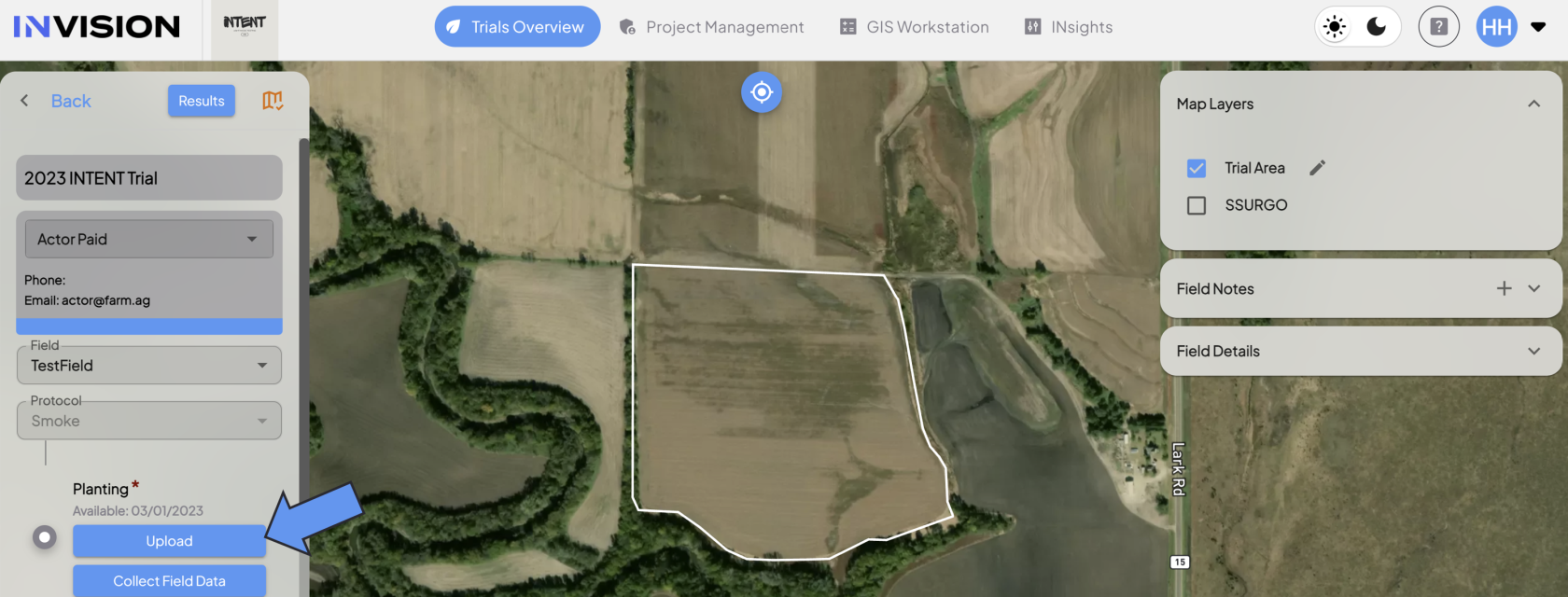
    - Click on the **Upload** button under the step you have data for.  
        [![image.png](https://docs.prod.intent.ag/uploads/images/gallery/2024-03/scaled-1680-/uC1image.png)](https://docs.prod.intent.ag/uploads/images/gallery/2024-03/uC1image.png)
    - This will bring up a new menu where you will have different selection options to upload data. If you have your machine files located on your computer or other device, **Upload File** is the option you will want to choose.

1. **Select Upload File**
    - Click on the Upload File option.  
        [![image.png](https://docs.prod.intent.ag/uploads/images/gallery/2024-03/scaled-1680-/kUfimage.png)](https://docs.prod.intent.ag/uploads/images/gallery/2024-03/kUfimage.png)

<p class="callout info">All machine files need to be zipped into one folder in order to be uploaded.</p>

1. **Attach Your File**
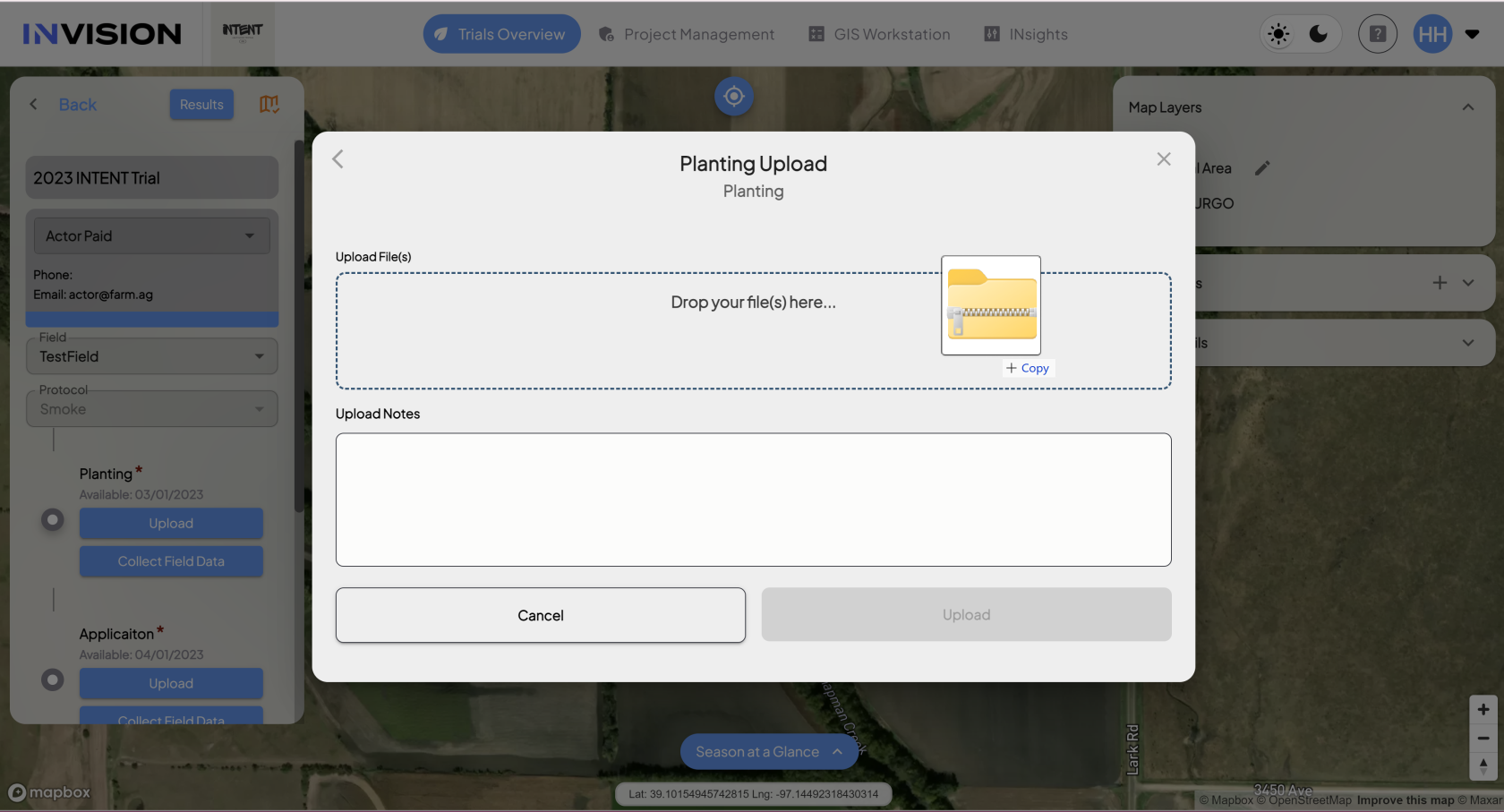
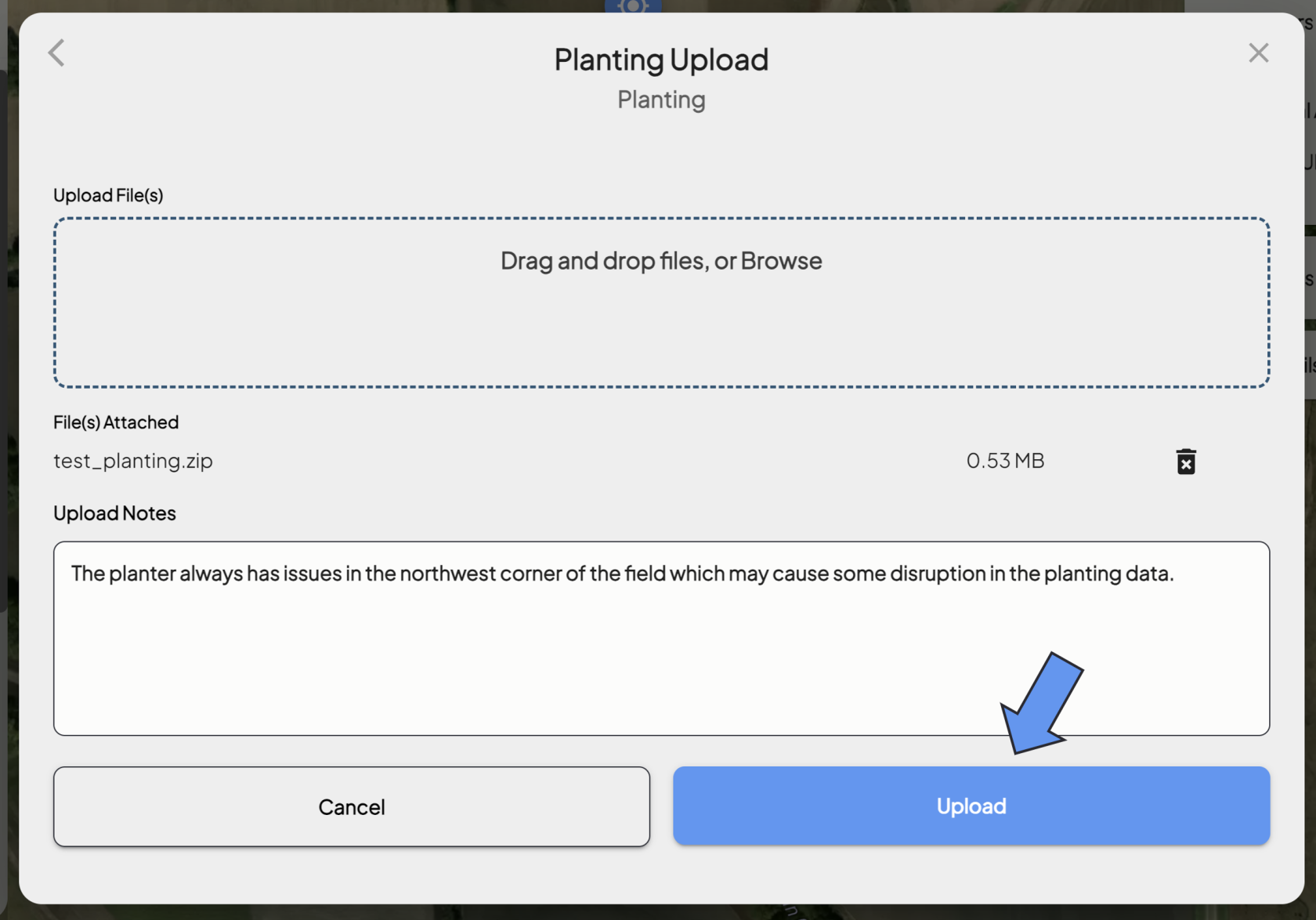
    - A new popup will appear where you have two options to locate your file: 
        - **Browse Your Files:** You can click inside the dotted boundary, which will open the files available on your computer, where you can select the zipped folder containing the machine data files you're wanting to upload.
        - **Drag and Drop:** You can also drag and drop folders into the dotted boundary.  
            [![Screenshot (71).png](https://docs.prod.intent.ag/uploads/images/gallery/2024-03/scaled-1680-/screenshot-71.png)](https://docs.prod.intent.ag/uploads/images/gallery/2024-03/screenshot-71.png)
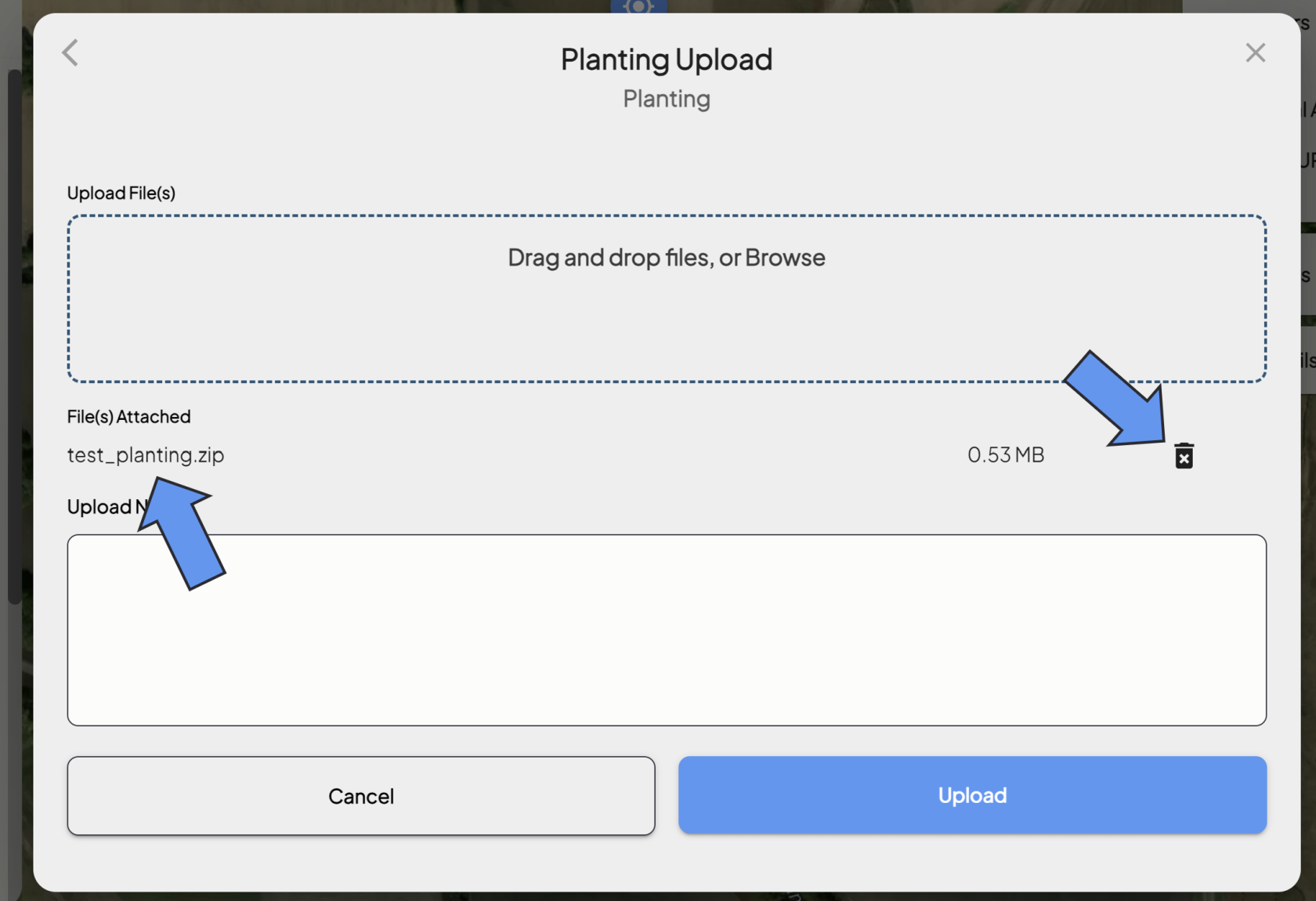
        - Once your files are uploaded, you'll see the name of the folder you've selected. 
            - Double check you've selected the correct folder.
            - You can remove it using the trash can icon, and select a new folder if needed.  
                [![image.png](https://docs.prod.intent.ag/uploads/images/gallery/2024-03/scaled-1680-/rrfimage.png)](https://docs.prod.intent.ag/uploads/images/gallery/2024-03/rrfimage.png)
    - **Fill Out Upload Notes**
        - You have the option to fill out field notes before you upload.
        - Please include any information that will be helpful to the data processor that look at this data, such as: 
            - Any complications with the operation
            - Any landmarks that identify areas of interest
            - Any weather events that could potentially have affected the operation
            - Any useful information that is not obvious from the data alone
2. **Upload Your Data**
    - Once you've attached your folder, checked it, and filled out the upload notes, click the **Upload** button to finish the upload process.  
        [![image.png](https://docs.prod.intent.ag/uploads/images/gallery/2024-03/scaled-1680-/h0wimage.png)](https://docs.prod.intent.ag/uploads/images/gallery/2024-03/h0wimage.png)
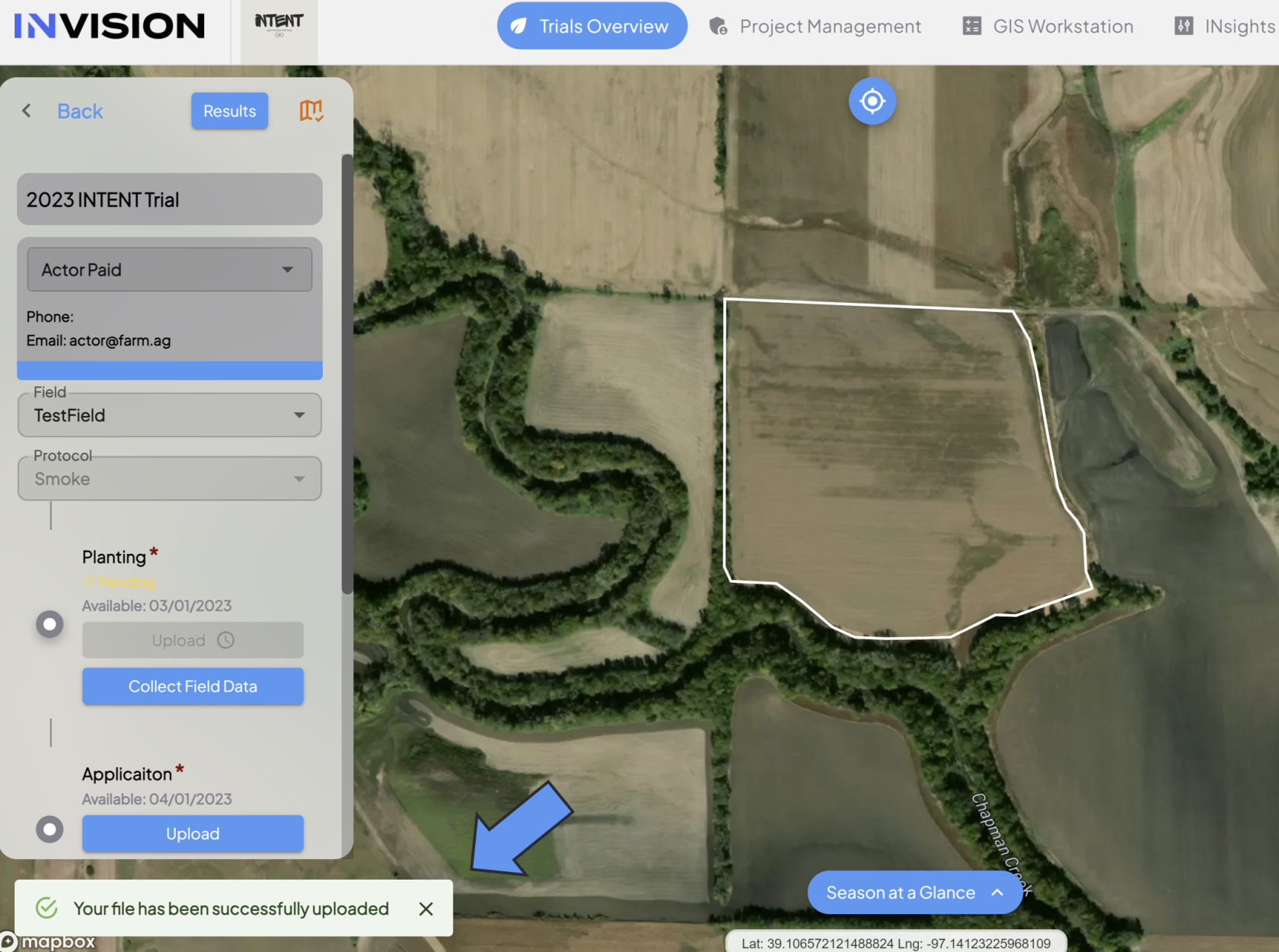
    - Once the files have been uploaded, you'll see a notification in the bottom left corner of View Fields confirming the upload was successful.  
        [![Screenshot 2024-03-26 135245.png](https://docs.prod.intent.ag/uploads/images/gallery/2024-03/scaled-1680-/screenshot-2024-03-26-135245.png)](https://docs.prod.intent.ag/uploads/images/gallery/2024-03/screenshot-2024-03-26-135245.png)
        - If there happens to be any issues with the files you've uploaded, you'll receive an email with an update of what the issue was, and next steps to follow.
3. **Check Your File Status**
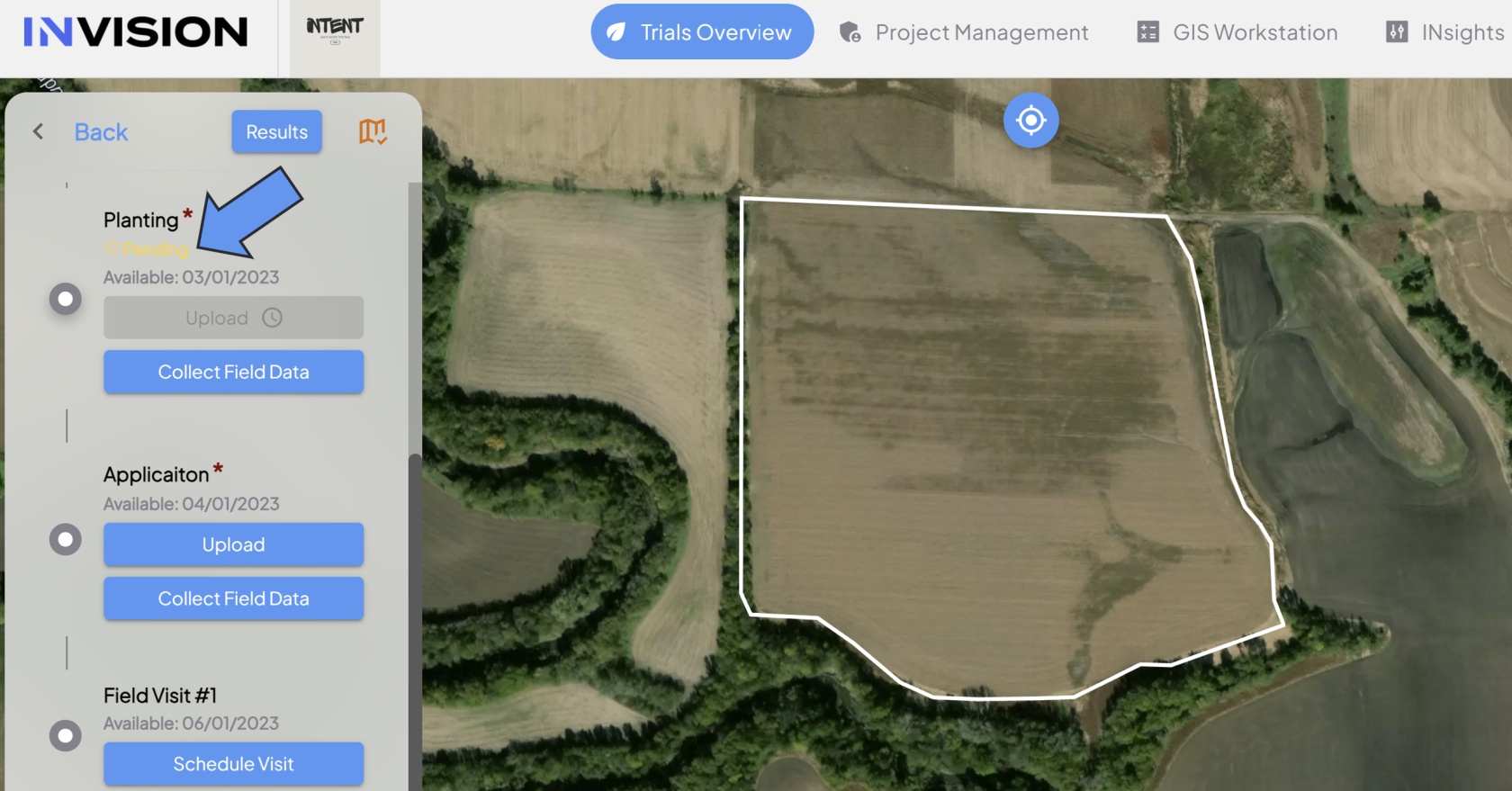
    - You can see the status of your upload underneath the step name. The following statuses are possible: 
        - **Available:** This status means you still need to upload files for this protocol step. 
            - If you've uploaded your files once, but come back to this step and see the status as available, that means there was an issue with your files. Please address the issue and upload again.
        - **Pending:** This status means your files are still being processed. Keep an eye on your email inbox in case there are any issues.
        - **Completed:** This status means you've successfully uploaded your machine data files.  
            [![Screenshot 2024-03-26 135640.png](https://docs.prod.intent.ag/uploads/images/gallery/2024-03/scaled-1680-/screenshot-2024-03-26-135640.png)](https://docs.prod.intent.ag/uploads/images/gallery/2024-03/screenshot-2024-03-26-135640.png)
# How To Upload Machine Data Through a Third Party Connection

##### **Guide To Uploading Files Through a Third Party Connection**

Uploading or submitting your planting, application, or harvest data to the INVISION Platform is a straightforward and easy process. You have three options available to you: uploading files from your device, connecting to a third party, or manually entering data. Continue reading this guide to discover the best way for you to upload your data to INVISION.

1. **Navigate to Your Field** 
    - Find the field you have machine data for on the Trials Overview Page.
    - Open that field into View Fields. 
        - For additional help with this step, check out our [Guide To Understanding the INVISION Overview Page](https://docs.prod.intent.ag/books/invision-learning-guide/page/understanding-the-invision-overview-page).
2. **Find the Correct Protocol Step**
    - Locate the protocol step you need to upload data for. The three most common steps are the following:  
        
        - Planting
        - Application
        - Harvest
    - Click on the **Upload** button under the step you have data for.  
        [![image.png](https://docs.prod.intent.ag/uploads/images/gallery/2024-03/scaled-1680-/uC1image.png)](https://docs.prod.intent.ag/uploads/images/gallery/2024-03/uC1image.png)
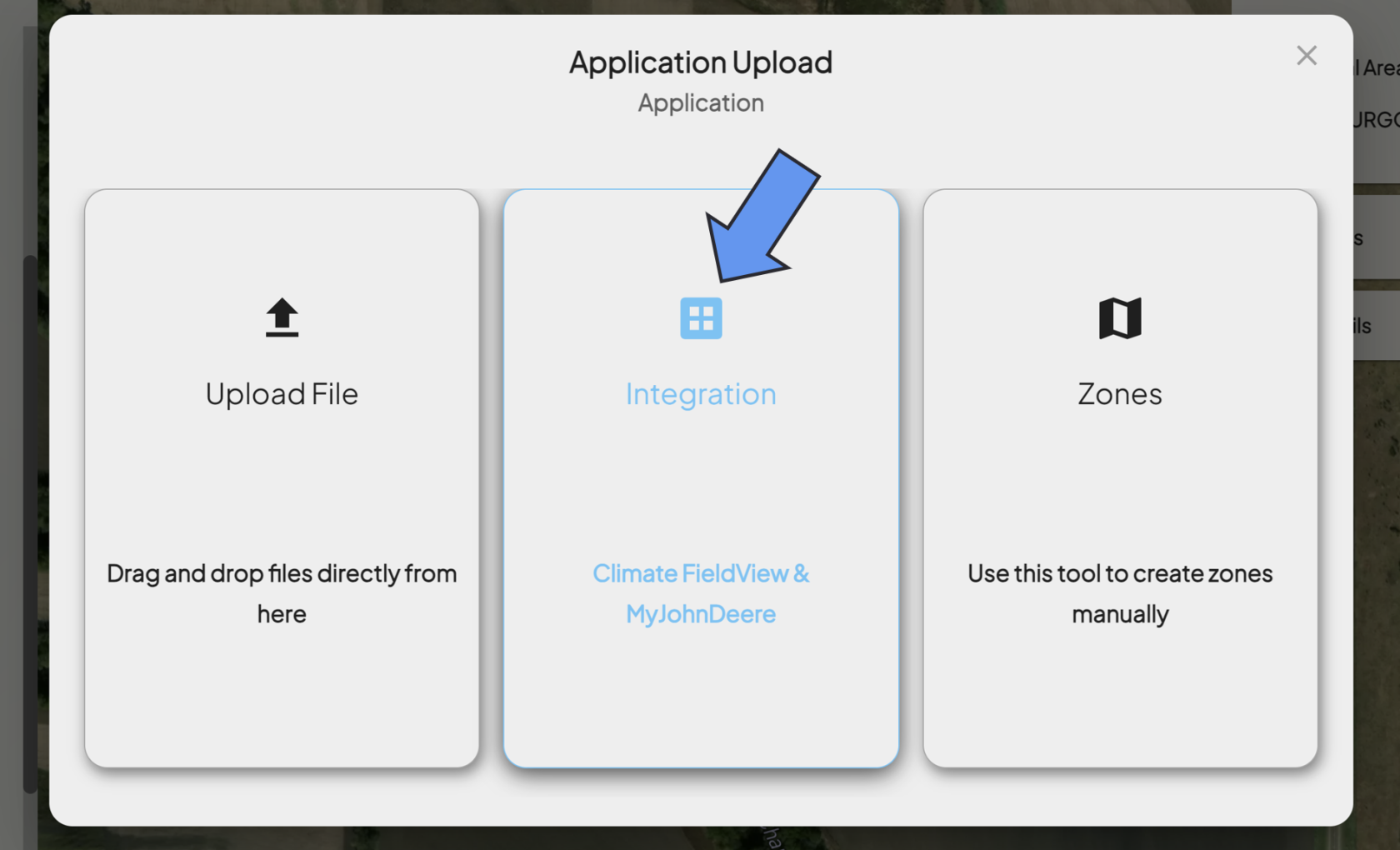
    - This will bring up a new menu where you will have different selection options to upload data. <span class="NormalTextRun SCXW184373533 BCX0">If you have machine data housed by a third party, such as </span><span class="NormalTextRun SCXW184373533 BCX0">Climate </span><span class="NormalTextRun SpellingErrorV2Themed SCXW184373533 BCX0">FieldView or MyJohnDeere</span><span class="NormalTextRun SCXW184373533 BCX0">, you will want to select the **Integration** option.</span>

1. **<span class="TextRun SCXW184373533 BCX0" data-contrast="auto" lang="EN-US" xml:lang="EN-US"><span class="NormalTextRun SCXW184373533 BCX0">Select Integration</span></span>**
    - <span class="TextRun SCXW184373533 BCX0" data-contrast="auto" lang="EN-US" xml:lang="EN-US"><span class="NormalTextRun SCXW184373533 BCX0">Click on the middle option, **Integration.  
        [![Screenshot 2024-03-26 142856.png](https://docs.prod.intent.ag/uploads/images/gallery/2024-03/scaled-1680-/screenshot-2024-03-26-142856.png)](https://docs.prod.intent.ag/uploads/images/gallery/2024-03/screenshot-2024-03-26-142856.png)** </span></span>
2. **<span class="TextRun SCXW184373533 BCX0" data-contrast="auto" lang="EN-US" xml:lang="EN-US"><span class="NormalTextRun SCXW184373533 BCX0">Choose Your Provider</span></span>**
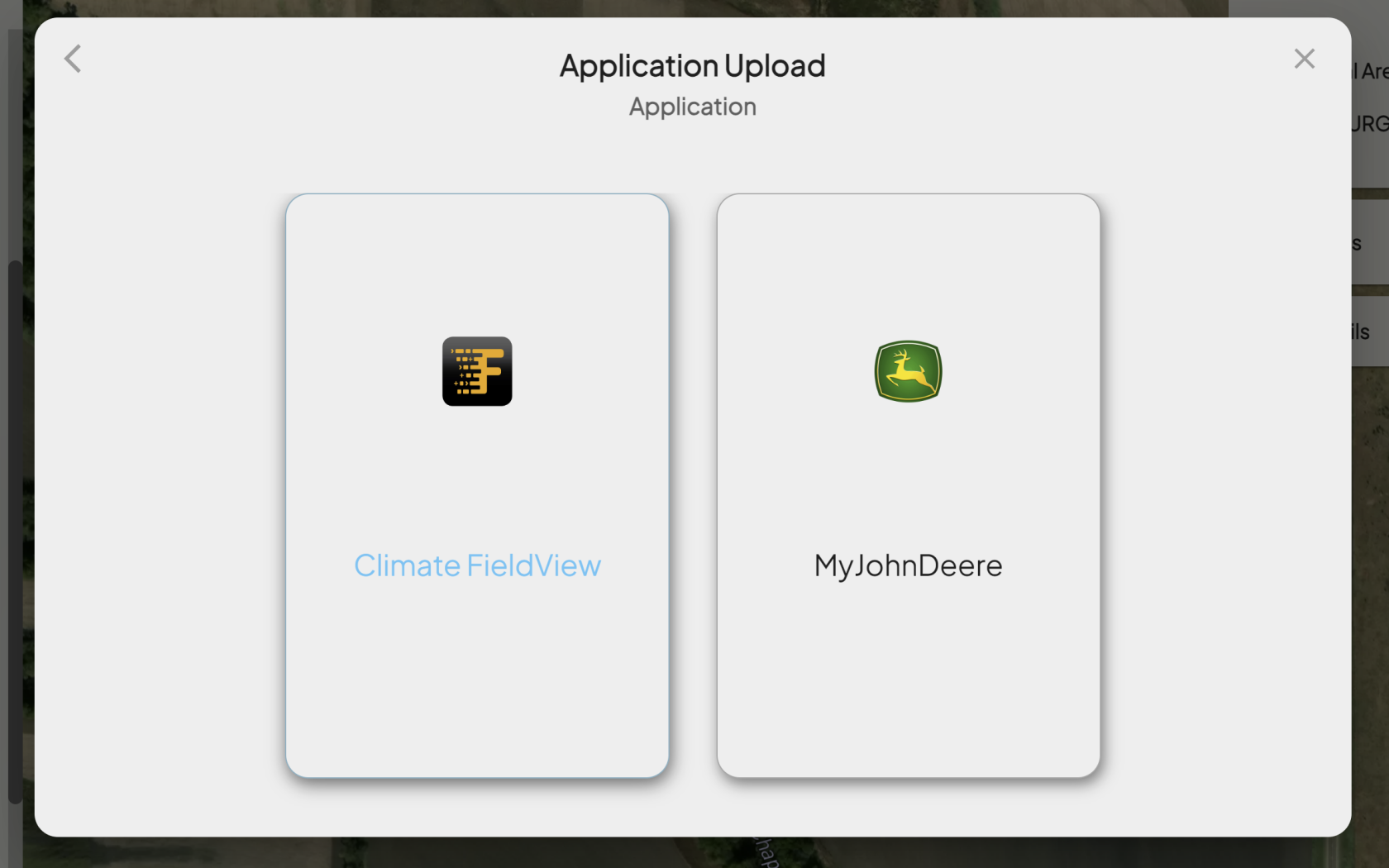
    - <span class="TextRun SCXW184373533 BCX0" data-contrast="auto" lang="EN-US" xml:lang="EN-US"><span class="NormalTextRun SCXW184373533 BCX0">Click on the provider you have data with:  
        [![Screenshot 2024-03-26 143130.png](https://docs.prod.intent.ag/uploads/images/gallery/2024-03/scaled-1680-/screenshot-2024-03-26-143130.png)](https://docs.prod.intent.ag/uploads/images/gallery/2024-03/screenshot-2024-03-26-143130.png)  
        </span></span>

##### **<span class="TextRun SCXW184373533 BCX0" data-contrast="auto" lang="EN-US" xml:lang="EN-US"><span class="NormalTextRun SCXW184373533 BCX0">Climate FieldView</span></span>**

- - - - <span class="TextRun SCXW184373533 BCX0" data-contrast="auto" lang="EN-US" xml:lang="EN-US"><span class="NormalTextRun SCXW184373533 BCX0">Selecting Climate Fieldview will bring you to their portal.[![Screenshot 2024-03-26 143448.png](https://docs.prod.intent.ag/uploads/images/gallery/2024-03/scaled-1680-/screenshot-2024-03-26-143448.png)](https://docs.prod.intent.ag/uploads/images/gallery/2024-03/screenshot-2024-03-26-143448.png)</span></span>
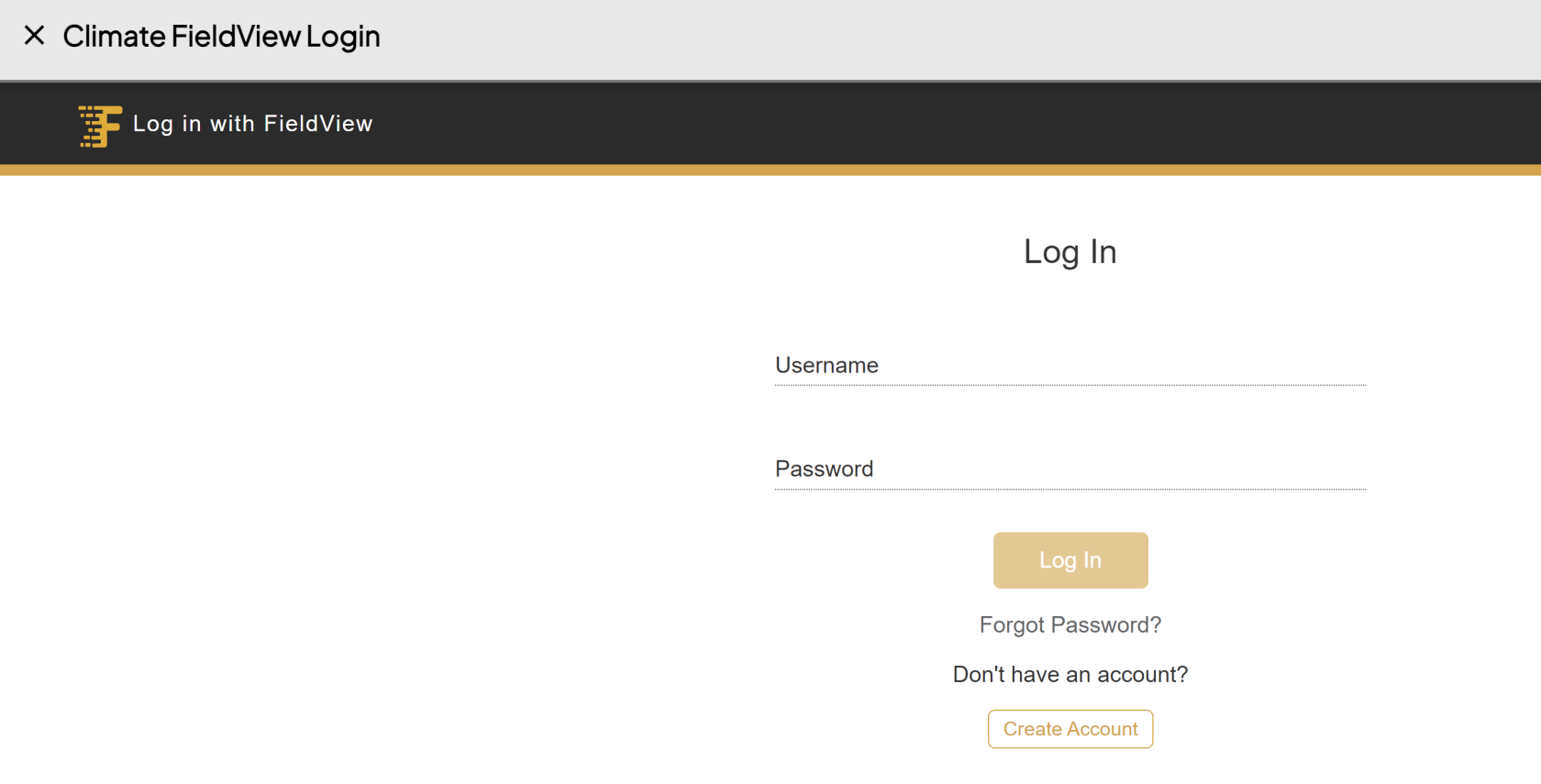
            - <span class="TextRun SCXW184373533 BCX0" data-contrast="auto" lang="EN-US" xml:lang="EN-US"><span class="NormalTextRun SCXW184373533 BCX0">Login using your username and password.  
                </span></span>
            - <span class="TextRun SCXW184373533 BCX0" data-contrast="auto" lang="EN-US" xml:lang="EN-US"><span class="NormalTextRun SCXW184373533 BCX0"><span class="TextRun SCXW240875614 BCX0" data-contrast="auto" lang="EN-US" xml:lang="EN-US"><span class="NormalTextRun SCXW240875614 BCX0">If </span><span class="NormalTextRun SCXW240875614 BCX0">you’re</span><span class="NormalTextRun SCXW240875614 BCX0"> asked about permissions, hit </span><span class="NormalTextRun SCXW240875614 BCX0">allow</span><span class="NormalTextRun SCXW240875614 BCX0"> to give access to </span><span class="NormalTextRun SCXW240875614 BCX0">retrieve</span><span class="NormalTextRun SCXW240875614 BCX0"> your files from Climate </span><span class="NormalTextRun SpellingErrorV2Themed SpellingErrorHighlight SCXW240875614 BCX0">FieldView.  
                [![Screenshot 2024-03-26 144001.png](https://docs.prod.intent.ag/uploads/images/gallery/2024-03/scaled-1680-/screenshot-2024-03-26-144001.png)](https://docs.prod.intent.ag/uploads/images/gallery/2024-03/screenshot-2024-03-26-144001.png)  
                </span></span></span></span>
            - <span class="TextRun SCXW184373533 BCX0" data-contrast="auto" lang="EN-US" xml:lang="EN-US"><span class="NormalTextRun SCXW184373533 BCX0"><span class="EOP SCXW240875614 BCX0" data-ccp-props="{}"><span class="TextRun SCXW264720413 BCX0" data-contrast="auto" lang="EN-US" xml:lang="EN-US"><span class="NormalTextRun SCXW264720413 BCX0">Once </span><span class="NormalTextRun SCXW264720413 BCX0">you’ve</span><span class="NormalTextRun SCXW264720413 BCX0"> signed in, you can use the different dropdowns to select the</span> <span class="NormalTextRun SCXW264720413 BCX0">field</span><span class="NormalTextRun SCXW264720413 BCX0"> and</span><span class="NormalTextRun SCXW264720413 BCX0"> specific dates to find the right </span><span class="NormalTextRun SCXW264720413 BCX0">data.  
                  
                </span></span></span></span></span>

 For additional help, follow along with this video on how to access and upload your files from Climate FieldView:

<iframe allowfullscreen="allowfullscreen" height="314" src="https://www.youtube.com/embed/FjJRo0_aWYY" width="560"></iframe>

#####  

##### **<span class="TextRun SCXW184373533 BCX0" data-contrast="auto" lang="EN-US" xml:lang="EN-US"><span class="NormalTextRun SCXW184373533 BCX0"><span class="EOP SCXW240875614 BCX0" data-ccp-props="{}"><span class="TextRun SCXW264720413 BCX0" data-contrast="auto" lang="EN-US" xml:lang="EN-US"><span class="NormalTextRun SCXW264720413 BCX0">MyJohnDeere</span></span></span></span></span>**

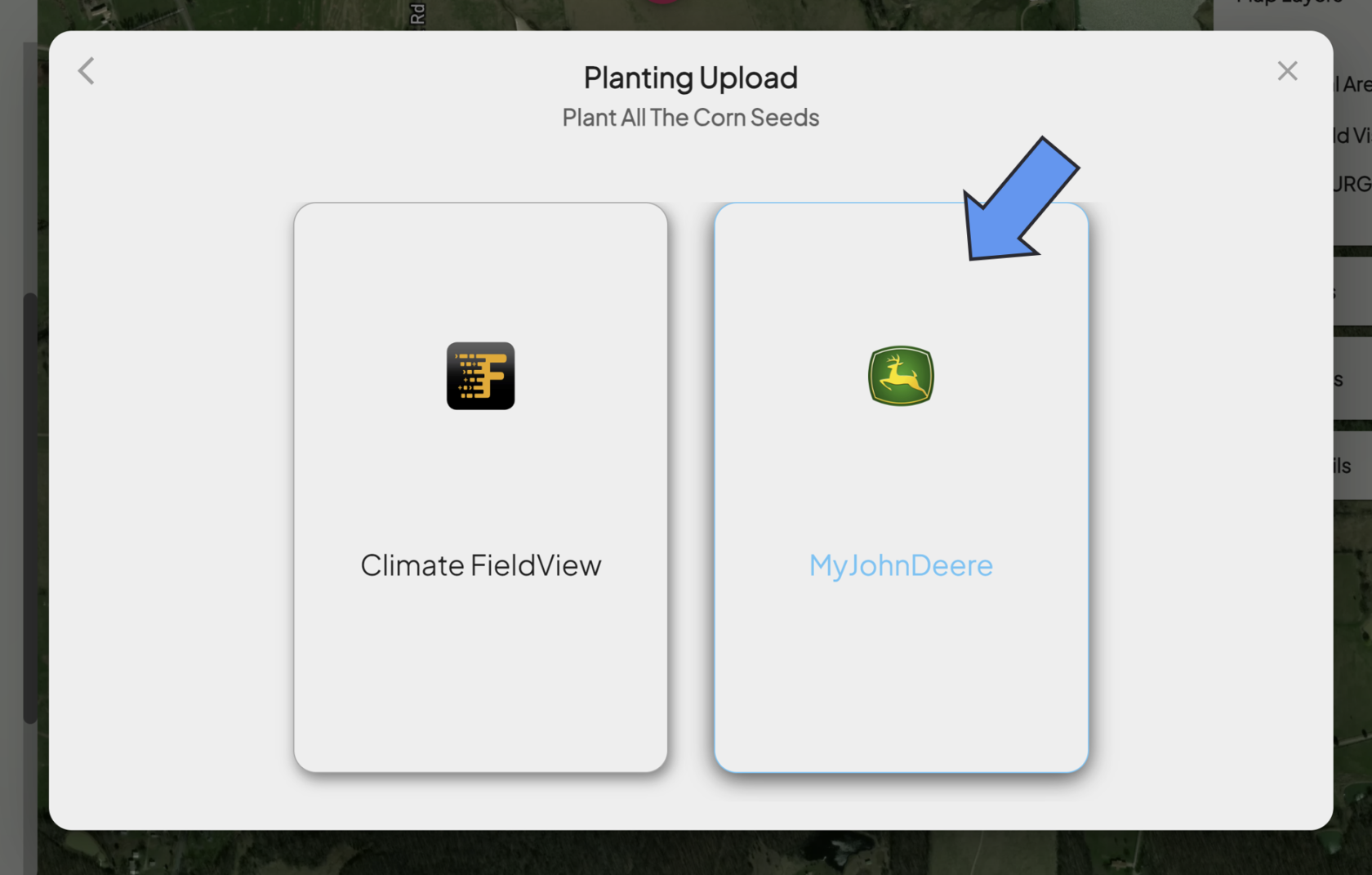
- - - - <span class="TextRun SCXW184373533 BCX0" data-contrast="auto" lang="EN-US" xml:lang="EN-US"><span class="NormalTextRun SCXW184373533 BCX0"><span class="EOP SCXW240875614 BCX0" data-ccp-props="{}"><span class="TextRun SCXW264720413 BCX0" data-contrast="auto" lang="EN-US" xml:lang="EN-US"><span class="NormalTextRun SCXW264720413 BCX0">Selecting MyJohnDeere will bring you into their portal.  
                [![Screenshot 2024-03-27 165226.png](https://docs.prod.intent.ag/uploads/images/gallery/2024-03/scaled-1680-/screenshot-2024-03-27-165226.png)](https://docs.prod.intent.ag/uploads/images/gallery/2024-03/screenshot-2024-03-27-165226.png)  
                </span></span></span></span></span>
            - <span class="TextRun SCXW184373533 BCX0" data-contrast="auto" lang="EN-US" xml:lang="EN-US"><span class="NormalTextRun SCXW184373533 BCX0"><span class="EOP SCXW240875614 BCX0" data-ccp-props="{}"><span class="TextRun SCXW264720413 BCX0" data-contrast="auto" lang="EN-US" xml:lang="EN-US"><span class="NormalTextRun SCXW264720413 BCX0">Sign in using your username and password.</span></span></span></span></span>
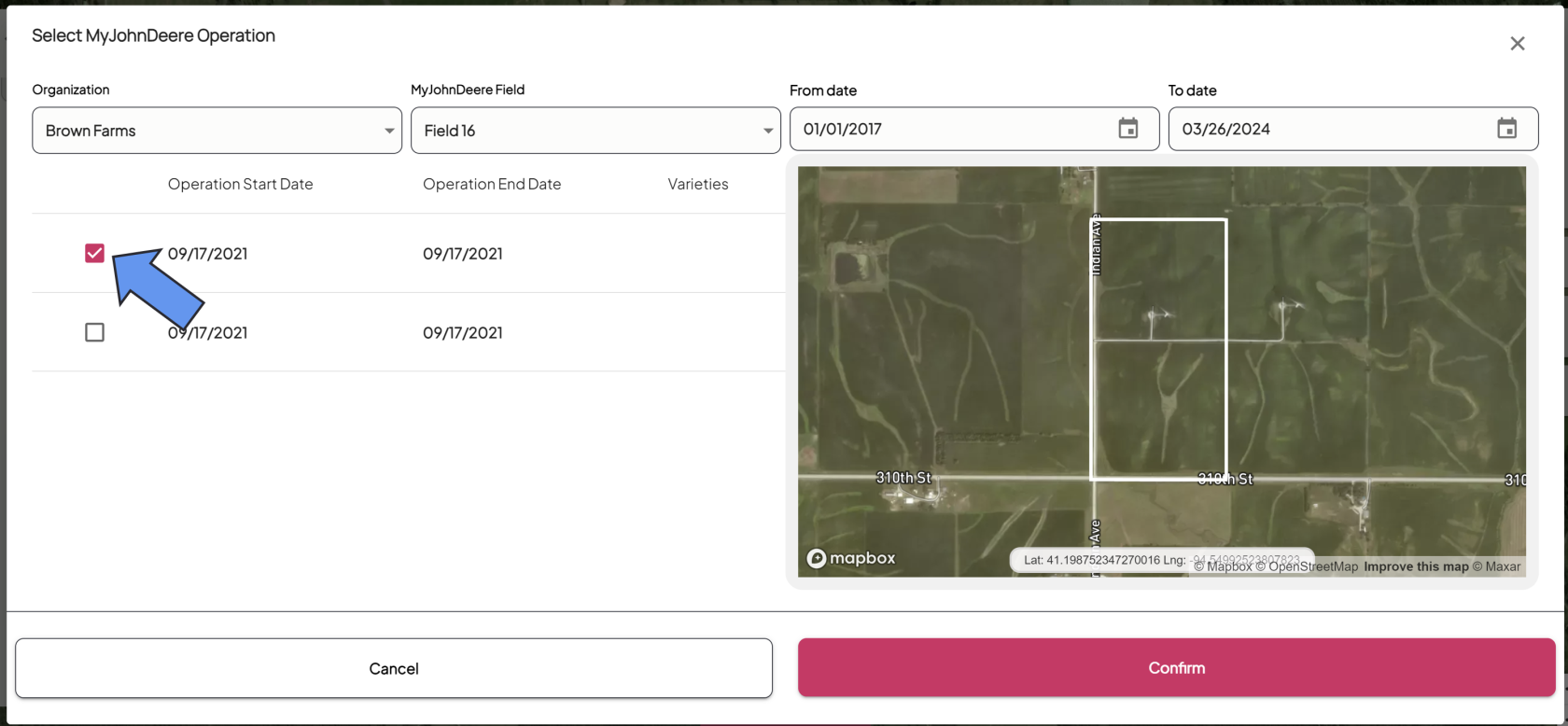
            - <span class="TextRun SCXW184373533 BCX0" data-contrast="auto" lang="EN-US" xml:lang="EN-US"><span class="NormalTextRun SCXW184373533 BCX0"><span class="EOP SCXW240875614 BCX0" data-ccp-props="{}"><span class="TextRun SCXW264720413 BCX0" data-contrast="auto" lang="EN-US" xml:lang="EN-US"><span class="NormalTextRun SCXW264720413 BCX0">Once you’ve signed in, you can use the different dropdown menus to select the field and specific dates to find the data you need to upload.  
                </span></span></span></span></span>
                - <span class="TextRun SCXW184373533 BCX0" data-contrast="auto" lang="EN-US" xml:lang="EN-US"><span class="NormalTextRun SCXW184373533 BCX0"><span class="EOP SCXW240875614 BCX0" data-ccp-props="{}"><span class="TextRun SCXW264720413 BCX0" data-contrast="auto" lang="EN-US" xml:lang="EN-US"><span class="NormalTextRun SCXW264720413 BCX0">Be sure the check the boundary on the map to ensure it's the right field.</span></span></span></span></span>
            - <span class="TextRun SCXW184373533 BCX0" data-contrast="auto" lang="EN-US" xml:lang="EN-US"><span class="NormalTextRun SCXW184373533 BCX0"><span class="EOP SCXW240875614 BCX0" data-ccp-props="{}"><span class="TextRun SCXW264720413 BCX0" data-contrast="auto" lang="EN-US" xml:lang="EN-US"><span class="NormalTextRun SCXW264720413 BCX0">Check the boxes for all of the files you want to upload.  
                [![Screenshot 2024-03-27 142109.png](https://docs.prod.intent.ag/uploads/images/gallery/2024-03/scaled-1680-/screenshot-2024-03-27-142109.png)](https://docs.prod.intent.ag/uploads/images/gallery/2024-03/screenshot-2024-03-27-142109.png)  
                </span></span></span></span></span>
            - <span class="TextRun SCXW184373533 BCX0" data-contrast="auto" lang="EN-US" xml:lang="EN-US"><span class="NormalTextRun SCXW184373533 BCX0"><span class="EOP SCXW240875614 BCX0" data-ccp-props="{}"><span class="TextRun SCXW264720413 BCX0" data-contrast="auto" lang="EN-US" xml:lang="EN-US"><span class="NormalTextRun SCXW264720413 BCX0">Select **Confirm** to upload your machine data.</span></span></span></span></span>
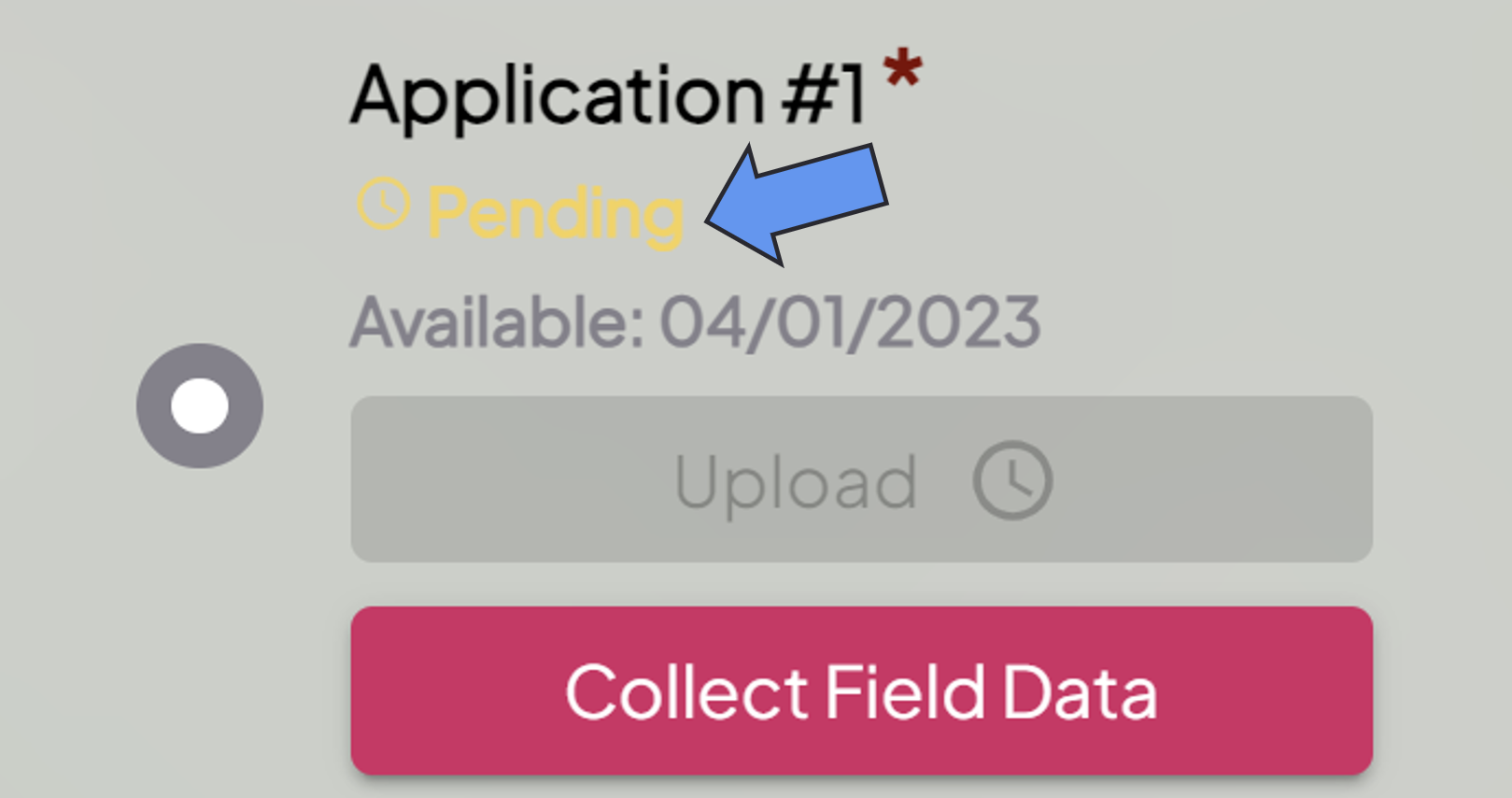
            - You will then see the status of your file underneath the step name. The following statuses are possible: 
                - **Available:** This status means you still need to upload a file for this protocol step. 
                    - If you've uploaded your file once, but come back to this step and see the status as available, that means there was an issue with your file. Please address the issue and upload again.
                - **Pending:** This status means your file is still being processed. Keep an eye on your email inbox in case there are any issues.
                - **Completed:** This status means you've successfully uploaded your machine data file.  
                    [![Screenshot 2024-03-27 164530.png](https://docs.prod.intent.ag/uploads/images/gallery/2024-03/scaled-1680-/screenshot-2024-03-27-164530.png)](https://docs.prod.intent.ag/uploads/images/gallery/2024-03/screenshot-2024-03-27-164530.png)
For additional help, follow along with this video on how to access and upload your files from MyJohnDeere:

<iframe allowfullscreen="allowfullscreen" height="314" src="https://www.youtube.com/embed/qt-8at0aWJ4" width="560"></iframe>

# How to Enter Manual Data

#### **Guide to Uploading Machine Data** 

Uploading or submitting your planting, application, or harvest data to the INVISION Platform is a straightforward and easy process. You have three options available to you: uploading files from your device, connecting to a third party, or manually entering data. Continue reading this guide to discover the best way for you to upload your data to INVISION.

1. **Navigate to Your Field** 
    - Find the field you have machine data for on the Trials Overview Page.
    - Open that field into View Fields. 
        - For additional help with this step, check out our [Guide To Understanding the INVISION Overview Page](https://docs.prod.intent.ag/books/invision-learning-guide/page/understanding-the-invision-overview-page).
2. **Find the Correct Protocol Step**
    - Locate the protocol step you need to upload data for. The three most common steps are the following:  
        
        - Planting
        - Application
        - Harvest
    - Click on the **Upload** button under the step you have data for.  
        [![image.png](https://docs.prod.intent.ag/uploads/images/gallery/2024-03/scaled-1680-/uC1image.png)](https://docs.prod.intent.ag/uploads/images/gallery/2024-03/uC1image.png)

    - This will bring up a new menu where you will have different selection options to upload data. If you have no machine data files and need to manually upload data, **Zones/Manual Harvest** is the option for you. How you manually upload depends on the type of data you need to submit.

##### **<span class="TextRun SCXW184373533 BCX0" data-contrast="auto" lang="EN-US" xml:lang="EN-US"><span class="NormalTextRun SCXW184373533 BCX0">Planting/Application</span></span>**

1. **<span class="TextRun SCXW184373533 BCX0" data-contrast="auto" lang="EN-US" xml:lang="EN-US"><span class="NormalTextRun SCXW184373533 BCX0">Select Zones</span></span>**
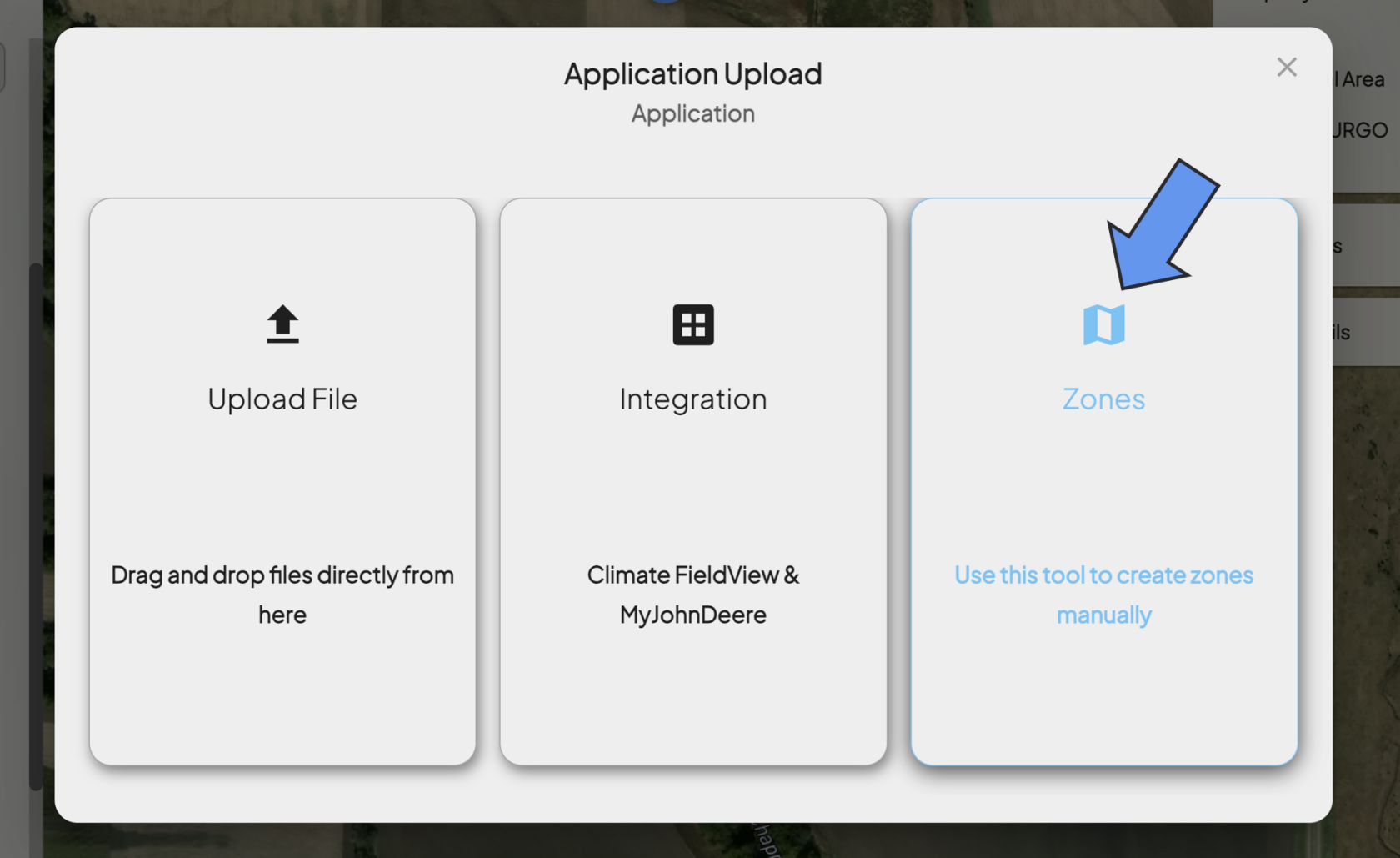
    - <span class="TextRun SCXW184373533 BCX0" data-contrast="auto" lang="EN-US" xml:lang="EN-US"><span class="NormalTextRun SCXW184373533 BCX0">If you need to submit planting or application information manually, you'll need to draw in zones. Click on the **Zones** option.  
        [![Screenshot 2024-03-26 144945.png](https://docs.prod.intent.ag/uploads/images/gallery/2024-03/scaled-1680-/screenshot-2024-03-26-144945.png)](https://docs.prod.intent.ag/uploads/images/gallery/2024-03/screenshot-2024-03-26-144945.png)</span></span>
2. **<span class="TextRun SCXW184373533 BCX0" data-contrast="auto" lang="EN-US" xml:lang="EN-US"><span class="NormalTextRun SCXW184373533 BCX0">Fill Out Operation Date</span></span>**
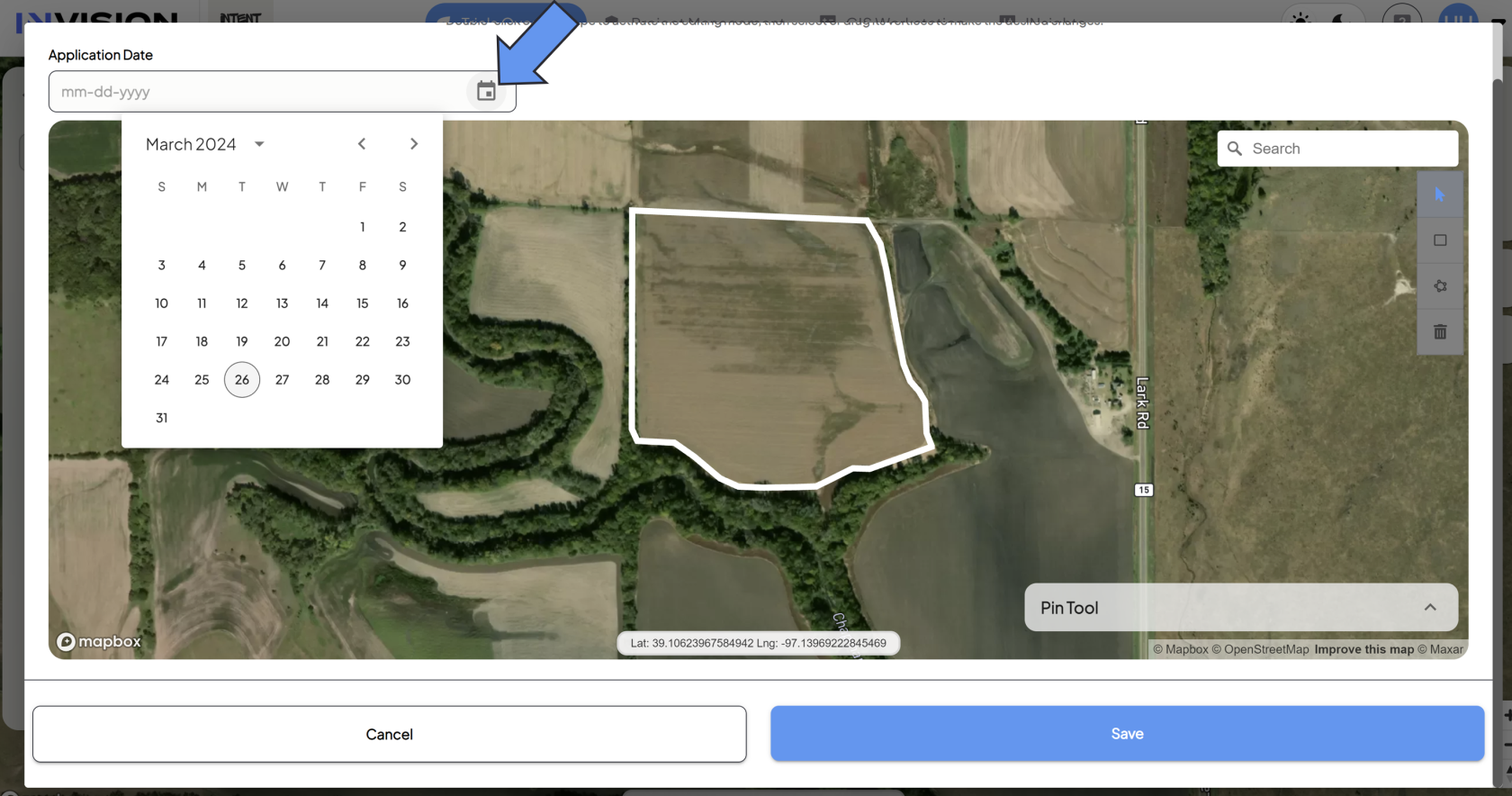
    - <span class="TextRun SCXW184373533 BCX0" data-contrast="auto" lang="EN-US" xml:lang="EN-US"><span class="NormalTextRun SCXW184373533 BCX0">Select the date the operation took place.  
        [![Screenshot 2024-03-26 145452.png](https://docs.prod.intent.ag/uploads/images/gallery/2024-03/scaled-1680-/screenshot-2024-03-26-145452.png)](https://docs.prod.intent.ag/uploads/images/gallery/2024-03/screenshot-2024-03-26-145452.png)</span></span>
3. **Draw A Zone**
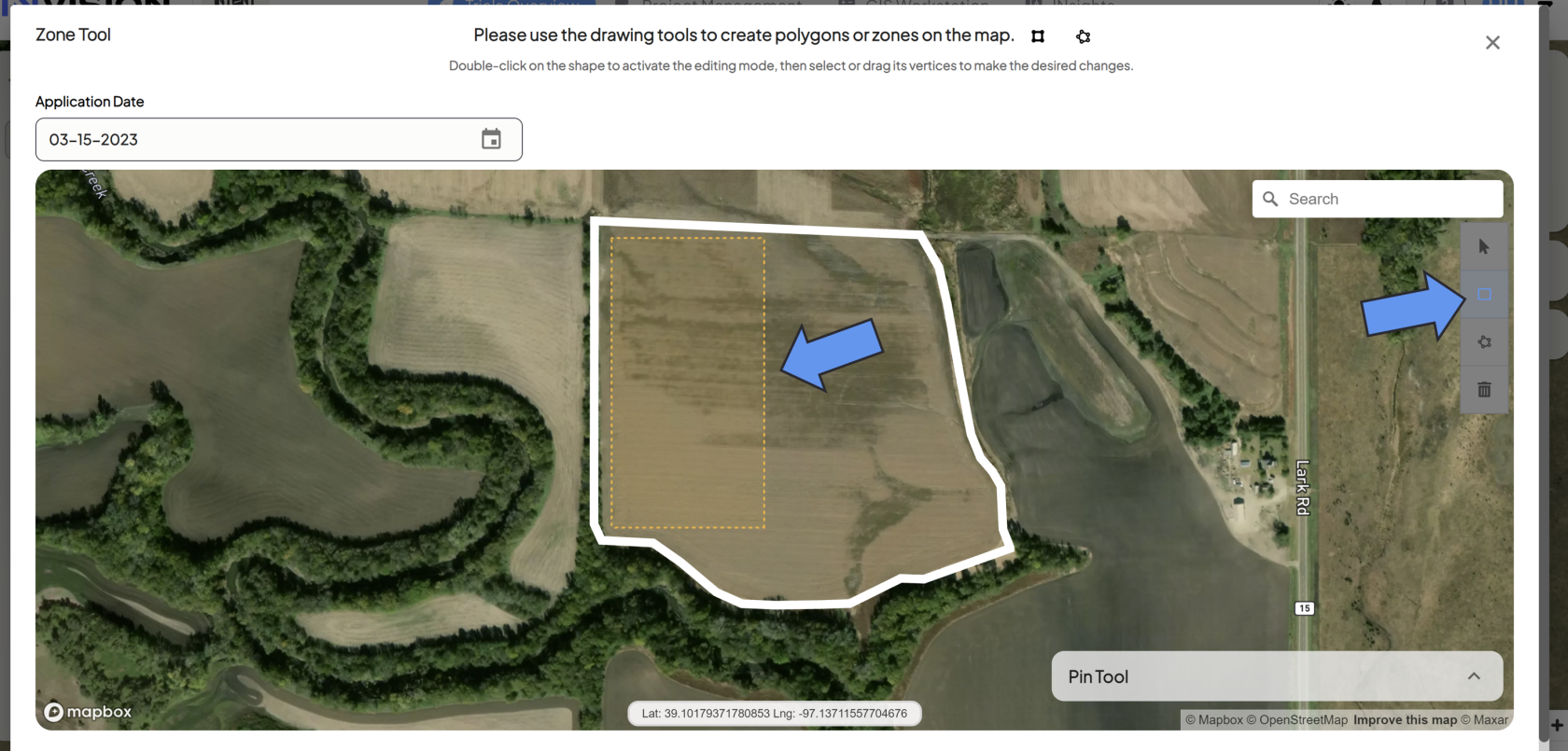
    - You will need to draw a zone for each product in your protocol. You have a variety of polygon tools to work with: 
        - The *rectangular polygon tool* will create a rectangular polygon shape as your drag your mouse.  
            [![Screenshot 2024-03-26 150422.png](https://docs.prod.intent.ag/uploads/images/gallery/2024-03/scaled-1680-/screenshot-2024-03-26-150422.png)](https://docs.prod.intent.ag/uploads/images/gallery/2024-03/screenshot-2024-03-26-150422.png)
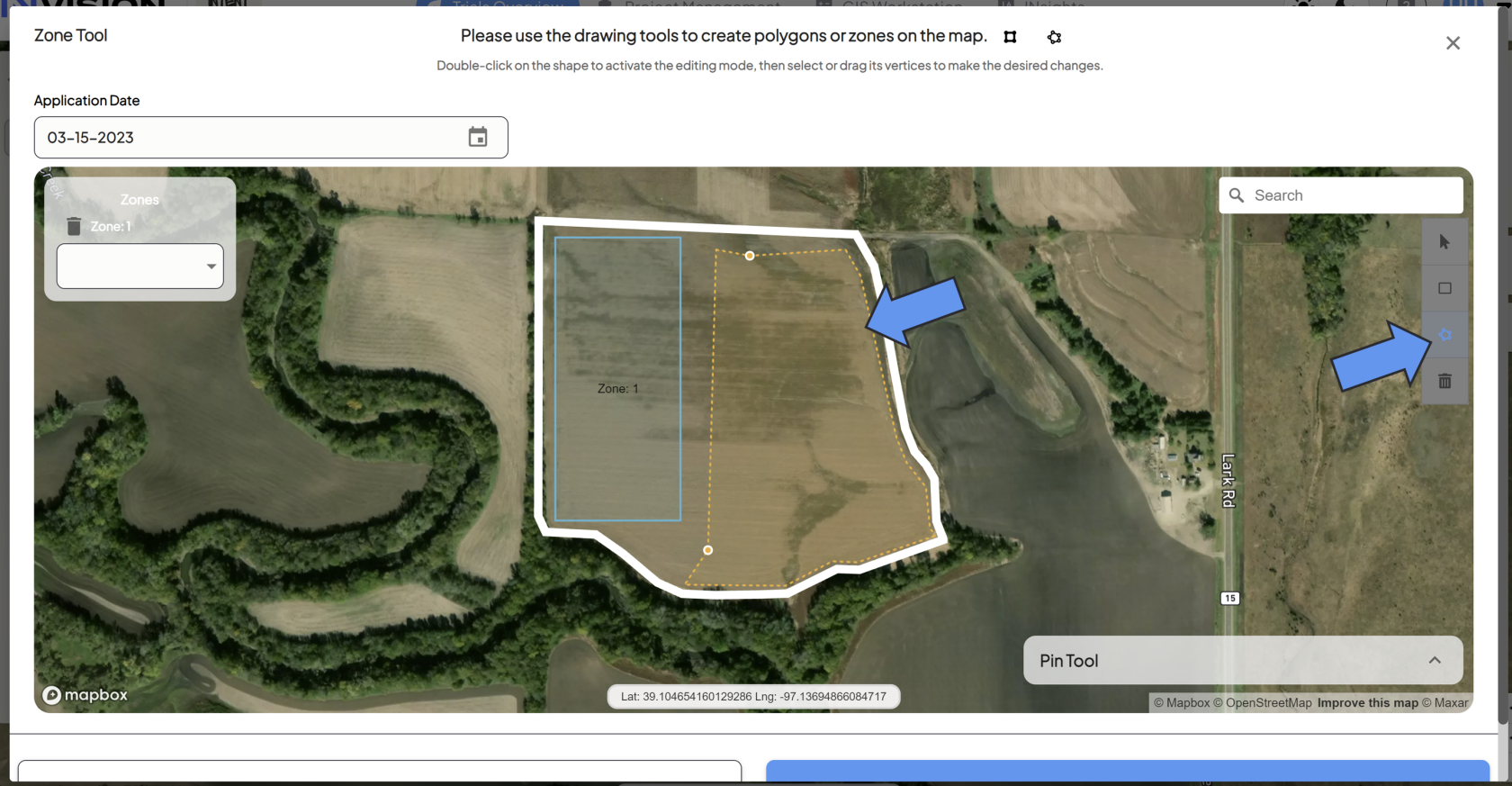
        - The *star shaped polygon* *tool* will allow you to drop connected points to create a polygon.  
            [![Screenshot 2024-03-26 151854.png](https://docs.prod.intent.ag/uploads/images/gallery/2024-03/scaled-1680-/screenshot-2024-03-26-151854.png)](https://docs.prod.intent.ag/uploads/images/gallery/2024-03/screenshot-2024-03-26-151854.png)
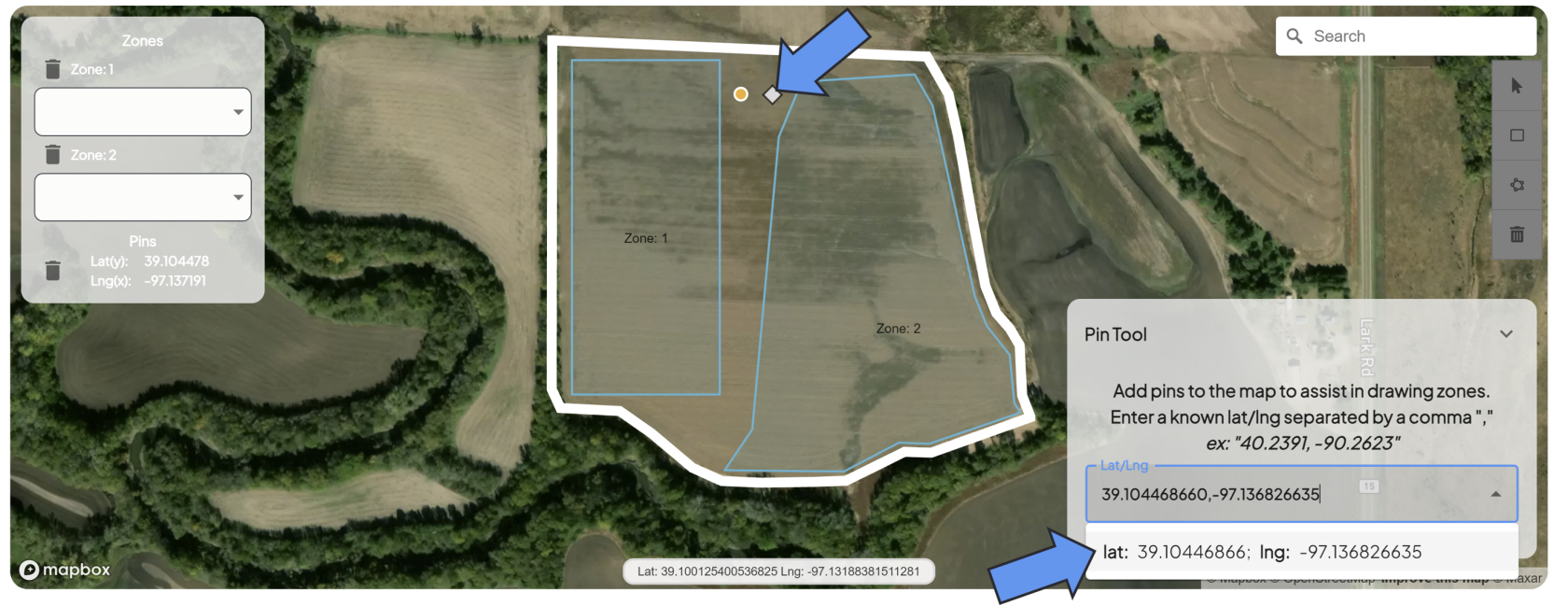
        - The *Pin Tool* will allow you to drop pins at specific latitude + longitude measurements to assist you in zone creation.  
            [![Screenshot 2024-03-26 152922.png](https://docs.prod.intent.ag/uploads/images/gallery/2024-03/scaled-1680-/screenshot-2024-03-26-152922.png)](https://docs.prod.intent.ag/uploads/images/gallery/2024-03/screenshot-2024-03-26-152922.png)
4. **Make Edits to Your Zones**
    - You can double click on zones you've created to edit them. 
        - You can select any of the vertices, which will allow you to drag them around to create the shape you need.
    - Use the trash can icon to delete any zones or pins you're unhappy with.
5. **Grower Standard Practice**
    - You might need to draw in a zone for any untreated areas of the field, sometimes referred to as the *Grower Standard Practice (GSP)* area.
    - Whether you need to or not will depend on if the *Untreated* functionality is disabled or not. Reach out to your point of contact with INTENT if you're unsure.
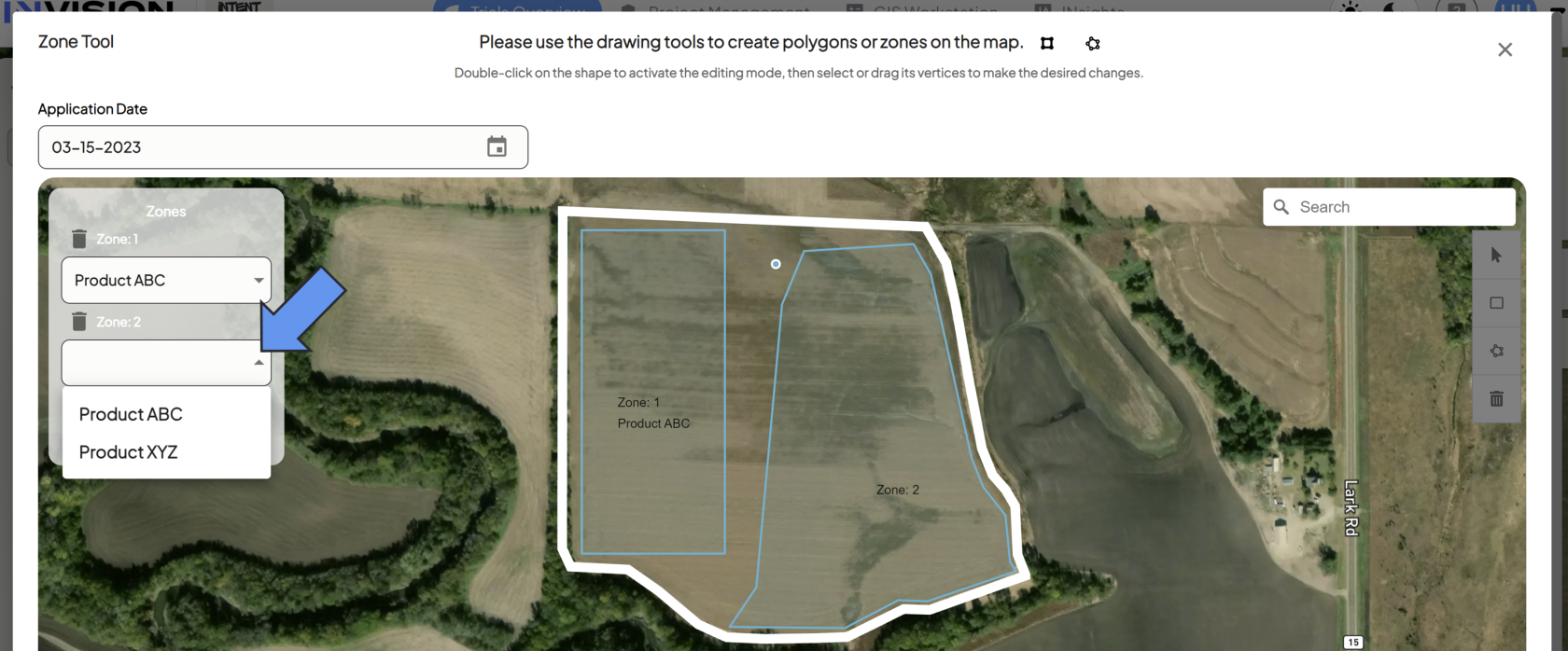
6. **Select Your Products**
    - For each zone you draw, you need to select which Product is associated with it.  
        [![Screenshot 2024-03-26 155605.png](https://docs.prod.intent.ag/uploads/images/gallery/2024-03/scaled-1680-/screenshot-2024-03-26-155605.png)](https://docs.prod.intent.ag/uploads/images/gallery/2024-03/screenshot-2024-03-26-155605.png)
7. **Submit Manual Planting/Application Data**
    - Once your operation date is filled out, your zones are drawn, and products are assigned, you're ready to manually submit your data. Click the **Save** button to continue.
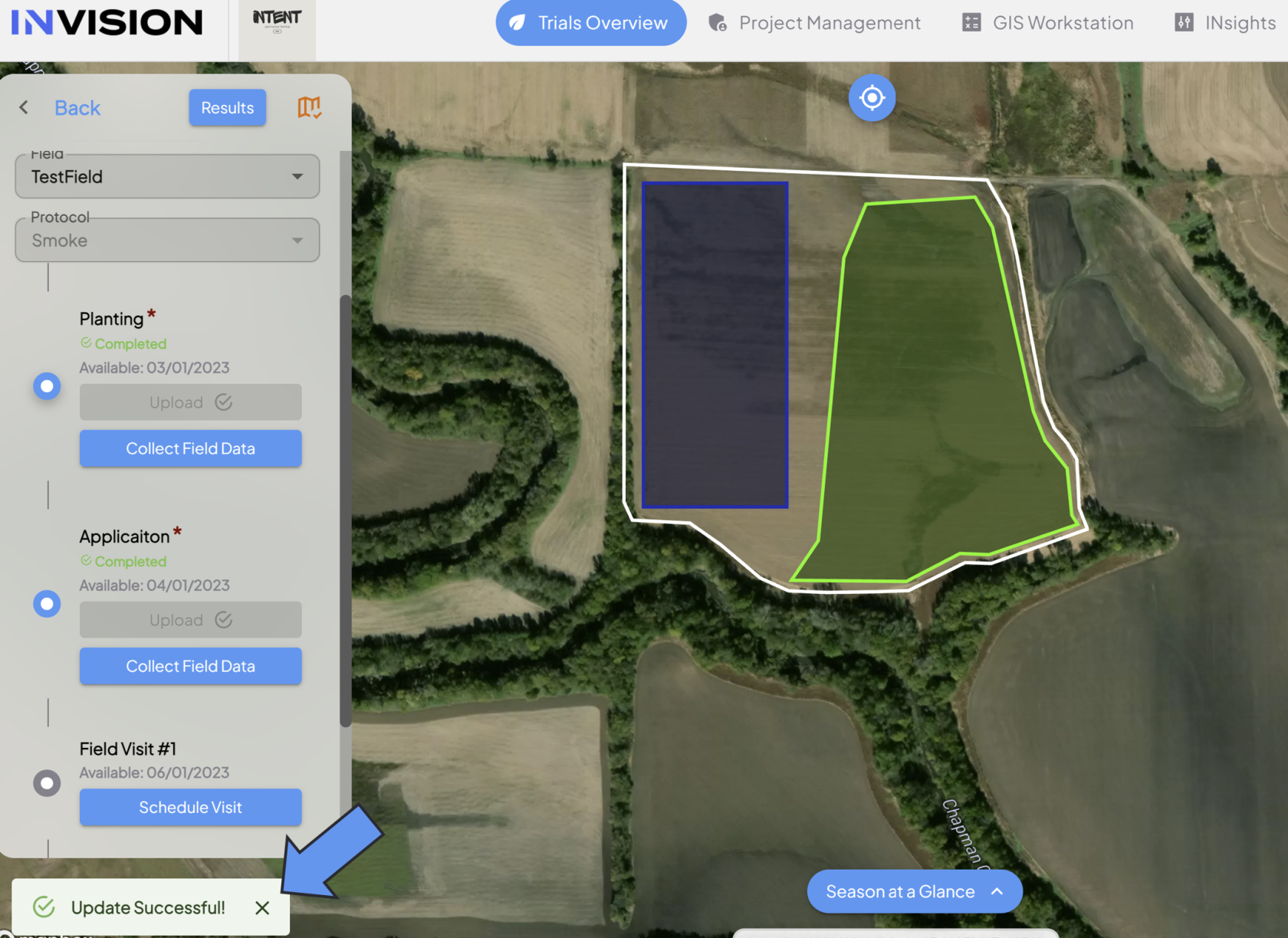
    - If the submission was successful, you'll see a notification in the bottom left corner of View Fields, and you'll see your newly created zones on the map.  
        [![Screenshot 2024-03-26 161035.png](https://docs.prod.intent.ag/uploads/images/gallery/2024-03/scaled-1680-/screenshot-2024-03-26-161035.png)](https://docs.prod.intent.ag/uploads/images/gallery/2024-03/screenshot-2024-03-26-161035.png)
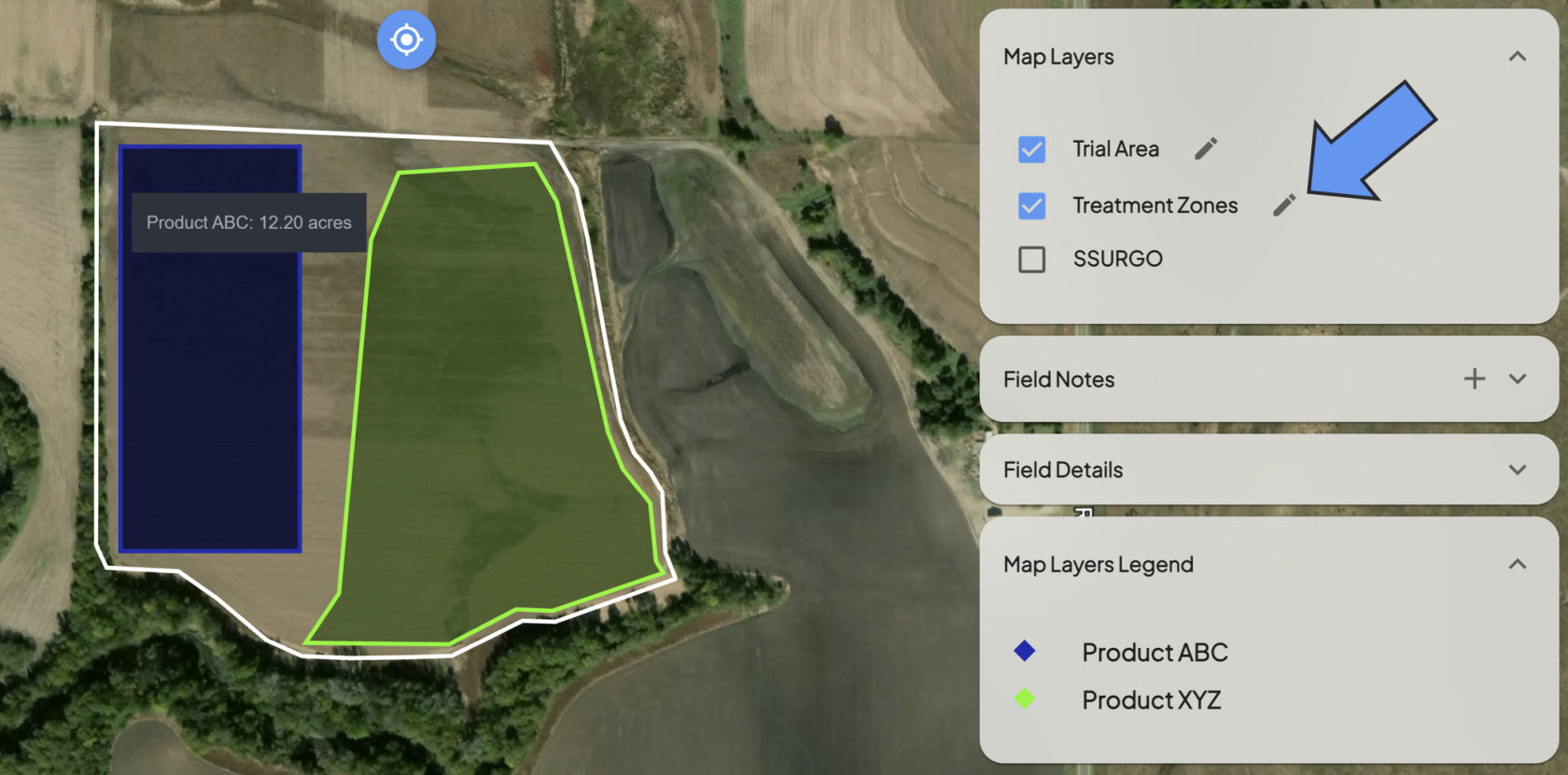
    - Some roles have the credentials to edit these zones, called *Treatment Zones.* 
        - If you don't see the edit icon in View Fields next to the Treatment Zones but need them edited, reach out to your contact at INTENT.  
            [![Screenshot 2024-03-26 161545.png](https://docs.prod.intent.ag/uploads/images/gallery/2024-03/scaled-1680-/screenshot-2024-03-26-161545.png)](https://docs.prod.intent.ag/uploads/images/gallery/2024-03/screenshot-2024-03-26-161545.png)
For additional help, follow along with this video demonstrating how to manually create treatment zones:

<iframe allowfullscreen="allowfullscreen" height="314" src="https://www.youtube.com/embed/7eBLGvvOywA" width="560"></iframe>

##### **<span class="TextRun SCXW184373533 BCX0" data-contrast="auto" lang="EN-US" xml:lang="EN-US"><span class="NormalTextRun SCXW184373533 BCX0">Harvest</span></span>**

1. **Treatment Zones** are necessary to submit manual harvest data. A Planting or Application step must be completed before manual harvest data can be submitted.
2. **<span class="TextRun SCXW184373533 BCX0" data-contrast="auto" lang="EN-US" xml:lang="EN-US"><span class="NormalTextRun SCXW184373533 BCX0">Select Manual Harvest </span></span>**
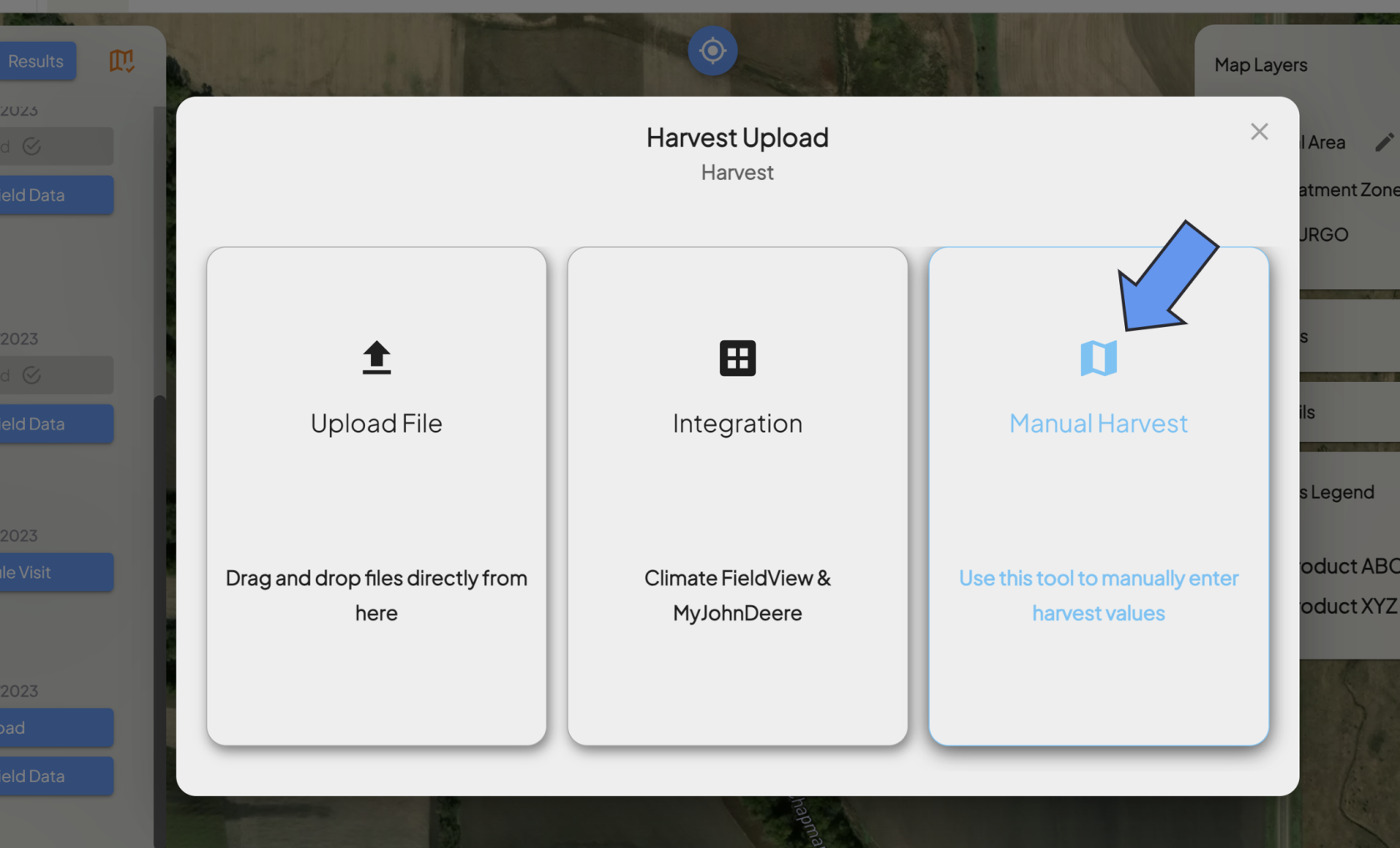
    - If you do not have a harvest machine data file, you need to submit your harvest data manually. Select the **Manual Harvest** option.[![Screenshot 2024-03-26 162006.png](https://docs.prod.intent.ag/uploads/images/gallery/2024-03/scaled-1680-/screenshot-2024-03-26-162006.png)](https://docs.prod.intent.ag/uploads/images/gallery/2024-03/screenshot-2024-03-26-162006.png)
3. **<span class="TextRun SCXW184373533 BCX0" data-contrast="auto" lang="EN-US" xml:lang="EN-US"><span class="NormalTextRun SCXW184373533 BCX0">Select Harvest Date</span></span>**
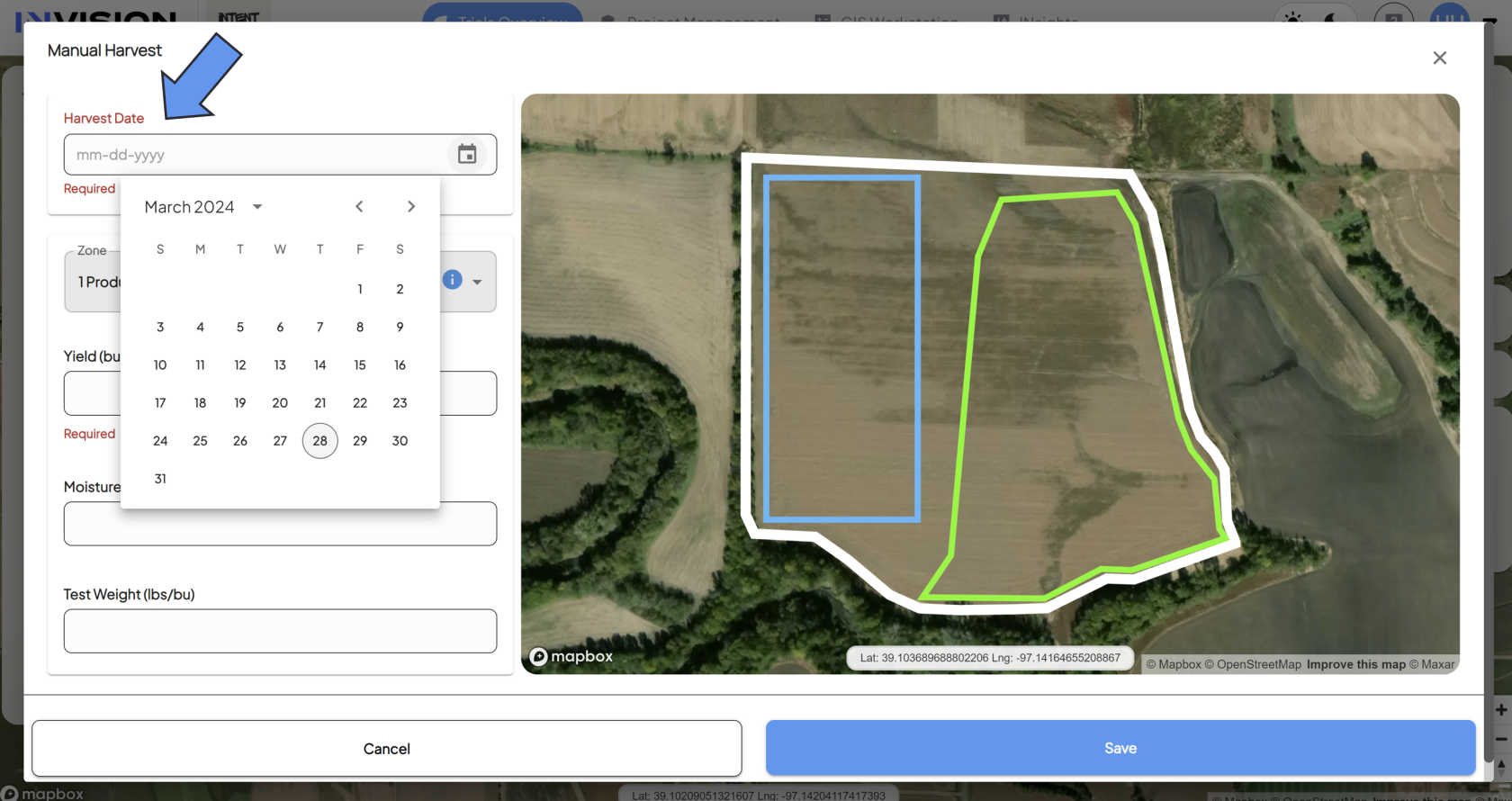
    - Enter in the date when the harvest occurred.  
        [![image.png](https://docs.prod.intent.ag/uploads/images/gallery/2024-04/scaled-1680-/image.png)](https://docs.prod.intent.ag/uploads/images/gallery/2024-04/image.png)
4. **Select the Zone/Product**
    - You need to enter in data for each treatment zone in your field. Select the zone/product from the *Zone* dropdown menu.

[![Screenshot 2024-03-28 125300.png](https://docs.prod.intent.ag/uploads/images/gallery/2024-03/scaled-1680-/screenshot-2024-03-28-125300.png)](https://docs.prod.intent.ag/uploads/images/gallery/2024-03/screenshot-2024-03-28-125300.png)
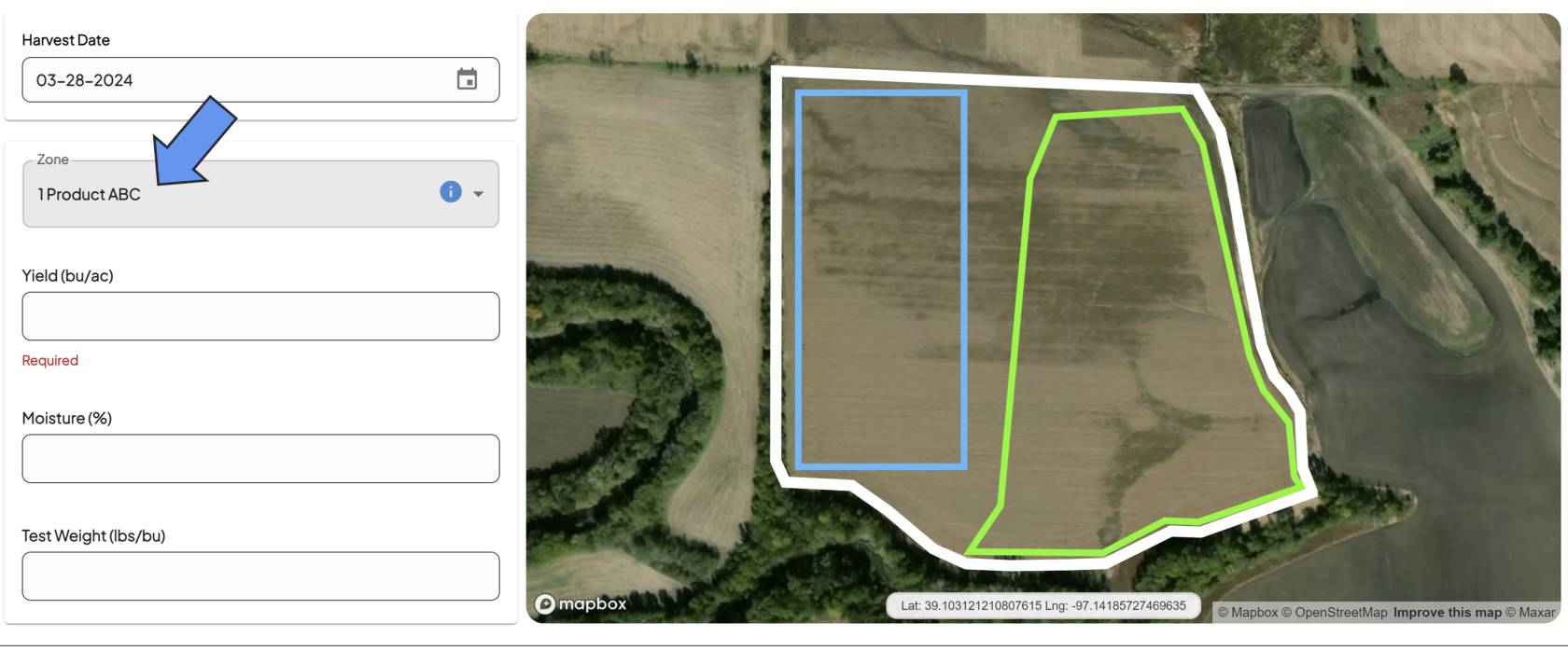
1. - - The zone you're selecting will be highlighted blue on the map.
2. **Enter The Following Information For Selected Zone**
    - Yield
    
    
    - Moisture
    - Test Weight
3. **Repeat for Each Zone**
    - Select the next zone from the *Zone* dropdown menu.  
        [![Screenshot 2024-03-28 125702.png](https://docs.prod.intent.ag/uploads/images/gallery/2024-03/scaled-1680-/screenshot-2024-03-28-125702.png)](https://docs.prod.intent.ag/uploads/images/gallery/2024-03/screenshot-2024-03-28-125702.png)
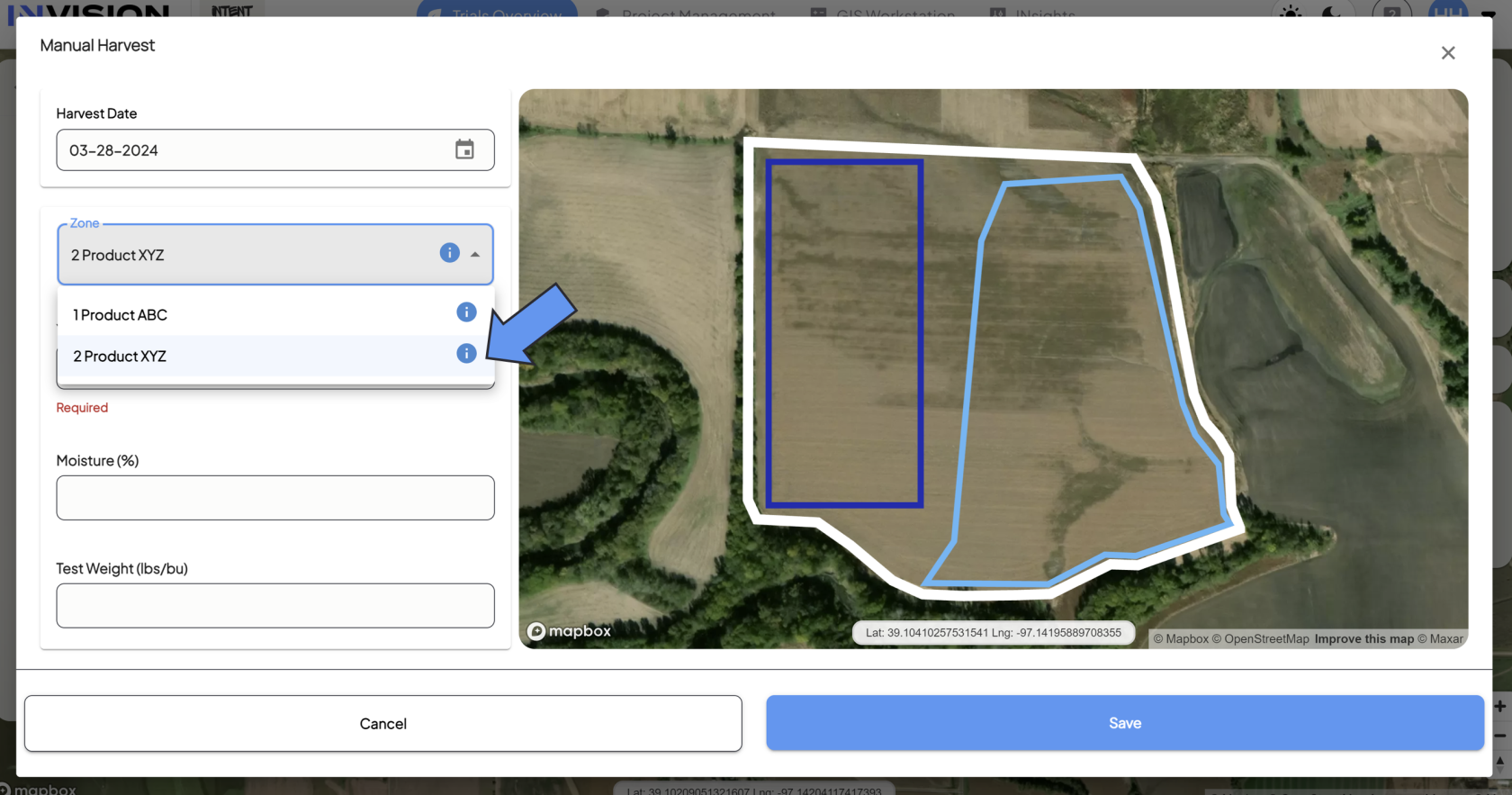
    - Fill out the remaining fields for that zone: 
        - Yield
        - Moisture
        - Test Weight
4. **Submit Your Manual Harvest Data**
    - Once you've filled out all fields for each zone, you're ready to submit your data.
    - Click the **Save** button to complete the Manual Harvest Submission.
5. **Confirm Submission**
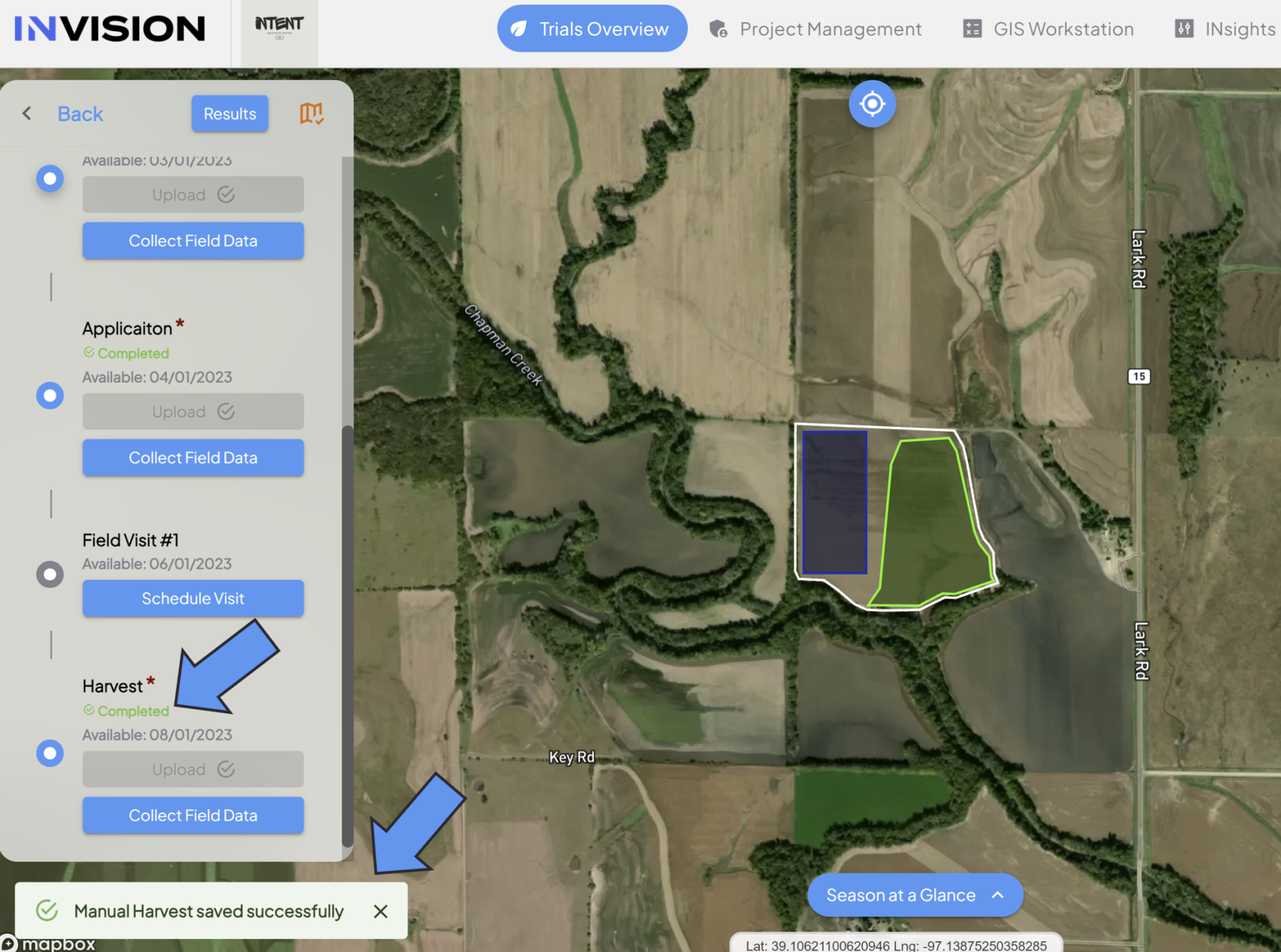
    - After you hit save, you should see a notification in the bottom left corner of View Fields if your data was saved successfully.
    - You'll also see the protocol step status as Completed.  
         [![Screenshot 2024-03-28 130855.png](https://docs.prod.intent.ag/uploads/images/gallery/2024-03/scaled-1680-/screenshot-2024-03-28-130855.png)](https://docs.prod.intent.ag/uploads/images/gallery/2024-03/screenshot-2024-03-28-130855.png)