# EXPORTING DIGITAL DATA FROM CFV & JD
# Exporting Digital Data from Climate FieldView
#### Exporting Digital Data from Climate FieldView
##### Log In and Navigate to Data Section
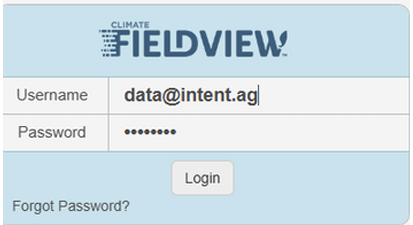
- Sign in to [https://fieldviewplus.com/](https://fieldviewplus.com/)
**Note**: Do not confuse fieldviewplus.com and climate.com. They are different and allow for different types of data export.
[](https://docs.prod.intent.ag/uploads/images/gallery/2025-05/image.png)
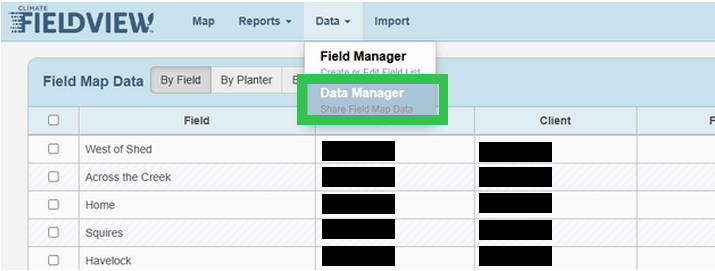
- Select the **Data** tab in the top navigation bar. This is where all field data is stored. Choose the **Data Manager** option in the dropdown list.
[](https://docs.prod.intent.ag/uploads/images/gallery/2025-05/0LLimage.png)
##### Select the Desired Field
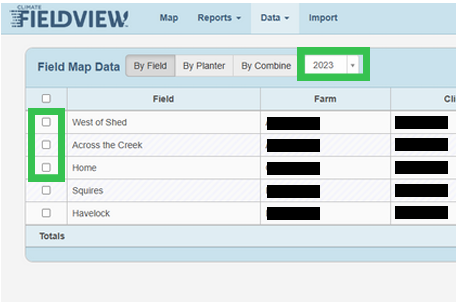
- To export data, check the box next to the desired field name
- Be sure that the year is properly filtered
**Note**: If your field does not show up on the list, that means there is no associated data for the filtered year.
[](https://docs.prod.intent.ag/uploads/images/gallery/2025-05/WEhimage.png)
##### Export and Download the Data
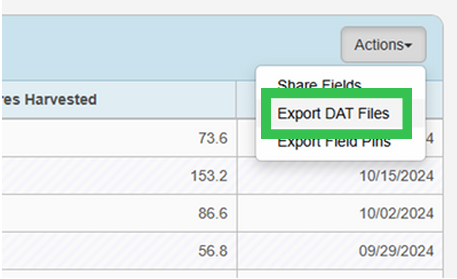
- Locate the **Actions** dropdown menu near the top right of the data table
- Select the **Export DAT Files** option
[](https://docs.prod.intent.ag/uploads/images/gallery/2025-05/Jdtimage.png)
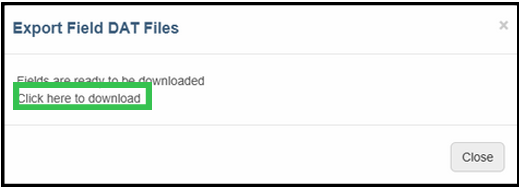
- Once the export is complete, a download link will appear. Click the link to download the file to your computer
[](https://docs.prod.intent.ag/uploads/images/gallery/2025-05/gr3image.png)
- You can now upload the file to INVISION!
# Exporting Digital Data from JohnDeere
#### Exporting Digital Data from JohnDeere
##### Log In and Select Your Field
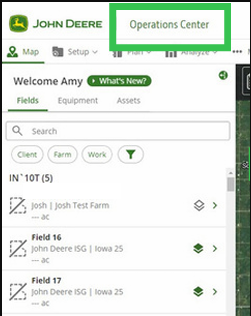
- Sign in to [www.myjohndeere.com](https://www.myjohndeere.com) and select **Operations Center**
[](https://docs.prod.intent.ag/uploads/images/gallery/2025-05/WTAimage.png)
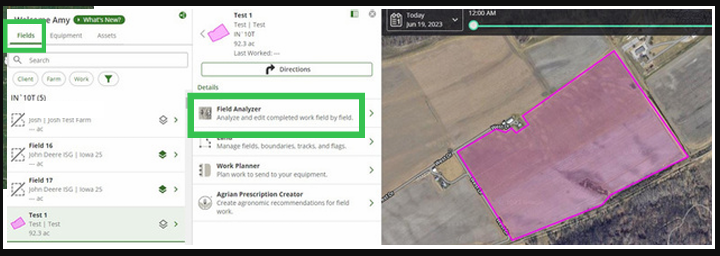
- Select **Fields**, and then select the specific field you want to view. Then, select **Field Analyzer**
[](https://docs.prod.intent.ag/uploads/images/gallery/2025-05/Ms1image.png)
##### Selecting Data Layers to Export
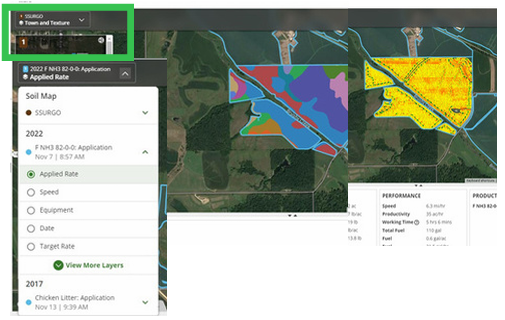
- Select the layers or data you want to show on the map. You can select Planting, Harvest, or Application layers to export. Be sure to select variety for Planting, Yield for Harvest, and Applied Rate for the Applicaiton layer
[](https://docs.prod.intent.ag/uploads/images/gallery/2025-05/Bf1image.png)
##### Share/Export Data
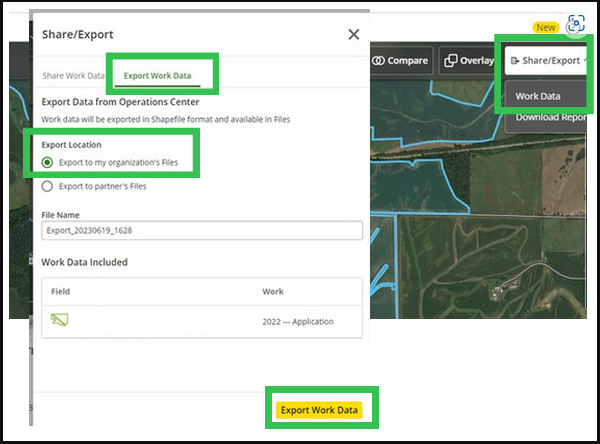
- Once you have your layers selected, click **Share/Export** at the top right of the screen
- Select the **Export Work Data** tab and check the **Export to my organization's Files** radio button
- Name the file something you will recognize, and then select **Export Work Data** in the bottom right
[](https://docs.prod.intent.ag/uploads/images/gallery/2025-05/QfXimage.png)
##### Navigate to the Files Page
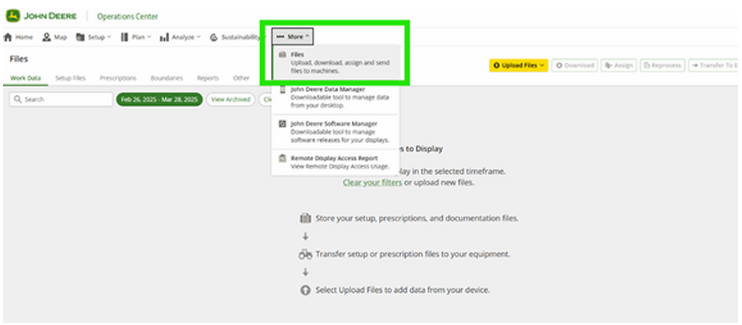
- Select the **More** dropdown and click **Files**
[](https://docs.prod.intent.ag/uploads/images/gallery/2025-05/26Jimage.png)
##### Export the Files to your Computer
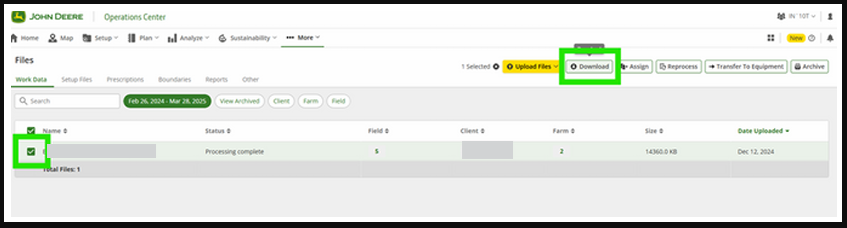
- Locate the file you exported from the **Files** page in the **Work Data** tab
- Check the box next to the file you wish to download and select the **Download** button
[](https://docs.prod.intent.ag/uploads/images/gallery/2025-05/odzimage.png)
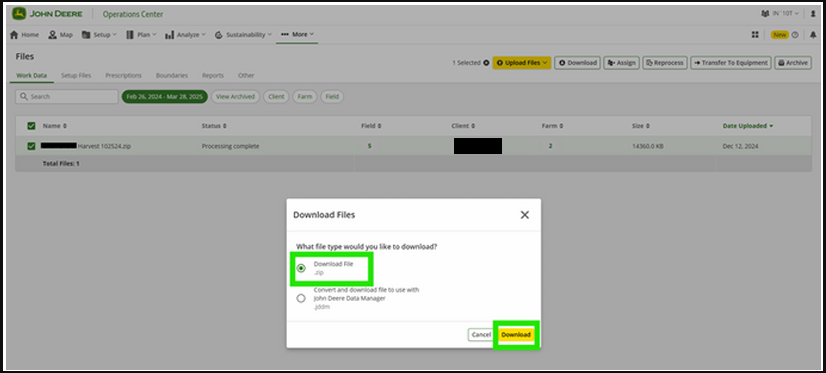
- Select **Download File .zip** and then **Download**
[](https://docs.prod.intent.ag/uploads/images/gallery/2025-05/nUKimage.png)
- You can now upload the file to INVISION!